
Home/HighLevel/How to/Use smart lists
How to · Contacts
Use GoHighLevel smart lists. Lists that update themselves.
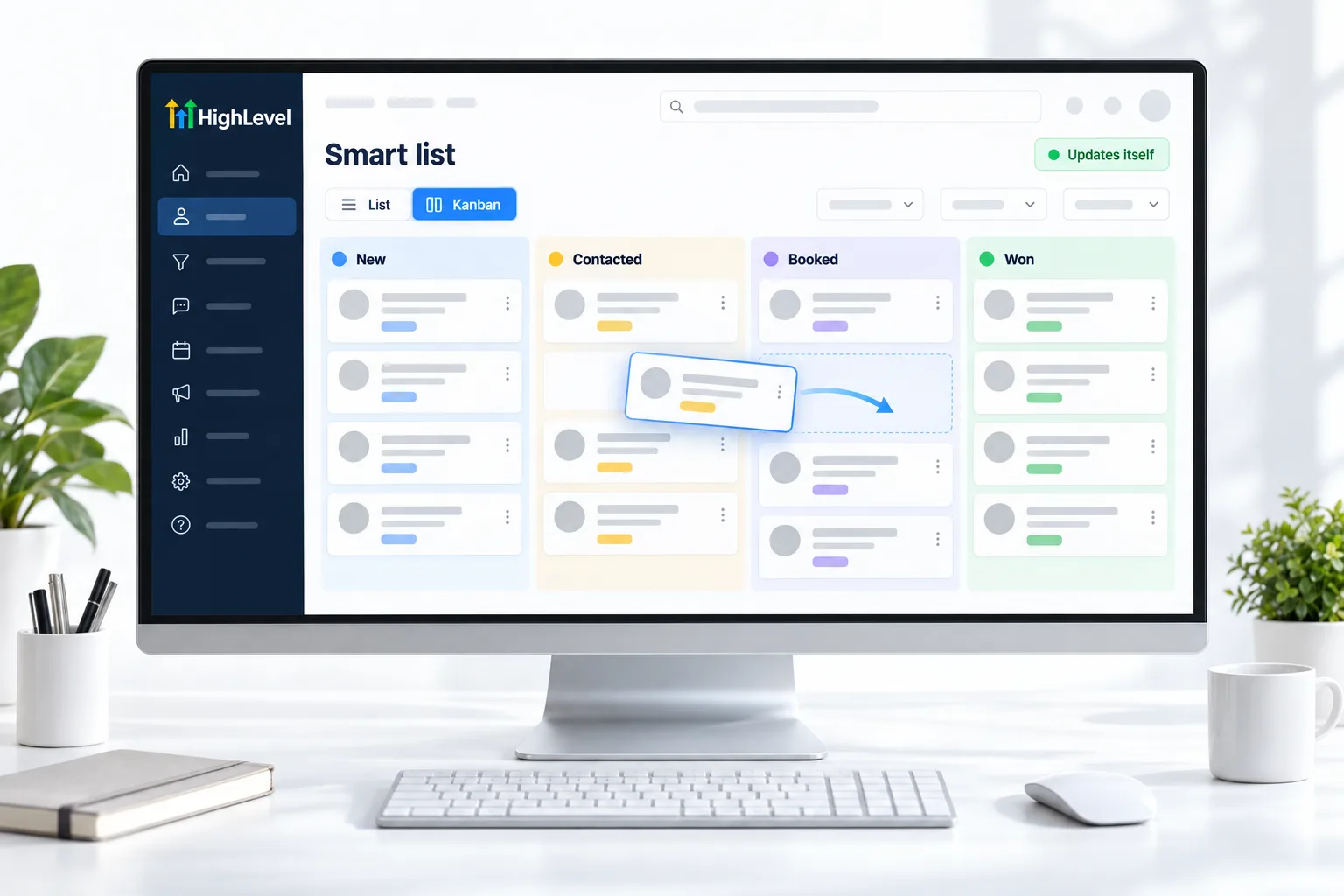
GoHighLevel smart lists are saved filters. Contacts join and leave a list automatically as they match the rules, so the list is always current. Use them to see who needs attention and to message the right people.
Lists that update themselves.
The short answer
To create a smart list in GoHighLevel, go to Contacts, click Add smart list, choose one or more filters such as tags, custom fields, activity or pipeline stage, click Apply for each, add any extra filters, then click Create and name the list so you can find it again.
Michael is a sponsored HighLevel affiliate. Links to HighLevel use his partner link at no extra cost to you. HighLevel prices and product facts on this page come from HighLevel's own pricing page and help center, checked on the date above.
Create
How do you create a smart list in HighLevel?
- Go to Contacts, then the Contacts or Smart Lists view.
- Click Add smart list.
- Pick a filter from the panel, enter the details and click Apply.
- Add more filters. They join with AND by default.
- Click Create and name the list.
Smart lists often filter on tags. Read how to add tags to contacts.
Ideas
Smart lists worth saving.
| List | Filters |
|---|---|
| Hot leads | Tag new lead AND created in last 7 days |
| No show follow up | Appointment status no show |
| Unpaid | Has an open invoice |
| Engaged | Opened an email in the last 30 days |
| Reactivation | Customer AND no activity in 12 months |
Before you start
What do you need before you use smart lists?
A smart list is only as good as the data it filters. Before you build one in HighLevel (GoHighLevel), check these.
- Consistent tags, so a filter catches everyone it should
- The custom fields you want to filter on, filled in
- Clean contact data. See clean up your contact data
- The question the list answers, in one sentence
- What you will do with the list: call, message or review
Test it
How do you test a smart list?
Check the list against people you know belong in it.
- Pick three contacts who should be on the list and confirm they appear.
- Pick one who should not and confirm they are missing.
- Change a contact so they match, such as adding the tag, and confirm they join.
- Remove the match and confirm they leave.
- Compare the count with what you expected.
Common mistakes
What mistakes should you avoid when you use smart lists?
- Too many filters. Filters join with AND by default, so each one narrows the list. Start with one and add.
- Messy tags. Three spellings of one tag means three partial lists.
- Lists nobody opens. Make a list for a question you ask more than once a week.
- Messaging a list without checking consent. A list is a filter, not permission. Check consent before a campaign such as database reactivation.
- Unclear names. Name the list by who is in it, such as No show follow up.

Make a smart list for every question you ask about your contacts more than once a week.
Questions
Common questions.
What is a smart list?
A smart list is a saved set of filters that updates automatically. Contacts join the list when they match the rules and leave when they stop matching, so it is always current. Use smart lists to see who needs attention and to message the right people. You can build one during a 30 day GoHighLevel trial through Michael's link.
How do I make one?
Go to Contacts and click Add smart list. Pick a filter from the panel, such as tags, custom fields, activity or pipeline stage, enter the details and click Apply. Add more filters if you need them, then click Create and name the list by who is in it so you can find it again.
Can I use OR logic?
Filters join with AND by default, so each one narrows the list. For OR cases, check the filter options in your account or build separate lists. Start with one filter and add more only when you need them, then compare the count with what you expected.
Are there smart lists for opportunities?
Yes, Opportunities supports smart lists too. A list is only as good as the data it filters, so keep your tags consistent and fill in the custom fields you want to filter on. Name each list by who or what is in it, so the team can find it again.
Do smart lists update automatically?
Yes. Contacts join and leave as they match or stop matching the filters. Test it by changing a contact so they match, such as adding the tag, and confirming they join. Then remove the match and confirm they leave. Nobody has to rebuild the list by hand.
What can I do with a smart list?
Use it for bulk actions and messaging, or as a daily call list. Sorted by score it shows who to call first. See set up lead scoring. A list is a filter, not permission, so check consent before you message one, for example in a database reactivation campaign.
What is the difference between a tag and a smart list?
A tag is a label on a contact. A smart list is a saved filter that can use tags and other details to group contacts. Messy tags cause messy lists: three spellings of one tag means three partial lists. For a wider look at the contact tools, read the full GoHighLevel review.
How should I name a smart list?
Name it for what it shows or the job it does, such as a daily call list or No show follow up, so you and your team can find it again. Make a list for a question you ask more than once a week, and state that question in one sentence first.
Next step
See it in your own account. Thirty days, every feature.
Start a trial, build the first system and test it before the first invoice. Usage fees for phone, SMS, email and AI can apply during the trial.
HighLevel has three plans at a flat monthly price, each with unlimited users and contacts. See what each one includes and what it costs.
Compare the PlansStarter, Unlimited and Founder