
Home/HighLevel/How to/Add tags to contacts
How to · Contacts
How to add tags in GoHighLevel. One contact, many or automatic.
A tag is a label on a contact. In GoHighLevel you can add one by hand on a single record, add it to every contact you select with a bulk action, or let a workflow add it for you. Here is each way, step by step.
The short answer
To add tags in GoHighLevel, open a contact, open the Tags dropdown, select the tag and click Apply. For many contacts, select them in Contacts, click the Add Tag icon and click Add Tags. To tag automatically, add the Add Contact Tag action to a workflow. Create, rename and delete tags under Settings, Tags.
Michael is a sponsored HighLevel affiliate. Links to HighLevel use his partner link at no extra cost to you. HighLevel prices and product facts on this page come from HighLevel's own pricing page and help center, checked on the date above.
One contact
How do you add a tag to one contact in GoHighLevel?
Open the contact, pick the tag in the Tags dropdown and click Apply.
- Go to Contacts in the subaccount and open the contact.
- Open the Tags dropdown on the contact record.
- Select the tag you want to add. Select more than one if the contact needs several.
- Click Apply to save the change.
- To take a tag off later, open the same dropdown, deselect the tag and click Apply.
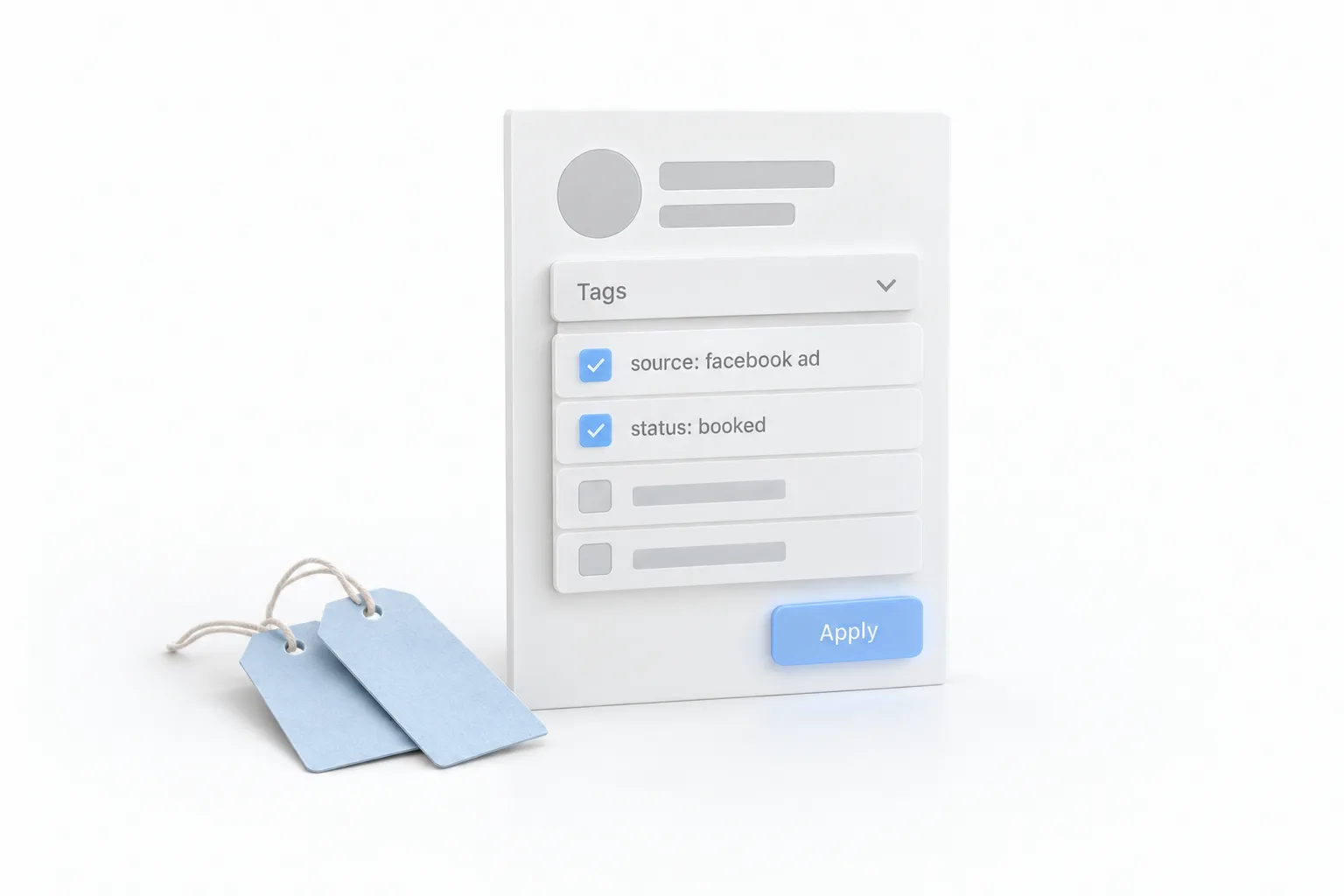
A contact can carry many tags at once, so one person can hold a source tag, a status tag and an interest tag. If you are new to the idea, the tag glossary term explains what a tag is and the three jobs it does.
Many contacts
How do you add tags to many contacts in bulk?
Select the contacts in the Contacts list, click the Add Tag icon and choose the tags. HighLevel runs the job as a bulk action and shows you the result when it finishes.
- Go to Contacts from the left menu.
- Use the checkboxes on the left to select the contacts you want to tag.
- Click the Add Tag icon in the action bar at the top of the list.
- In the Add Tags window, give the action a name in the Action Name field.
- Open the Tags dropdown and select one or more tags.
- Click Add Tags to start the job.
- Click Check Progress to open the Bulk Actions tab, then Show Stats to see which contacts were tagged.
A bulk tag only adds. The tags a contact already had stay in place. To undo it, select the same contacts and use the Remove Tag bulk action.
Filter first so you select the right people. Build the group as a smart list, then select everyone in it. The steps are in how to use smart lists. If the contacts are not in the account yet, add a tag column to the file and tag them on the way in. See how to import contacts.
Automatic
How do you add a tag automatically with a workflow?
Add the Add Contact Tag action to a workflow. Every contact who reaches that step gets the tag without anyone touching the record.
- Go to Automation and open a workflow, or click Create Workflow to start a new one.
- Open the Actions panel, scroll to the Contact section and choose Add Contact Tag.
- Enter a clear name in the Action Name field.
- Use the Tags dropdown to choose one or more existing tags.
- For a tag that does not exist yet, type the new name in the dropdown and click Add New Tag.
- Click Save Action, then publish the workflow.
- Run your own test contact through it and confirm the tag appears on the record.
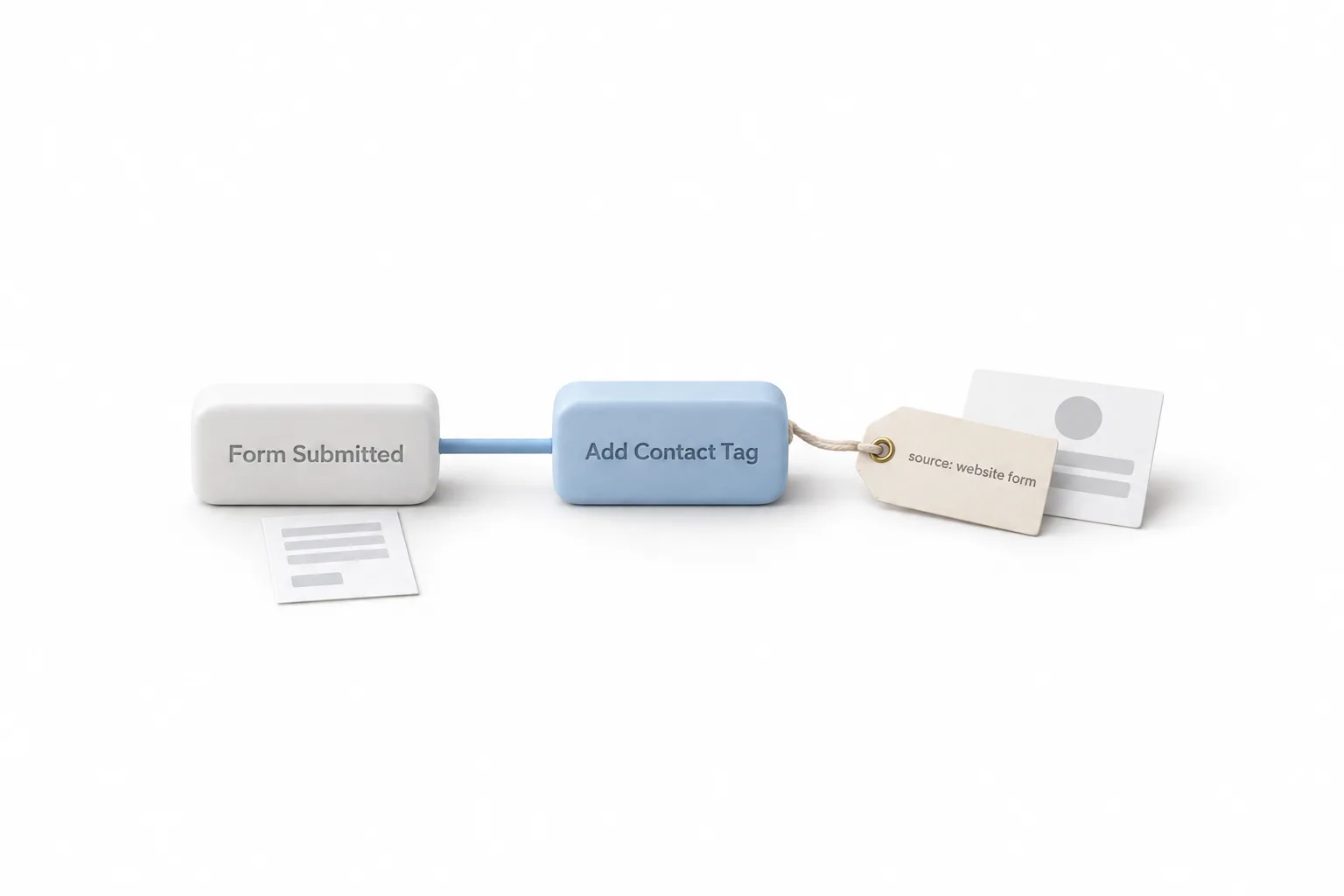
A common use is tagging by source. A workflow starts when a form is submitted and the first action adds a tag that says where the lead came from.
Add Contact Tag only adds. To take a tag off automatically, use the Remove Contact Tag action. If you have not built a workflow before, start with how to build your first workflow.
Compare
Which way of adding a tag should you use?
Use the method that matches how many contacts need the tag and how often. Three methods cover contacts already in the account. The fourth, an import file, tags contacts on the way in.
| Method | Where you do it | Use it when |
|---|---|---|
| One contact | Contact record, Tags dropdown, Apply | You are working with one person |
| Bulk action | Contacts list, checkboxes, Add Tag icon | A group already in the account needs the same tag |
| Workflow | Automation, Add Contact Tag action | The tag should be added every time something happens |
| Import | A tag column in the CSV file | The contacts are not in the account yet |
You can practice all four in your own account during a 30 day trial through Michael's link. The plans and what each includes are on GoHighLevel plans compared.
Manage
How do you create, rename and delete tags in GoHighLevel?
All three happen in one place: Settings, then Tags. That page lists every tag in the subaccount.
- Go to Settings, then Tags.
- To create a tag, click + New Tag, enter a clear name and click Create.
- To rename a tag, click the Edit (pencil) icon next to it, enter the new name and click Update.
- To delete a tag, click the Trash icon beside it and confirm with Yes, Delete.
Check where a tag is used before you change it. After a rename, open the workflows and smart lists built on that tag and confirm they still match. Deleting a tag takes it off every contact that carried it, so review what depends on it first.
If you do not see the Tags page, ask an account admin. Access to it depends on your user permissions.
Keep it tidy
What naming rule keeps GoHighLevel tags tidy?
Write every tag in lowercase, and start it with the kind of tag it is. For example source: facebook ad, status: booked or interest: whitening.
The point is one spelling per tag. When new lead, lead new and newlead all exist, three tags mean one thing, and a smart list or a workflow trigger built on one of them misses the people carrying the others.
- Lowercase, every time
- The kind of tag first, such as source, status or interest, then the detail
- One meaning per tag, and one tag per meaning
- A written list of approved tags the whole team can see
- Old tags deleted when nobody uses them. See how to clean up your contact data
A tag is a label. When you need to store a detail with a value, such as a budget or a date, a custom field is the better home for it.
Common mistakes
What mistakes should you avoid when you add tags?
- Forgetting to click Apply. On a contact record, confirm the change before you leave the page.
- Two spellings of one tag. A filter or trigger built on one spelling misses the contacts carrying the other.
- Bulk tagging without checking workflows. A tag can start a workflow through the Contact Tag trigger. Know what will fire first.
- Renaming or deleting a tag without checking where it is used. Open the workflows and smart lists built on it first.
More step by step guides like this one are in the HighLevel how to library.

Pick one tag naming style and stick to it. Tag sprawl is real.
Questions
Common questions.
How do I add tags in GoHighLevel?
To add tags in GoHighLevel, open a contact, open the Tags dropdown, select the tag and click Apply. For many contacts, select them in Contacts, click the Add Tag icon, pick the tags and click Add Tags. To tag people automatically, add the Add Contact Tag action to a workflow.
How do I create a new tag in GoHighLevel?
Go to Settings, then Tags, click + New Tag, enter a clear name and click Create. You can also create one inside a workflow: in the Add Contact Tag action, type the new name in the Tags dropdown and click Add New Tag. Tag creation depends on your user permissions.
Can I add tags to multiple contacts at once?
Yes. Select the contacts with the checkboxes in Contacts, click the Add Tag icon in the action bar, choose one or more tags and click Add Tags. You can apply several tags in one bulk action. Click Check Progress to open the Bulk Actions tab and Show Stats to see which contacts were tagged.
Does a bulk tag overwrite the tags a contact already has?
No. Adding tags in bulk only adds the selected tags to each contact's existing tags. Nothing is replaced. To undo a bulk tag, select the same contacts and use the Remove Tag bulk action.
What happens when I rename or delete a tag?
Both changes apply across the whole subaccount, so check where the tag is used first. After a rename, open the workflows and smart lists built on that tag and confirm they still match. Deleting a tag takes it off every contact that carried it.
Can adding a tag start a workflow?
Yes. A workflow that uses the Contact Tag trigger starts when the tag is added, whether by hand, by a bulk action or by another workflow. Set the trigger filter to Tag Added or Tag Removed. Without a filter it fires for both.
Next step
See it in your own account. Thirty days, every feature.
Start a trial, build the first system and test it before the first invoice. Usage fees for phone, SMS, email and AI can apply during the trial.
HighLevel has three plans at a flat monthly price, each with unlimited users and contacts. See what each one includes and what it costs.
Compare the PlansStarter, Unlimited and Founder