
01Who this is for
- Agency owners who sell SaaS solutions, they can lock in the correct AI Employee tier for their pricing model.
- Marketing firms that bundle AI tools for clients, they avoid billing mismatches.
- Consultancies delivering AI powered services, they ensure provisioned clients get the selected tier.
02AI Employee plan tiers, explained
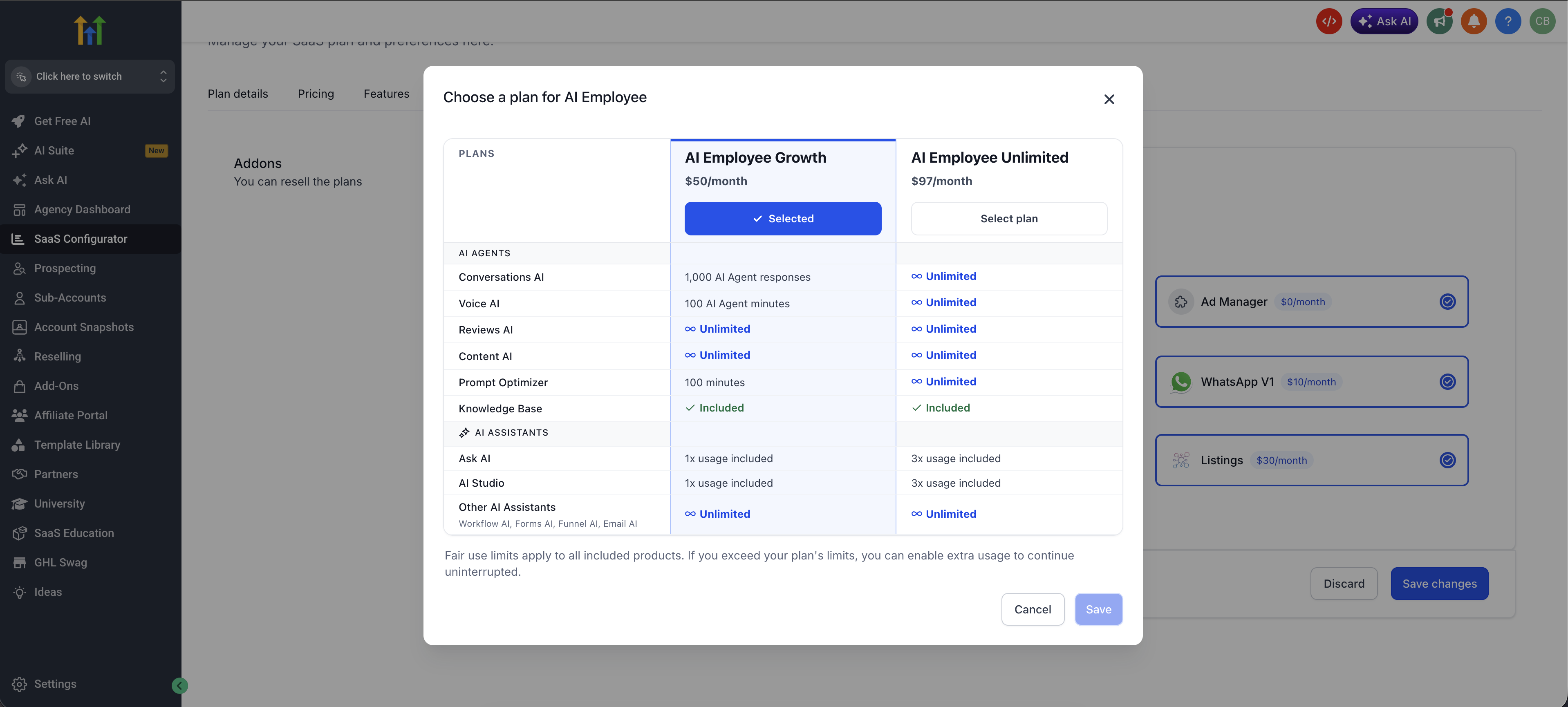
The AI Employee tier selection feature replaces a simple on off toggle with a picker that lets you choose either the Growth or Unlimited tier when adding the AI Employee addon to a SaaS plan. The picker displays each tier’s price and feature list side by side for easy comparison.
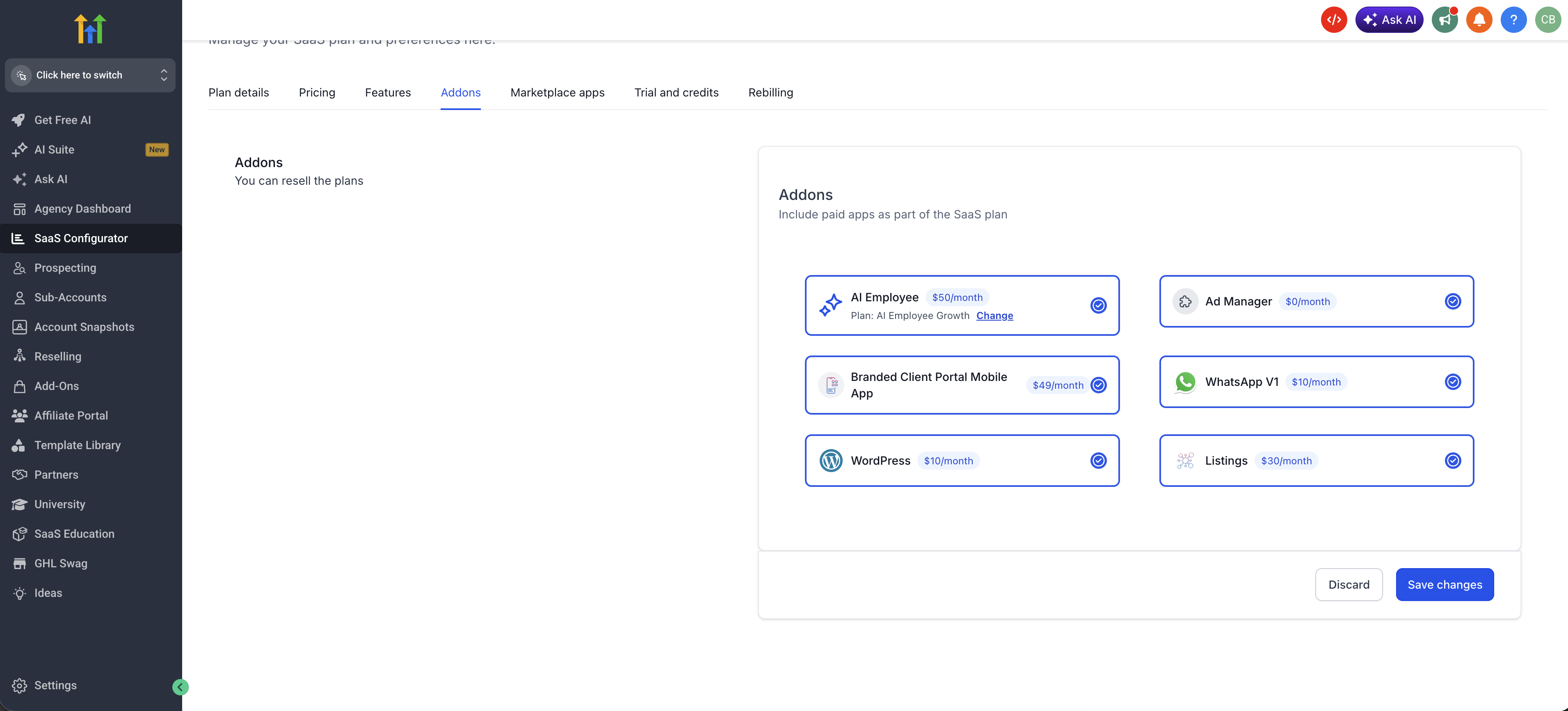
When you select a tier, the choice is saved with the plan configuration and appears on the Configurator’s main screen. During client provisioning, the saved tier is applied so the client receives exactly the tier you configured. The feature currently works only for the AI Employee addon.
03How businesses use AI Employee plan tiers
- Digital marketing agency. The agency adds the AI Employee addon to a client facing SaaS plan, reviews Growth versus Unlimited pricing, selects the tier that matches the client’s budget, and saves the plan. When the client is onboarded, they receive the chosen AI tier automatically.
- E learning platform provider. The provider bundles AI Employee with its learning management SaaS offering, compares the two tiers, picks Unlimited for premium courses, and publishes the plan. New schools signing up inherit the Unlimited AI tier without additional configuration.
- Real estate lead generation service. The service includes AI Employee in its subscription package, evaluates the Growth tier’s limits, selects Growth to keep costs low, and saves the plan. Prospective broker clients who subscribe are provisioned with the Growth AI tier as defined.
04The numbers and rules that matter
- Growth and Unlimited are the two AI Employee tiers.
05How to set up and use AI Employee plan tiers in HighLevel
Select an AI Employee tier in a SaaS plan
- Open the SaaS Configurator and choose the plan to edit.
- Add AI Employee as an addon to the plan.
- Review the pricing and feature lists for Growth and Unlimited tiers.
- Click the desired tier (Growth or Unlimited).
- Verify the selected tier and its price appear in the main Configurator view.
- Save and publish the plan.
06What it looks like in HighLevel
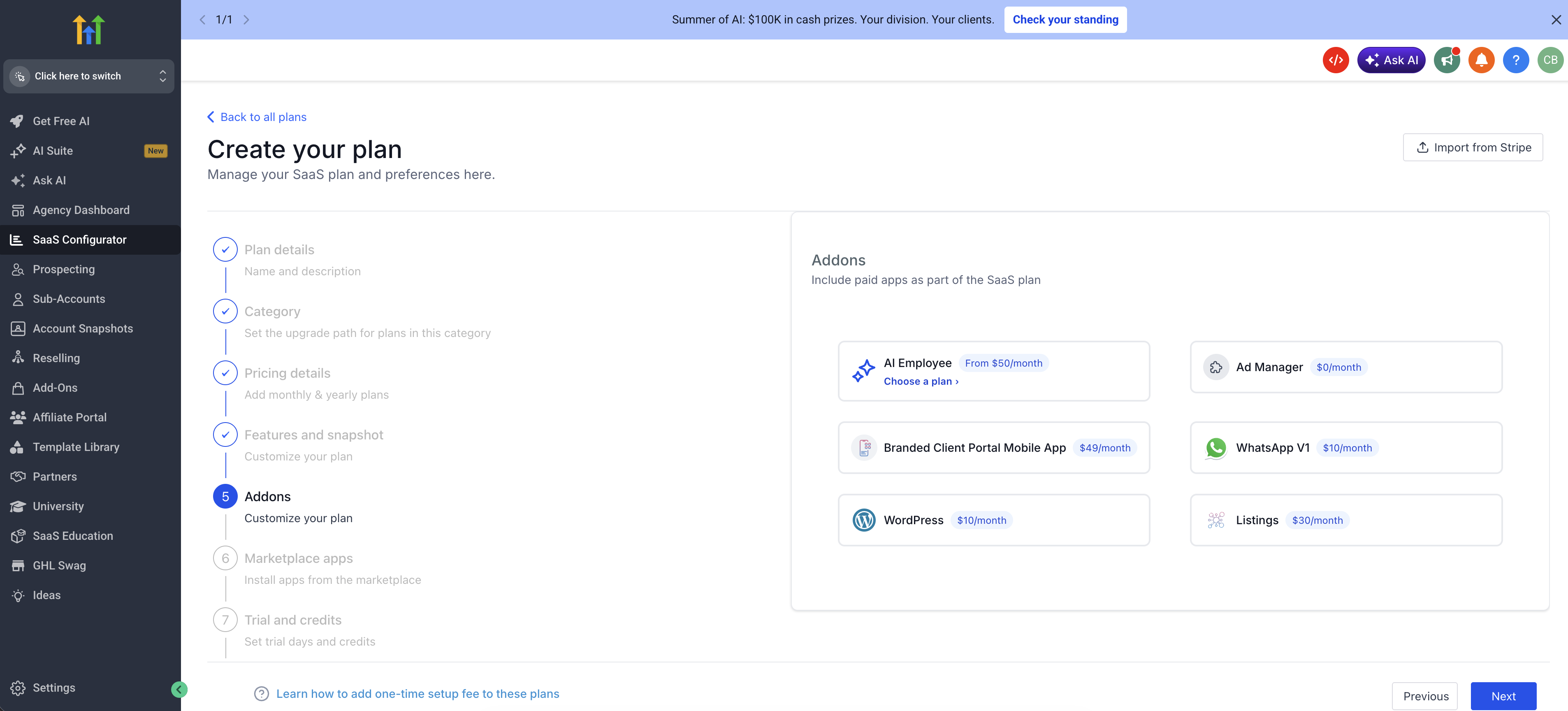
07Settings that matter
- AI Employee tier. Controls which AI Employee level, Growth or Unlimited, is attached to the plan and used during client provisioning.
08Things to know before you rely on it
- Plans created before this feature may not have an explicit tier and can show AI Employee as $0 until the tier is reselected (per HighLevel's help center, checked November 2026).
- The tier picker currently works only for AI Employee; other multi tier addons are not supported yet.
- A default AI Employee tier may be applied automatically for plans without a selected tier.
09If something goes wrong
- AI Employee shows as missing or $0 on an existing plan. Open the plan in the Configurator and reselect the correct tier.
- Reports of AI Employee showing as $0. Treat as an expected transition issue; reopen the plan and choose the proper tier, then save.
10How it connects to the rest of HighLevel
- Explore all SaaS Configurator capabilities All SaaS Configurator features
- Learn how to upgrade or downgrade a SaaS plan Upgrade or downgrade SaaS plan
- Review HighLevel pricing and plan options HighLevel pricing
Michael's take

Most people assume that plans created before the tier picker automatically carry the right AI Employee tier. In reality those older plans often show a $0 price or no tier at all until you reopen them.
If I were setting up a new SaaS offering, I would immediately open the plan, add AI Employee, compare Growth and Unlimited side by side, and lock in the tier that fits my margin model. I’d also double check any legacy plans to confirm the tier matches what I’m billing.