
01Who this is for
- Agency owners who sell SaaS plans and need to reorganize offers without disrupting live subscriptions.
- Agency staff who manage SaaS pricing and need to adjust plan hierarchy.
02Modify plan category and plan level, explained
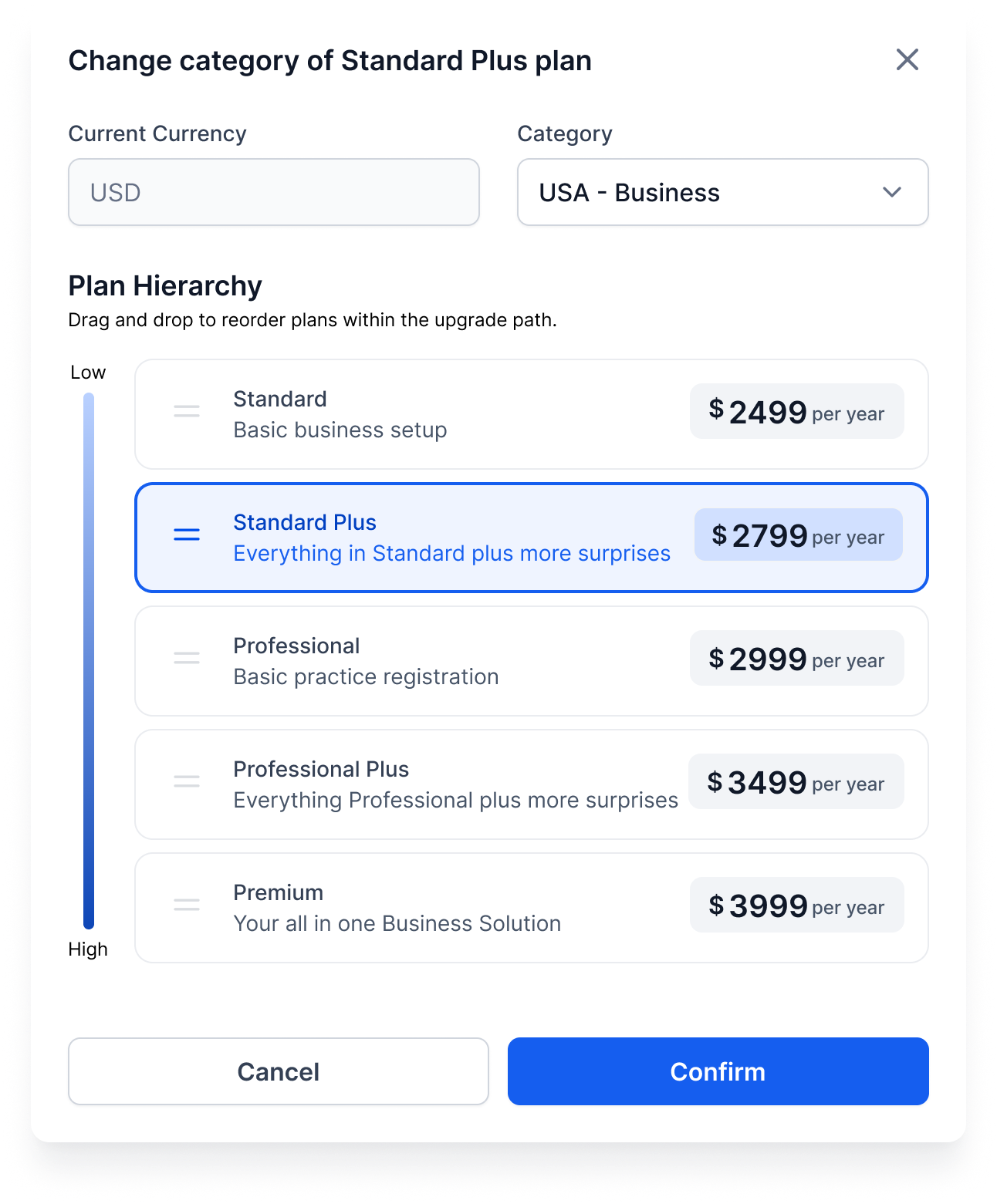
The feature allows you to move an existing SaaS plan to another pricing category that uses the same currency and to change the plan’s order within its category, which defines the upgrade downgrade path. Higher level plans inherit features from lower levels moving forward, but current subscribers retain their existing entitlements. You access this tool from Agency View ► SaaS Configurator, edit the Category and Plan Level values, and save to publish the new hierarchy right away. Stripe product IDs and add ons remain unchanged.
03How businesses use modify plan category and plan level
- Digital marketing agency. The agency can shift a seasonal promotion plan into a dedicated category that shares the same currency, keeping existing clients on the plan while future buyers see the new grouping. It can also reorder tiers to test a good, better, best layout without rebuilding plans.
- SaaS startup. A startup can move a trial plan into the main pricing category after the trial period ends, ensuring new users see it alongside paid tiers. By dragging the plan higher, the startup changes which features are inherited by premium levels for future upgrades.
- Online course platform. The platform can reassign a bundle plan to a category that matches its currency, allowing the bundle to stay live for current students. Changing its level redefines the upgrade path, so new students can move from basic to advanced bundles more intuitively.
04The numbers and rules that matter
- Unlimited plan level adjustments.
05Before you start
- A destination category that uses the same currency as the plan must already exist.
06How to set up and use modify plan category and plan level in HighLevel
Modify plan category or level
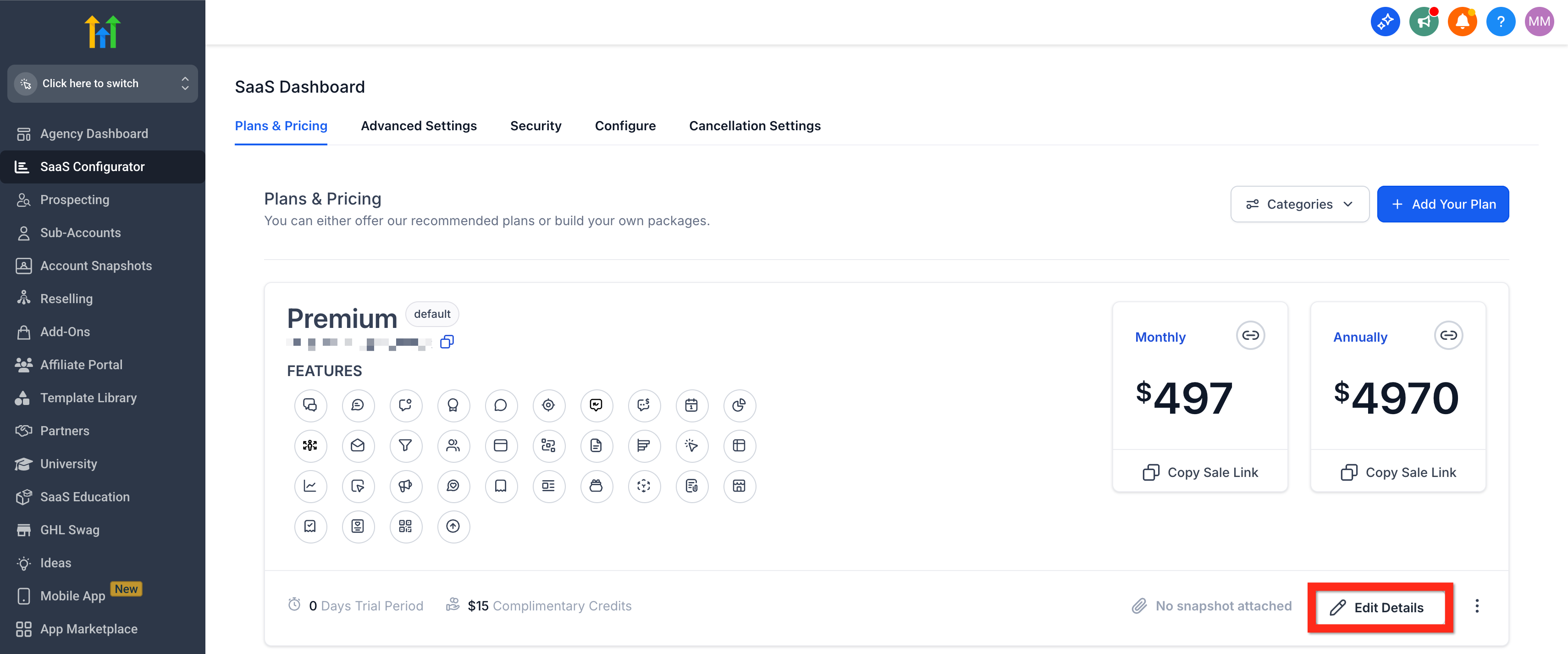
- Navigate to Agency View ► SaaS Configurator.
- Locate the plan you want to edit and click Edit.
- Open the Category dropdown.
- Select a category that uses the same currency.
- Click Save.
- In the Plan Level field, choose a new position number or drag the plan to the desired spot.
- Confirm the on screen summary of feature inheritance and publish changes.
07What it looks like in HighLevel
08Settings that matter
- Category dropdown. Selects the pricing group for the plan; only categories with the same currency are eligible.
- Plan Level field. Sets the plan’s order within its category, determining its position in the upgrade and downgrade hierarchy.
09Things to know before you rely on it
- A plan can only be moved to a category that uses the same currency; different currencies are not supported.
- Reordering a plan can be done unlimited times.
- Existing subscribers keep their current entitlements after a move.
- Stripe product IDs remain unchanged, so billing continues without interruption.
10How it connects to the rest of HighLevel
- Explore all SaaS Configurator tools available in HighLevel. All SaaS Configurator features
- Learn how to upgrade or downgrade a SaaS plan for a location. Upgrade or downgrade a plan
- Review HighLevel pricing and plan options. HighLevel pricing
Michael's take

This feels like a small convenience that can become a real shift for agencies that regularly reshape their SaaS offerings. Moving a plan between categories or bumping it up a tier doesn’t touch any live subscriptions, so you can experiment with pricing structures without unsettling existing clients.
A boutique marketing agency that sells tiered SEO packages would find this handy. They could launch a summer promotion bundle by moving a plan into a seasonal category, then later slide it back into the regular lineup once the campaign ends. I’d give it a quick test run to confirm the new upgrade path appears as expected before announcing any changes to customers.