
01Who this is for
- Agency owners can apply a standardized markup to all client subaccounts, cutting hours spent on repetitive billing tweaks.
- Consultants managing multiple client SaaS subscriptions benefit from batch updates that keep their pricing model consistent.
- Resellers of phone, email, or AI services can quickly align markup rules when launching new offerings across their client base.
02Bulk rebilling markups, explained
The feature lives on the Subaccounts page of the Agency Dashboard. After selecting the desired subaccounts, the Bulk Actions menu offers an Enable Rebilling option. A modal then appears where you choose a payment provider card and set markup values.
When you confirm, the system writes the markup settings to every selected subaccount. Accounts with a stored card start rebilling immediately; those without a card wait until a payment method is added, at which point rebilling activates with the predefined multipliers.
03How businesses use bulk rebilling markups
- Marketing agency. The agency selects all client subaccounts, chooses a Stripe card labeled V1, sets a global markup, fine tunes the email service, and confirms. All clients receive the same pricing logic without individual edits.
- SaaS product reseller. The reseller picks the subaccounts that have just been onboarded, selects a V2 payment provider configured at the subaccount level, applies a markup across phone, email, and AI services, and launches the changes in one bulk job.
- Consulting firm. The firm filters its subaccounts for premium clients, enables rebilling, picks a supported payment card, drags the global slider to set a common markup, then adjusts the AI service before confirming the bulk update.
04The numbers and rules that matter
- V1 (Agency) identifies the agency Stripe configuration, with data managed in Stripe.
- V2 (Subaccount) identifies the subaccount configuration, with data managed in HighLevel.
05Before you start
- A payment provider must be connected to the agency or to the subaccount before starting bulk rebilling.
- The subaccounts you want to update need to exist in the platform.
06How to set up and use bulk rebilling markups in HighLevel
Configure bulk rebilling markups for multiple subaccounts
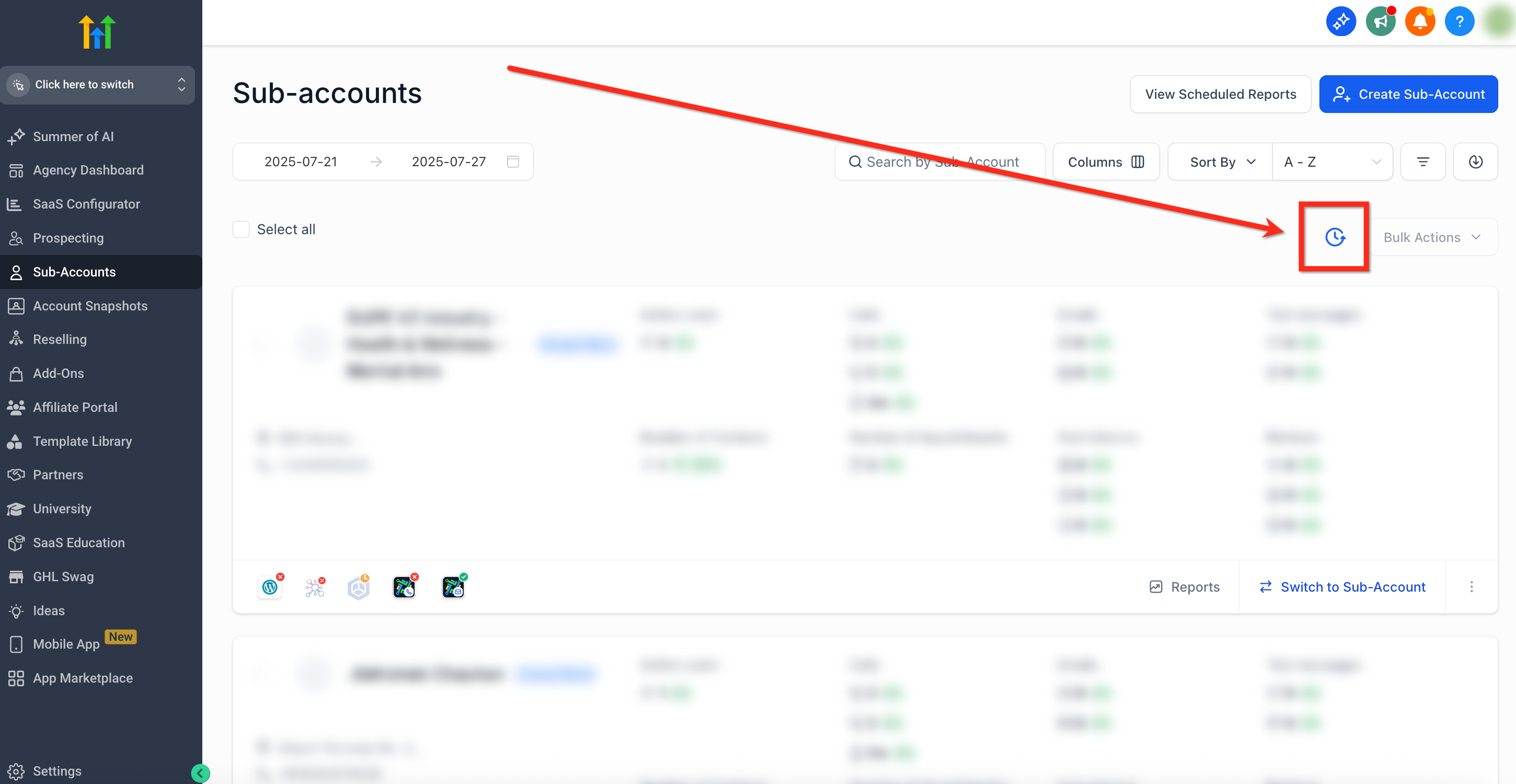
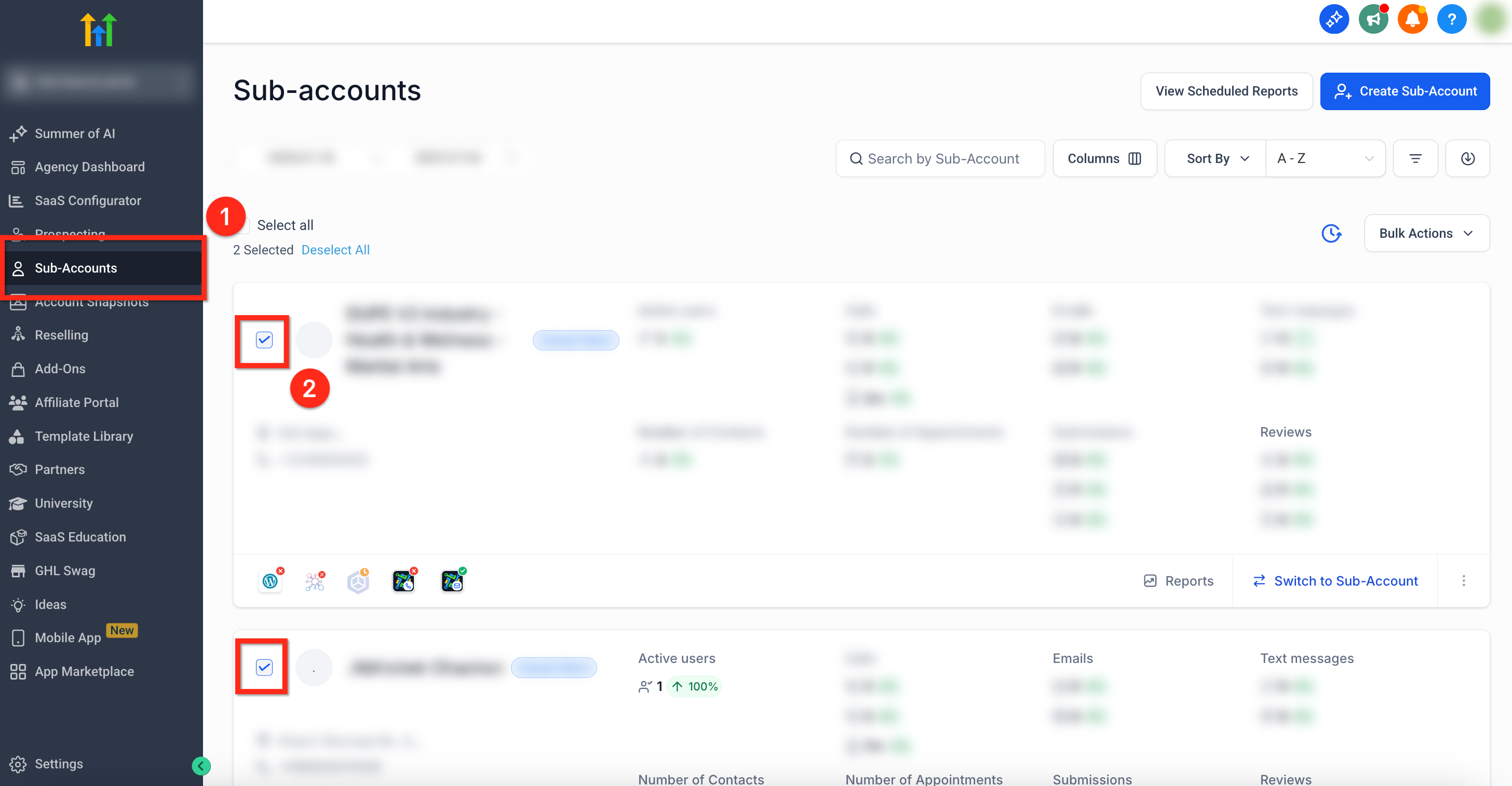
- Open the Subaccounts page from the Agency Dashboard.
- Select the subaccounts you wish to update.
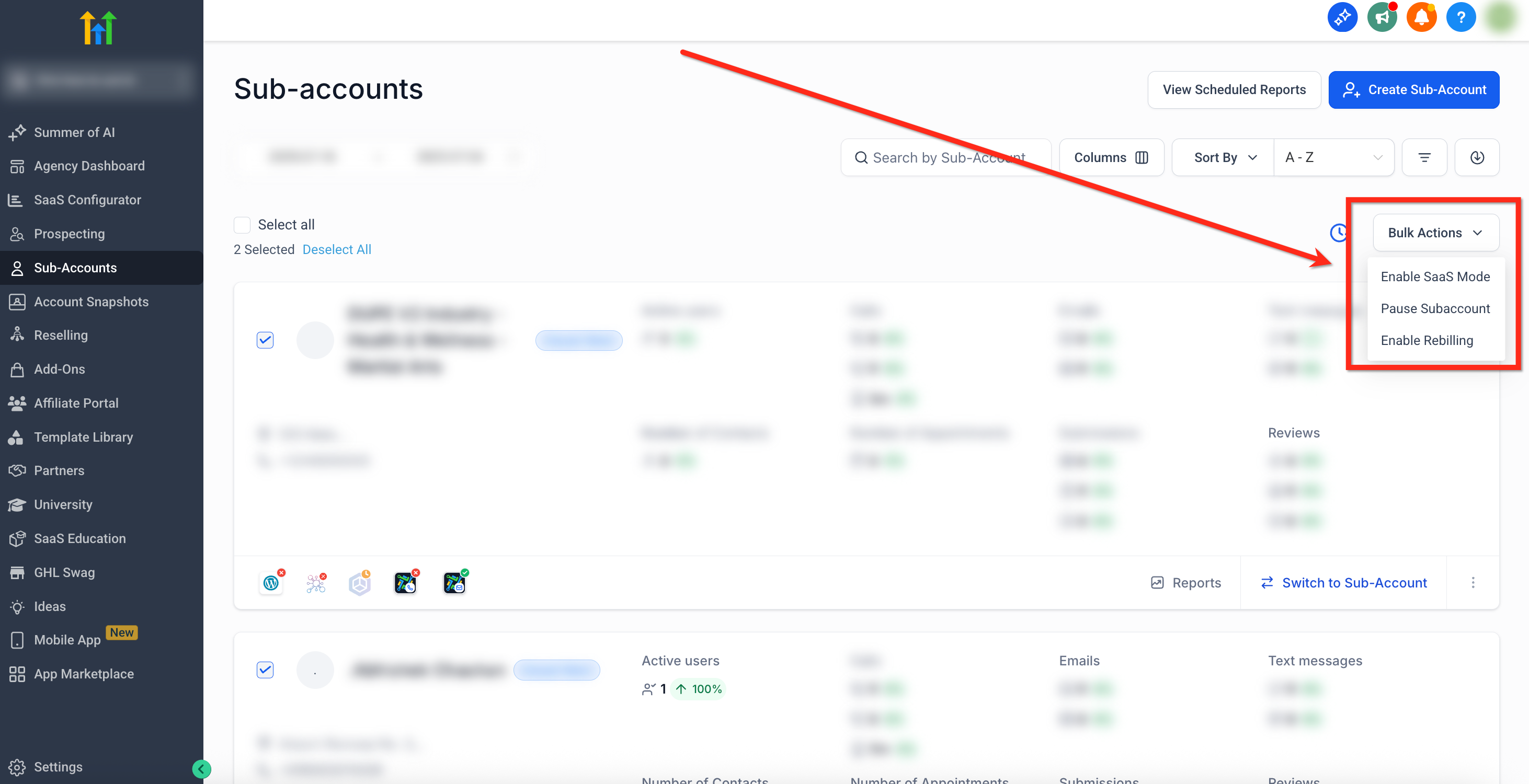
- Click the Bulk Actions button in the upper right corner.
- Choose Enable Rebilling from the dropdown menu.
- Select a supported payment provider card and click Continue.
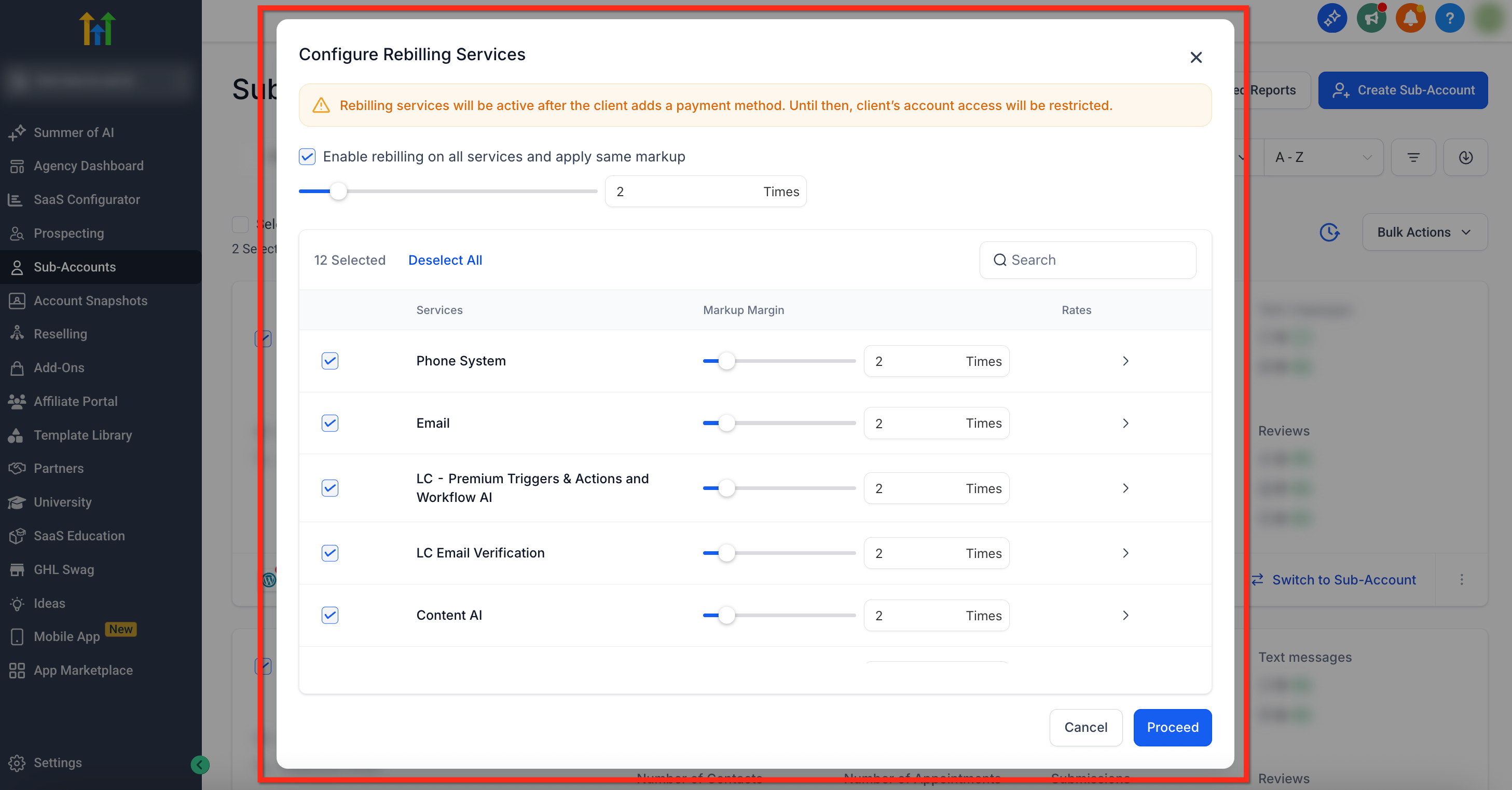
- Open the Configure Rebilling Services modal.
- Move the global slider to set a common markup for all services.
- Adjust each individual service slider for finer control.
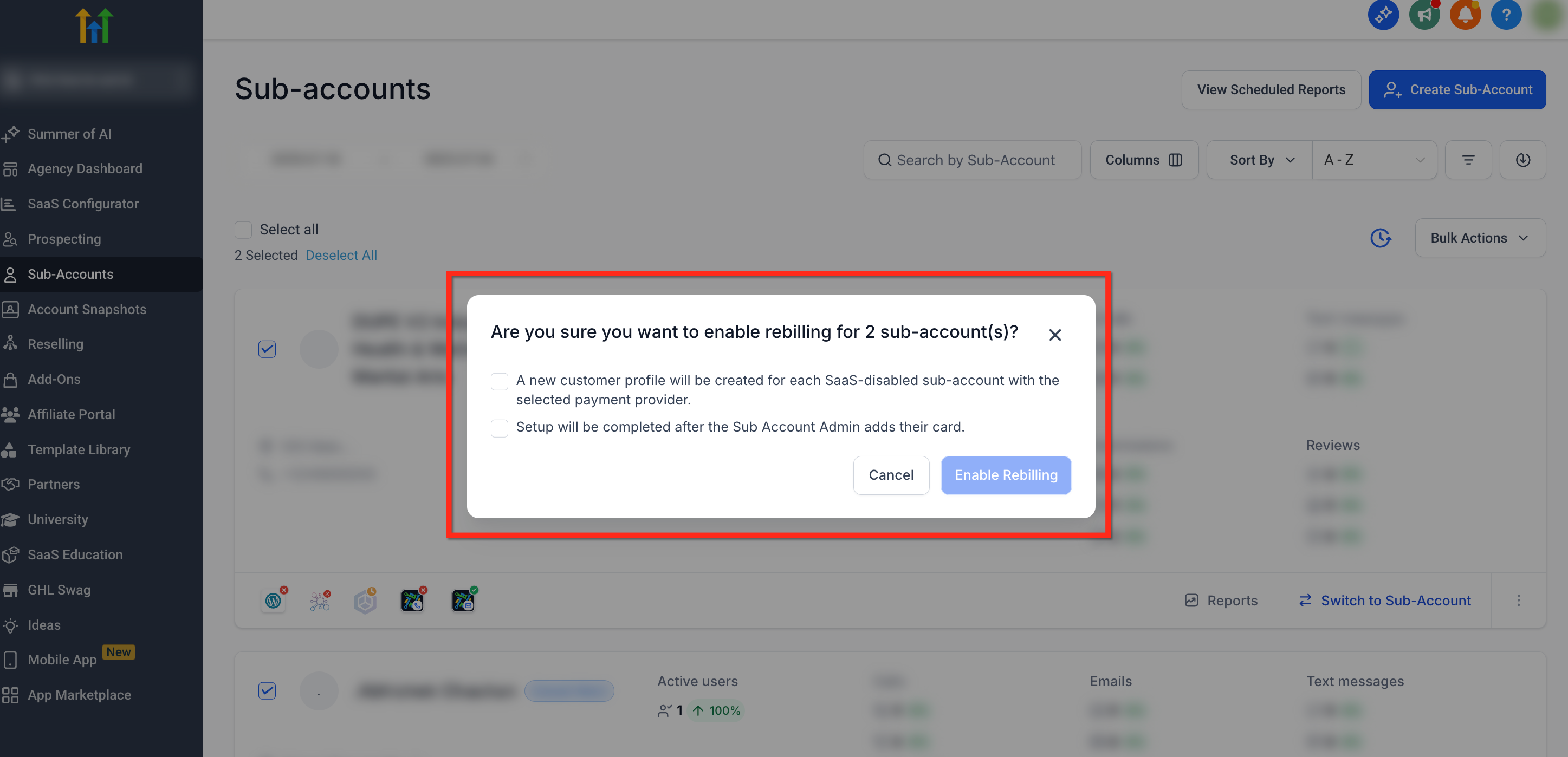
- Review the summary dialog and click Enable Rebilling to confirm.
- Verify that accounts with a card start rebilling immediately; others will activate once a payment method is added.
07What it looks like in HighLevel
08Settings that matter
- Enable rebilling on all services and apply same markup. Sets a single markup multiplier that applies to every usage based service in the bulk job.
- Individual service markup sliders. Allow you to change the markup percentage for each specific service such as Phone, Email, or AI.
- Payment provider card selection. Determines which Stripe configuration (Agency V1 or Subaccount V2) will manage the billing and subscription data.
09Things to know before you rely on it
- Cards labeled Not supported appear in the list but cannot be chosen.
- Bulk configuration overwrites any custom markup that a subaccount previously had.
- The feature only enables rebilling; disabling must be performed one account at a time.
- Subaccounts without a payment method will not begin rebilling until a card is added.
10How it connects to the rest of HighLevel
- Enabling and rebilling external AI models in HighLevel AI model rebilling
- How to activate phone rebilling in HighLevel SaaS mode Phone rebilling guide
- HighLevel pricing and plans Pricing page
Michael's take

The bulk rebilling markup feature lets you set a single multiplier for dozens of subaccounts fast, keeping your margins consistent without the manual grind.
Once the provider is set, I’d run a quick test on a small batch to confirm the global slider applies the expected markup. Watching the audit trail in Bulk Action History gives you confidence that the changes landed where they should, and you can roll back if anything looks off.