
01Who this is for
- Agency owners who sell SaaS subscriptions to subaccounts need accurate tax collection across many regions.
- Digital marketing firms that resell usage based services such as SMS or email must apply the correct tax rates per jurisdiction.
- Marketplace platforms that offer third party apps can map each app to a Stripe Tax Code and generate tax invoices for sellers.
02Global tax compliance for reselling products, explained
The feature lets an agency enable tax calculation for every jurisdiction registered in Stripe Tax. When a jurisdiction is set to Automatic, Stripe Tax applies the appropriate rate based on the agency’s business address, tax registrations, product tax codes and the subaccount’s billing address. If Manual is chosen, the platform does not add tax and the agency handles all tax work outside HighLevel.
Tax treatment for usage based products can be applied at the moment a subaccount recharges its wallet or after monthly usage is calculated. Agencies decide which products are taxable by assigning Stripe Tax Codes or marking them non taxable, either globally or per jurisdiction. All settings live under the Stripe > Tax Compliance section of Agency Settings.
03How businesses use global tax compliance for reselling products
- SaaS subscription agency. The agency registers US state and EU VAT jurisdictions in Stripe, then enables Automatic collection for those regions. It selects the "At Wallet Recharge" treatment so taxes are added whenever a client tops up their wallet, and maps each subscription plan to the appropriate Stripe Tax Code.
- Digital marketing firm. The firm chooses Manual mode for jurisdictions where it prefers to invoice tax separately. It marks SMS and email products as non taxable in those areas, while keeping other usage products taxable under Automatic mode for supported countries.
- Marketplace platform. The platform sets Global Default Settings to apply Automatic collection and "At Month End" usage treatment. For a new jurisdiction, it overrides the defaults to make a specific marketplace app non taxable and assigns a custom Stripe Tax Code.
04The numbers and rules that matter
- Supports tax handling across 100+ countries.
- Taxable products include usage based products, SaaS subscriptions, marketplace apps.
- Stripe Tax may have additional per transaction fees.
05Before you start
- All subaccounts must have a valid billing address, including zip code.
- The agency must connect a Stripe account to the platform.
- Each jurisdiction must be registered in Stripe Tax before configuring it in HighLevel.
06How to set up and use global tax compliance for reselling products in HighLevel
Set up global tax compliance for reselling products
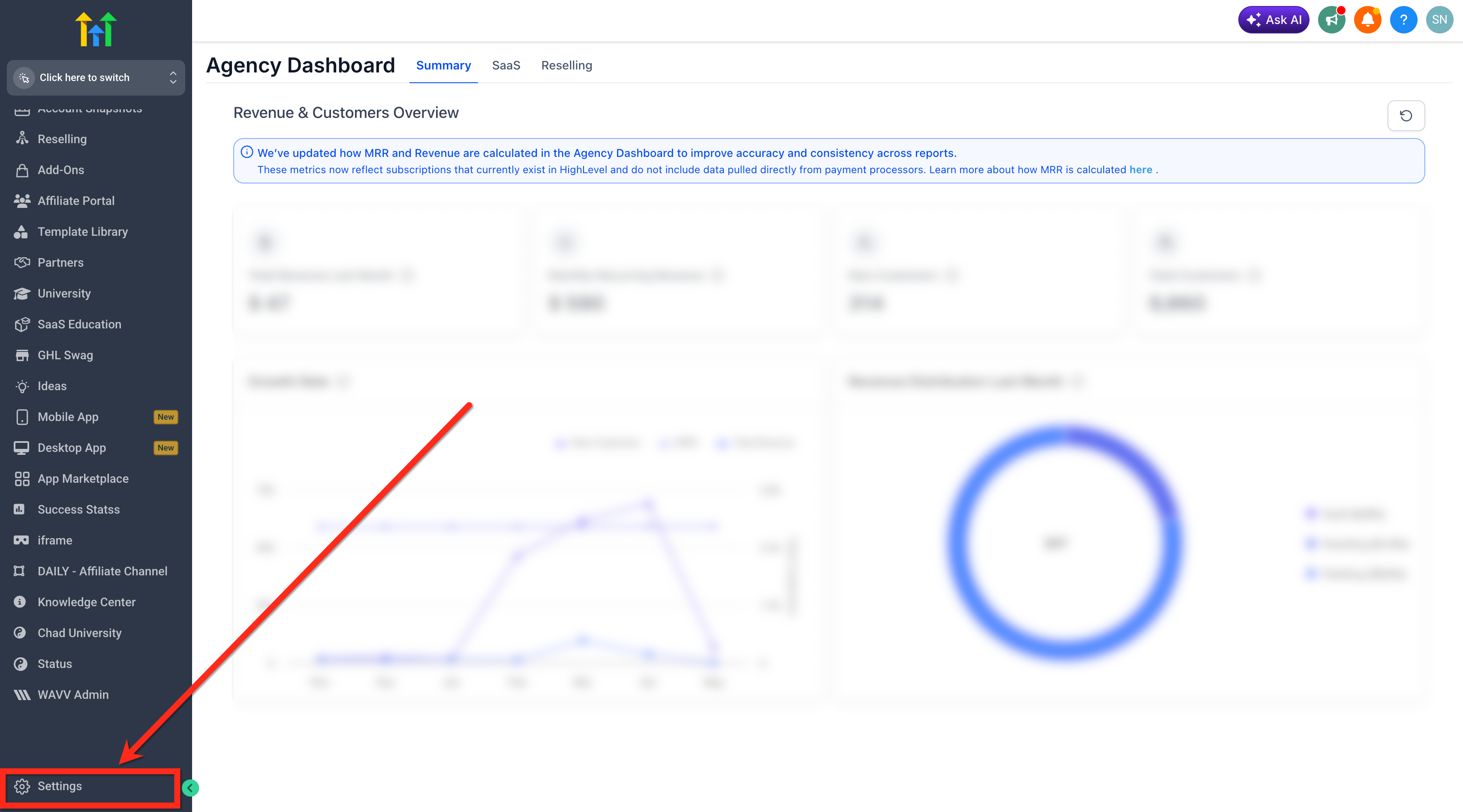
- Navigate to Agency Settings.
- Select Stripe > Tax Compliance.
- Review the tax jurisdictions that have synced from Stripe Tax.
- Confirm that these are the jurisdictions you have configured in Stripe.
- Open the Stripe documentation link for additional guidance.
- Press the Action button for the jurisdiction you want to start collecting taxes for.
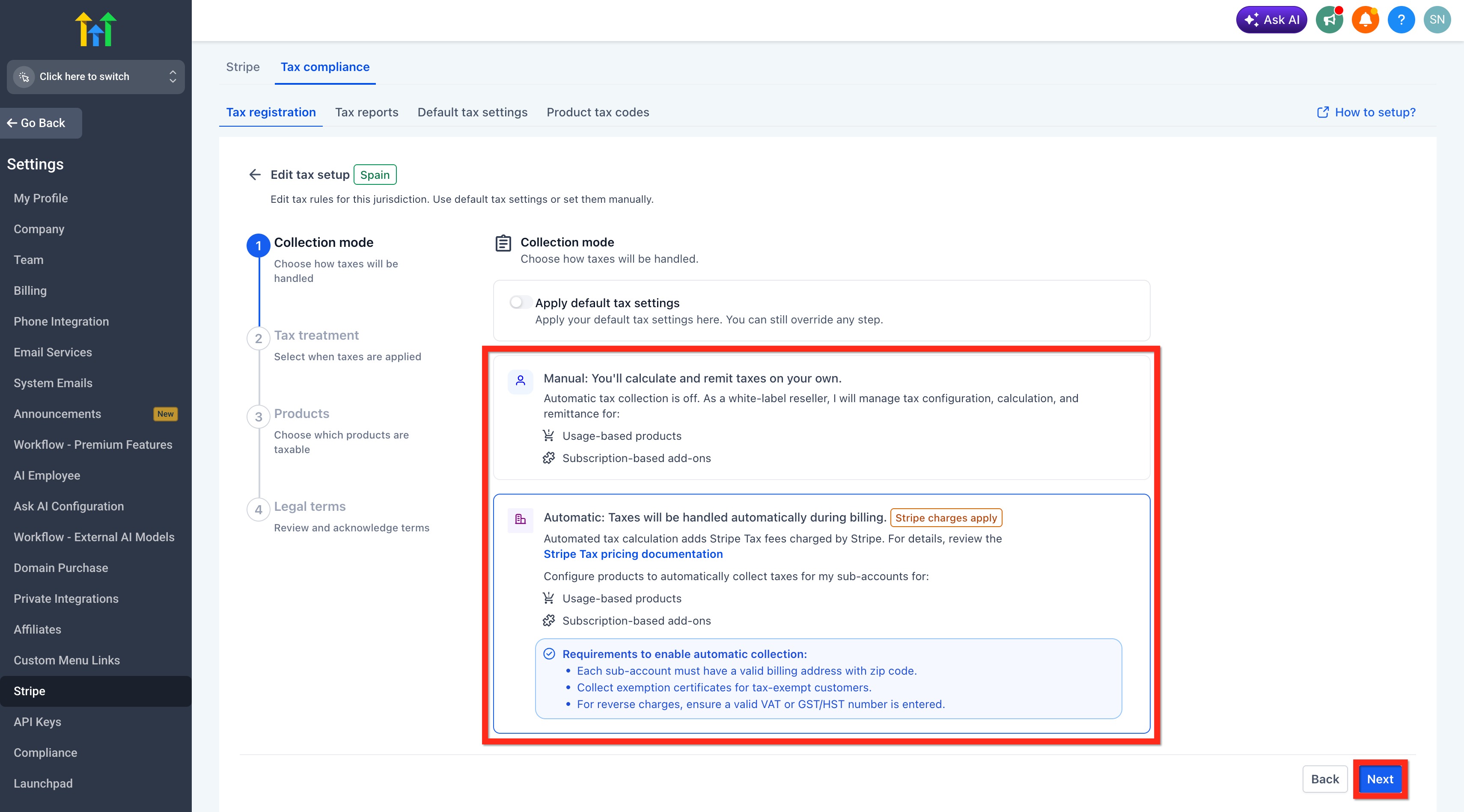
- Choose the desired Collection Mode.
- Select Automatic to let Stripe Tax calculate rates (Stripe charges apply).
- Select Manual if you will manage tax calculation, collection, invoicing, reporting, and remittance outside HighLevel.
- Click Next.
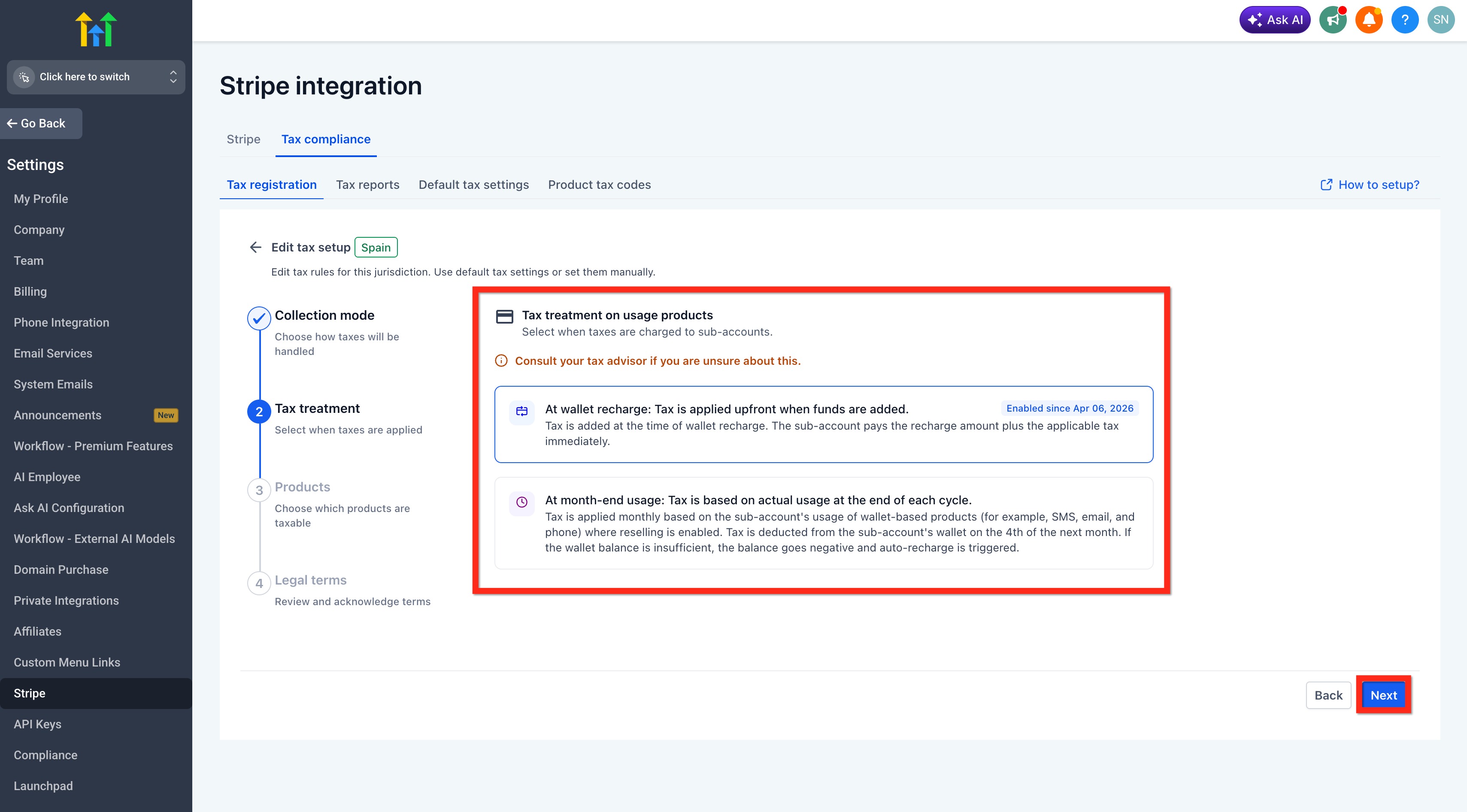
- Pick the Tax Treatment on Usage Products.
- Choose At Wallet Recharge to tax wallet top ups.
- Choose At Month End to tax based on actual monthly usage.
- Click Next.
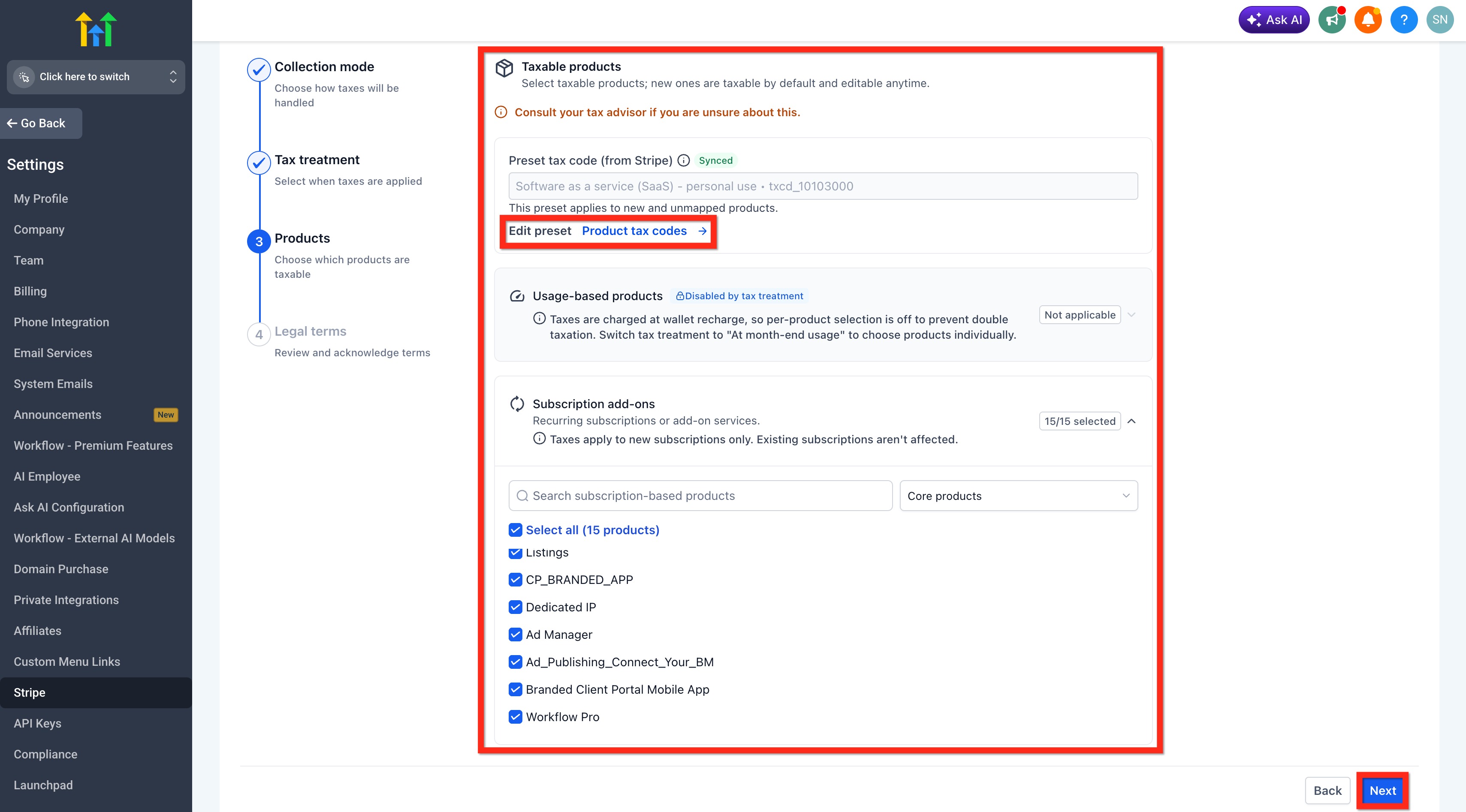
- Select Taxable Products.
- Use preset Stripe Tax Codes, customize codes per product, or mark products as non taxable.
- Indicate which products are subject to tax for the jurisdiction.
- Click Next.
- Complete the Legal Confirmation.
- Read the Terms of Service and legal confirmation.
- Check the "I understand and agree to the terms outlined above" box.
Acknowledge legal terms and finish setup
- Recognize that tax calculations are handled by Stripe Tax and HighLevel does not guarantee accuracy.
- Type I Agree in all caps and click Finish Setup.
Reminder of tax responsibility
- Remember that remitting collected taxes to the appropriate authorities is the agency’s responsibility.
07What it looks like in HighLevel
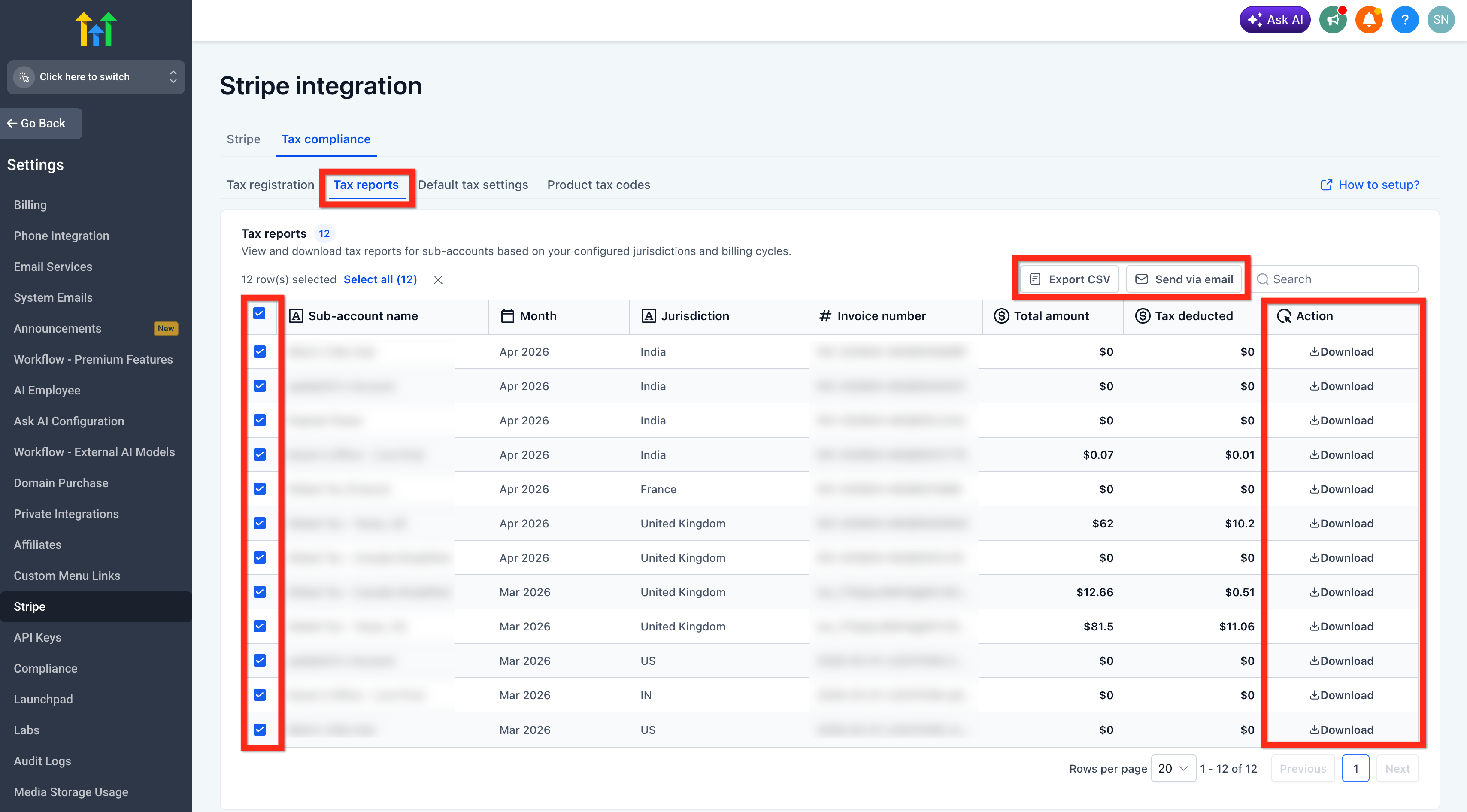
08Settings that matter
- Collection Mode. Determines whether HighLevel applies tax automatically via Stripe Tax or leaves tax handling to the agency.
- Tax Treatment on Usage Products. Specifies whether tax is charged when a wallet is recharged or after monthly usage is calculated.
- Taxable Products. Controls which resold products are subject to tax and which Stripe Tax Code is applied to each.
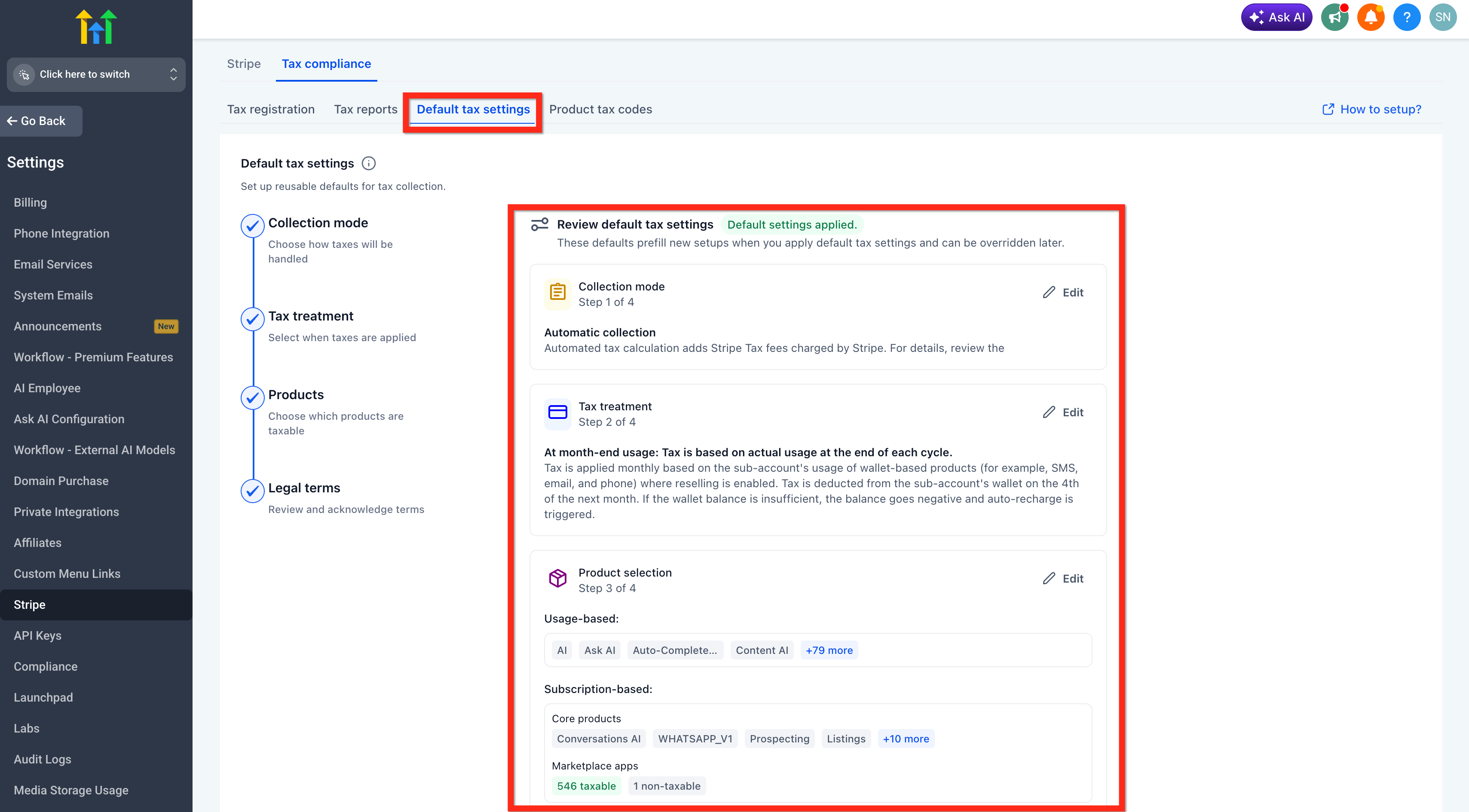
- Global Default Settings. Provides default values for collection mode, tax treatment, and product taxability that new jurisdictions inherit.
09Things to know before you rely on it
- Tax remittance to authorities remains the agency's responsibility.
- Stripe Tax may add per transaction fees depending on the Stripe plan.
- Automatic jurisdiction sync only works for jurisdictions already registered in Stripe Tax.
- When a jurisdiction is set to Manual, HighLevel does not apply any tax.
- Switching usage tax treatment is scheduled for a future date to avoid mid period disruptions.
10How it connects to the rest of HighLevel
- Explore all SaaS Configurator capabilities All SaaS Configurator features
- Review HighLevel pricing and plan options HighLevel pricing and plans
- Start a free 30 day trial of HighLevel 30 day trial
Michael's take

How do I make sure my agency isn’t left scrambling at tax time when we resell SaaS or usage based products? The global tax compliance feature in HighLevel plugs the heavy lifting into the dashboard. It lets you pull in your Stripe Tax registrations, decide whether HighLevel should calculate taxes or you’ll handle them manually, and then output invoices and reports that match each subaccount’s location.
If I were setting this up, the first step would be to verify every subaccount has a complete billing address, then connect a Stripe account and finish the jurisdiction registrations in Stripe Tax. Once that’s in place, the wizard walks you through collection mode, usage product treatment and product tax codes, so you can lock down the defaults and let new regions inherit them automatically.