
01Who this is for
- Agency admins, they can enforce payment compliance by suspending client access.
- SaaS agencies, they can automate the pause when a Stripe subscription fails.
- Consultants with regular client portals, they can manually pause accounts that are delinquent.
02Pause / resume subaccounts, explained
The platform provides a control that disables a subaccount’s portal and blocks client use when payment is missing. The account remains visible to the agency admin, who can still log in and manage settings. When the client updates payment or the admin resumes, access returns.
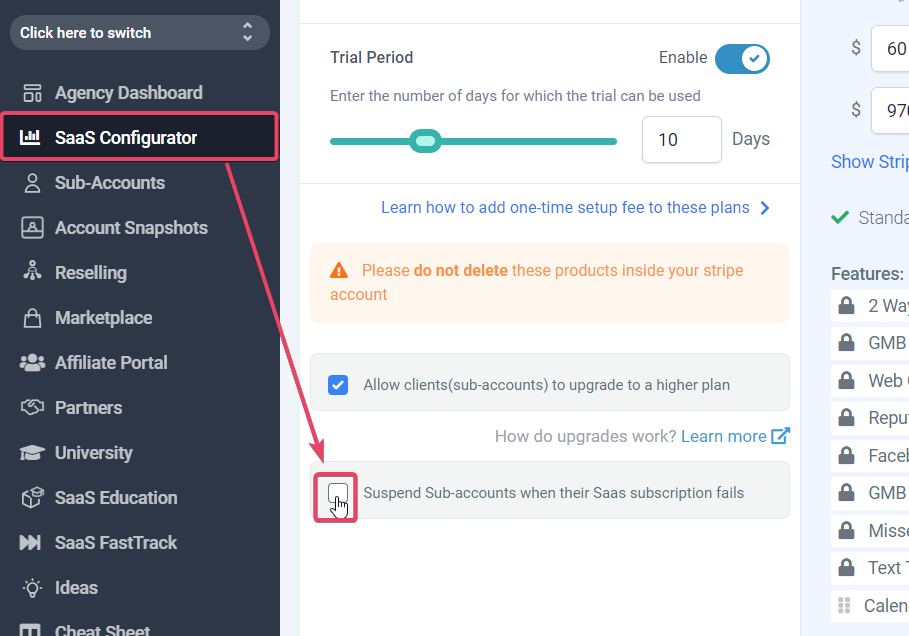
The pause can happen automatically for SaaS subaccounts if the subscription status in Stripe changes to canceled, past_due, incomplete, or incomplete_expired. For regular accounts, the agency must pause or resume the account manually.
All automation, calendars, and messaging inside the subaccount stay in place, but workflows become drafted and must be republished after the account is resumed.
03How businesses use pause / resume subaccounts
- SaaS agency. Enable automatic pausing in the SAAS Configurator so that any client whose Stripe subscription fails is right away blocked. When the client updates the payment method, the system resumes the account without further action.
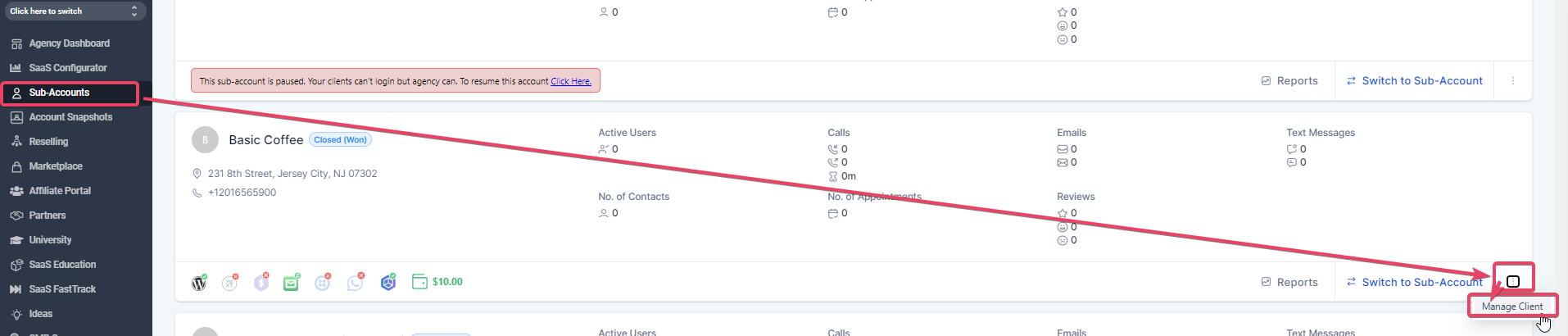
- Marketing consultancy with non SaaS clients. Navigate to the Subaccounts list, locate a delinquent client, and use the Manage Client menu to pause the account. The client sees a contact us screen and must reach out to resolve the balance.
- Coaching business. If a client forgets to pay, manually pause their subaccount from the Subaccounts tab. After the client settles the invoice, the admin resumes the account through the same menu, restoring portal access.
04Before you start
- You must be signed in as an Agency Admin to use the pause or resume controls.
05How to set up and use pause / resume subaccounts in HighLevel
Pause a subaccount manually
- Open the Agency Sidebar and select the Subaccounts tab.
- Find the subaccount you want to suspend and scroll to it.
- Click the account name or the three dot icon and choose Manage Client.
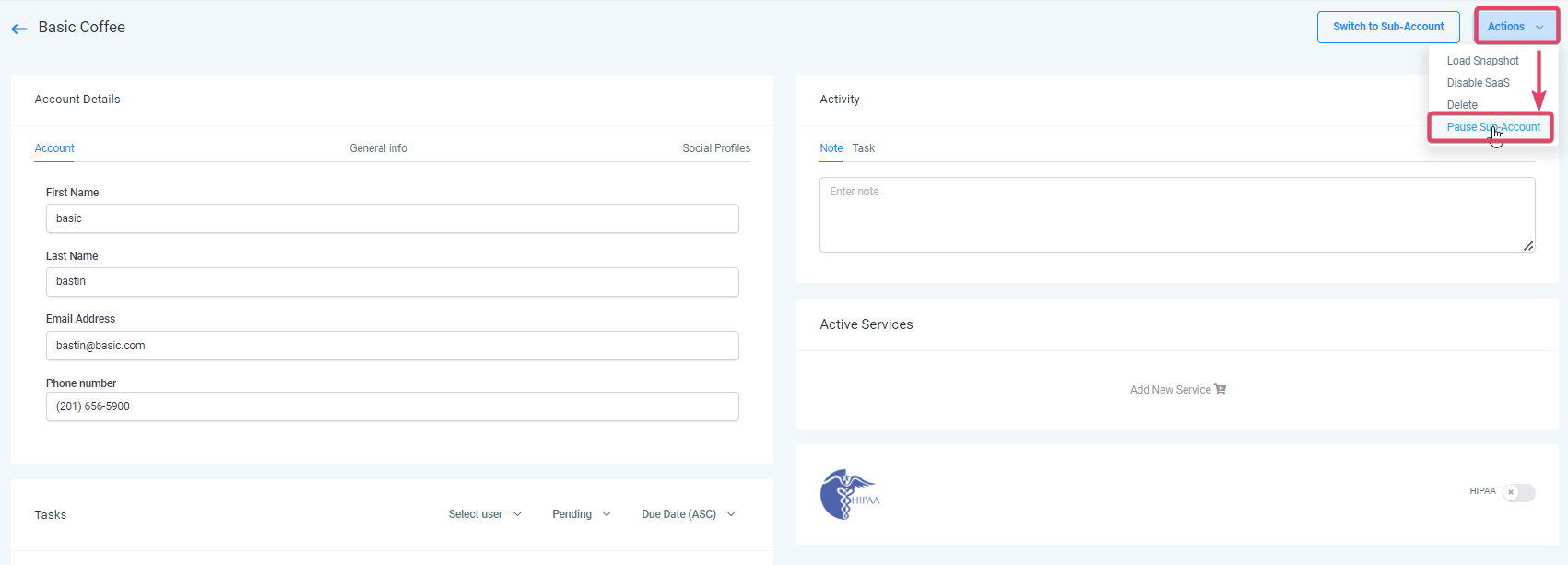
- From the Actions dropdown, select Pause Subaccount.
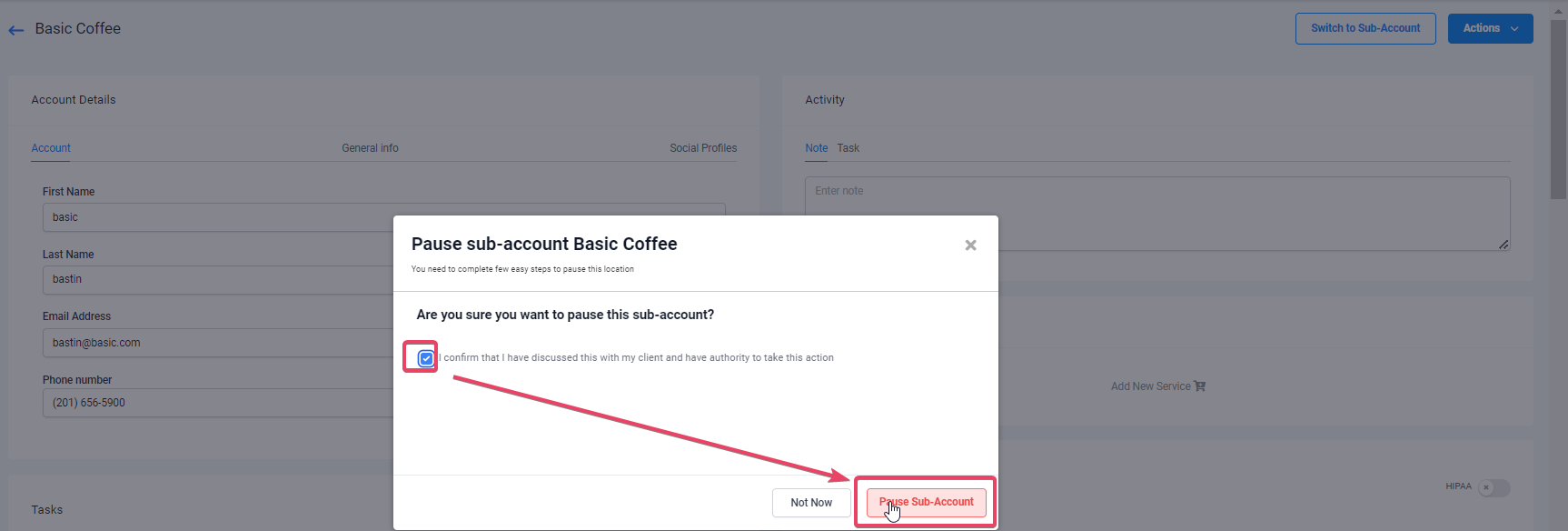
- Confirm the action by checking the box and clicking Pause Subaccount.
Resume a subaccount manually
- Open the Agency Sidebar and go to Subaccounts.
- Locate the account that is marked as paused.
- Click the account name or the three dot icon and choose Manage Client.
- Open the Actions dropdown and pick Resume Subaccount.
- Confirm by checking the required box and clicking Resume Subaccount.
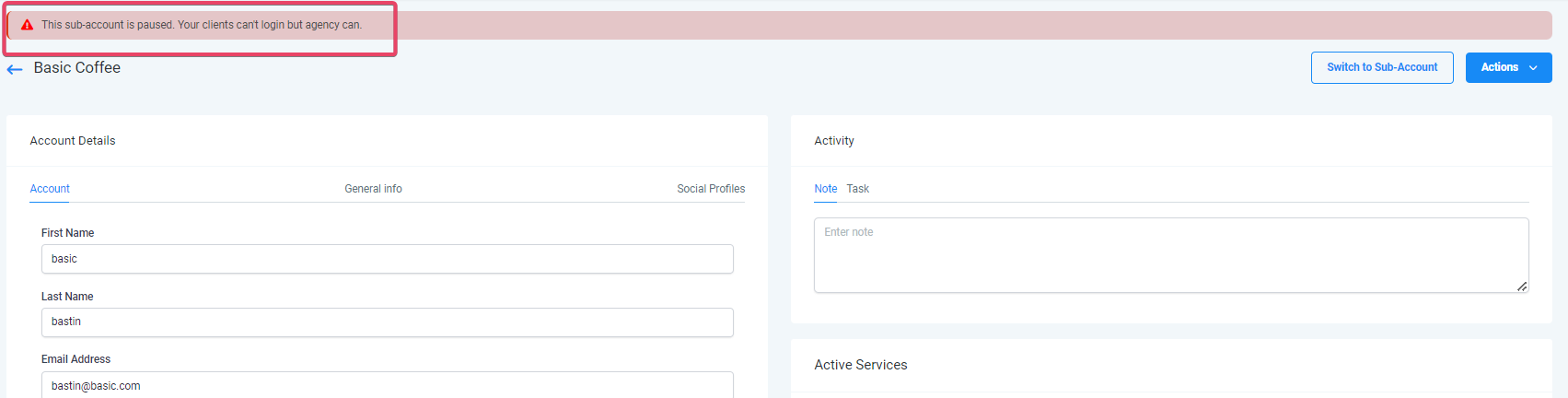
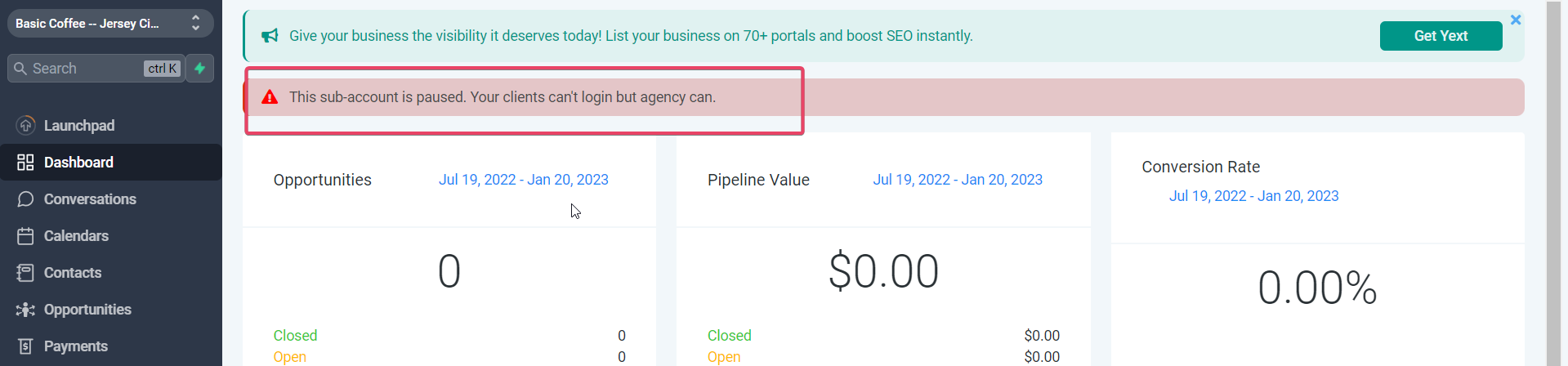
06What it looks like in HighLevel
07Settings that matter
- Suspend Subaccounts when their SAAS subscription fails. When enabled, the platform automatically disables a SaaS subaccount if the associated Stripe subscription is marked canceled, past_due, incomplete, or incomplete_expired.
08Things to know before you rely on it
- Automatic pausing applies only to SaaS subaccounts; regular subaccounts require manual action.
- The feature is accessible solely to users with Agency Admin permissions.
09How it connects to the rest of HighLevel
- Learn how to cancel a SaaS subaccount or let a client cancel themselves. Cancel SaaS subaccount
- Manage wallet credits for subaccounts, including adding and refunding credits. SaaS wallet credits
- View HighLevel pricing and plan options that include SaaS configurator features. Pricing
Michael's take

Be careful about relying on automatic pauses if you have mixed software and non SaaS clients. The setting only affects software accounts, so you’ll still need to remember to pause regular accounts by hand.