
01Who this is for
- Agency owners who run SaaS clients, they avoid recreating product definitions for each plan.
- Founders of legacy SaaS businesses, they keep Stripe as the source of truth for billing while configuring plans.
- Consultants managing multiple subaccounts, they can link existing customer subscriptions quickly.
02Import Stripe products, explained
Importing a Stripe product starts a plan in the SaaS Configurator. The workflow pulls the product’s name, description and pricing information from the connected Stripe account, then creates new price IDs for the HighLevel plan. The import does not copy the original Stripe price IDs.
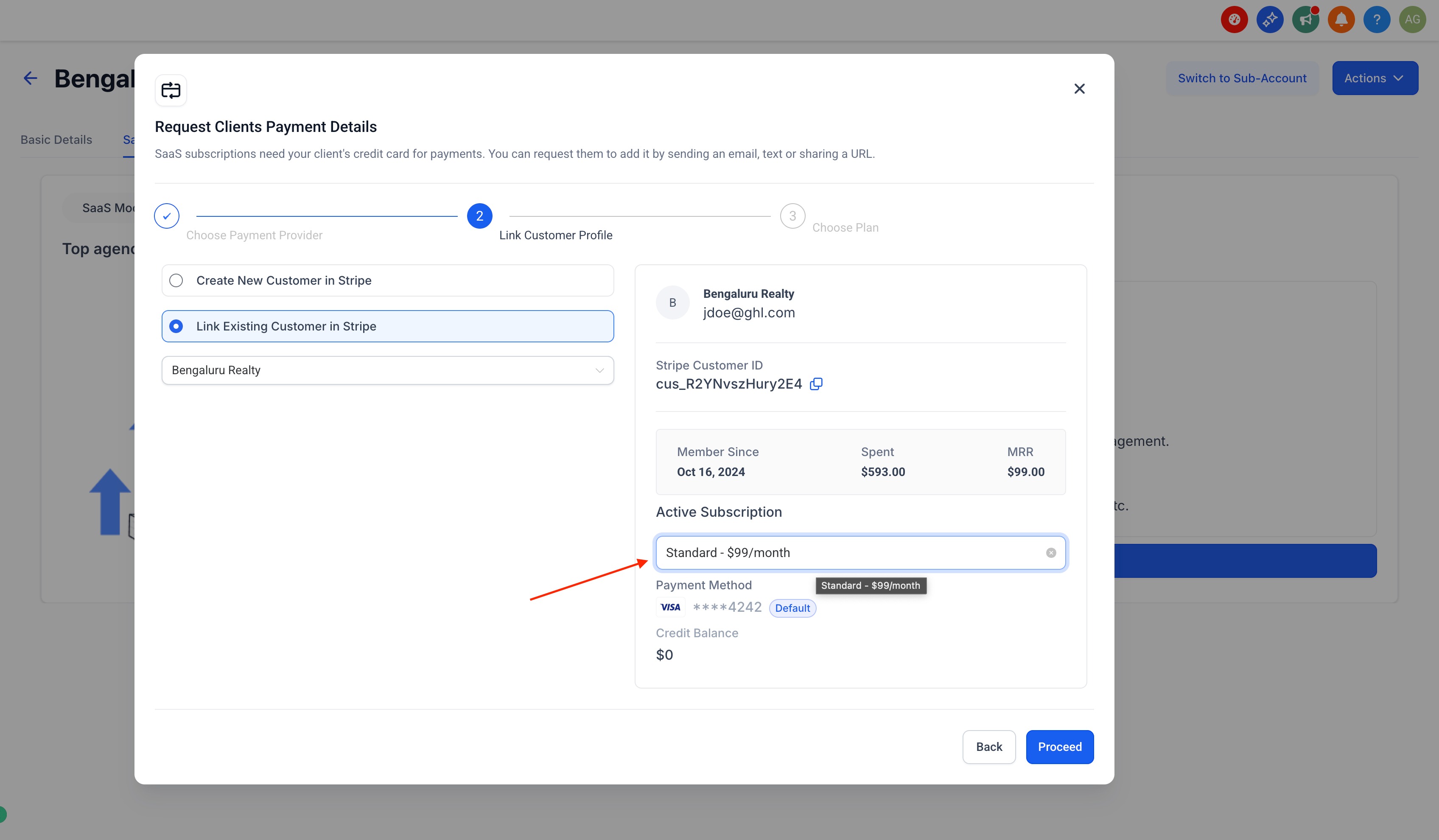
Linking an existing subscription is a separate step. After a subaccount is created, the agency selects the V1 (Agency) Stripe provider, chooses an existing Stripe customer, and picks the active subscription to associate with that subaccount. The link enables SaaS billing for the client without creating a new subscription.
Both actions are available only in the Legacy/V1 SaaS workflow. They are performed from the Agency view, using the SaaS Configurator’s Plans & pricing section for imports and the Subaccounts area for subscription linking.
03How businesses use Import Stripe products
- Digital marketing agency. The agency imports each client’s existing Stripe product to build a matching SaaS plan, then links the client’s current Stripe subscription to the appropriate subaccount, keeping billing unchanged.
- Online education platform. The platform imports course related Stripe products as SaaS plans, configures features and trials, and attaches each learner’s existing Stripe subscription to their subaccount for continued access.
- Subscription box service. The service imports its box type products from Stripe, sets up plan pricing and rebilling options, and links each active customer’s Stripe subscription to the corresponding HighLevel subaccount.
04The numbers and rules that matter
- The workflow is for Legacy/V1 SaaS only, not for V1 to V2 migration.
- Stripe may appear under both V1 (Agency) and V2 (Subaccount) in the payment provider selector.
05Before you start
- Confirm the agency is using the Legacy/V1 SaaS workflow and has access to the SaaS Configurator.
- Ensure the agency’s Stripe account is connected and contains the products to import.
- Identify the Stripe customer profile and active subscription before linking.
- Select the Stripe card labeled V1 (Agency) when choosing a payment provider.
06How to set up and use Import Stripe products in HighLevel
Import Stripe products into Configurator
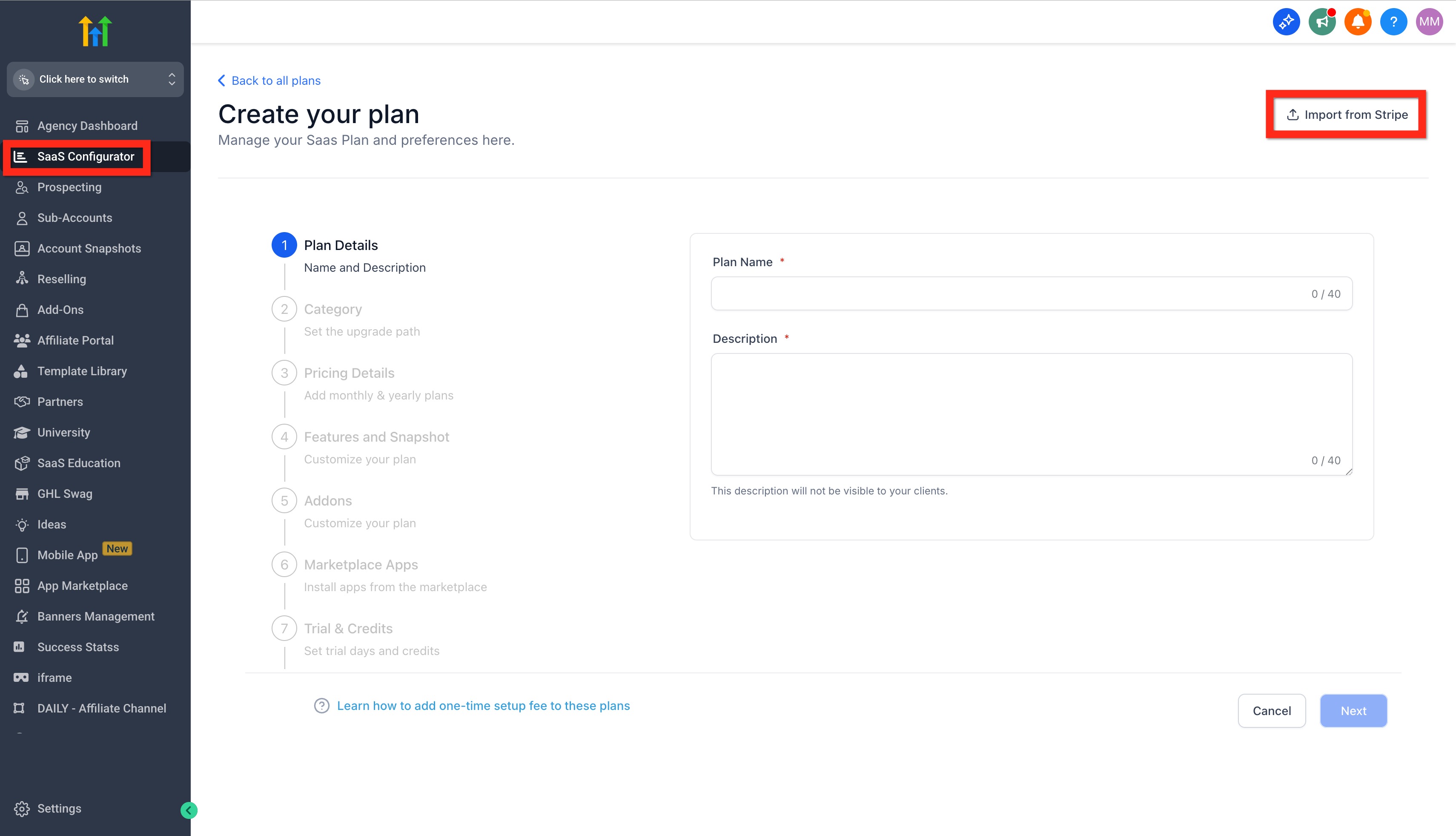
- From Agency View, open SaaS Configurator > Plans & pricing and click Add your plan.
- On the payment provider screen, choose the Stripe card labeled V1 (Agency) and verify its description, then click Continue.
- Click Import from Stripe while creating the SaaS plan.
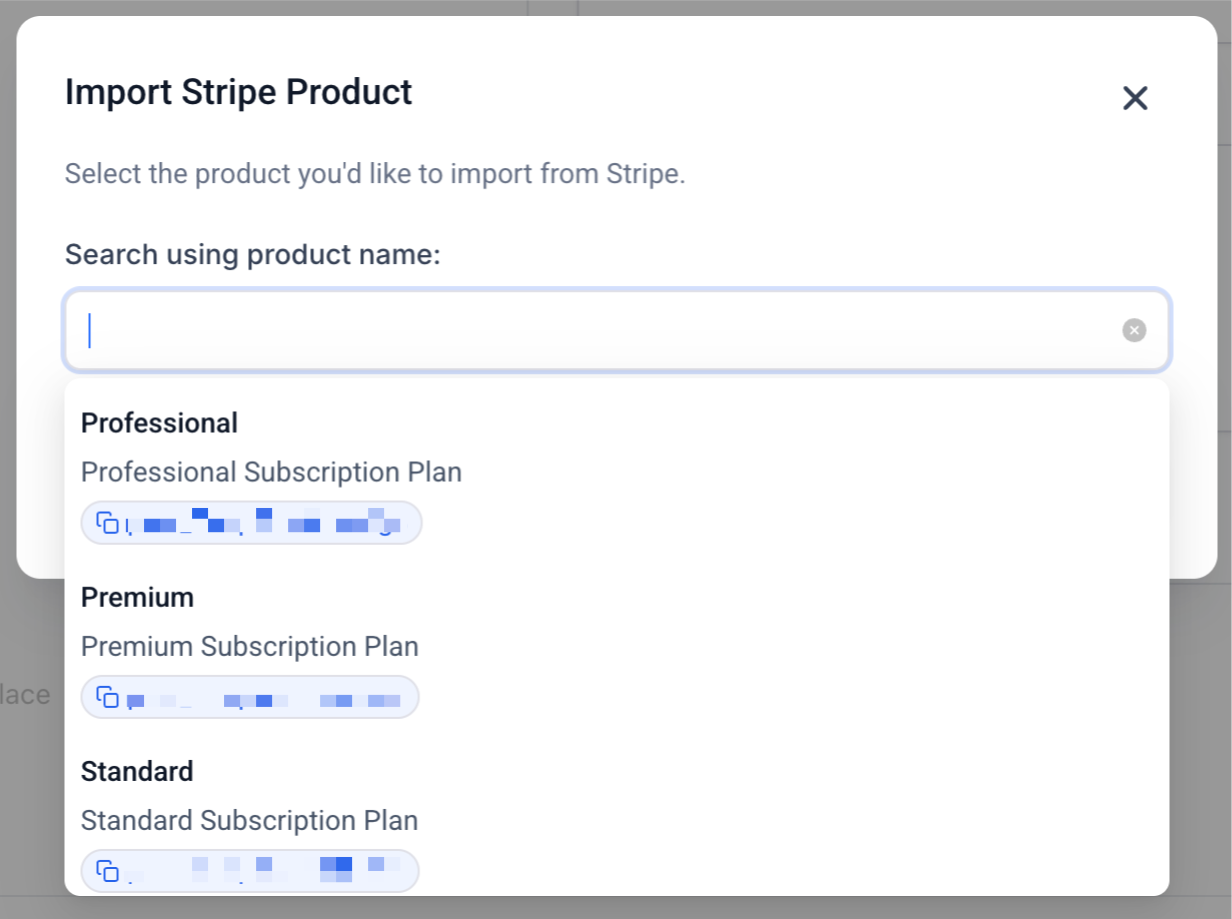
- Search for the product by name, review the matching result, and select the product to import.
- Confirm the selection and review the product details displayed in the configurator.
- Complete the plan setup, adding category, pricing, features, trials and rebilling options.
- Review the completed plan and click Save.
Link existing Stripe subscriptions to subaccounts
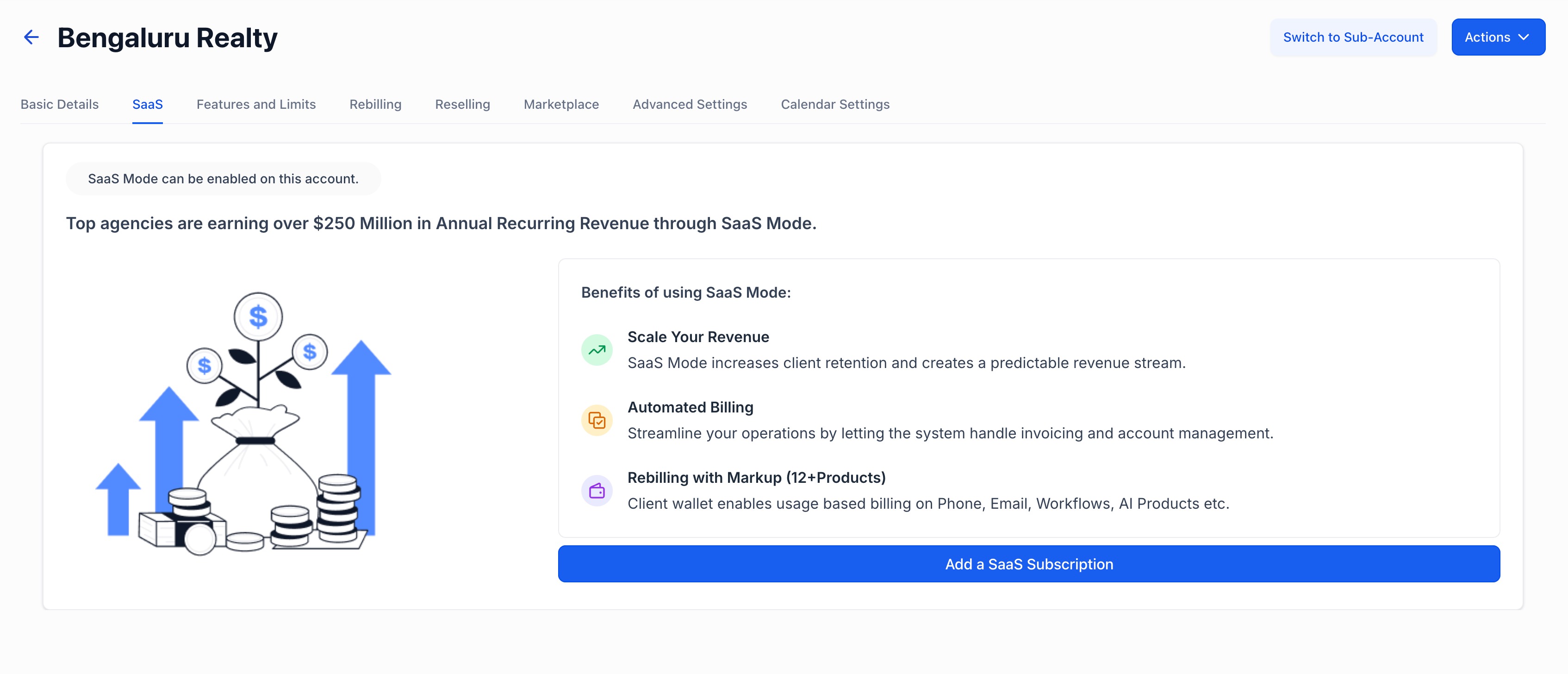
- From Agency View, go to Subaccounts, open the intended subaccount’s Manage Client page, and select the SaaS tab.
- Click Add a SaaS Subscription.
- Select the Stripe payment provider card labeled V1 (Agency) and verify its description.
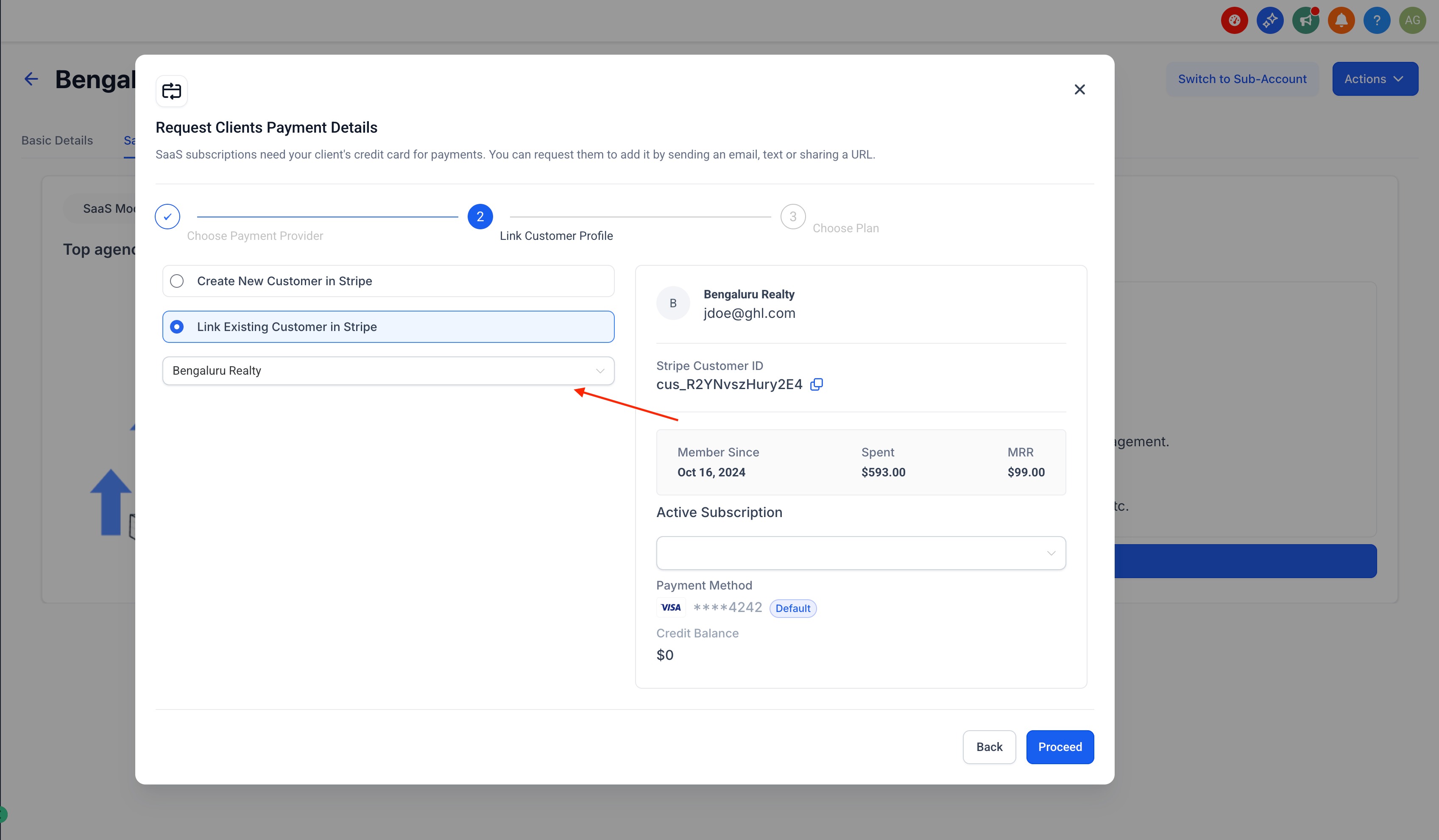
- In Request Client Payment Details, choose Link Existing Customer in Stripe.
- Select the existing Stripe customer profile that has the active subscription.
- Choose the applicable subscription from the right hand panel.
- Review the selected customer and subscription, then confirm to enable SaaS on the subaccount.
07What it looks like in HighLevel
08Settings that matter
- payment provider. Determines which Stripe card is used; select the V1 (Agency) option to work with legacy SaaS billing.
09Things to know before you rely on it
- The workflow applies only to the Legacy/V1 SaaS configuration; it does not affect V2 SaaS setups.
- Importing a product creates new price IDs; original Stripe price IDs are not reused.
- Products are imported one at a time; repeat the steps for additional products.
- Only the Stripe card labeled V1 (Agency) can be used; V2 cards represent a different billing configuration.
10How it connects to the rest of HighLevel
- All SaaS Configurator features SaaS Configurator overview
- HighLevel pricing and plans Pricing page
- Start a 30 day HighLevel trial Free trial
- The HighLevel Founder Plan Founder Plan details
Michael's take

Importing Stripe products is a convenient feature for agencies already billing on Stripe. It lets you bring your existing catalog into HighLevel without rebuilding each plan from scratch, while keeping Stripe as the source of truth.
Agencies that sell tools through Stripe will find this useful because they can pull the product details, set up the plan’s features, and then link each client’s existing subscription to the appropriate subaccount.