
01Who this is for
- Agency admins need to stop fraud before a new client can use email or phone resources.
- Founders of SaaS businesses can verify each buyer to avoid wallet abuse.
- Support managers can control access to new subaccounts to maintain service integrity.
02Manual approval of new SaaS subaccounts, explained
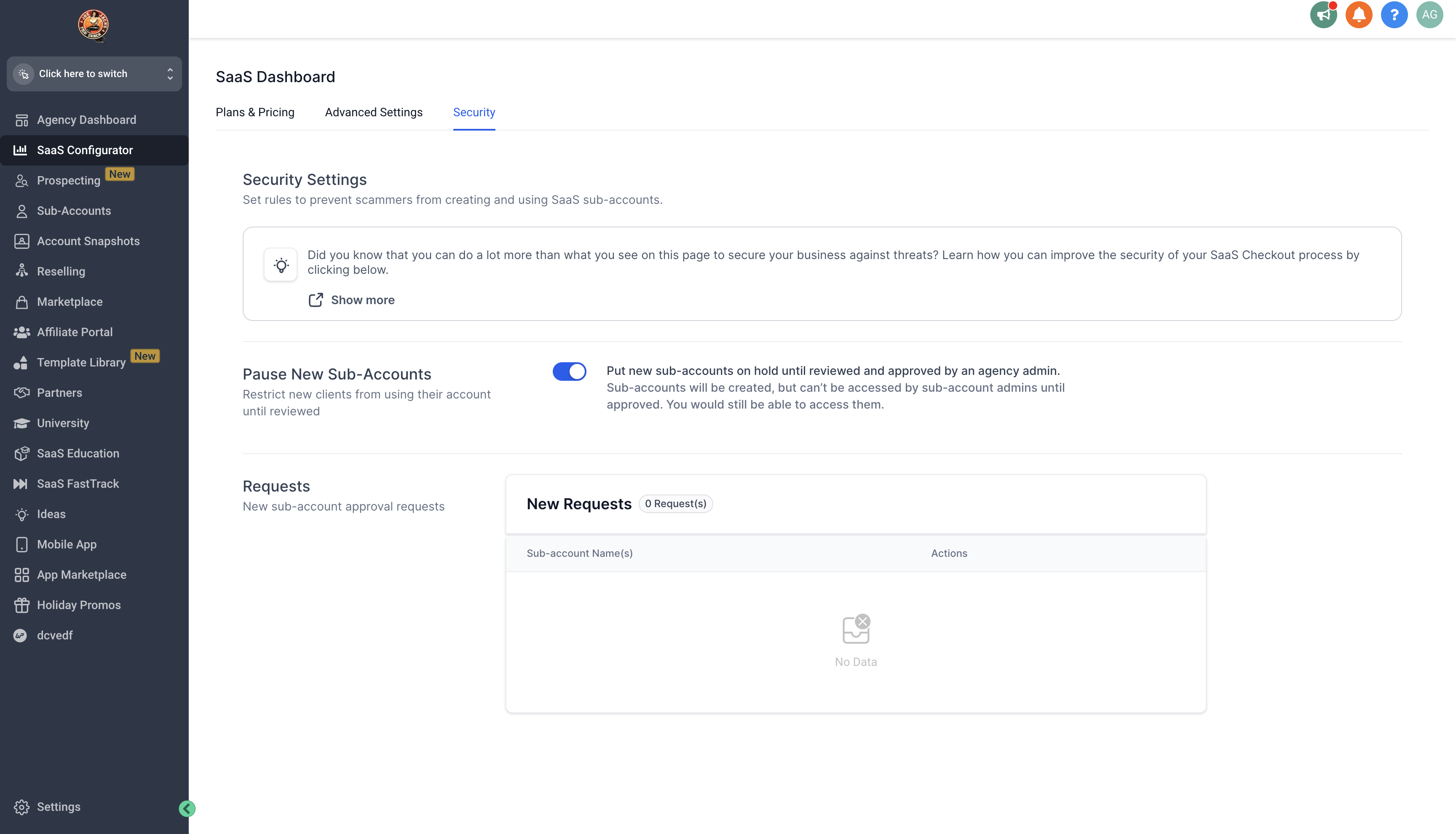
The feature adds a security toggle in the SaaS Configurator. When turned on, any newly created SaaS subaccount is automatically placed in a Restricted state. In this state, all admins and users of that subaccount are locked out of the platform.
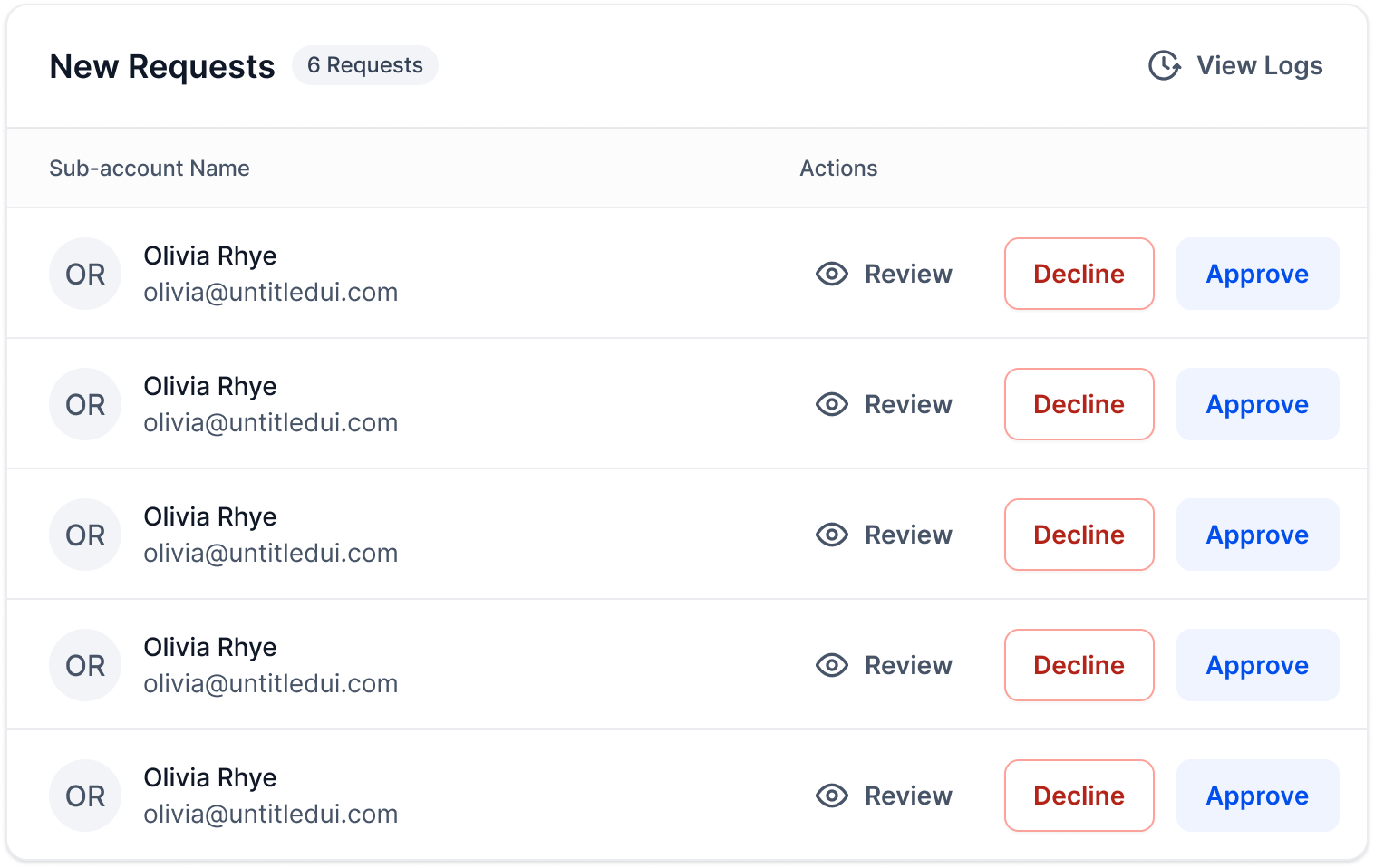
Pending activation requests appear in a Requests list on the Security page of the SaaS Configurator. The list shows each client’s contact details, allowing the agency admin to confirm identity before granting access. The admin can then approve the request, which unlocks the subaccount, or decline it, leaving the account locked. A declined account can later be activated from the Manage Client page.
All controls are found under SaaS Configurator > Security. The toggle is labeled "Put new subaccounts on hold until reviewed and approved by an agency admin."
03How businesses use manual approval of new SaaS subaccounts
- Digital marketing agency. The agency turns on the hold toggle in SaaS Configurator > Security. When a client signs up, the agency reviews the request in the Requests list, checks the provided contact details, and approves only legitimate accounts, keeping fraudulent sign ups locked.
- Email newsletter service. The service enables the manual approval setting so every new subaccount starts restricted. Staff examine each request, verify the subscriber by phone or email, and approve the account to allow bulk email sending only after confirmation.
- SaaS platform provider. The provider activates the security toggle to protect wallet balances. New subaccounts appear in the Requests view, where the admin reviews the sign up information and either approves to unlock the dashboard or declines, leaving the account inaccessible.
04How to set up and use manual approval of new SaaS subaccounts in HighLevel
Enable and manage manual subaccount approval
- Open SaaS Configurator > Security and switch on the toggle "Put new subaccounts on hold until reviewed and approved by an agency admin."
- Go to the Requests section on the same Security page to see all pending activation submissions.
- Talk to the client using the contact details shown with each request to confirm identity.
- Choose to approve the subaccount, which releases the lock for its admins and users, or decline it to keep the account in a Restricted state; a declined account can later be activated from the Manage Client page.
05What it looks like in HighLevel

06Settings that matter
- Put new subaccounts on hold until reviewed and approved by an agency admin.. When enabled, new SaaS subaccounts are created in a Restricted state and all associated admins and users are locked out until an agency admin reviews and approves the request.
07Things to know before you rely on it
- Only agency admins can toggle the hold setting.
- New subaccounts remain locked until the admin approves them.
- A declined subaccount stays locked but can be activated later from the Manage Client page.
08How it connects to the rest of HighLevel
- All SaaS Configurator features SaaS Configurator overview
- Managing SaaS wallet credits in HighLevel Wallet credit management
- HighLevel pricing and plans Pricing information
Michael's take

This feature adds a manual check on every new sign up, which can help keep the business protected from scammers.
It’s especially useful for agencies that need to verify new SaaS subscribers before granting access.