
01Who this is for
- Agency owners who manage multiple client subaccounts can price SaaS plans in local currencies to match client expectations.
- Marketing teams can use funnels to sell SaaS with checkout pages displayed in the buyer’s currency.
02Software in currencies other than USD, explained
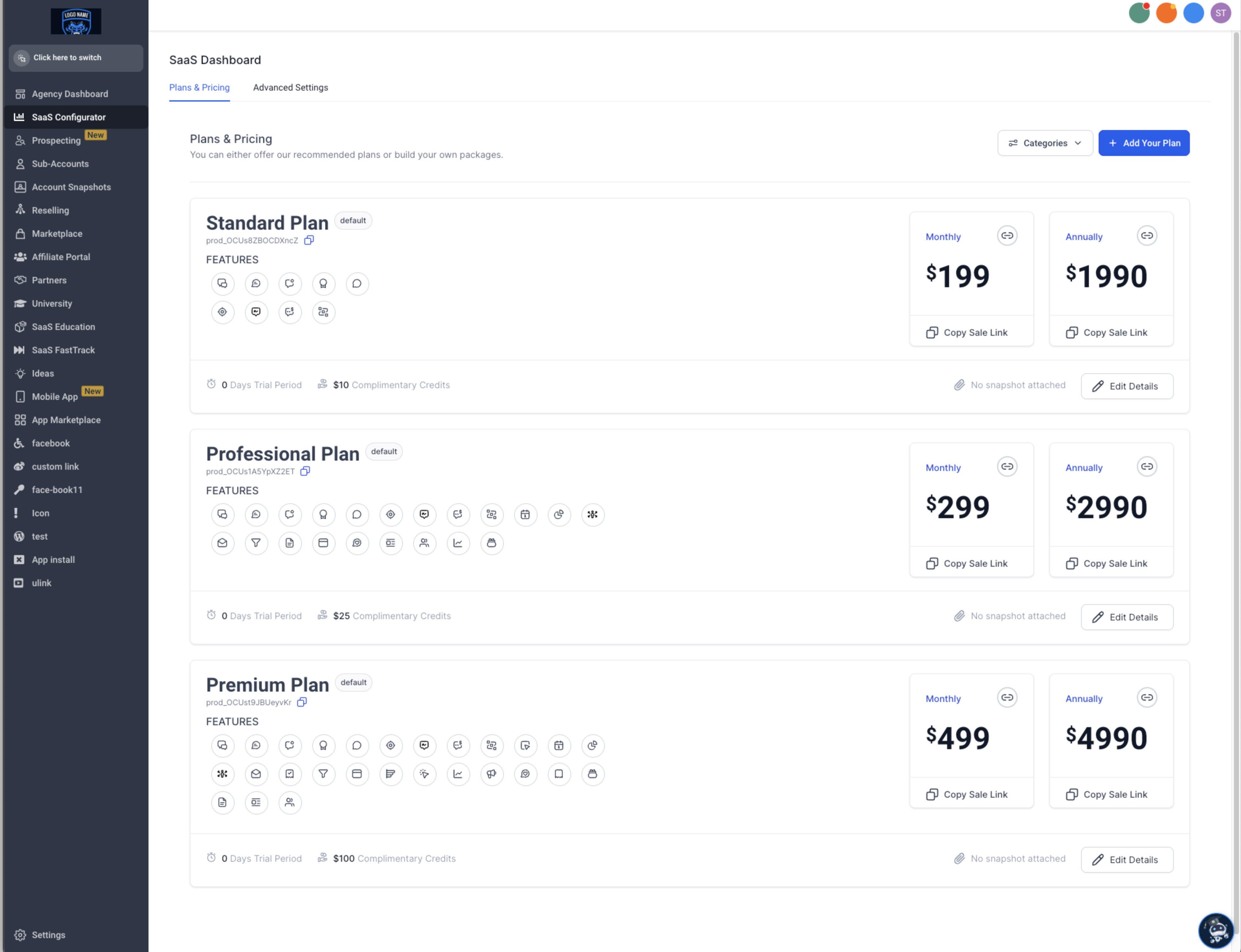
The SaaS Configurator continues to list products and prices in USD; the currency set on Stripe overrides what customers see at checkout, on invoices and on wallet credit receipts. Usage records inside HighLevel remain shown in USD even though wallet credit charges are processed in the chosen currency.
03How businesses use software in currencies other than USD
- Digital marketing agency. The agency creates SaaS products in USD, edits each price to euros in Stripe, imports the euro prices to the client subaccount and adds them to funnel order forms to sell to European clients.
- Online education platform. The platform updates its subscription prices to Canadian dollars in Stripe, imports the CAD prices into the appropriate location and uses HighLevel funnels to sell courses to Canadian students with checkout shown in CAD.
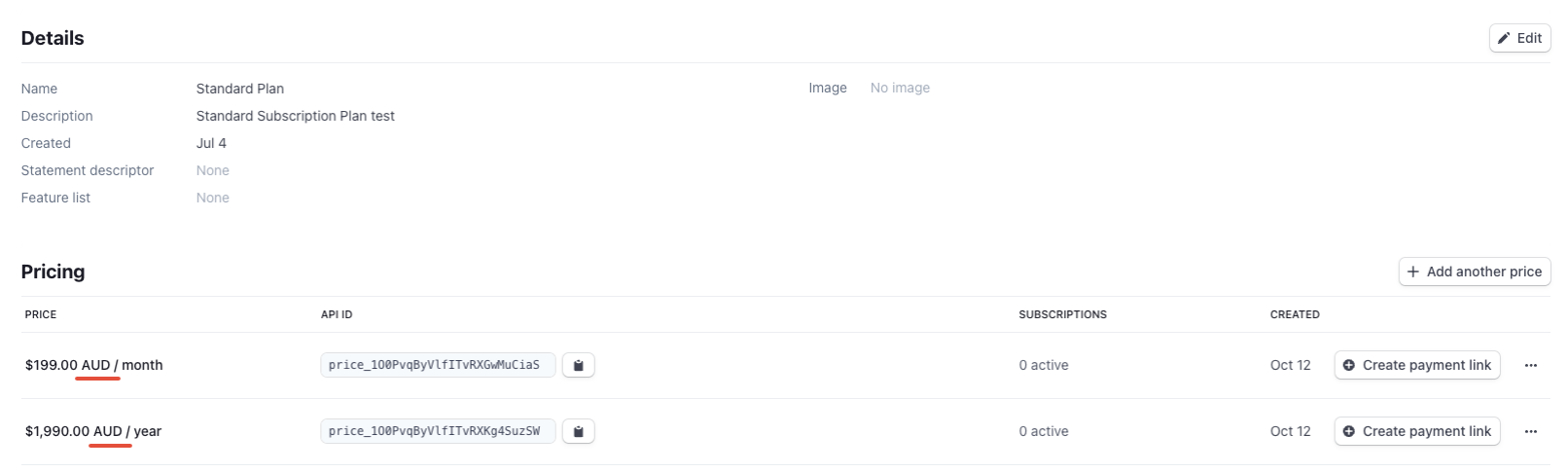
- SaaS tool for Australian businesses. The business edits its Stripe product prices to Australian dollars, imports the AUD prices to its HighLevel location and allows Australian customers to purchase via a funnel, receiving invoices in AUD.
04Before you start
- A Stripe account linked to the HighLevel agency must exist.
- SaaS products must be created first in the SaaS Configurator using USD.
- The Stripe account connected to the agency and the target subaccount must be the same.
05How to set up and use software in currencies other than USD in HighLevel
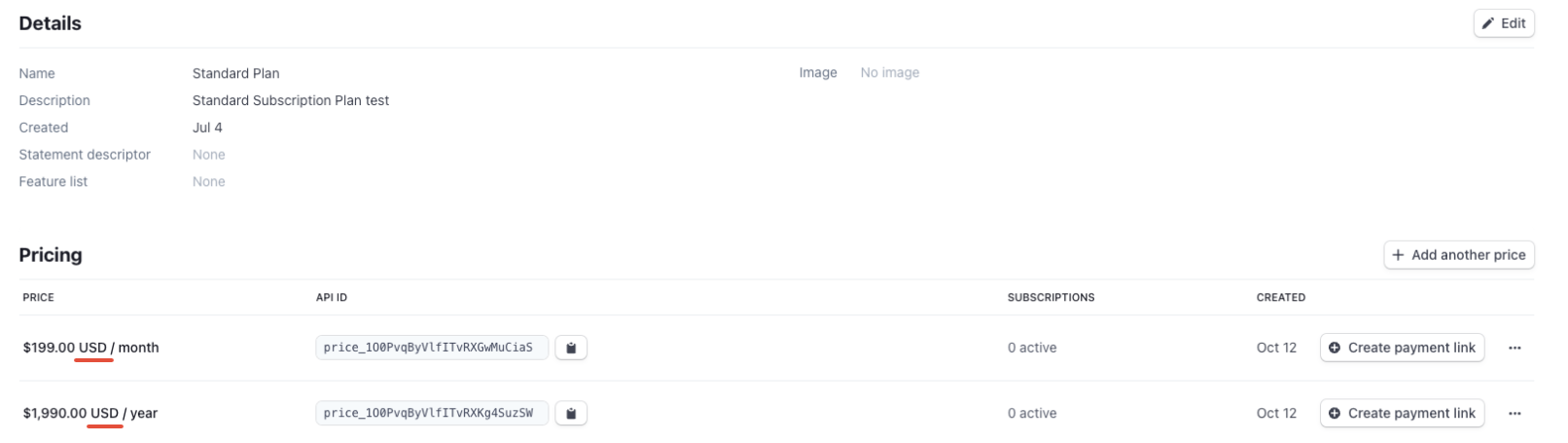
Change product currency in Stripe
- Create the SaaS products in USD through the SaaS Configurator.
- Log into your Stripe dashboard and locate each product.
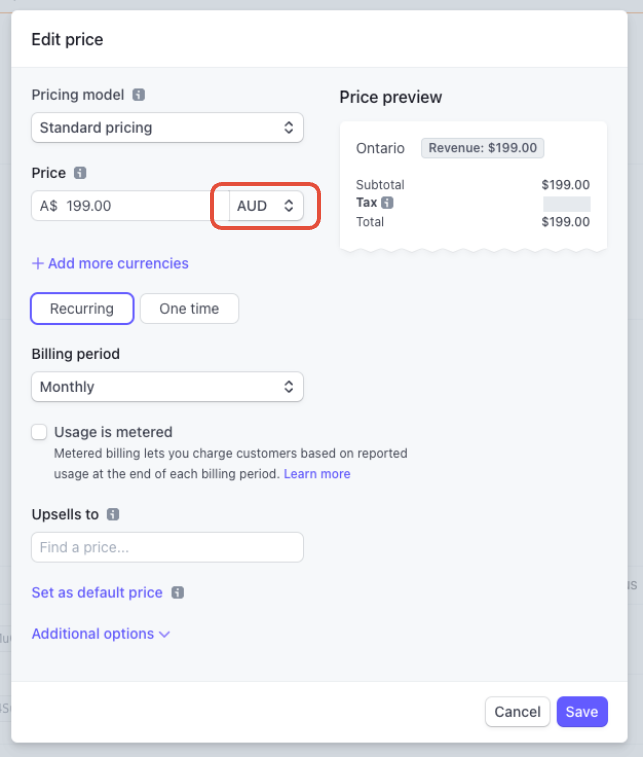
- Edit each price, select the new currency you want, and save the change.
- Repeat for every product you plan to sell in the new currency.
Import modified SaaS products to a subaccount (location)
- Navigate to Location Level, open the left menu and select Payments > Products.
- Click the “Import from Stripe” button.
- Search for the SaaS product you updated in Stripe.
- Click Import for that product.
- Repeat for each product and price.
- Verify that the imported prices appear in the new currency.
- Add the imported products to your funnel order forms and begin selling.
06What it looks like in HighLevel
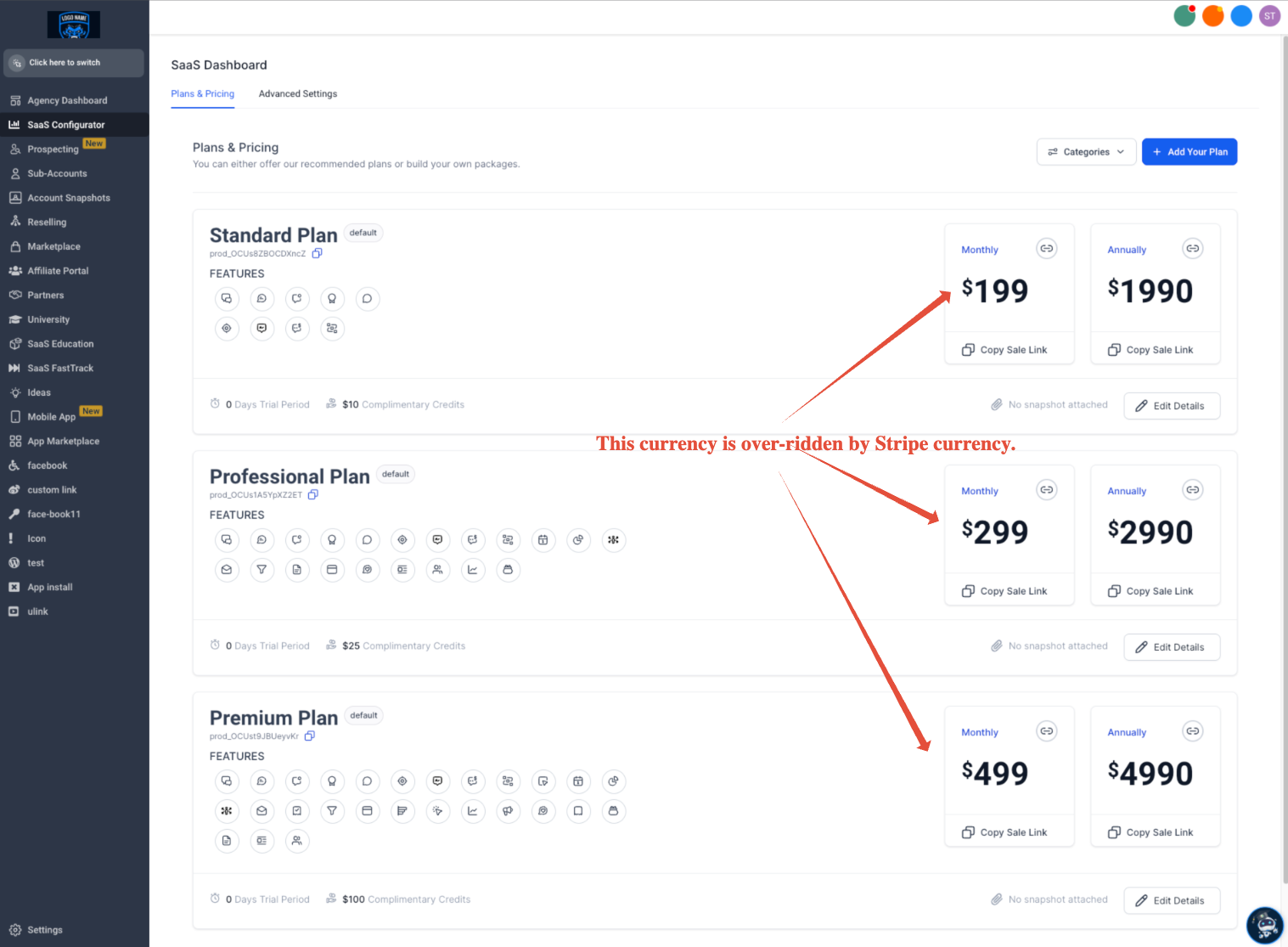
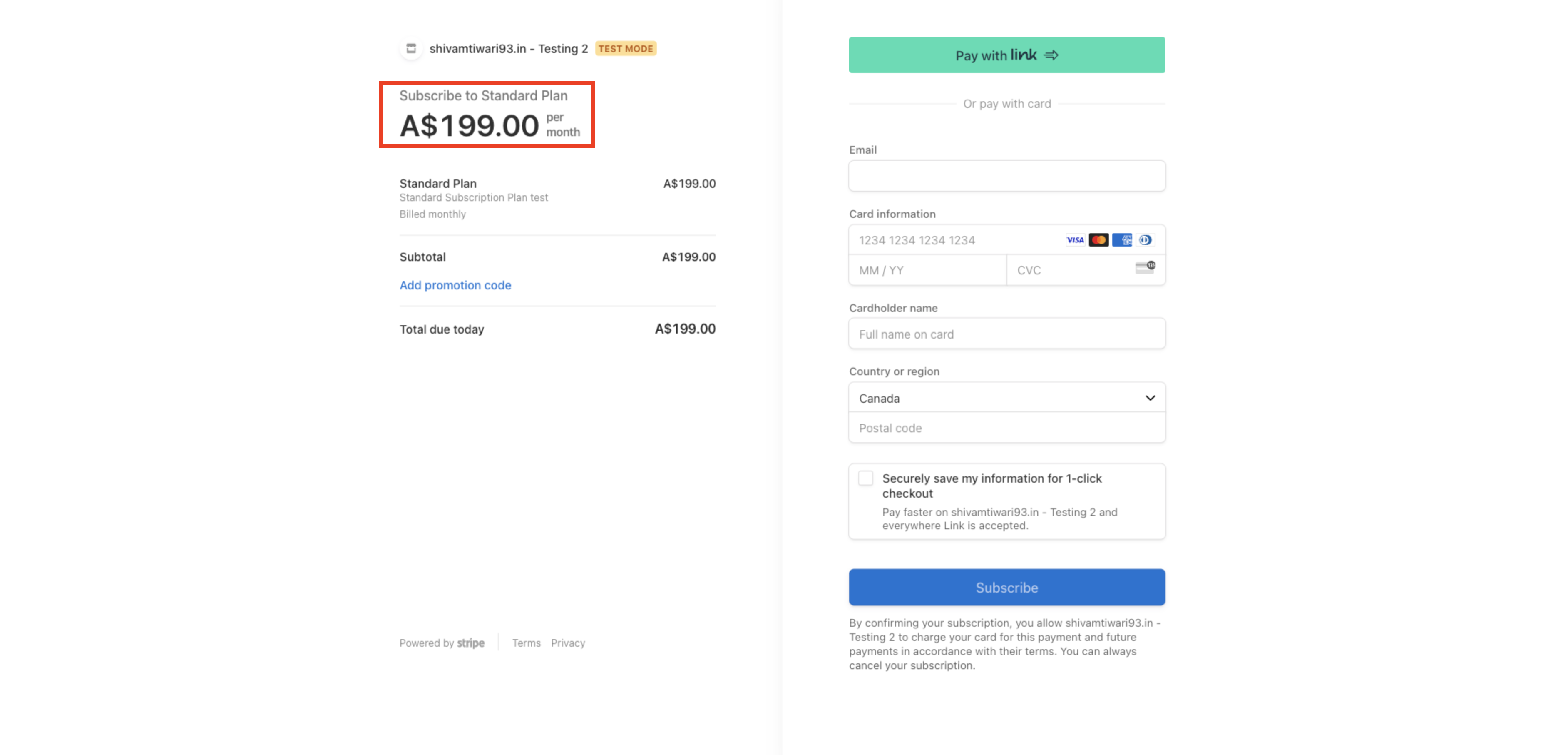
07Things to know before you rely on it
- Native support for non USD SaaS sales is not yet released; the described method is a workaround.
- Wallet credit charges will be in the chosen currency, but usage records continue to display in USD.
08How it connects to the rest of HighLevel
- All SaaS Configurator features overview SaaS Configurator features
- HighLevel pricing and plans page Pricing
- Start a 30 day HighLevel trial Free trial
Michael's take

I find that editing the Stripe prices is a manageable extra step when expanding into markets that prefer local pricing. The ability to import those prices into your funnels lets you keep your existing sales flow while offering customers a receipt in their own currency. If most of your business stays in USD and you don’t have a strong need for local pricing, you might wait for the native multicurrency feature before adding the extra steps.