
01Who this is for
- Agency owners who want to deliver a complete software stack with each client subscription.
- SaaS product managers looking to include third party functionality as part of tiered plans.
02Marketplace apps, explained
The feature lets you select eligible Marketplace apps and attach them to a SaaS plan. Once bundled, the apps install automatically for any subaccount created under that plan. Pricing for the apps can be absorbed by the agency or added to the plan price as a markup.
The controls live inside the SaaS Configurator. You reach the Marketplace Apps tab, choose apps, set tiers, and save the plan. Changes affect only future subaccount creations; existing subaccounts keep their current installations until they are manually altered.
Eligibility requires the app to have an Agency & Subaccount only distribution type and to be installed at the agency level first. Up to ten apps can be bundled per plan, and the automatic install runs only on new subaccount provisioning.
03How businesses use the Marketplace apps
- Digital marketing agency. The agency adds a reporting dashboard app and a social scheduler to its premium plan. When a new client subaccount is created, both apps appear pre configured, so the client can start using them without additional setup.
- SaaS consultancy. The consultancy bundles an analytics tool with a paid tier of its own platform. It raises the plan price to cover the tool’s cost plus markup. New client subaccounts receive the analytics tool automatically.
- Agency that offers local business solutions. The agency includes a review management app in its standard plan and selects the basic tier of that app. The cost is billed to the agency card, keeping the client’s invoice unchanged. New subaccounts receive the review tool on sign up.
04The numbers and rules that matter
- You can bundle up to 10 apps per plan (current MVP limit).
05Before you start
- Agency Owner or Admin permission to access the SaaS Configurator.
- A valid agency payment method must be active.
- Eligible apps must be installed at the agency level before bundling.
06How to set up and use the Marketplace apps in HighLevel
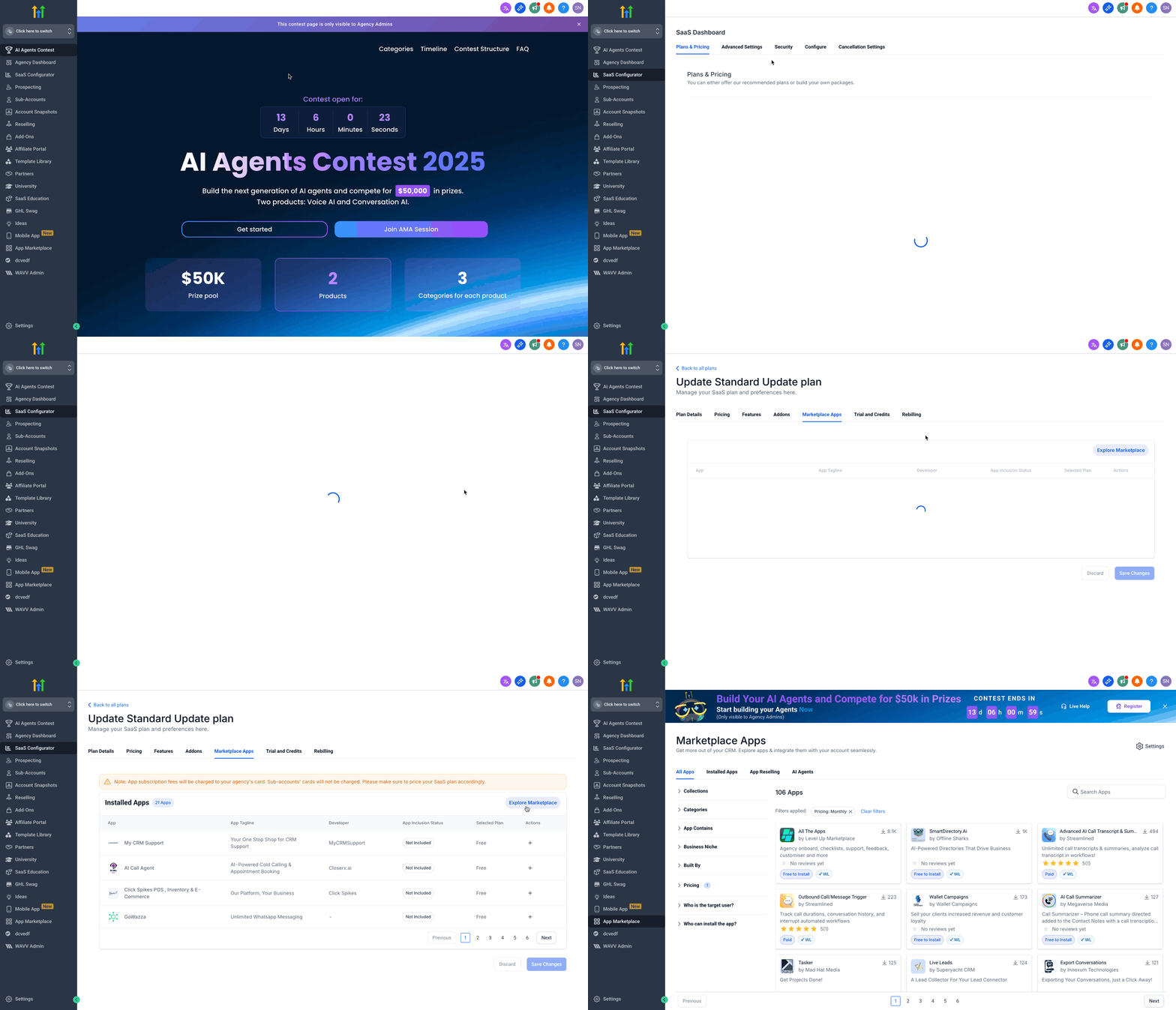
Access marketplace apps in SaaS Configurator
- Open the SaaS Configurator from the agency dashboard.
- Create a new SaaS plan or edit an existing one.
- Select the Marketplace Apps tab.
- If no apps appear, click Explore Marketplace to install eligible apps at the agency level.
Add apps to your SaaS plan
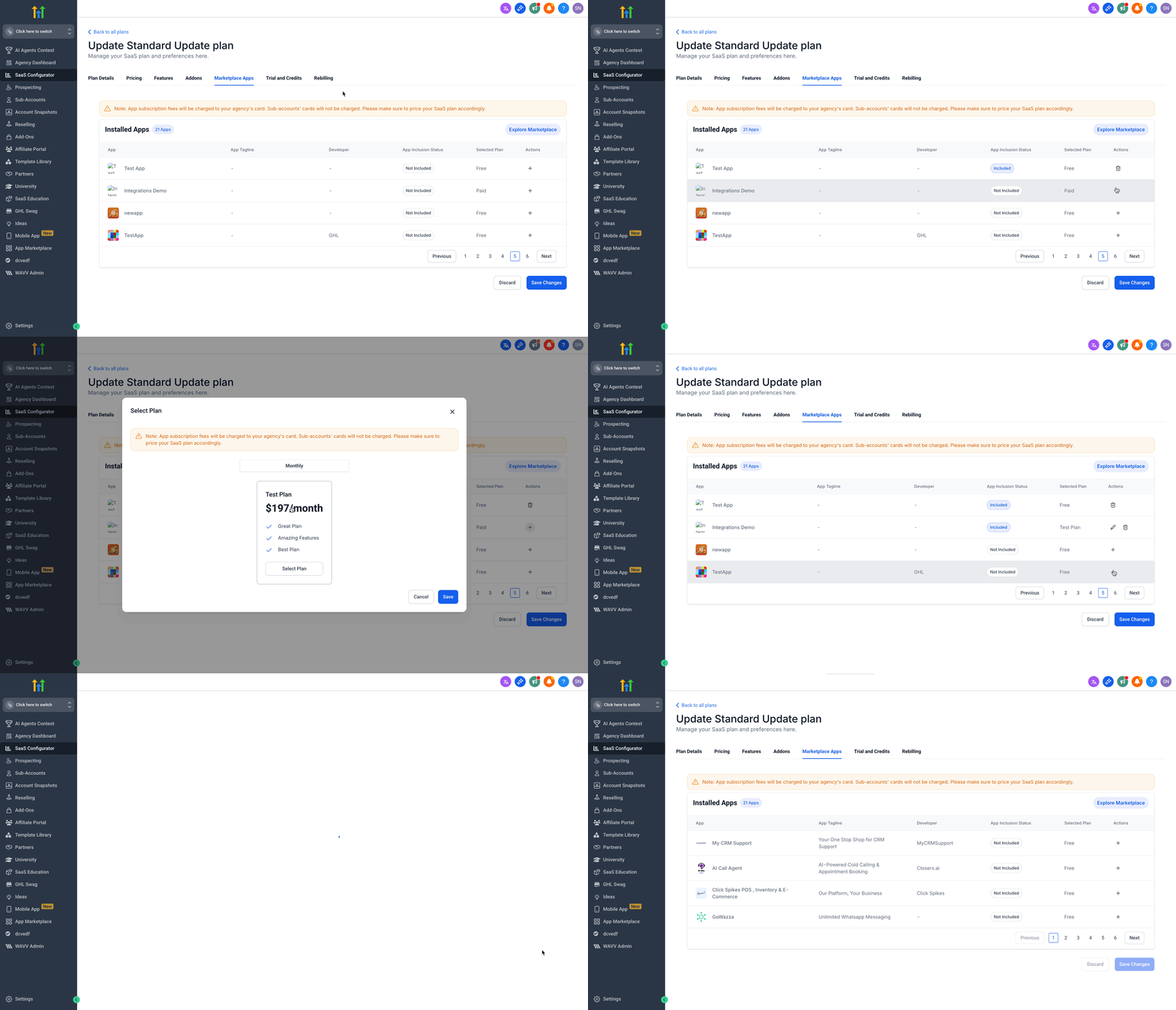
- Click the + icon under the Actions tab to include an app in the bundle.
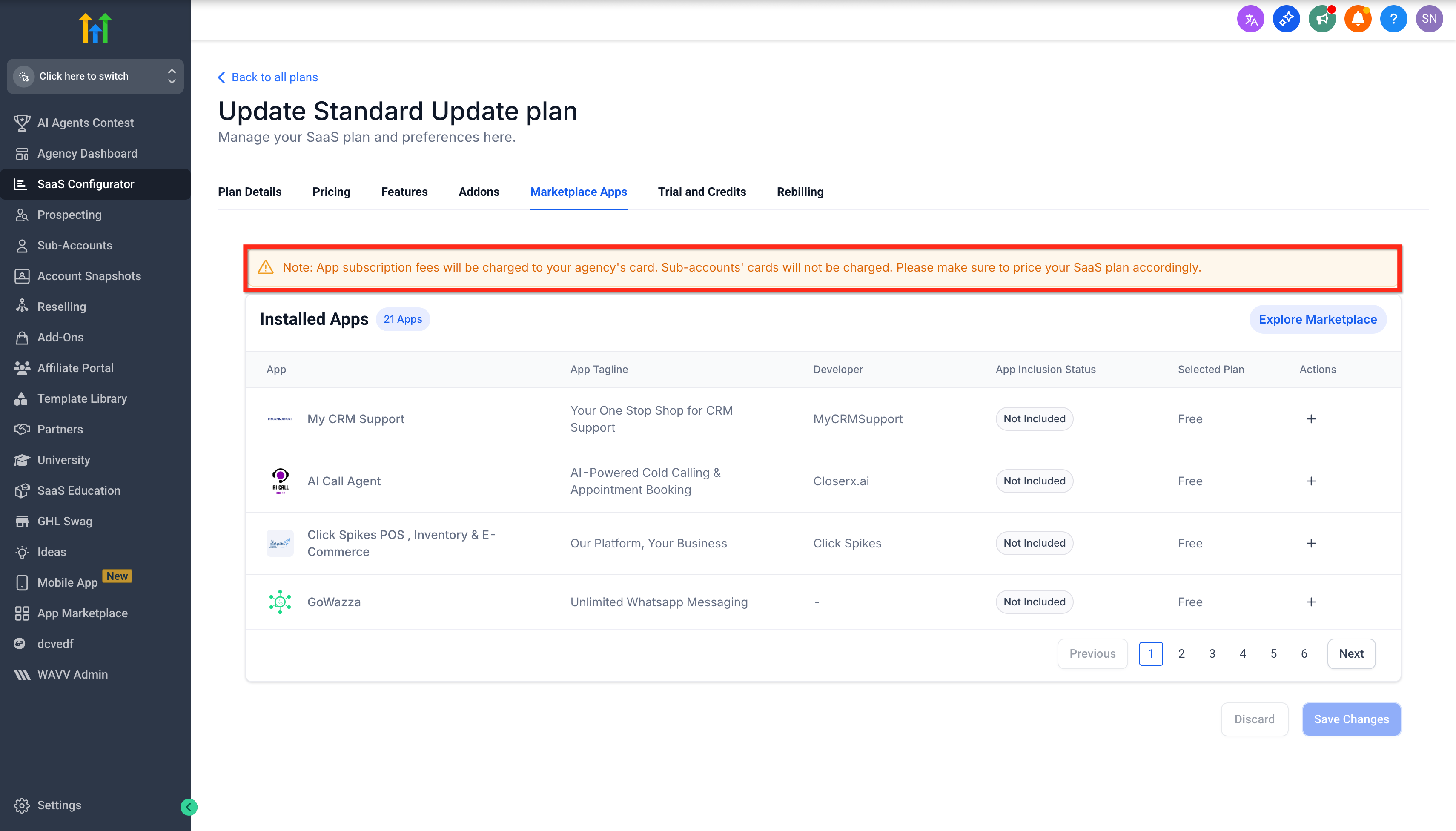
- By default, app subscription charges bill to your agency card; to pass costs to clients, add the app price plus markup to the SaaS plan price.
- Pick the desired subscription tier for the app if it is a paid app.
- Repeat the add step for each additional app, up to ten per plan.
- Press Save Changes to confirm the bundled apps.
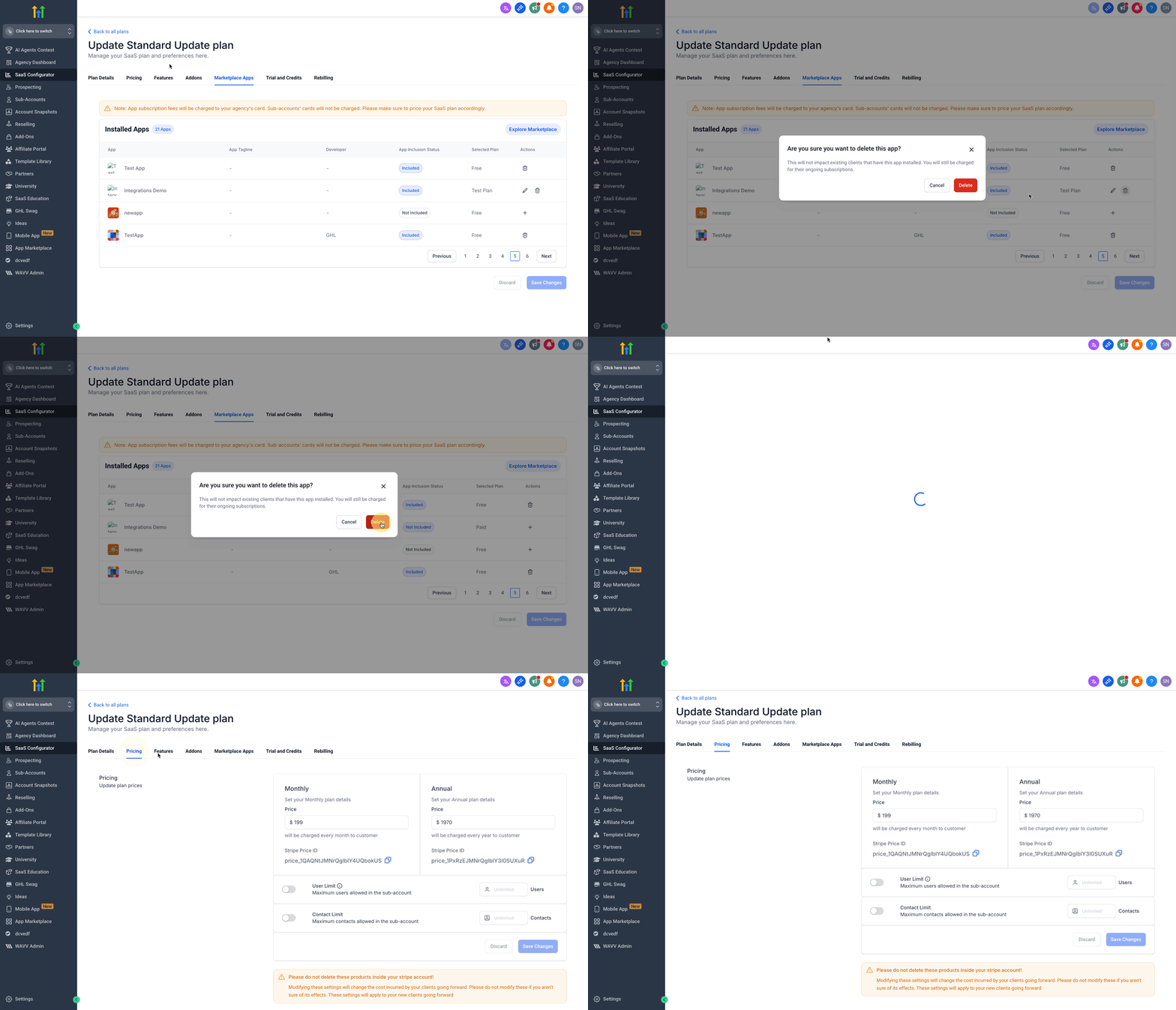
Update or remove apps
- Change the pricing tier of any bundled app directly in the SaaS Configurator.
- To delete an app, click the Remove (Bin Button) next to that app.
- Confirm the removal warning that appears.
- Click Save Changes to apply the updates.
- Removal does not affect existing subaccounts that already have the app installed; they will keep it until manually uninstalled.
07What it looks like in HighLevel
08Settings that matter
- Marketplace Apps tab. Shows all agency installed apps that are eligible for bundling with SaaS plans.
- Explore Marketplace. Opens the Marketplace so you can install new eligible apps at the agency level.
- + icon under Actions tab. Adds the selected app to the current SaaS plan bundle.
- Remove (Bin Button) option. Removes a previously bundled app from the SaaS plan.
- App tier selection. Sets which subscription tier of a paid app is included in the plan bundle.
09Things to know before you rely on it
- Only apps with an Agency & Subaccount only distribution type can be bundled.
- A plan can contain up to ten bundled apps (current MVP limit).
- Automatic installation triggers only when a new subaccount is created under the plan.
- Changing an app’s tier or removing it does not affect apps already installed on existing subaccounts.
- When an app is added to a plan, its agency level automatic future installation is disabled to avoid conflicts.
10If something goes wrong
- No apps appear in the Marketplace Apps tab.. Click Explore Marketplace to install eligible apps at the agency level, then return to the SaaS Configurator.
11How it connects to the rest of HighLevel
- How app costs flow into your pricing can be managed with the SaaS plan price. Email rebilling guide
- Review overall SaaS configurator capabilities and related features. All SaaS Configurator features
- Check plan pricing and eligibility for using bundled apps. HighLevel pricing and plans
Michael's take

Clients often complain that each new account they sign up needs a hand held setup for every tool they want to use. Bundling Marketplace apps into your SaaS plans automates that step, giving every new subaccount a ready made stack without the back and forth of manual installs.
The first setting I would lock down is the list of apps you include. Make sure each app uses the Agency & Subaccount only distribution type and that you stay under the 10 app limit. That way the automatic install works smoothly and you avoid surprises for your clients.