
01Who this is for
- Agency owners who run multiple client sites and need to migrate existing Stripe products into the SaaS Configurator without recreating each plan.
- SaaS product managers who want to keep billing in Stripe while configuring plan details and linking current subscriptions to client subaccounts.
- Billing specialists responsible for preserving active customer subscriptions during a transition to Legacy V1 SaaS mode.
02Import Stripe products, explained
The import function pulls a selected Stripe product into the Legacy V1 SaaS Configurator. The product’s description, pricing and other attributes appear in a new plan, but the original Stripe price IDs are not carried over; the Configurator generates new IDs. After the import you can edit the plan’s category, hierarchy, pricing, features, snapshots, trial periods and rebilling preferences before saving.
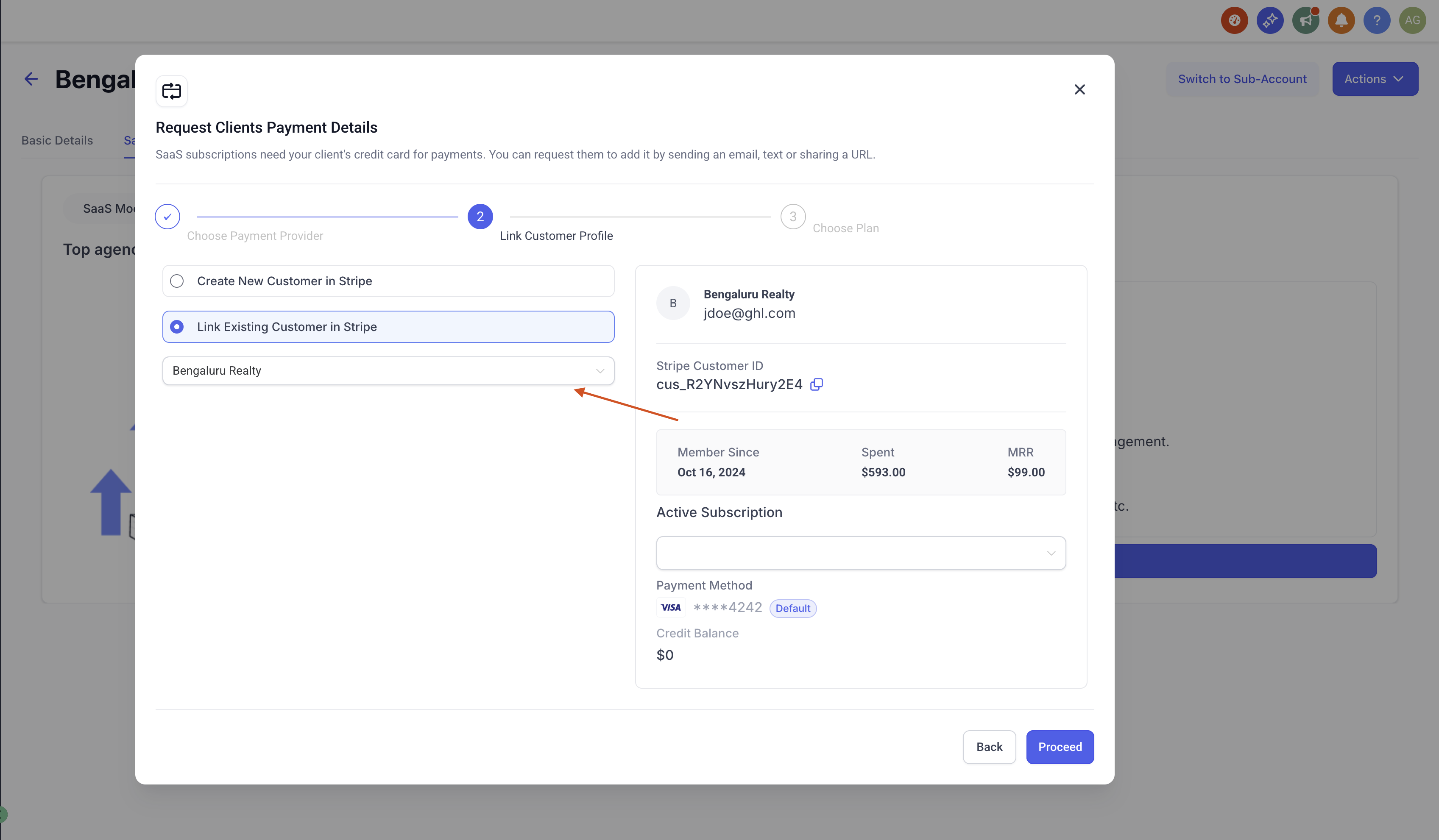
The subscription linking flow ties an existing active Stripe subscription to a client’s subaccount. By choosing the Stripe provider card labeled V1 (Agency), you open a window that lets you select a Stripe customer, pick one of their active subscriptions, and enable the SaaS plan for that subaccount. Both actions reside in Agency View under the SaaS Configurator and Subaccounts sections.
03How businesses use Importing Stripe products
- Digital marketing agency. The agency imports each client’s existing Stripe product into the SaaS Configurator, then adjusts the plan settings to match the agency’s service tiers. Finally, the agency links each client’s active Stripe subscription to the corresponding subaccount, keeping billing intact.
- Online course platform. The platform pulls its Stripe based course packages into the Configurator, edits pricing and trial options, and then connects active student subscriptions to the appropriate subaccounts so access aligns with billing.
- Membership club. The club imports membership levels from Stripe, configures feature access and rebilling rules in the new plan, and links current member subscriptions to their subaccounts to maintain uninterrupted membership.
04The numbers and rules that matter
- Legacy/V1 only: The workflow applies to the Legacy/V1 SaaS system.
- Provider card: Use the Stripe card labeled V1 (Agency) for both import and linking.
05Before you start
- Access to Agency View and the SaaS Configurator.
- An existing Stripe product that you want to import.
- For linking, a Stripe customer record that holds an active subscription.
06How to set up and use Importing Stripe products in HighLevel
Import products from Stripe
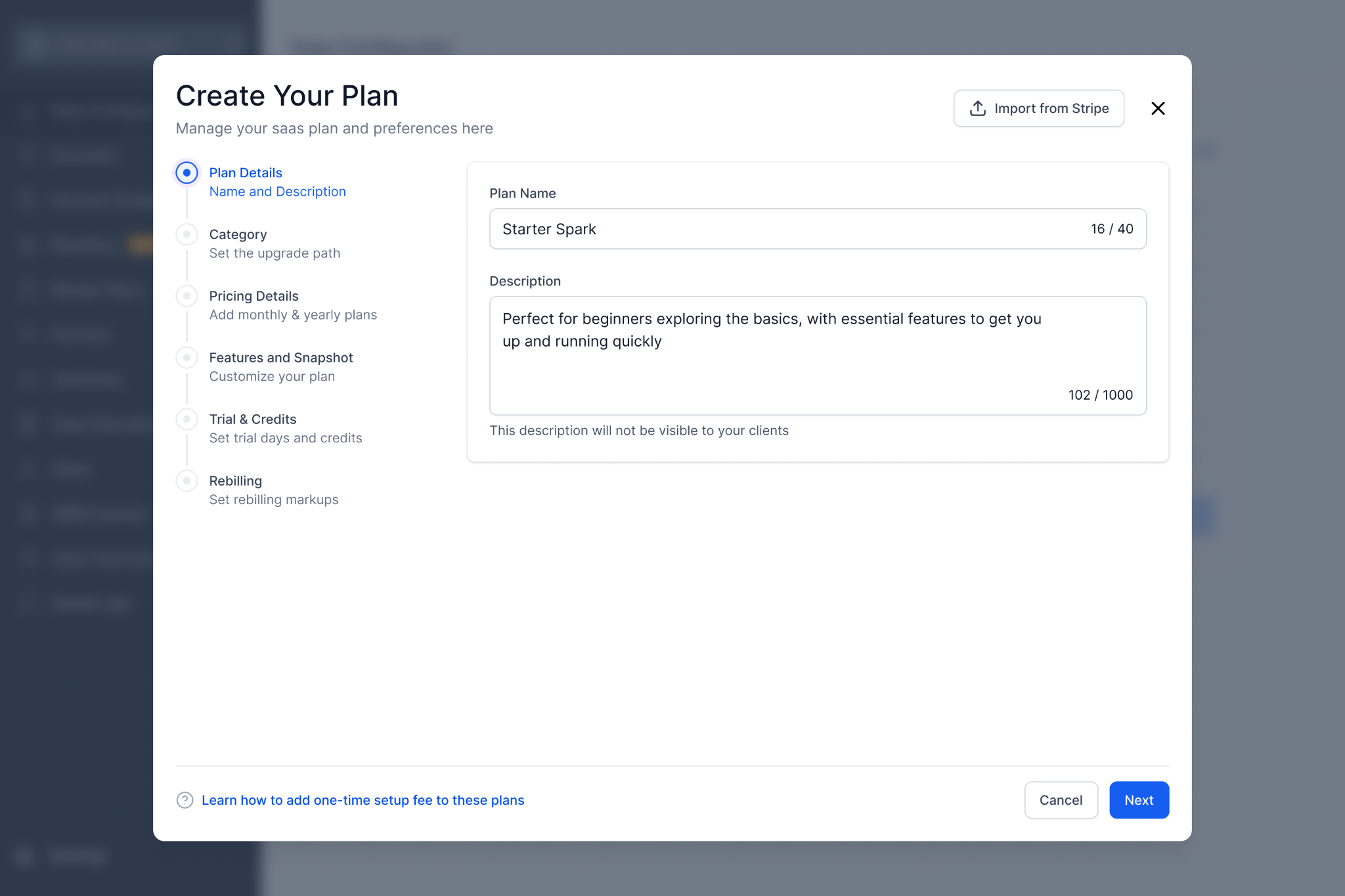
- In Agency View, go to SaaS Configurator, open Plans & pricing, click Add your plan, pick the Stripe V1 (Agency) card and press Continue.
- Select the Import from Stripe button located in the upper right corner.
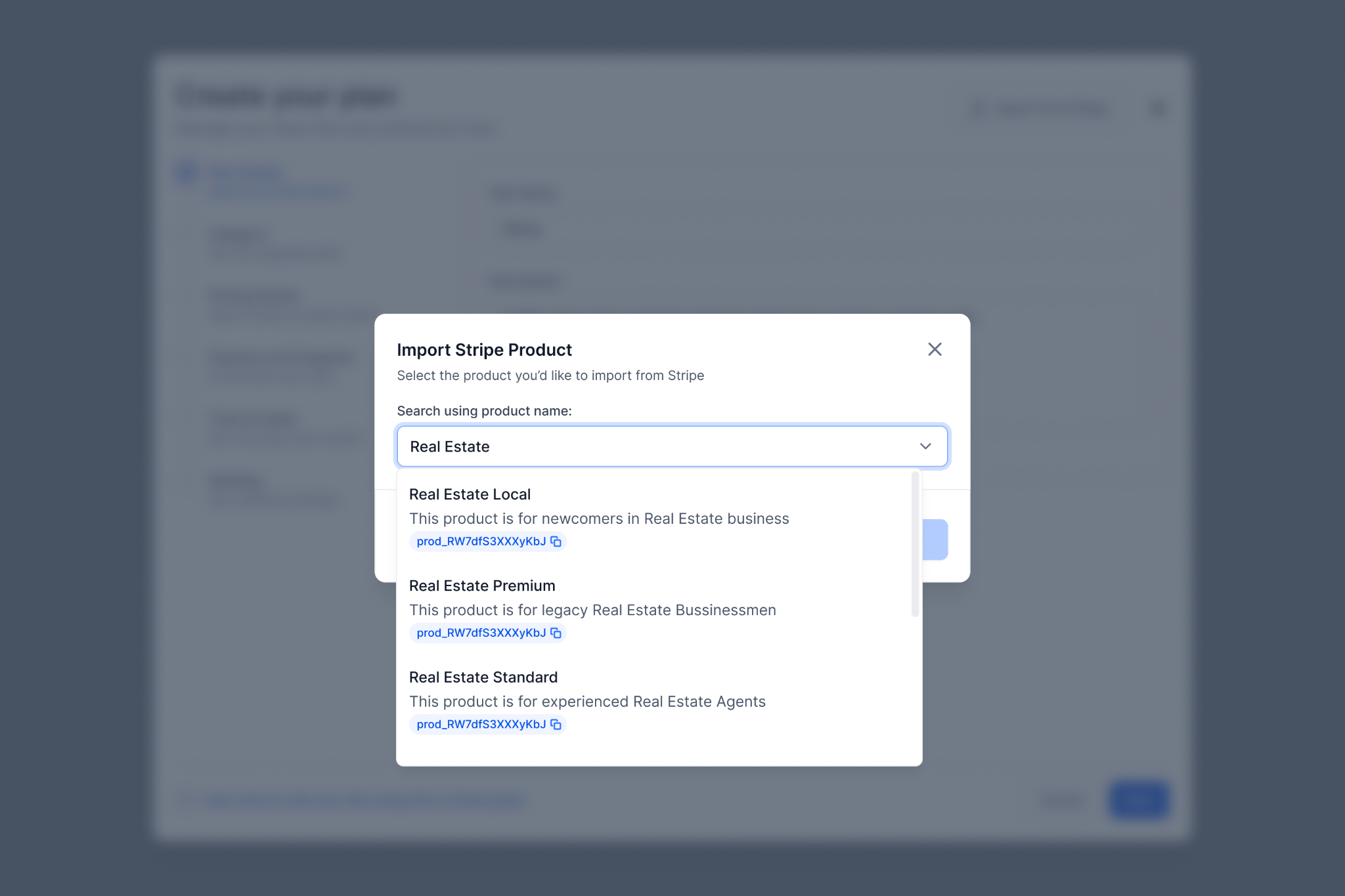
- Search for the desired Stripe product by entering its name.
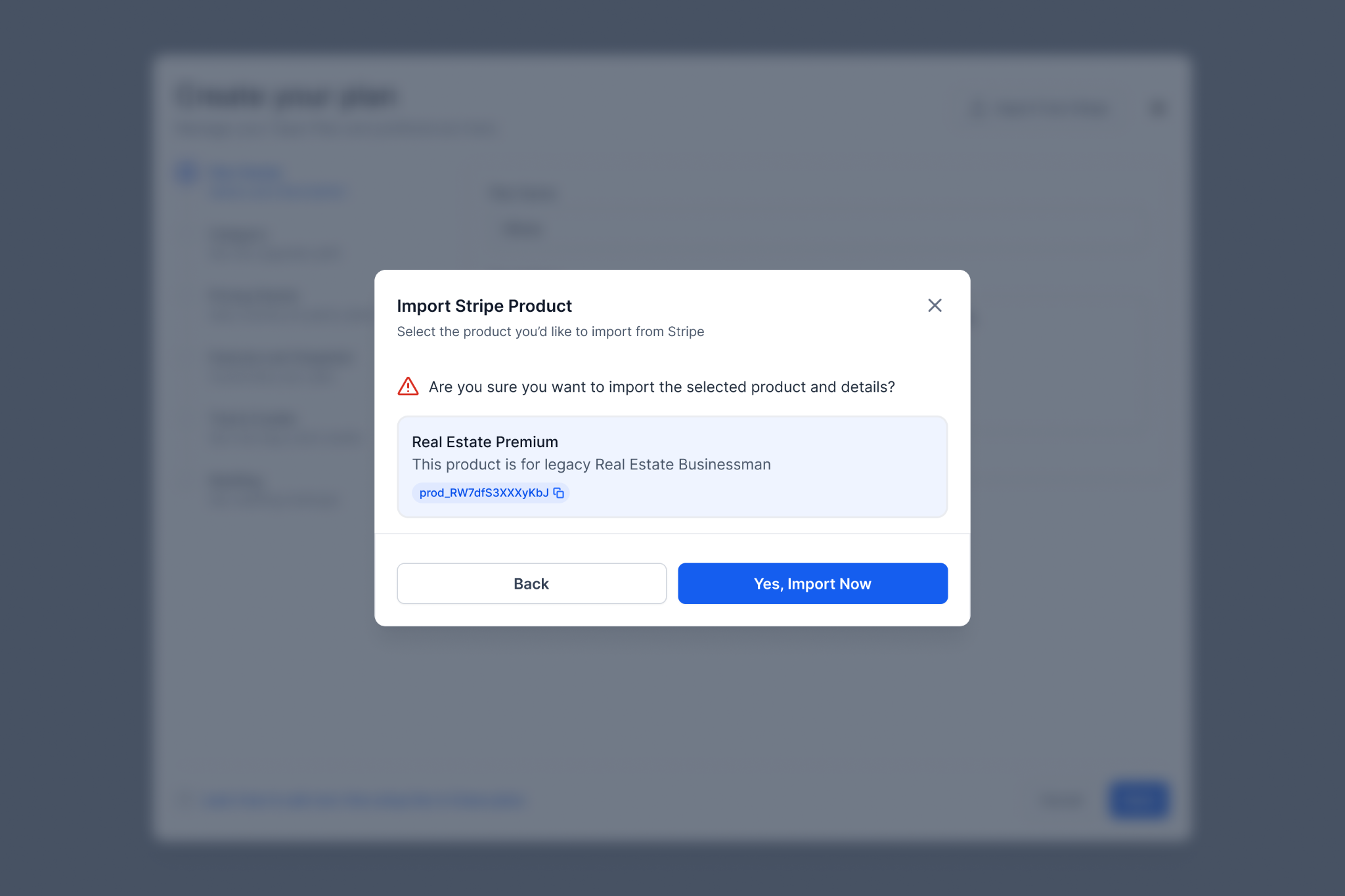
- Choose the product from the results and confirm the import.
- Verify that the product details now appear in the SaaS Configurator.
- Set the plan’s category and hierarchy as required.
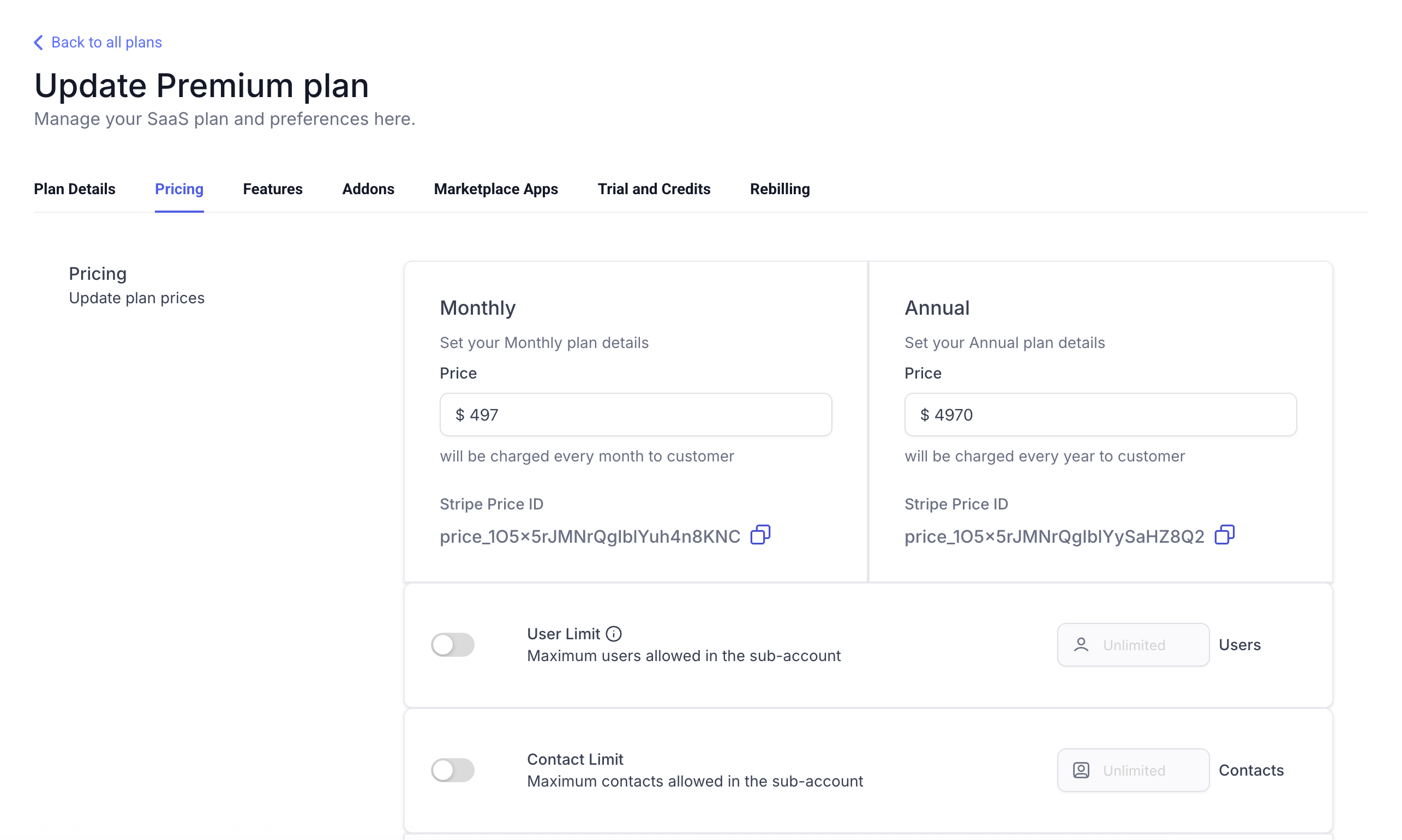
- Adjust pricing, features, snapshots, trial periods and rebilling options for the new plan.
- Save the plan to finish the import process.
Link existing Stripe subscriptions to subaccounts
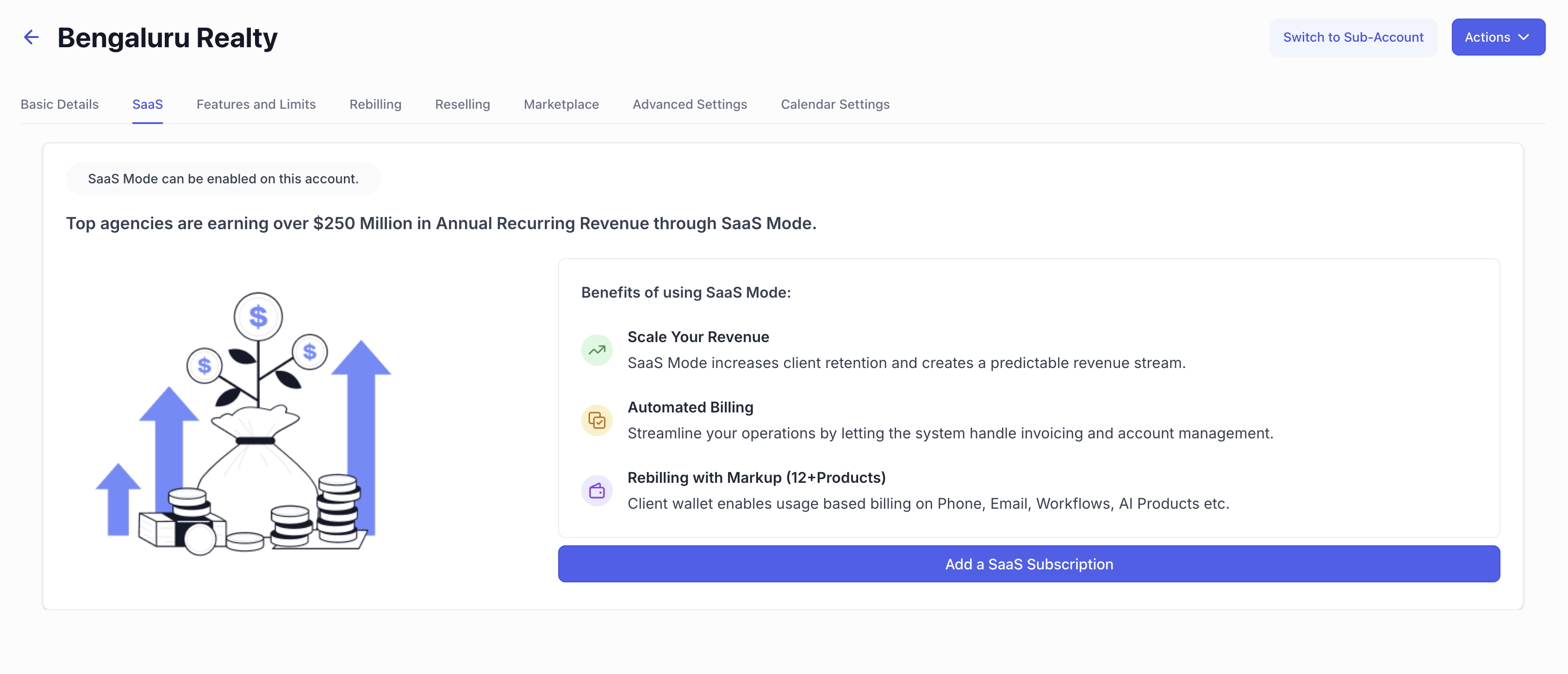
- From Agency View, open Subaccounts and select Manage Client for the target subaccount.
- Open the SaaS tab within the client’s subaccount view.
- Click Add a SaaS Subscription to start the linking flow.
- Choose the Stripe payment provider card labeled V1 (Agency).
- In the Request Client Payment Details window, pick Link Existing Customer in Stripe.
- Select the Stripe customer that holds the active subscription you wish to link.
- Pick the appropriate active subscription from the right hand panel.
- Confirm the selection to enable the SaaS plan for the subaccount.
07What it looks like in HighLevel
08Settings that matter
- Stripe card labeled V1 (Agency). Selects the Legacy V1 billing provider for both product import and subscription linking.
- Price IDs. Controls the identifier used for the plan’s pricing; new IDs are generated when a product is imported.
09Things to know before you rely on it
- Imported products receive new price IDs; original Stripe price IDs are not retained.
- The linking flow only works with an active Stripe subscription attached to the chosen customer.
- This import and link procedure applies exclusively to the Legacy V1 SaaS architecture, not to SaaS V2.
- Products must be imported one at a time; batch imports are not supported.
10If something goes wrong
- Cannot import multiple Stripe products at once. Import each product individually by searching for and confirming each one.
- Expected subscription does not appear for selection. Make sure the selected Stripe customer has an active subscription; the linking procedure requires an active subscription.
11How it connects to the rest of HighLevel
- Set up external AI model rebilling after importing a plan AI model rebilling
- Configure email rebilling options for the imported SaaS plan Email rebilling
- Review pricing and plan eligibility for Legacy V1 SaaS Pricing
Michael's take

For agencies that already have Stripe products and active subscriptions, this import feature can save the effort of recreating each product manually.
If an agency does not use Stripe already, they will still need to configure new price IDs and plan details after import, so creating plans directly in the SaaS Configurator may be more straightforward.