
01Who this is for
- Founders of SaaS agencies who want to control the client cancellation experience and gather exit feedback.
- Customer success teams that need to offer on the spot discounts during the exit process to keep clients subscribed.
02Custom SaaS cancellation flows, explained
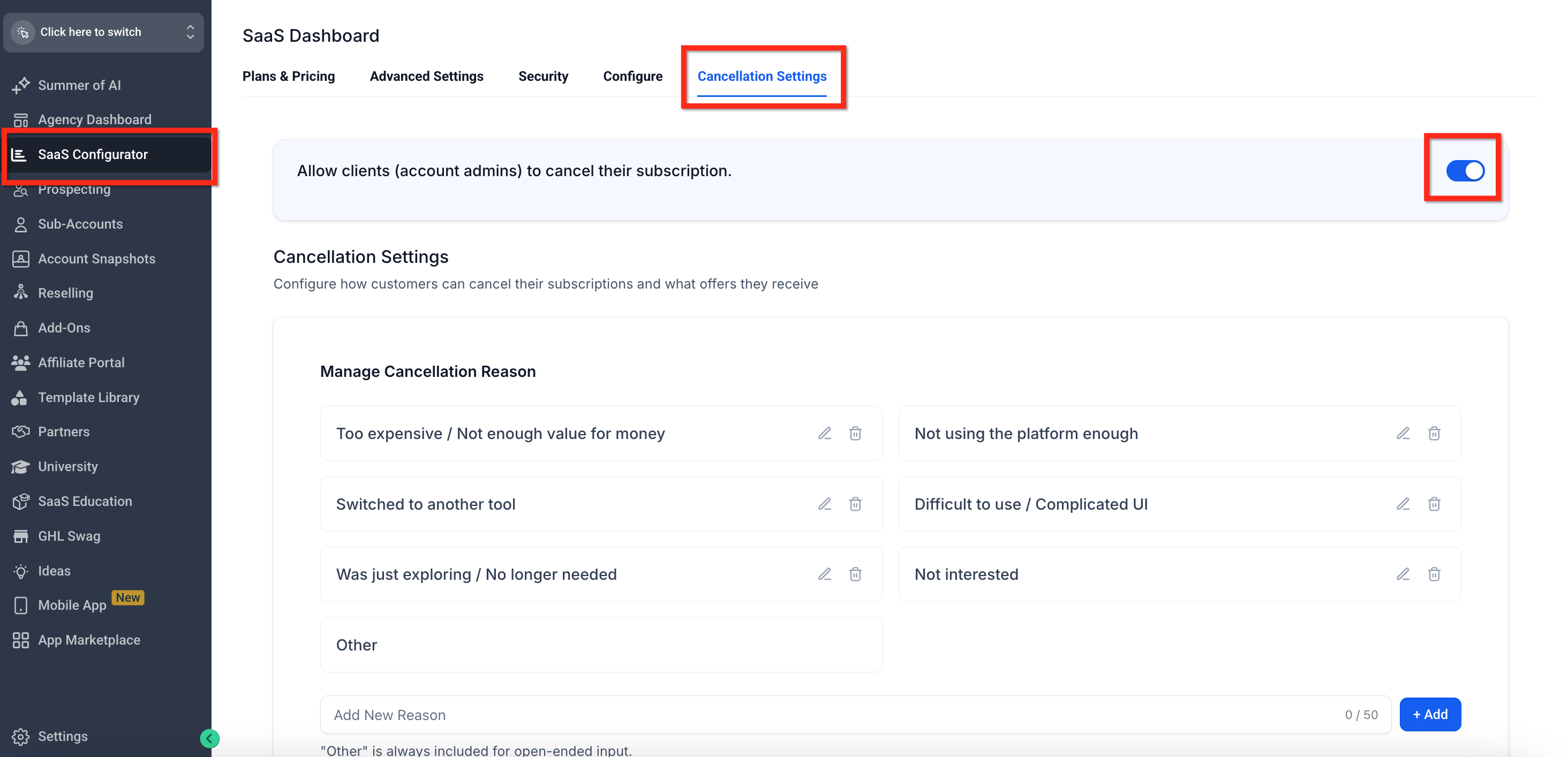
The feature lives in the SaaS Configurator under Cancellation Settings. It adds a global toggle that shows or hides the Modify/Cancel button in each subaccount’s billing dashboard. When enabled, the button launches a multi step flow where the agency defines cancellation reasons, optional discount offers, and an external redirect URL.
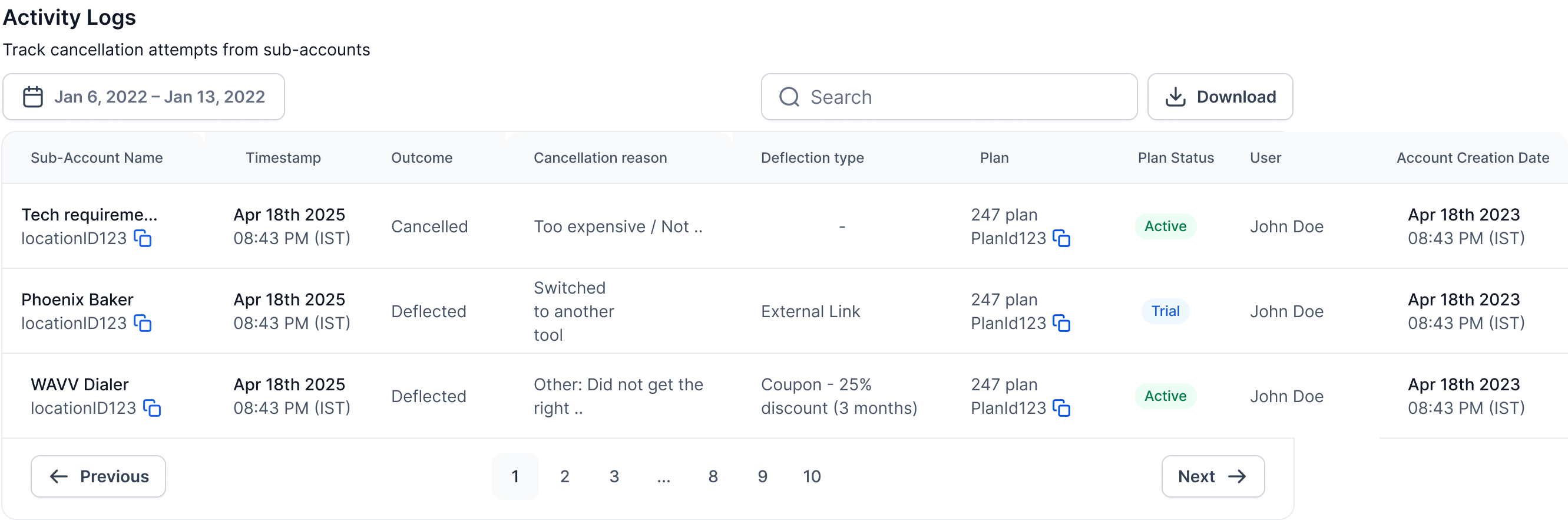
Each step of the flow can be edited directly in the platform. Reasons appear as selectable options with an always present “Other” free text field. A discount offer, if configured, is applied automatically to the next billing cycle when a client accepts. An external URL can be set to hand off the user to a separate retention page. All actions are logged in real time Activity Logs for reporting.
03How businesses use Custom SaaS cancellation flow
- Digital marketing agency. The agency turns on the global cancel toggle, adds common pricing objections as reasons, and configures a 20% discount for three months. They preview the flow, then let clients see the branded exit steps, capturing feedback and reducing churn.
- Online education platform. The platform adds reasons focused on course relevance, sets a discount of 15% for one month, and enables an external redirect to a survey page. After saving, the platform monitors the Activity Log for insight into why learners leave.
- Project management SaaS provider. The provider activates the cancellation button, creates custom reasons about feature gaps, and chooses to allow the discount offer multiple times. They use preview mode to verify copy and then track all attempts in the logs for internal analysis.
04The numbers and rules that matter
- Discount feature is currently available for V1 subaccounts only.
05How to set up and use Custom SaaS cancellation flow in HighLevel
Enable or disable the client side cancel button
- Open Agency View > SaaS Configurator > Cancellation Settings.
- Find the Global toggle labeled Allow Clients to Cancel Subscription.
- Switch the toggle ON or OFF and click Save; changes take effect immediately.
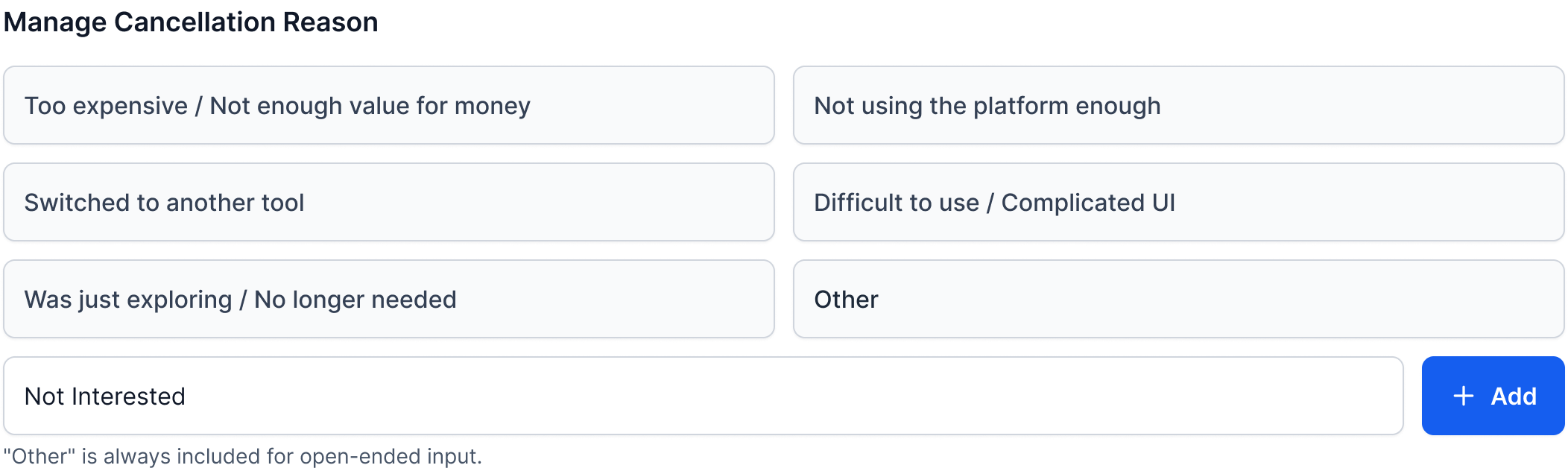
Define the list of reasons shown during cancellation
- Navigate to SaaS Configurator > Cancellation Settings.
- In the Manage Cancellation Reasons section, select an existing reason or click the Add button to create a new one.
- Use the edit icon to modify a reason or the plus icon to add additional entries.
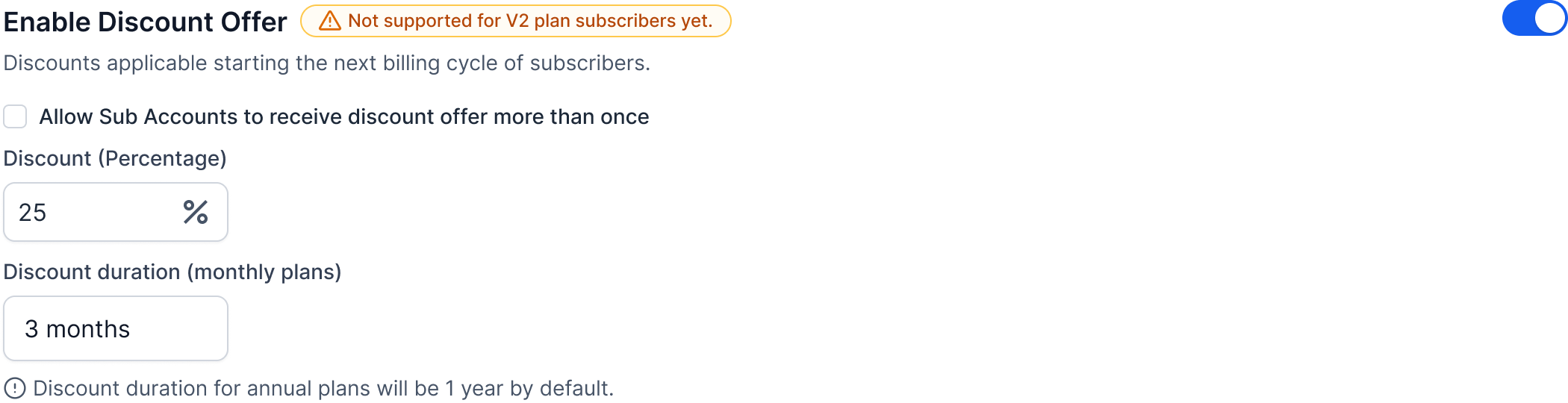
Set up a discount offer to retain cancelling clients
- In Cancellation Settings, turn on the Enable Discount Offer toggle.
- Enter the desired discount percentage and specify the duration in billing cycles.
- Optionally enable the setting that permits subaccounts to receive the discount more than once.
- Save the configuration so the platform can apply the coupon automatically when accepted.
Redirect users to an external page
- Under Redirect to External Page, enter a valid URL.
- When enabled, users will be taken to this page immediately after selecting a cancellation reason.
Preview the complete cancellation journey before publishing
- Click the Preview button at the top right of the Cancellation Settings page.
- Step through each simulated screen, checking the copy, discount display, and any redirect URL.
- Confirm that the flow works as intended before activating it for clients.
06What it looks like in HighLevel

07Settings that matter
- Allow Clients to Cancel Subscription. Controls whether the Modify / Cancel button appears in each subaccount’s billing dashboard.
- Manage Cancellation Reason. Lets the agency edit, add, or remove the list of reasons presented to users during cancellation.
- Enable Discount Offer. Activates the option to present a discount before the final cancellation step.
- Discount %. Specifies the percentage reduction applied when a client accepts the offer.
- Discount Duration. Sets how many future billing cycles the discount remains in effect.
- Allow Sub, Accounts to receive discount offer more than once. Determines if a client can be shown the discount on multiple cancellation attempts.
- Redirect to External Page. Defines a URL to which users are sent after selecting a cancellation reason, bypassing in app cancellation.
08Things to know before you rely on it
- The global cancel toggle is OFF by default for new SaaS businesses.
- The discount feature works only for V1 subaccounts.
- The “Other” reason is always included and allows free text input.
- Preview Mode does not create real coupons or write entries to Activity Logs.
- Changes take effect immediately after Save.
09How it connects to the rest of HighLevel
- Cancel a SaaS subaccount for your client Cancellation guide
- Upgrade or downgrade a SaaS plan Plan changes
- HighLevel pricing and plans Pricing
Michael's take

The custom SaaS cancellation flow gives you a chance to ask for reasons, offer a timely discount, or send users to an off boarding page.
I’d start by configuring the discount offer. Set a meaningful percentage and duration, then enable the toggle so the coupon is automatically applied to the next billing cycle. Test the flow in Preview Mode to make sure the copy and redirect work before you go live.