
01Who this is for
- SaaS agency owners, they can brand the first communication to new client users.
- Founders managing multiple subaccounts, they ensure consistent onboarding across teams.
02Onboarding emails, explained
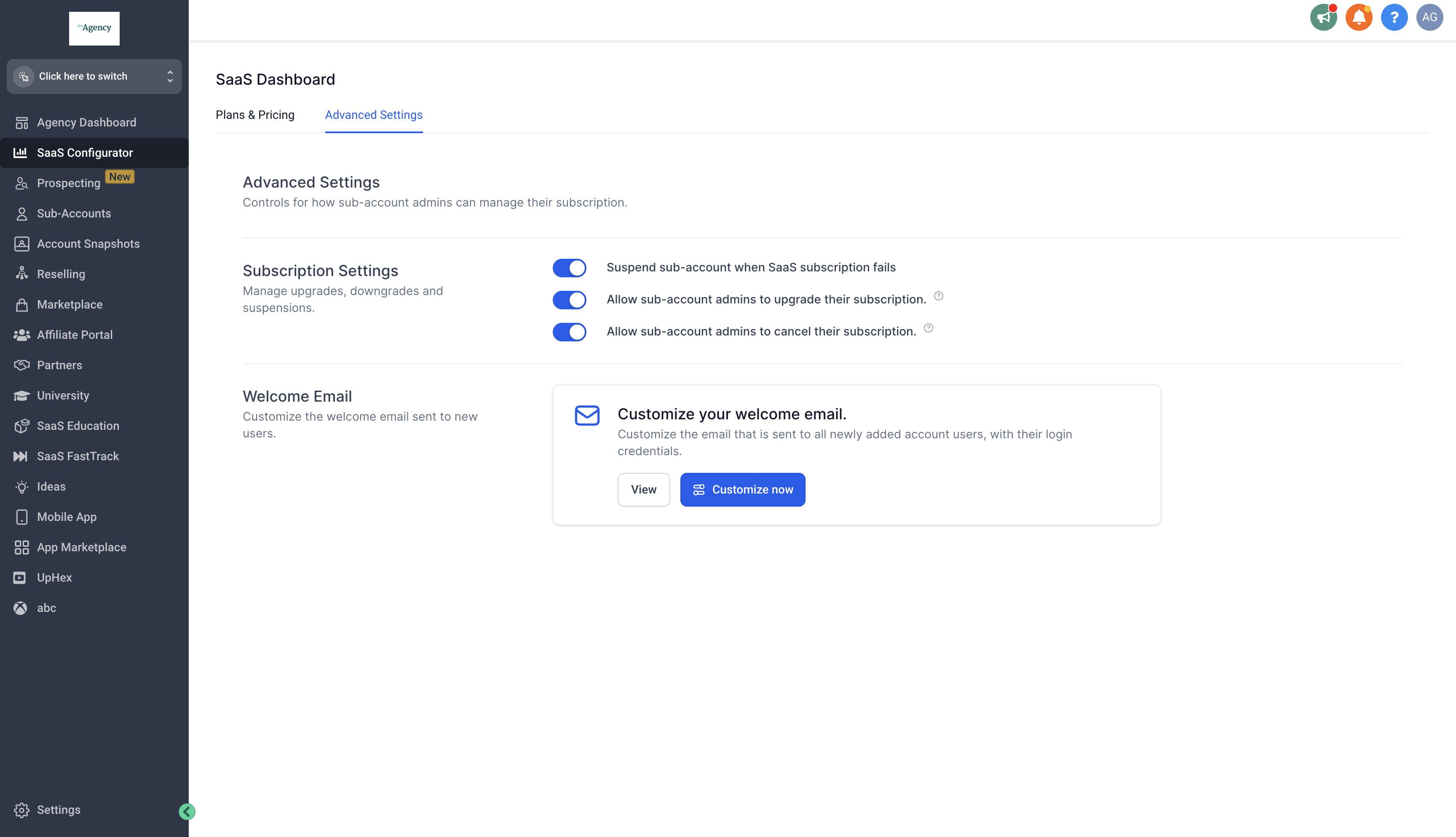
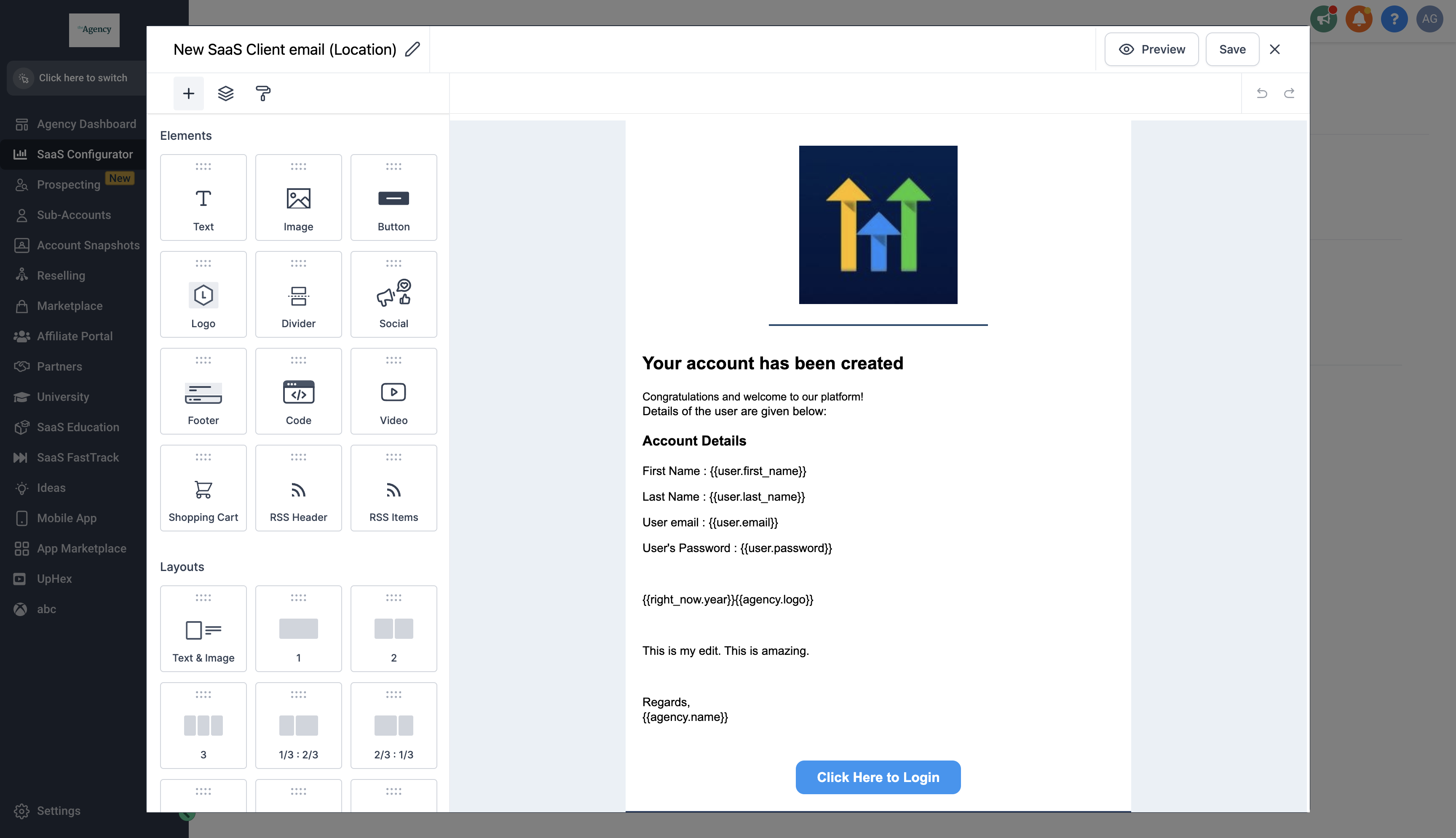
The feature lets you replace the default onboarding message with a template you design. After a template is created, HighLevel stores it in the subaccount you chose during setup. All future welcome emails for that subaccount will use the saved version. The customization process is accessed through the SaaS Configurator > Advanced Settings > Customize Welcome Email. In the email builder you can add branding, custom values, and layout changes, then save the template. If the stored template is removed, HighLevel reverts to the standard email.
03How businesses use onboarding email
- SaaS agency. The agency opens SaaS Configurator > Advanced Settings > Customize Welcome Email, selects the client subaccount, edits the message to include the agency’s logo and tone, then saves. The customized email will greet each new client user.
- Digital marketing firm. The firm accesses the same menu, chooses its internal subaccount, adds custom merge fields for campaign names, and stores the template. When a new marketer is added, the email reflects the firm’s branding.
- Tech startup. The startup navigates to the configurator, picks the development team subaccount, builds an onboarding email with product links, and saves it. New team members receive the tailored welcome message.
04How to set up and use onboarding email in HighLevel
Customize onboarding email
- Open SaaS Configurator > Advanced Settings > Customize Welcome Email > Customize Now.
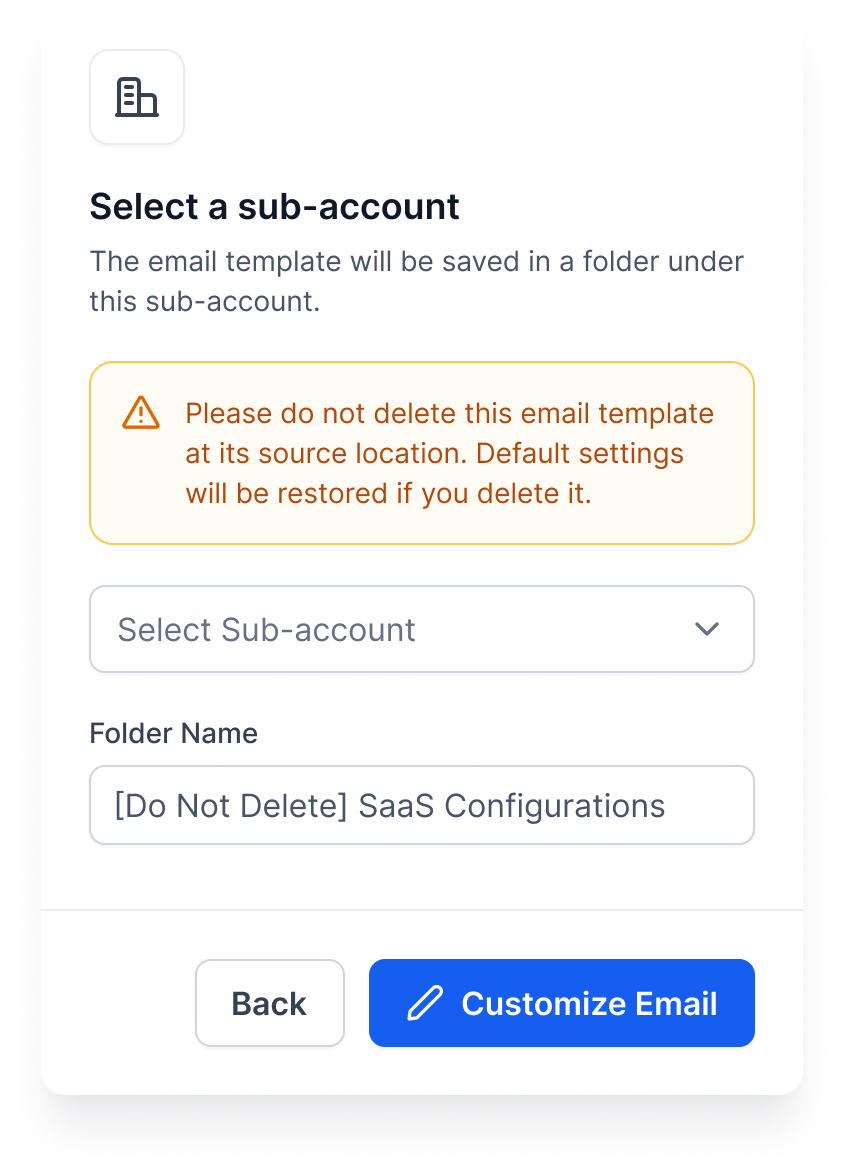
- Choose the subaccount where the template will be stored and select 'Customize Email'.
- In the email builder, modify layout, insert custom values, and apply brand styling.
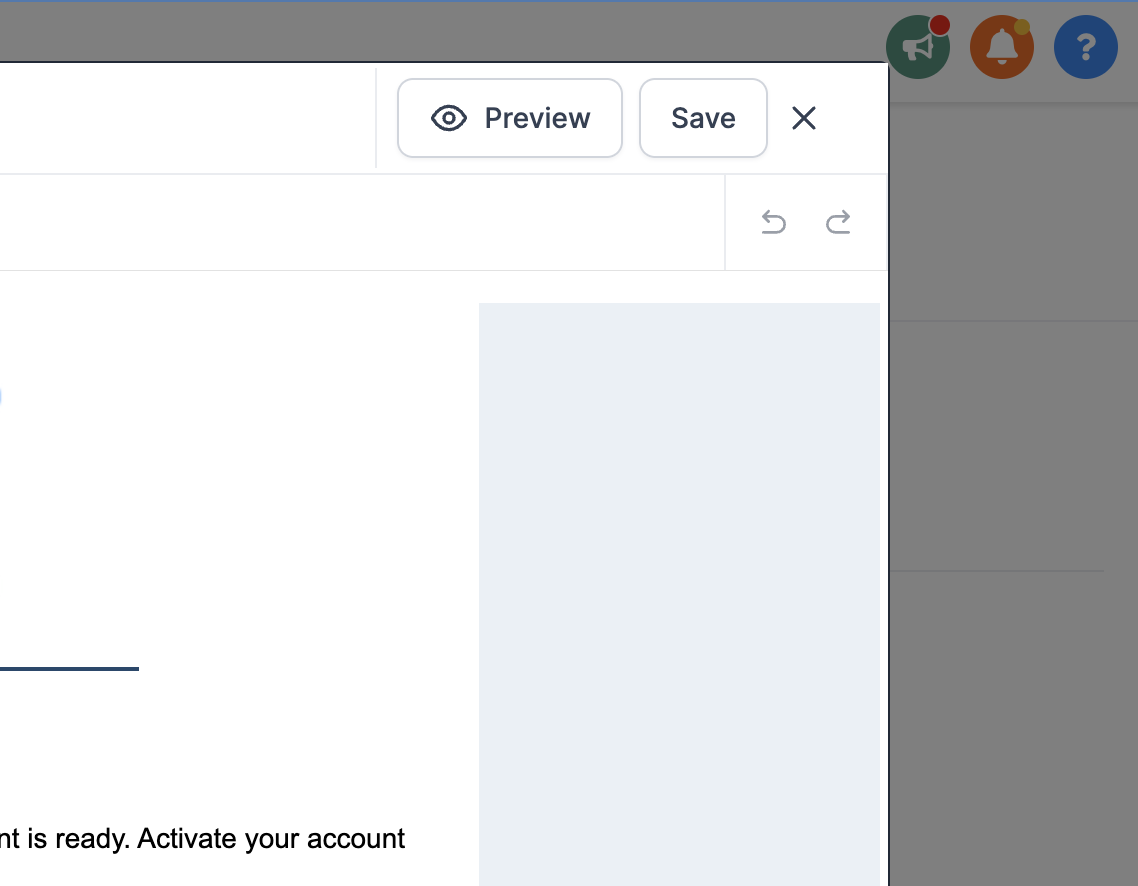
- Click 'Save' to store the template in the chosen subaccount.
05What it looks like in HighLevel
06Settings that matter
- Customize Welcome Email. Option that opens the editor for the onboarding email template.
- Customize Email. Button that launches the email builder for the selected subaccount.
07Things to know before you rely on it
- The template is saved in the subaccount selected during the first customization.
- Do not delete the email template at its source; deletion removes the custom version and the system falls back to the default template.
08How it connects to the rest of HighLevel
- Related SaaS Configurator feature SaaS wallet credits
- Related SaaS Configurator option Phone rebilling
- Pricing and plans overview Pricing and plans
Michael's take

Most people think the onboarding email is set once and forget about it, so they never realize that deleting the template wipes out all their branding work. Keep the template where you first saved it and treat it like any other essential asset.
If I were setting this up, I’d paste my agency’s logo and color scheme into the builder right away, then hit Save. After that I’d double check that the template still lives in the chosen subaccount before adding any new users.