
01Who this is for
- Agency owners who manage many client subaccounts; contact limits prevent accidental bulk manual entry.
- SaaS product Founders who sell platform access; limits help enforce tiered usage without blocking API integrations.
- Marketing consultants handling client contact lists; the setting allows them to control UI imports while still using automated flows.
02Contacts limit, explained
The feature introduces a maximum number of contacts that can be created from the HighLevel user interface for a SaaS plan or an individual subaccount.
The limit applies only to manual actions such as creating contacts one by one or importing them in bulk. Contacts can still be added through the API, forms, and workflows after the limit is reached.
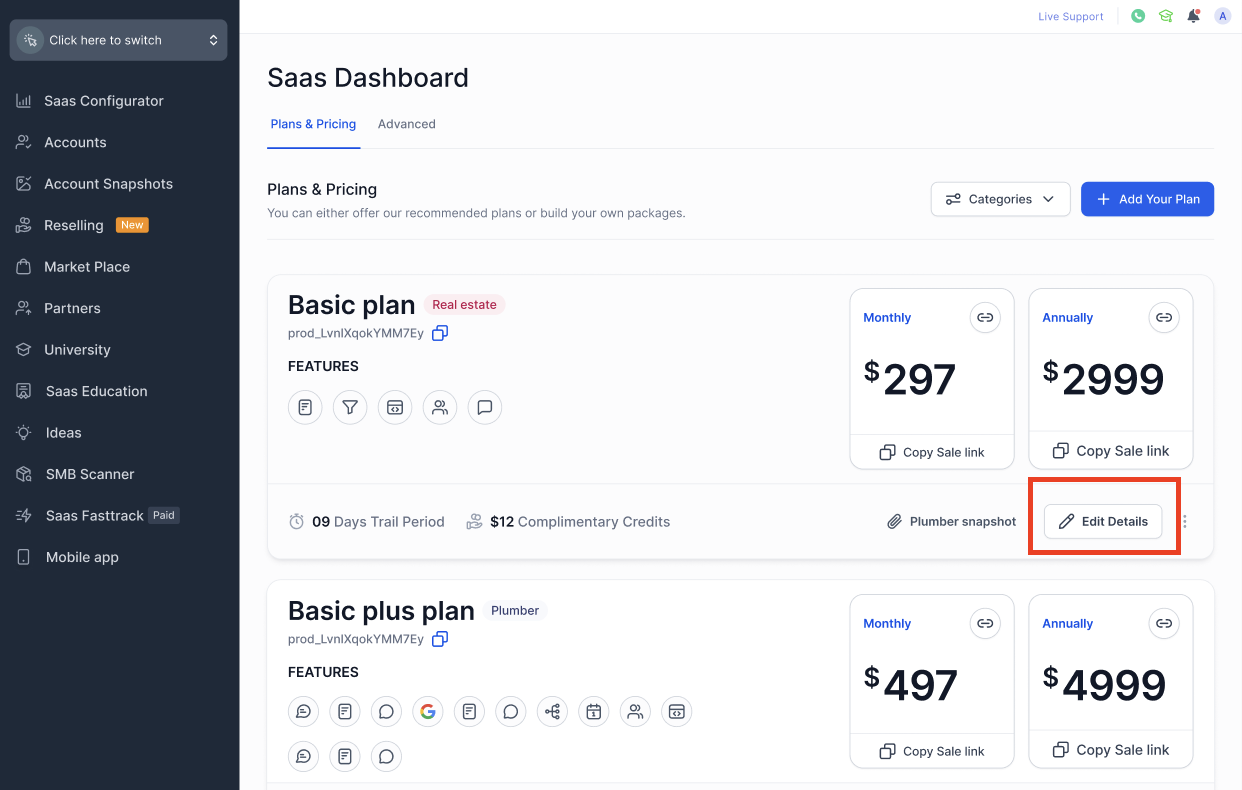
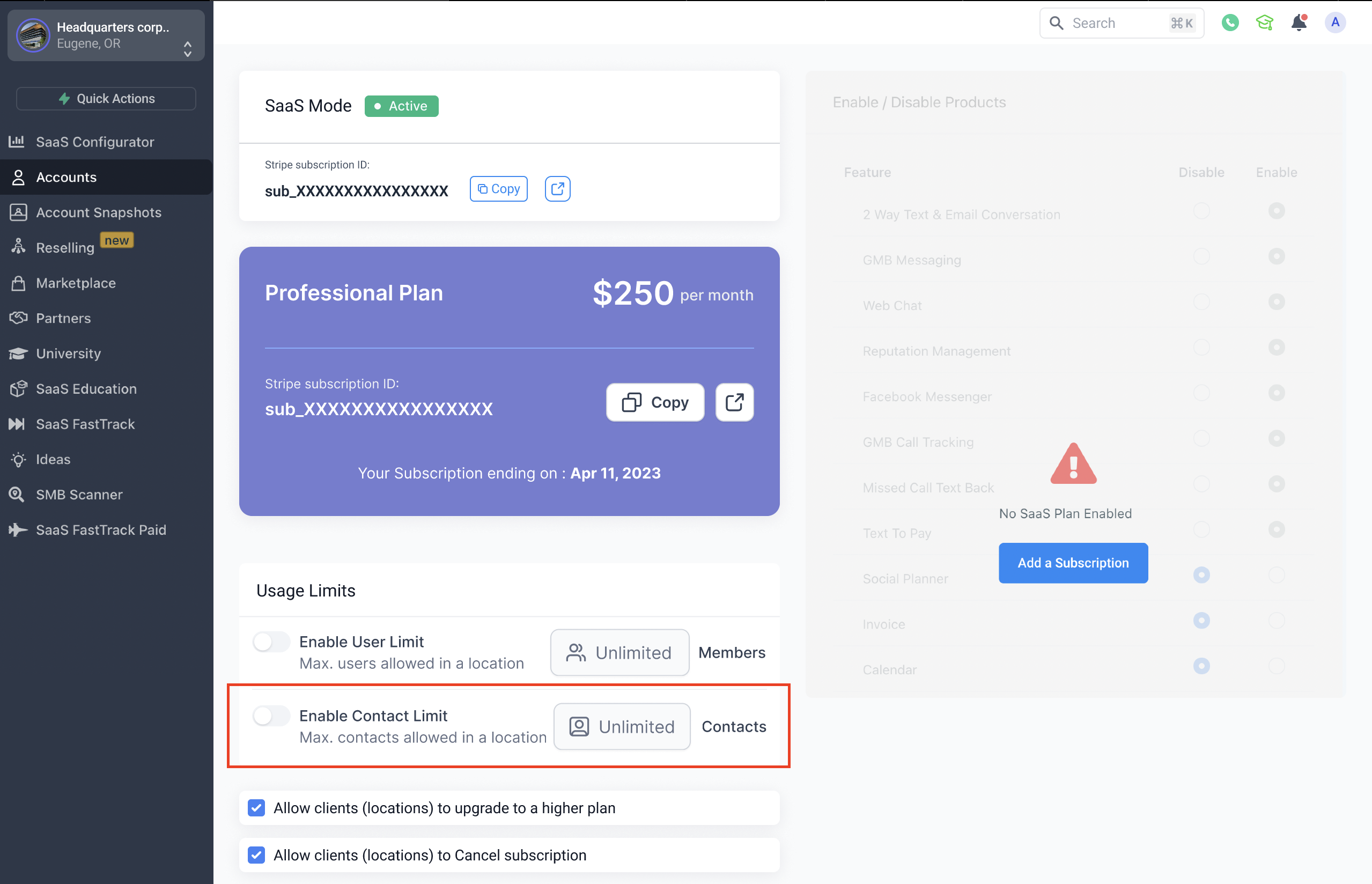
You find the controls in the SaaS configurator under the Usage Limits tab for plans, and on the Manage Client page under Usage Limits for specific subaccounts.
03How businesses use contacts limit
- Digital marketing agency. Set a contact limit on the agency’s SaaS plans to stop clients from adding too many contacts manually, while still allowing automation via APIs to populate lists.
- Online course platform. Override the default plan limit for a specific instructor’s subaccount to restrict manual enrollment entries but let the platform’s enrollment API continue adding students.
- Real estate brokerage. Apply a contact cap to each broker’s subaccount to limit manual lead entry, yet keep lead capture forms on the website functional through workflow driven contact creation.
04The numbers and rules that matter
- Contact limit is NOT A COMPLETE LIMIT; contacts can still be created via APIs, Forms, Workflows etc. after the limit is exhausted.
- By default, unlimited contacts are allowed.
05How to set up and use contacts limit in HighLevel
Configure contact limits for SaaS plans
- Open the SaaS configurator and click Edit Details for the plan you want to adjust.
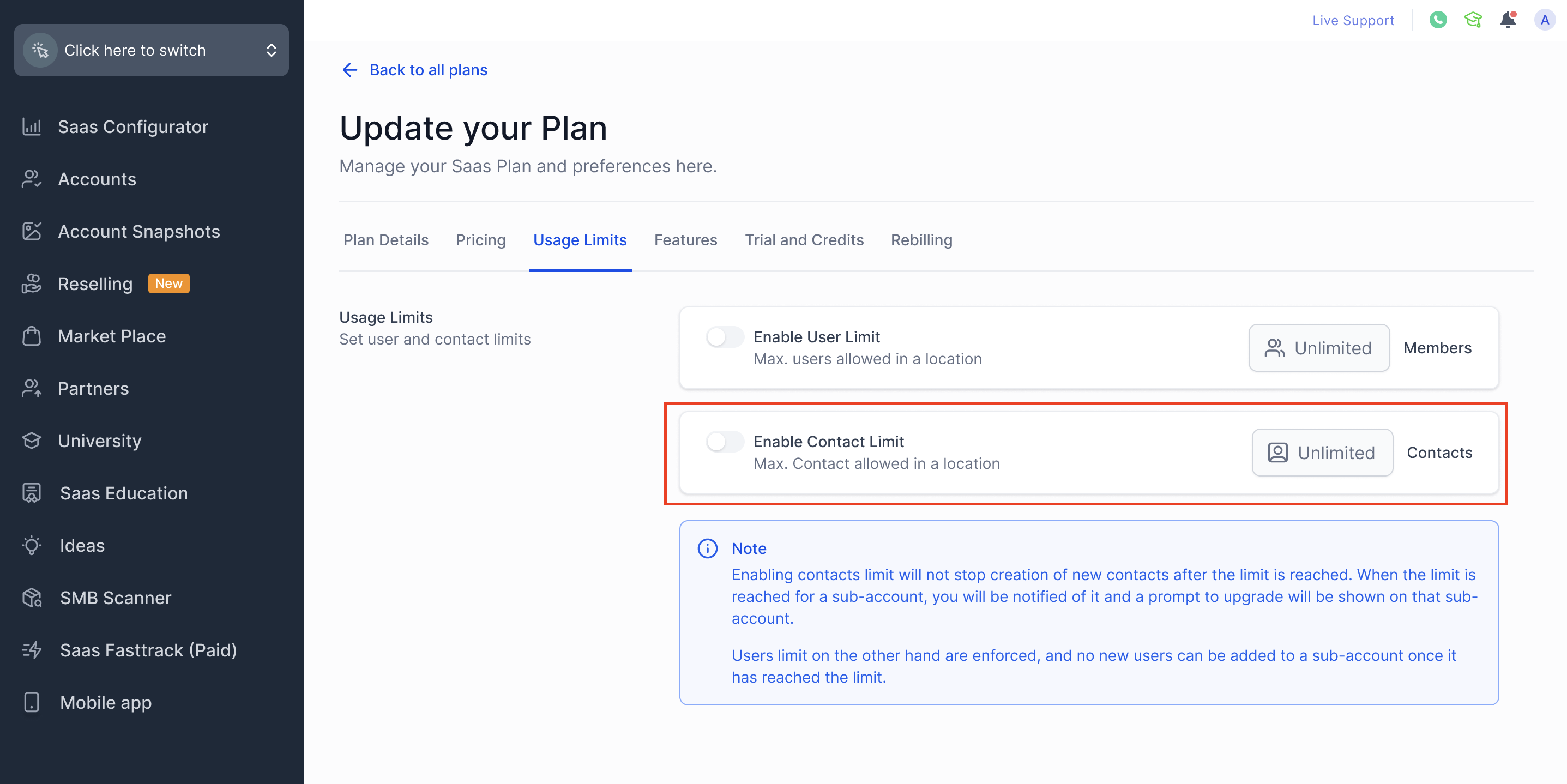
- Select the Usage Limits tab.
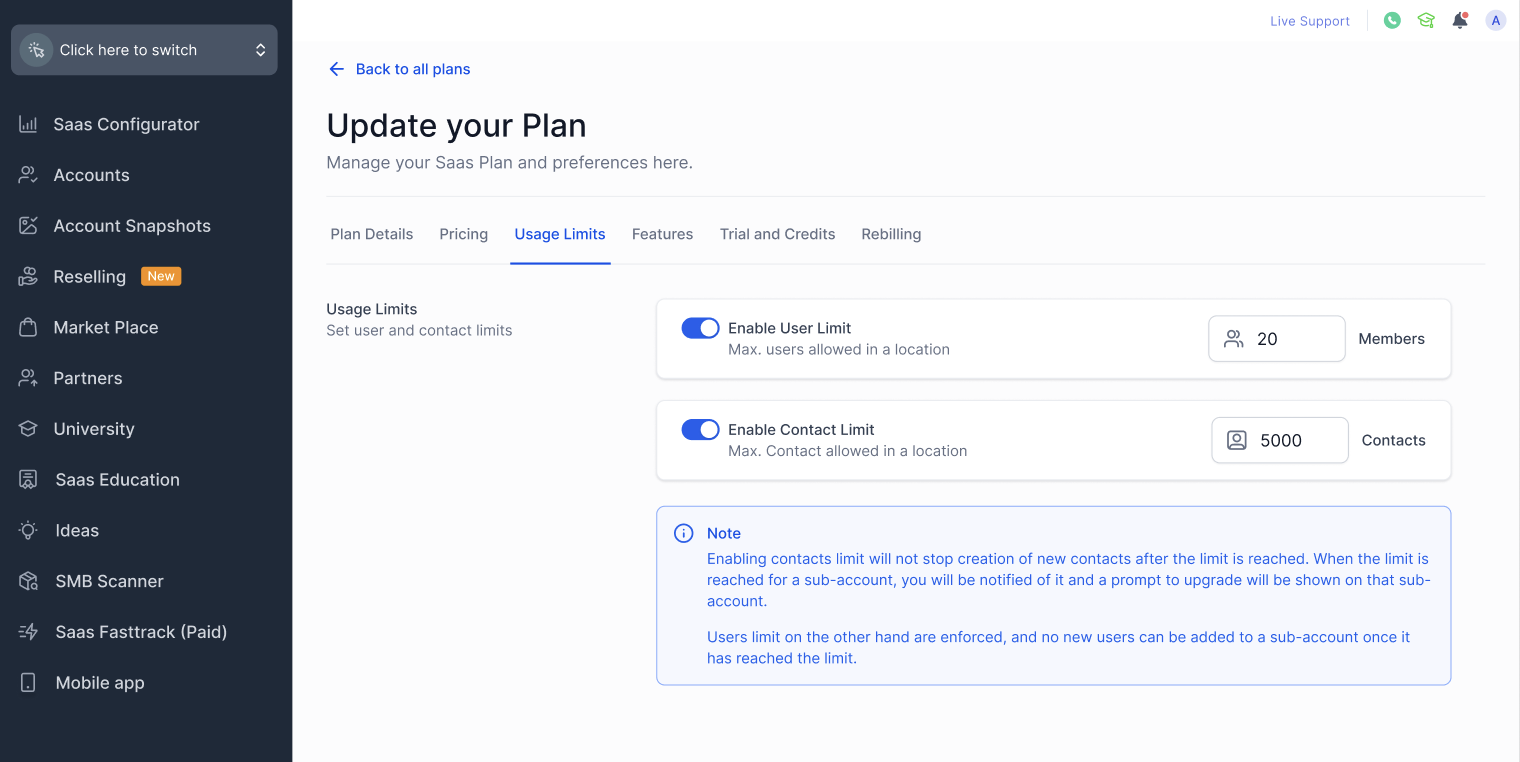
- Turn on the Contact Limit toggle and type in the desired number of contacts.
- Press Save to apply the limit to the plan.
Update contact limits for specific subaccounts
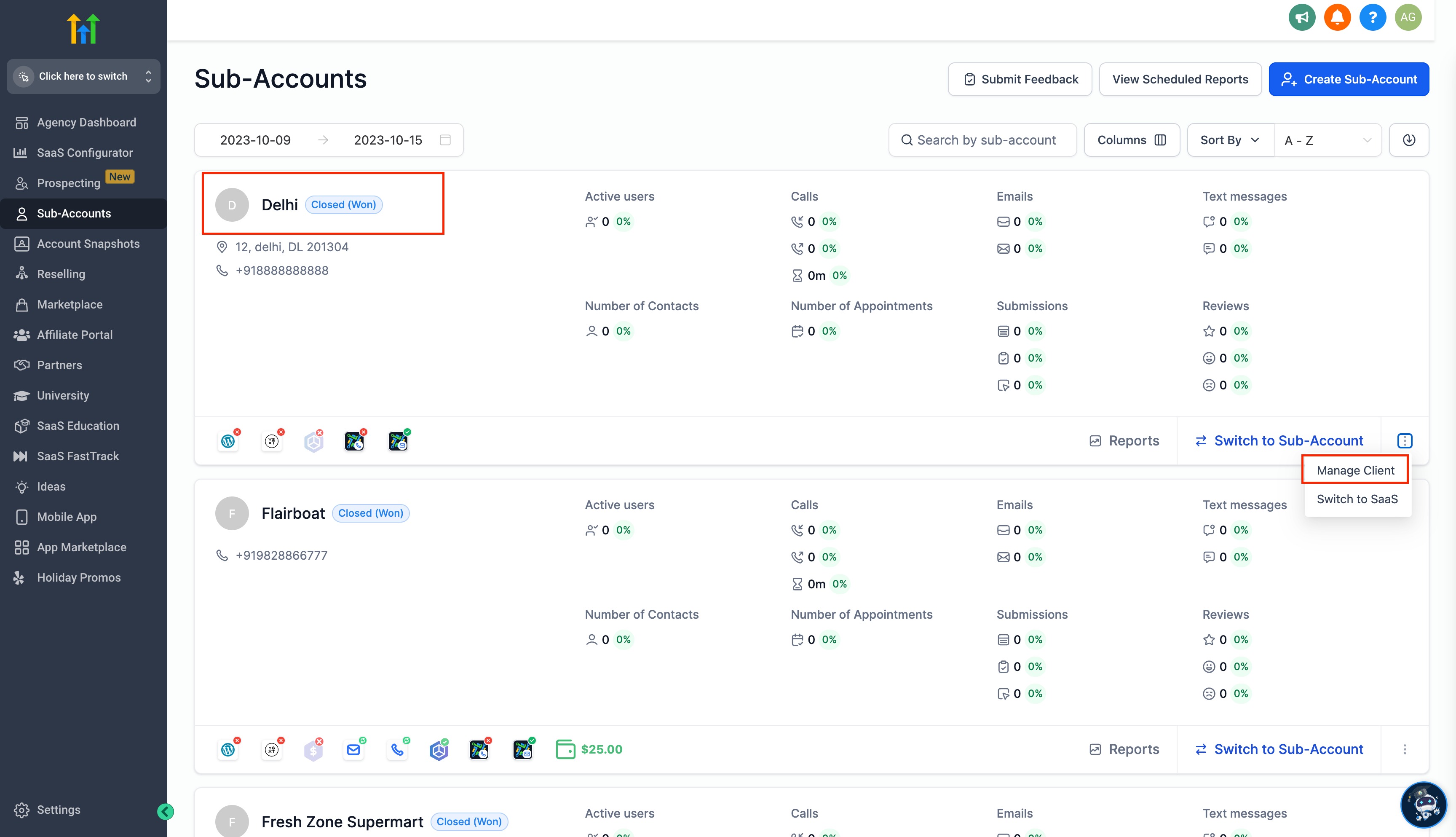
- Navigate to the Subaccounts page at the agency level and choose the subaccount to edit.
- In the Manage Client view, go to the Usage Limits section.
- Enter the new contact limit and click Save.
06What it looks like in HighLevel

07Settings that matter
- Contact limit. Specifies the maximum number of contacts that can be created through the UI for the selected plan or subaccount.
- Contact Limit toggle. Enables or disables the contact limit feature; when off, contacts are unlimited by default.
08Things to know before you rely on it
- The limit does not block contacts created via API calls, forms, or workflows.
- By default, plans allow unlimited contacts until the limit is enabled.
- A limit set on the Manage Client page overrides the plan’s limit for that subaccount.
- If a subaccount upgrades its plan, the limit resets to the new plan’s setting unless changed again.
09How it connects to the rest of HighLevel
- How to activate phone rebilling in HighLevel SaaS mode Phone rebilling in SaaS mode
- Managing SaaS wallet credits in HighLevel: view, add, and refund SaaS wallet credits
- HighLevel pricing and plans Pricing and plans
Michael's take

Wondering if you really need to limit contacts for your SaaS clients? The contacts limit gives you a simple way to keep manual entry in check without choking off the automated parts of your funnels.
I’d set a modest UI cap at the plan level first, then tweak individual client limits if you see they need a bit more wiggle room. Test the limit on a test subaccount so you know exactly where the UI stops and the API still runs.