
01Who this is for
- Agency owners who oversee dozens of client subaccounts and need a fast way to enable SaaS billing.
- Founders of SaaS products that sell through the HighLevel platform and must pause or activate many client locations together.
02SaaS subaccounts, explained
The bulk actions feature lives in the Subaccounts section of the Agency view. It provides three main operations: enabling SaaS mode for multiple accounts, pausing many accounts at once, and reviewing the results of any bulk job. Each operation works on the accounts you select and runs as a single job.
When you enable SaaS mode, the system applies the chosen SaaS plan and payment provider configuration to every selected subaccount. Pausing accounts stops access while giving you control over whether subscriptions continue to charge and whether phone resources are disconnected. The history view shows each job’s status, who submitted it, and any error details for accounts that did not process correctly.
03How businesses use bulk manage SaaS subaccounts
- Digital marketing agency. The agency can select all client subaccounts that have signed up for a new SaaS plan, click Enable SaaS Mode, choose the appropriate payment provider card, and apply the plan in one go. This avoids opening each client account individually.
- SaaS product provider. When a product update requires pausing user access, the provider selects the affected locations, clicks Pause Subaccount, decides whether to keep subscription billing, and optionally disconnects phone numbers before confirming the pause.
- Consulting firm with multiple practice sites. The firm can review the Bulk Action History after enabling SaaS mode to verify that every site received the correct plan and to identify any accounts that need further attention.
04The numbers and rules that matter
- V1 (Agency): Uses the Stripe account connected in agency settings, with billing data managed in Stripe.
- V2 (Subaccount): Uses the selected agency subaccount's billing configuration, with data managed in HighLevel.
05Before you start
- Payment provider and SaaS plan must be configured before starting.
- Clients need to add a payment method for the SaaS plan to take full effect.
06How to set up and use bulk manage SaaS subaccounts in HighLevel
Enable SaaS mode for multiple subaccounts
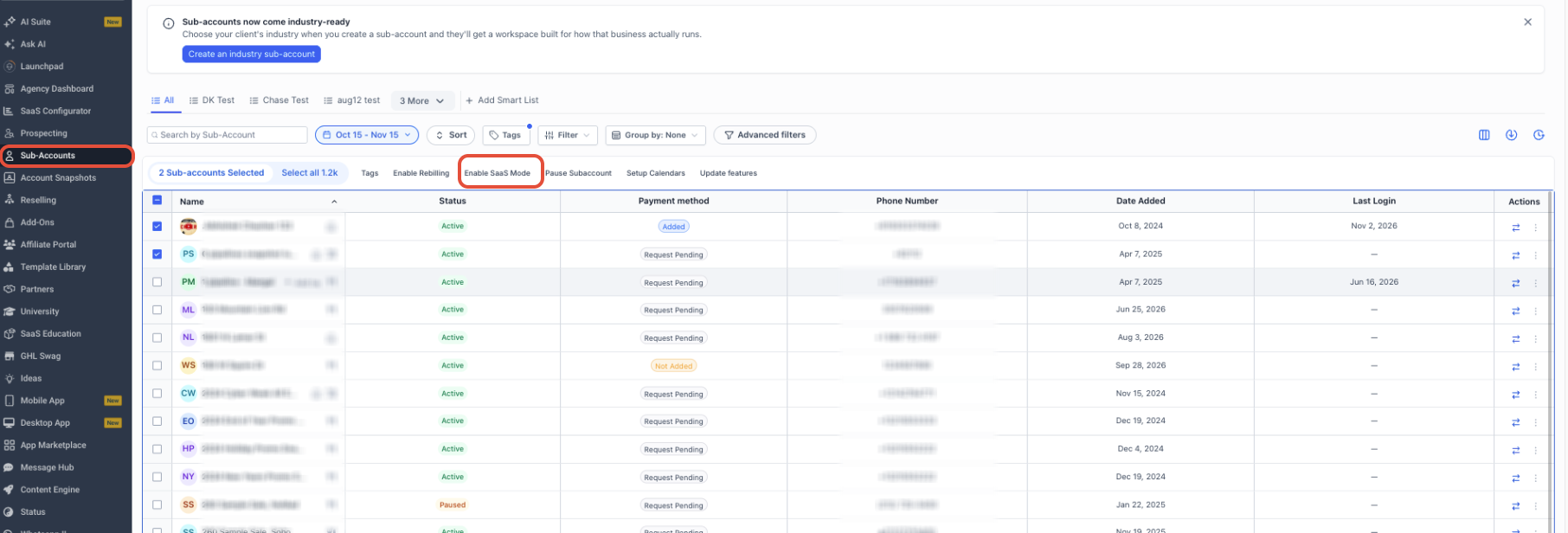
- In Agency View, open Subaccounts from the left navigation.
- Search or filter to locate the target accounts, then check each box or use Select All and confirm the selection.
- Click Enable SaaS Mode in the action bar above the selected rows.
- Examine the payment provider cards, pick a supported card, and press Continue.
- Open Select Subscription Plan, choose Show Full Details, review the plan, and click Select Plan.
- Confirm the account count, plan, and price in the final window, then click Proceed.
Pause multiple subaccounts at once
- From Agency View, navigate to Subaccounts.
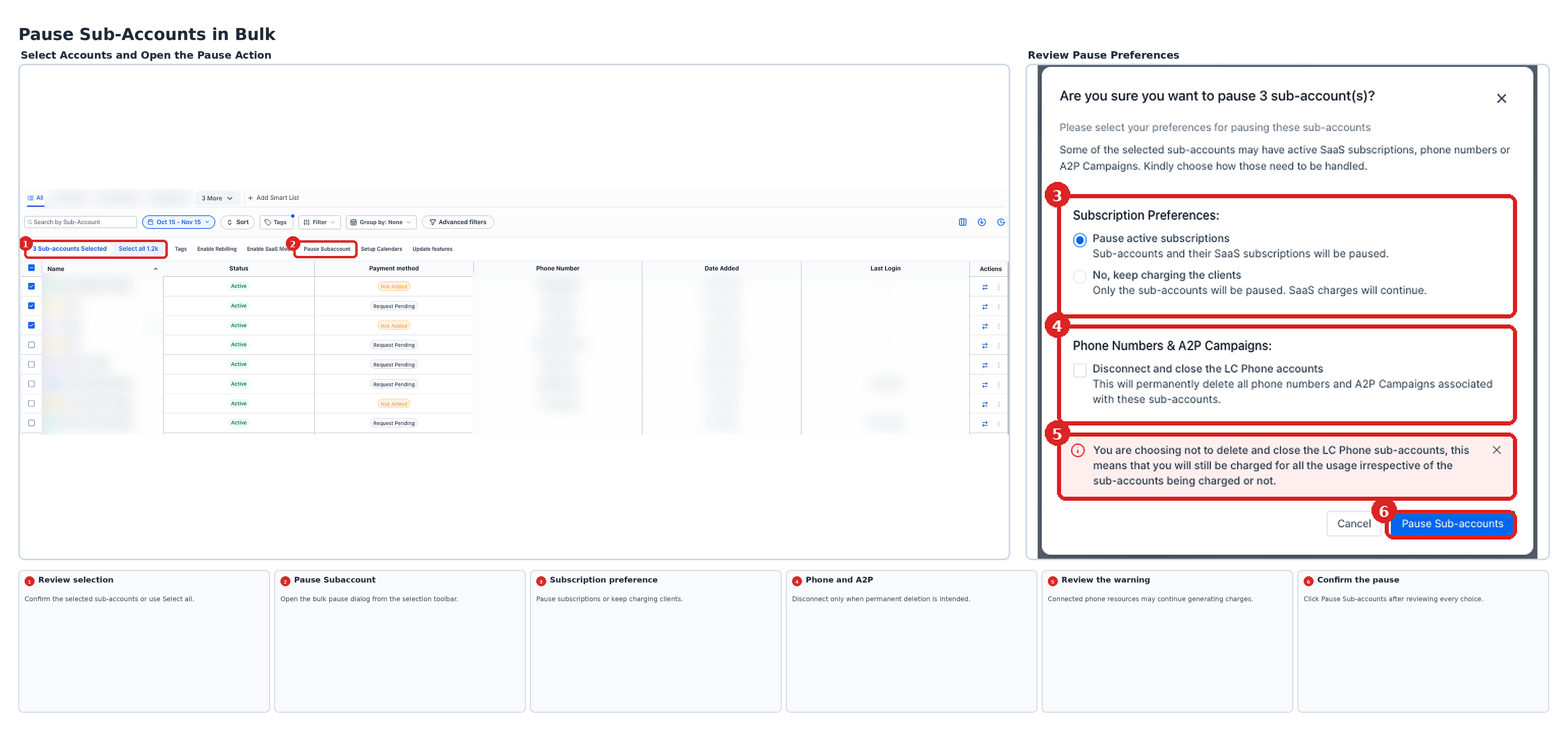
- Find the accounts to pause, select them individually or with Select All, and verify the list.
- Press Pause Subaccount in the action bar above the selection.
- Under Subscription Preferences, choose whether to pause active subscriptions or keep charging clients.
- Check the Phone Numbers & A2P Campaigns section and select Disconnect only if you intend to permanently delete those resources.
- Review all choices and click Pause Subaccounts to submit the job.
View the history of a bulk action
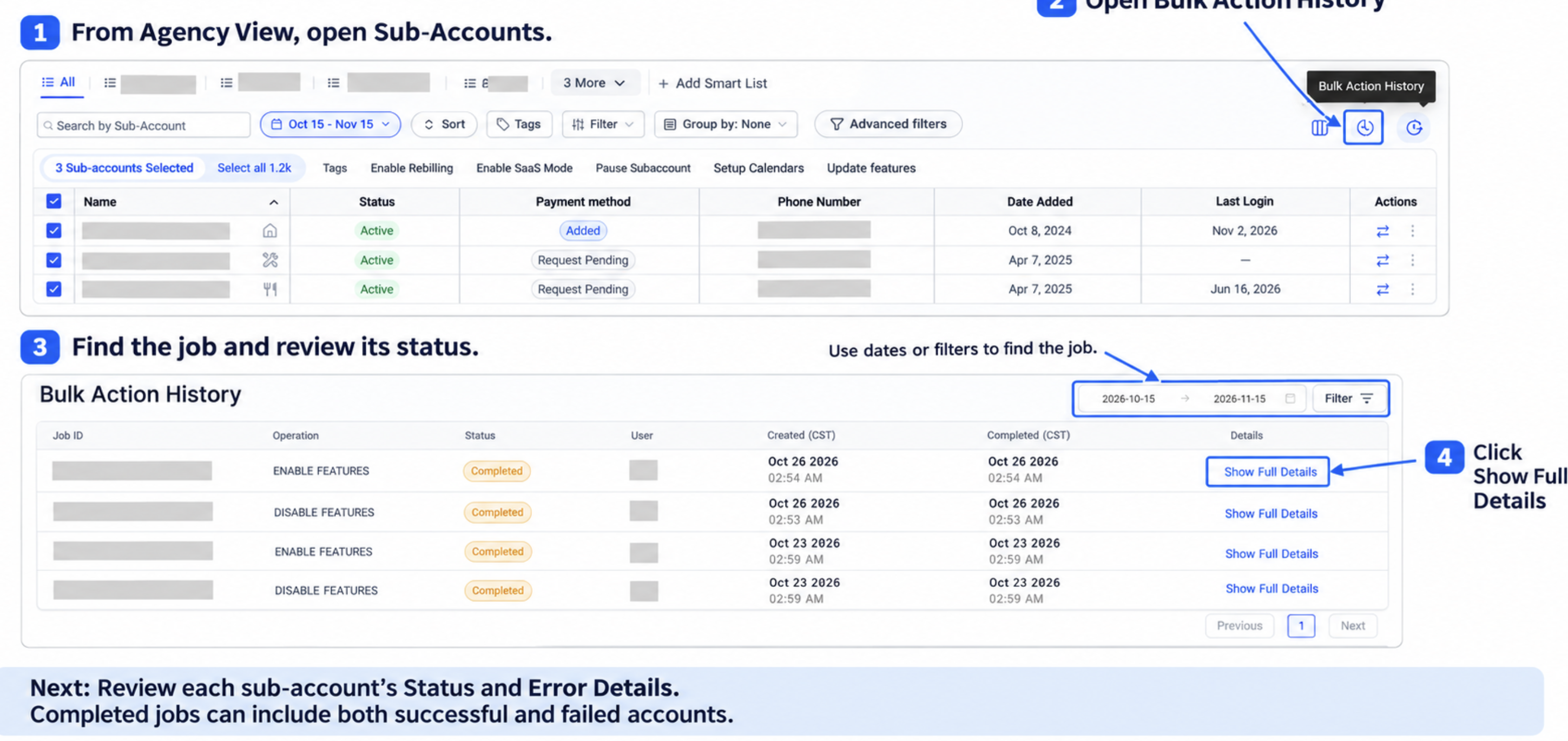
- Open Subaccounts from the Agency View.
- Click the clock shaped Bulk Action History icon.
- Locate the desired job and read its operation, status, submitting user, and timestamps.
- Select Show Full Details to see each subaccount’s result and any error messages.
07What it looks like in HighLevel
08Settings that matter
- Enable SaaS Mode. Triggers the bulk application of a SaaS plan and payment provider configuration to all selected subaccounts.
- Pause Subaccount. Starts a bulk job that stops access for the chosen subaccounts while allowing configuration of subscription and phone resource handling.
- Select Subscription Plan. Allows you to pick the specific SaaS plan that will be applied during a bulk enable operation.
- Show Full Details. Expands the view of plan or job information so you can review rates, add ons, and error messages before confirming.
09Things to know before you rely on it
- Payment provider cards marked Not supported remain visible but cannot be chosen for a bulk enable.
- A client must have a payment method on file for the SaaS plan to become fully active; otherwise access stays restricted.
- Disconnecting LC Phone accounts permanently removes the associated phone numbers and A2P campaigns.
- A bulk job can contain both successful and failed accounts; use the Bulk Action History to identify failures.
10How it connects to the rest of HighLevel
- Learn how to enable and rebill external AI models External AI models
- Find instructions for activating phone rebilling in SaaS mode Phone rebilling
- Review pricing and plan options for HighLevel Pricing
Michael's take

Bulk managing SaaS subaccounts can be a handy time saver for agencies that need to toggle SaaS mode or pause access across many client portals.
For an agency that runs separate funnels for each client, the ability to apply a plan or pause access in bulk means fewer individual clicks.