
01Who this is for
- Agency owners who need a repeatable method to package software access for clients, because the Configurator handles pricing, features and onboarding.
- Founders of subscription based businesses who want to automate plan creation and sales without building a custom billing system.
02SaaS Configurator, explained
The SaaS Configurator lives inside Agency View. It centralises plan categories, pricing, feature sets, snapshots, add ons and usage based rules, turning them into sellable SaaS subscriptions. Agencies choose either a Stripe based V1 architecture or an internal Agency Subaccount V2 architecture, each retaining its own system of record. When a customer purchases a plan, the Configurator either creates a new subaccount or links to an existing one, applies any configured snapshot, and activates the subscription according to the plan’s trial or credit settings. Upgrades and downgrades follow the rules defined for the selected architecture.
03How businesses use the SaaS Configurator
- Marketing agency. The agency creates a plan category for social media management services, defines a monthly SaaS plan with a snapshot that configures client dashboards, and shares a direct checkout link with prospects. The Configurator provisions the client subaccount and applies the snapshot after payment.
- Software consultancy. The consultancy selects an internal Agency Subaccount for V2 billing, adds a SaaS product to a funnel order form, and sells the plan through the funnel page. When a client checks out, the platform links the client to the chosen subaccount and grants the defined feature access.
- E learning platform. The platform builds a V1 plan in Stripe, imports the product price into a selling subaccount, and places it on an order form. After a student purchases the plan, the Configurator creates a new subaccount, applies the course snapshot, and activates the subscription.
04The numbers and rules that matter
- System of record | Stripe (SaaS V1) | HighLevel through the selected Agency Subaccount (SaaS V2).
- Payment providers | Stripe (SaaS V1) | Supported payment providers connected to the Agency Subaccount (SaaS V2).
- Products managed in | Stripe (SaaS V1) | HighLevel (SaaS V2).
- Billing interval changes | Handled according to the V1/Stripe subscription workflow (SaaS V1) | Monthly and annual intervals can be changed as part of a supported plan upgrade or downgrade (SaaS V2).
- Proration for plan changes | Can be handled through the V1/Stripe billing workflow (SaaS V1) | Not supported for tier changes, interval changes, or combined tier and interval changes (SaaS V2).
05Before you start
- You must have Agency Admin access.
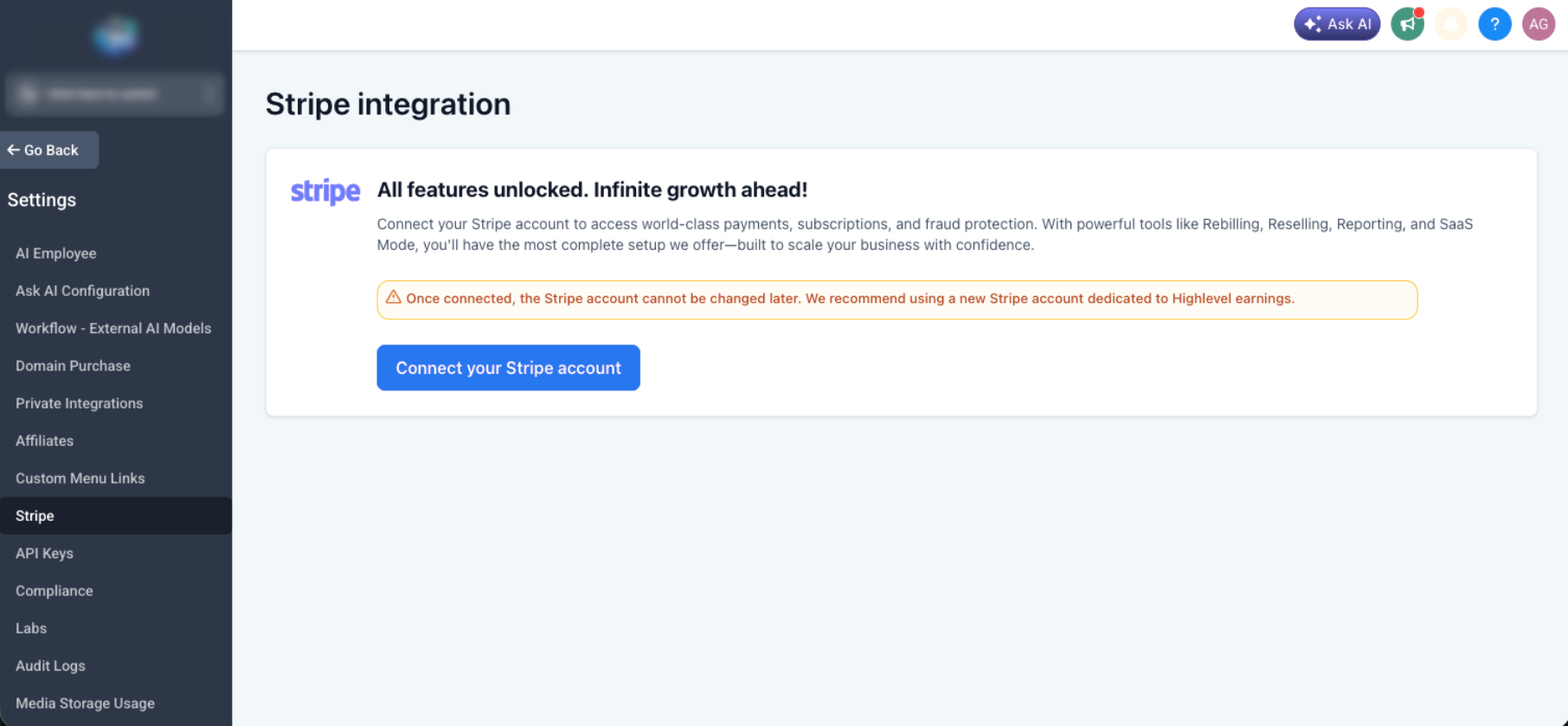
- For V1, a Stripe account must be connected to the agency.
- For V2, an Agency Subaccount with a supported payment provider must be configured under Payments > Integrations.
06How to set up and use the SaaS Configurator in HighLevel
Set up the SaaS Configurator for V1
- Go to Agency View > Settings > Stripe.
- Click Connect with Stripe and complete the connection flow.
- Return to Agency View > SaaS Configurator to continue plan creation.
Set up the SaaS Configurator for V2
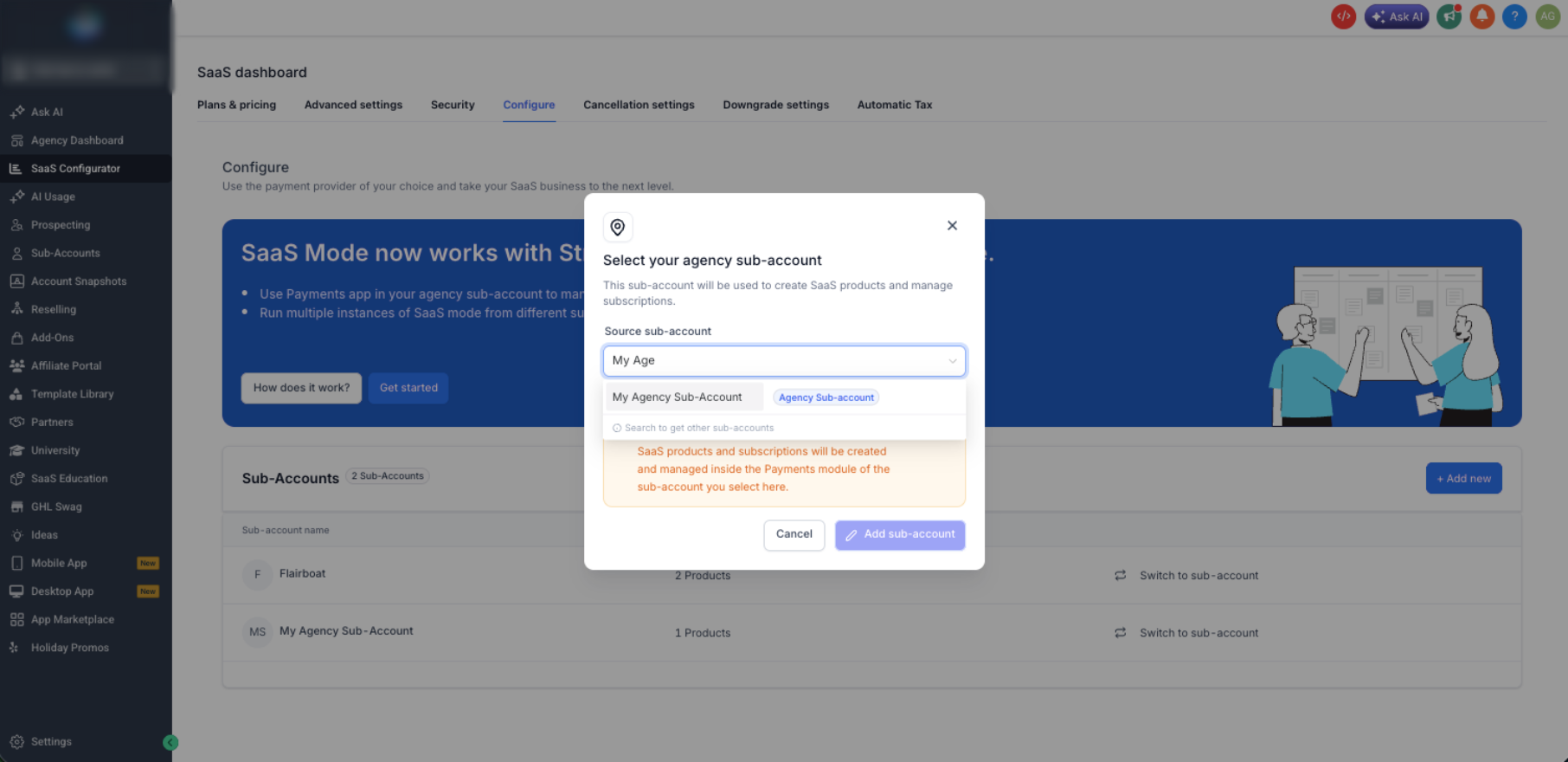
- Go to Agency View > SaaS Configurator > Configure.
- Click Select Subaccounts, choose the desired Agency Subaccount and click Add Subaccount.
- Confirm a supported payment provider is configured under Payments > Integrations inside that subaccount.
Create a plan category
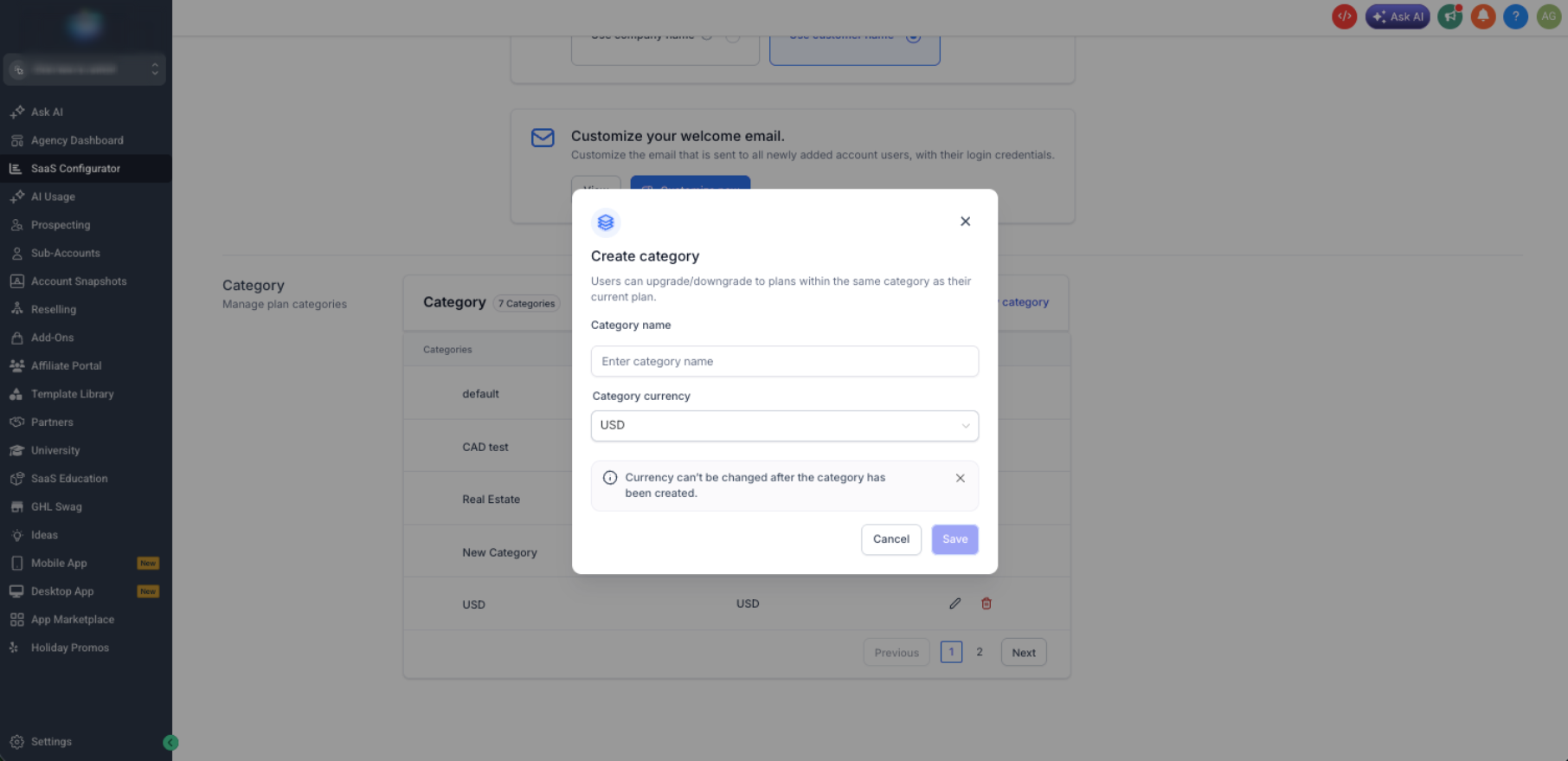
- Open SaaS Configurator > Advanced Settings.
- Click Add New Category.
- Enter a category name and select the currency.
- Click Save.
Create a SaaS plan
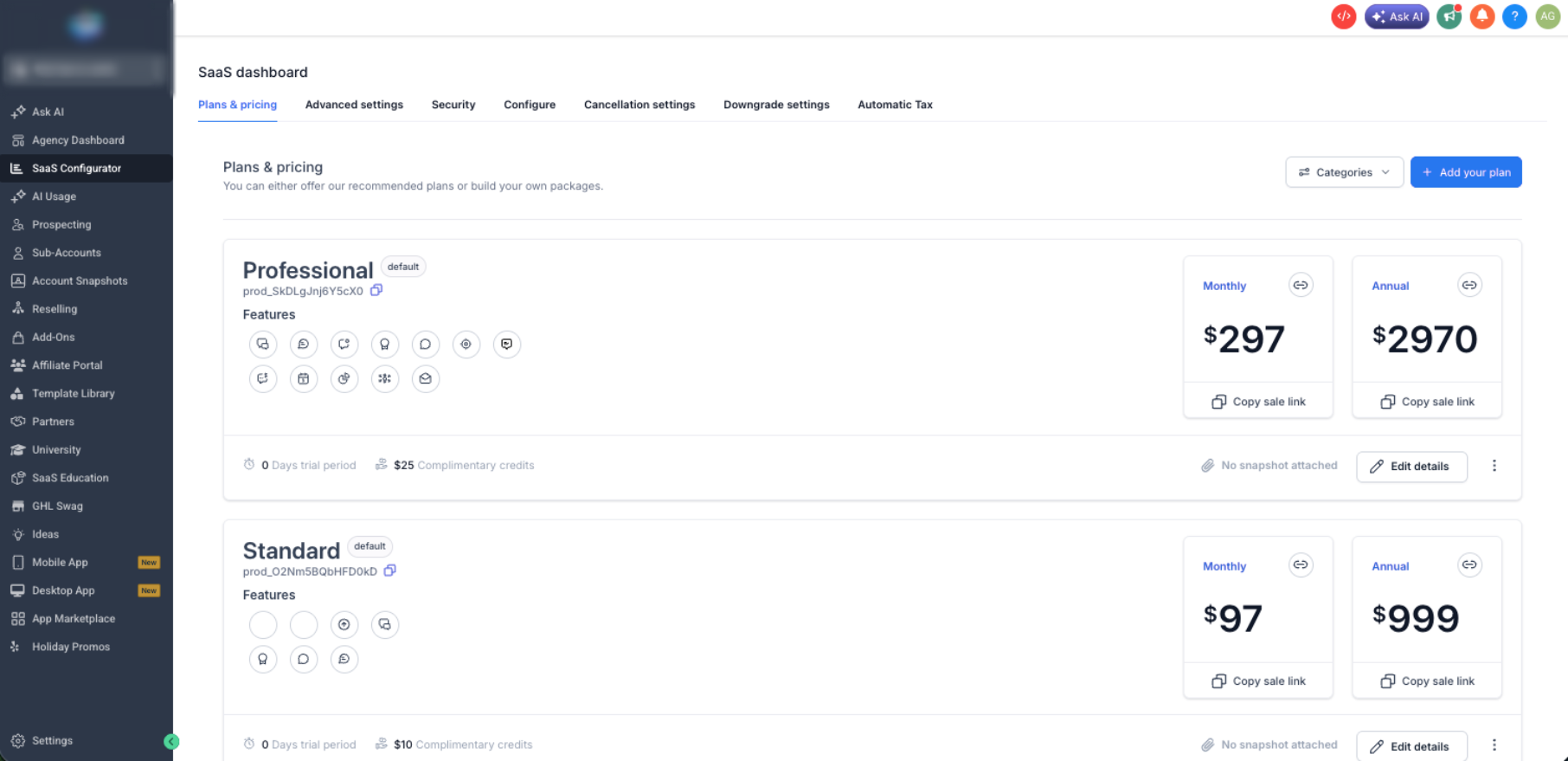
- From Agency View, click SaaS Configurator > Plans & Pricing and select Add your plan.
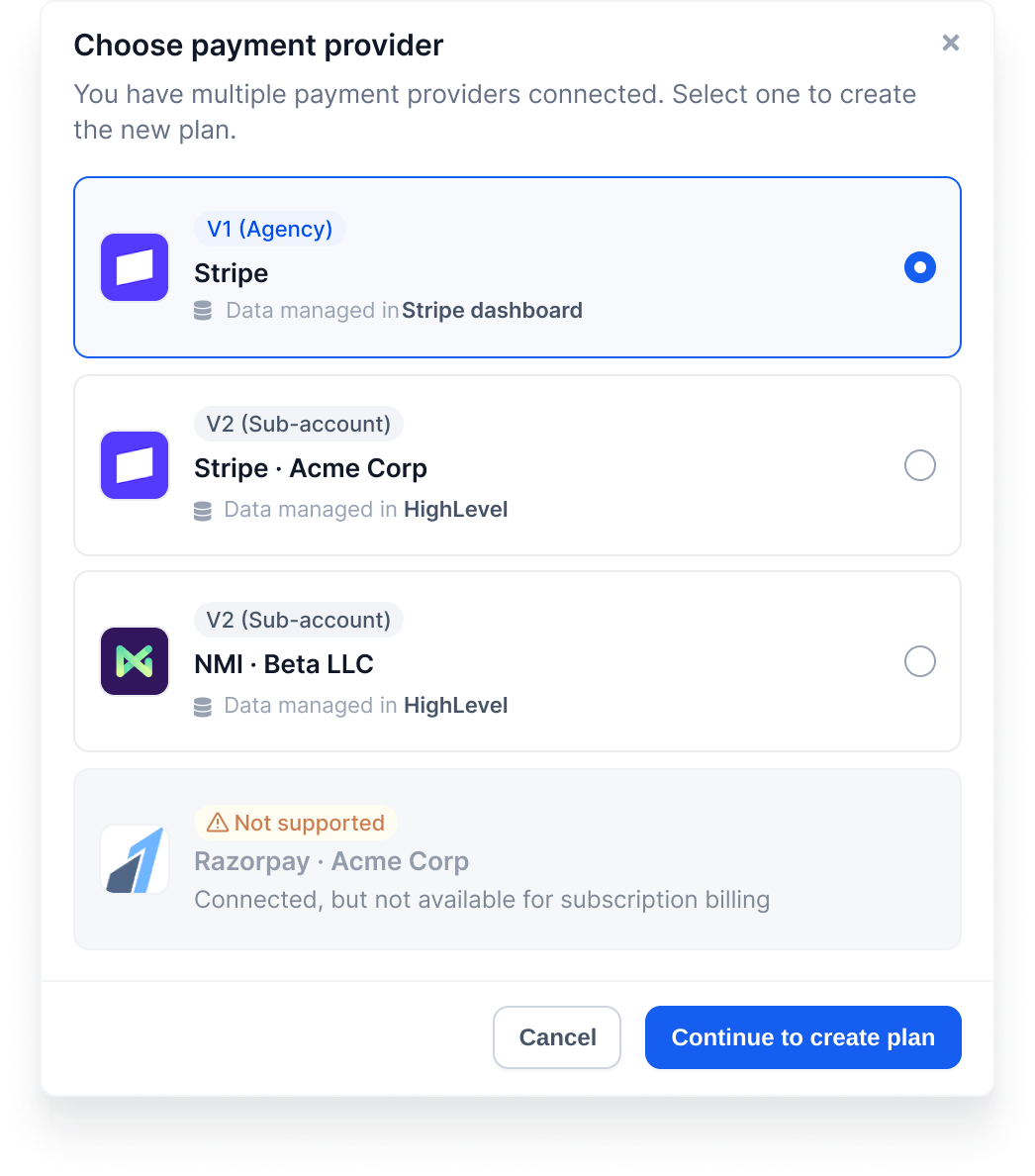
- On the provider selection screen, choose a provider card with the appropriate V1 or V2 label and click Continue.
- Enter plan details, category, pricing, features, snapshot, add ons, trial or credits, and usage billing as needed.
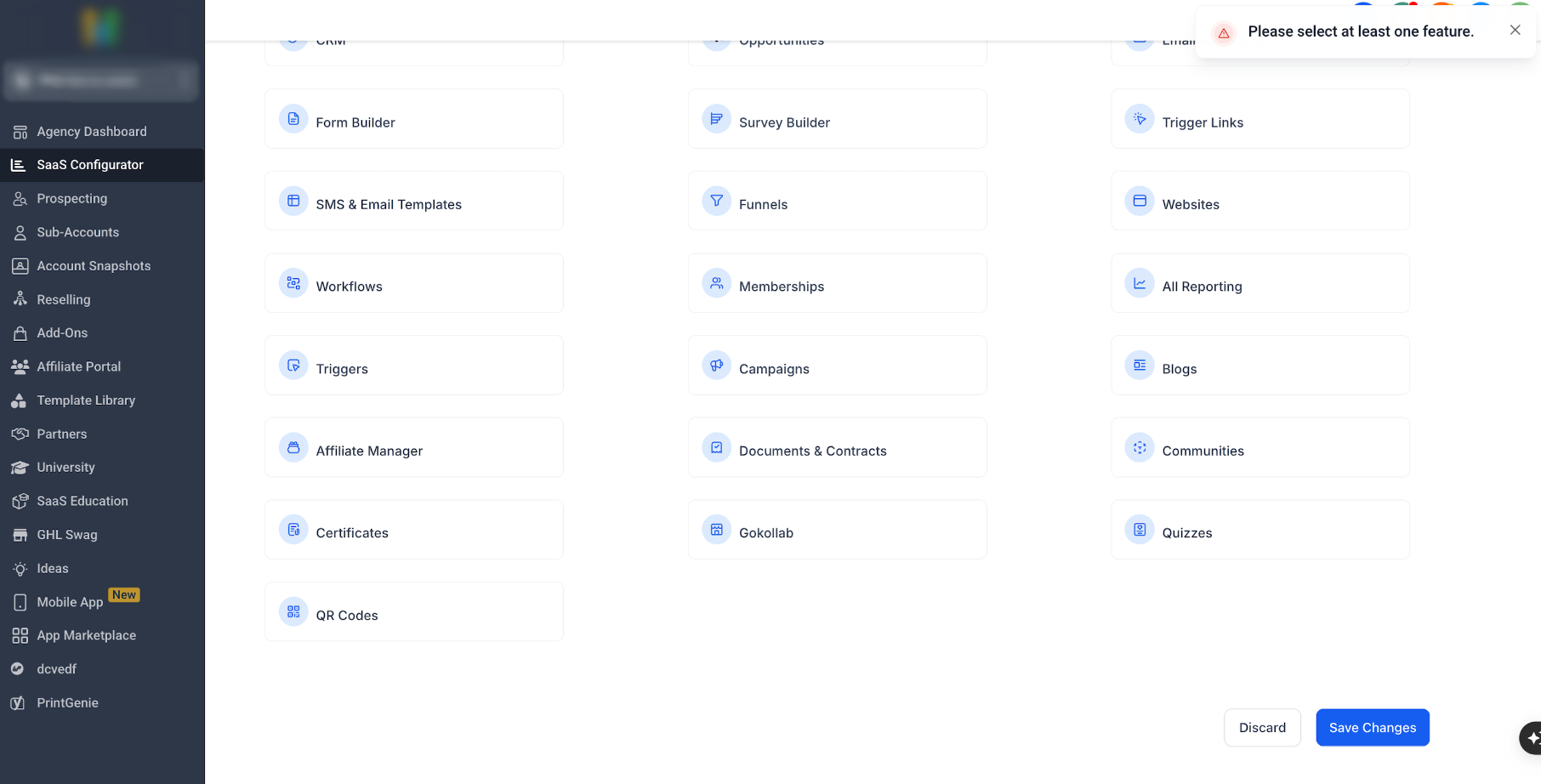
- Select at least one product feature.
- Review the configuration and save the plan.
Sell SaaS V1 through a selling subaccount funnel
- Switch to the subaccount that will sell the SaaS subscription.
- Go to Payments > Products > Import From Stripe.
- Find the SaaS Stripe product and import the applicable price.
- Go to Sites > Funnels.
- Add the imported SaaS product to a supported order form and publish the funnel.
Sell SaaS V2 through an Agency Subaccount funnel
- Switch to the applicable Agency Subaccount.
- Go to Payments > Products and confirm the SaaS product is available.
- Go to Sites > Funnels and add the SaaS product to the appropriate order form.
Generate a direct SaaS checkout link
- Open SaaS Configurator > Plans & Pricing.
- Locate the SaaS plan you want to sell.
- Click Copy Sale Link.
- Share the checkout link with the customer.
Onboard a new customer through SaaS checkout
- Customer completes checkout and payment is confirmed.
- The platform creates or links a subaccount for the customer.
- If the plan includes a snapshot, the snapshot is applied to the subaccount.
- Customer access is granted according to the onboarding workflow.
- The subscription becomes active or trialing based on the plan configuration.
Manually add SaaS to an existing subaccount
- Go to Agency View > Subaccounts.
- Open the target subaccount and select Manage Client.
- In the SaaS area, choose Add a SaaS Subscription.
- Select the appropriate provider card and verify its V1/V2 label and data management description.
- Choose or create the customer profile.
- Select the SaaS plan and configure a special price if needed.
- Complete the payment flow to attach the subscription to the subaccount.
Run V1 and V2 in parallel
- Confirm that both V1 and V2 architectures appear in the SaaS Configurator.
- Leave V1 subscriptions linked to Stripe as their system of record.
- Leave V2 subscriptions linked to the selected Agency Subaccount as their system of record.
07What it looks like in HighLevel
08Settings that matter
- Plan Details. Sets the public name and description that customers see for the plan.
- Category. Groups related plans to define which upgrades and downgrades are allowed.
- Pricing. Specifies monthly and/or annual subscription amounts.
- Features & Snapshot. Determines which platform features are enabled and which snapshot is applied during onboarding.
- Add, ons. Lists optional paid capabilities that customers can select in addition to the base plan.
- Marketplace Apps. Bundles third party apps that become available to the subscriber.
- Trial & Credits. Defines any trial period length and complimentary credit behavior for the plan.
- Usage Billing. Configures per unit or usage based charges that are applied alongside the subscription.
09Things to know before you rely on it
- A plan must include at least one product feature before it can be saved.
- V2 does not support proration for tier changes, interval changes, or combined tier and interval changes.
- The V1 subscription bridge only updates records during supported upgrades or downgrades; it does not back fill existing mismatches.
- Providers that lack a V1 or V2 label cannot be selected for SaaS subscription or rebilling setup.
10If something goes wrong
- Billing issue with a V1 subscription. Start troubleshooting in Stripe and the SaaS V1 subscription configuration.
- Billing issue with a V2 subscription. Start troubleshooting in the selected Agency Subaccount and its Payments module.
11How it connects to the rest of HighLevel
- Enable Stripe for SaaS V1 before creating plans Enable Stripe
- View all SaaS Configurator capabilities in one place All SaaS features
- Check current HighLevel pricing and plan tiers Pricing
Michael's take

The SaaS Configurator lets agencies automate onboarding and manage recurring SaaS plans, which can reduce manual effort compared to building these processes from scratch.