
01Who this is for
- Founders and agency owners who run SaaS mode need consistent subaccount labels for easier management.
- Support and client success teams benefit from clear naming to locate accounts quickly during onboarding.
- Teams that integrate external checkout pages rely on predictable subaccount names for reporting.
02Default naming conventions, explained
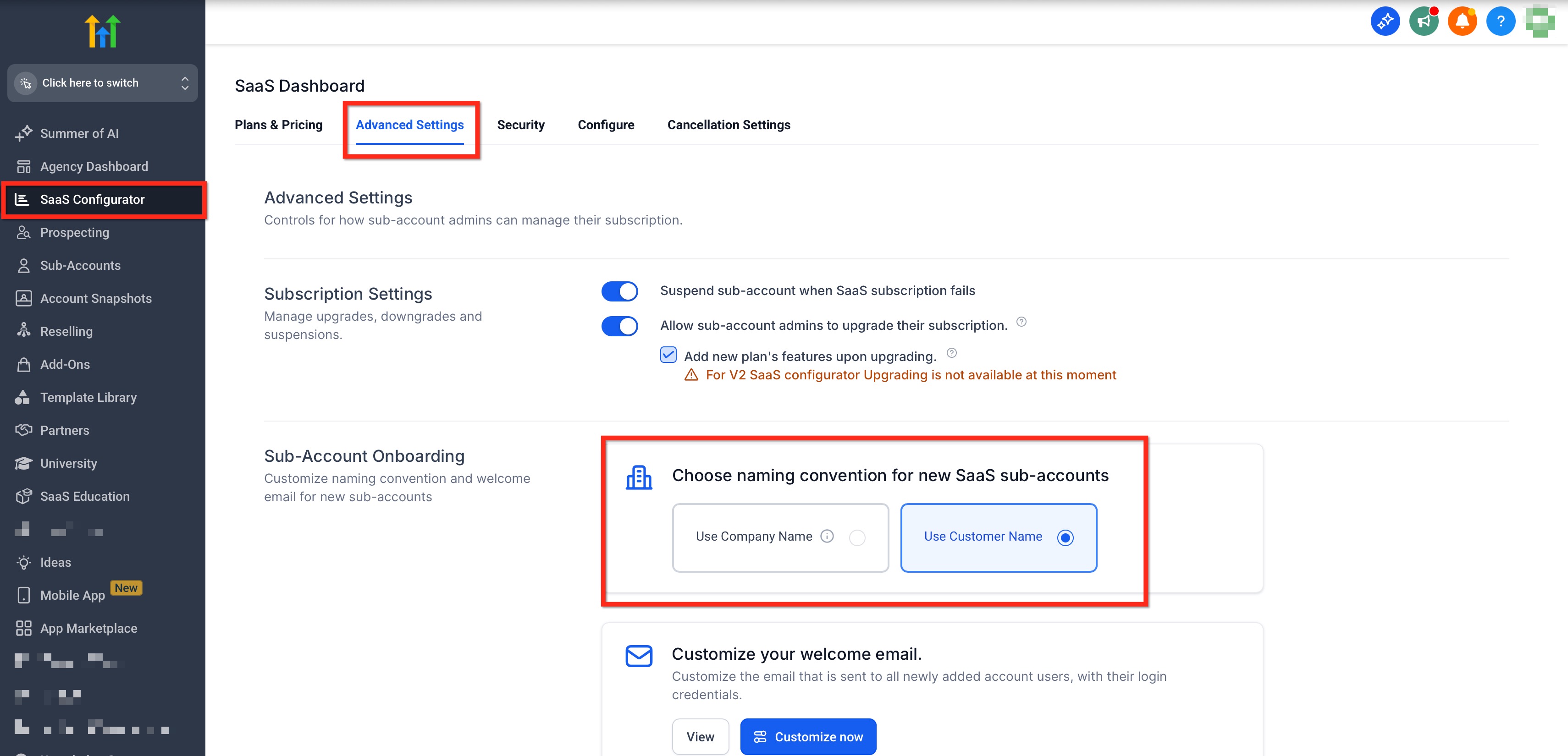
The feature lives in the SaaS Configurator at the Agency level. It provides a choice between using the Company Name supplied at checkout or appending ’s Account to the Customer Name. When a new subaccount is created, HighLevel reads this selection and applies the chosen format.
If the Company Name option is active but the checkout does not provide a value, HighLevel automatically falls back to the Customer Name + ’s Account format. The setting only affects accounts created after it is saved; existing subaccounts remain unchanged.
The configuration also works with external checkout integrations. Supplying a non empty "companyName" metadata field in the subscription payload enables the same naming behavior outside of native HighLevel funnels.
03How businesses use default naming conventions
- Digital marketing agency. The agency enables the Company Name option so that each client’s business name appears as the subaccount title. When a new client signs up through a funnel, the subaccount is automatically labeled with the business name, removing the need for manual edits.
- SaaS product reseller. The reseller keeps the Customer Name + ’s Account format to track accounts by the account owner. After each checkout, the new subaccount shows the owner’s name followed by ’s Account, matching the reseller’s internal reporting style.
- Coaching business. The coach integrates an external checkout that passes a companyName value. With the setting set to Company Name, the subaccount receives the coaching firm’s name directly from the metadata, ensuring consistency across platforms.
04The numbers and rules that matter
- $497 Founder Plan (per HighLevel's help center, checked November 2026).
05Before you start
- The agency must have SaaS Mode enabled on the $497 Founder Plan (per HighLevel's help center, checked November 2026).
- You must be in the Agency view to access the SaaS Configurator.
06How to set up and use default naming conventions in HighLevel
Set default naming convention for new SaaS subaccounts
- In the Agency view, open SaaS Configurator > Advanced Settings > Subaccount Onboarding.
- Under Subaccount Onboarding, select either Company Name or Customer Name + ’s Account.
- Click Save to apply the choice to future subaccount creations.
07What it looks like in HighLevel
08Settings that matter
- Sub, Account Onboarding. Controls which naming pattern HighLevel uses for newly created SaaS subaccounts. Options are Company Name or Customer Name + ’s Account.
09Things to know before you rely on it
- The setting is only available to agencies on the Founder Plan with SaaS Mode enabled.
- It applies solely to new sign ups; existing subaccounts are not renamed.
- If the Company Name field is missing or empty at checkout, HighLevel falls back to Customer Name + ’s Account.
- External checkouts must send a non empty companyName metadata field for the Company Name option to work.
10How it connects to the rest of HighLevel
- View all SaaS Configurator capabilities SaaS Configurator
- Check pricing and plan requirements for SaaS mode Pricing
- Learn about the Founder Plan that provides SaaS Configurator access Founder Plan
Michael's take

When agencies create dozens of SaaS subaccounts, the naming can become a juggling act that forces staff to rename accounts after the fact. A consistent default name at sign up eliminates that extra step and keeps reports tidy. The first thing I would lock in is the Company Name option if the majority of your clients operate under a business name, because that gives you a clean, searchable label right away.
If you need to support both business focused and owner focused workflows, you can always flip the setting later without touching existing accounts. Just remember to test a single checkout flow after you change it, to verify the fallback works as expected.