
01Who this is for
- Agency admins who need a payment solution beyond Stripe or Square to serve clients in underserved regions.
- Agency staff who manage SaaS billing and require recurring billing and wallet recharge capabilities.
02Custom payment providers, explained
The feature enables agencies to install any Marketplace payment app and link it to SaaS mode. Once linked, the platform can create new subaccounts automatically when a buyer completes checkout and assign the chosen SaaS plan.
The integration also supports recurring subscription charges and wallet top ups, allowing add ons to be purchased against the wallet balance. All configuration happens inside the agency subaccount, keeping billing isolated from client accounts.
03How businesses use custom payment providers
- Digital marketing agency. The agency installs a local payment app, enters the required Account ID and API token, then publishes a checkout link for a new SaaS reporting tool. When a client pays, the system creates a subaccount and attaches the reporting plan automatically.
- Online education platform. The platform adds a payment provider that supports recurring billing, configures the credentials, and creates a SaaS course subscription product. Students purchase through the embedded checkout, triggering subaccount creation and enrollment in the selected course plan.
- Tech support service. The service enables wallet top ups either automatically or manually, sells add ons such as AI Employee or Marketplace Apps, and lets the purchase amount be deducted from the client’s wallet rather than charging the card each time.
04The numbers and rules that matter
- 50+ payment providers in the Marketplace.
05Before you start
- Access to the Agency View within HighLevel.
- At least one existing subaccount that can be marked as the agency billing account.
06How to set up and use custom payment providers in HighLevel
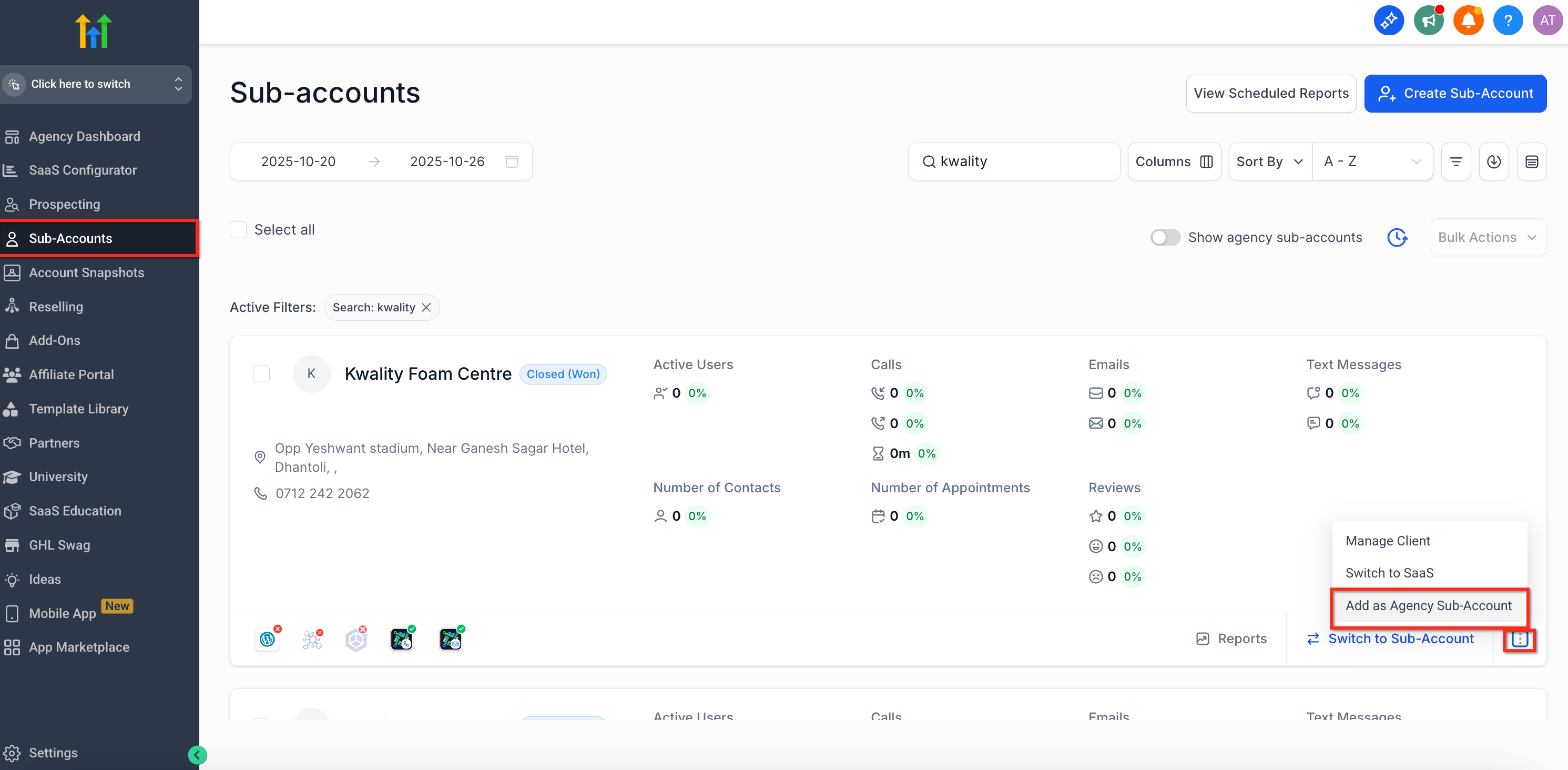
Mark an agency subaccount
- Open the Agency View and go to Subaccounts.
- Find the subaccount you want to use for agency billing.
- Open its three dot menu and choose Add as agency subaccount.
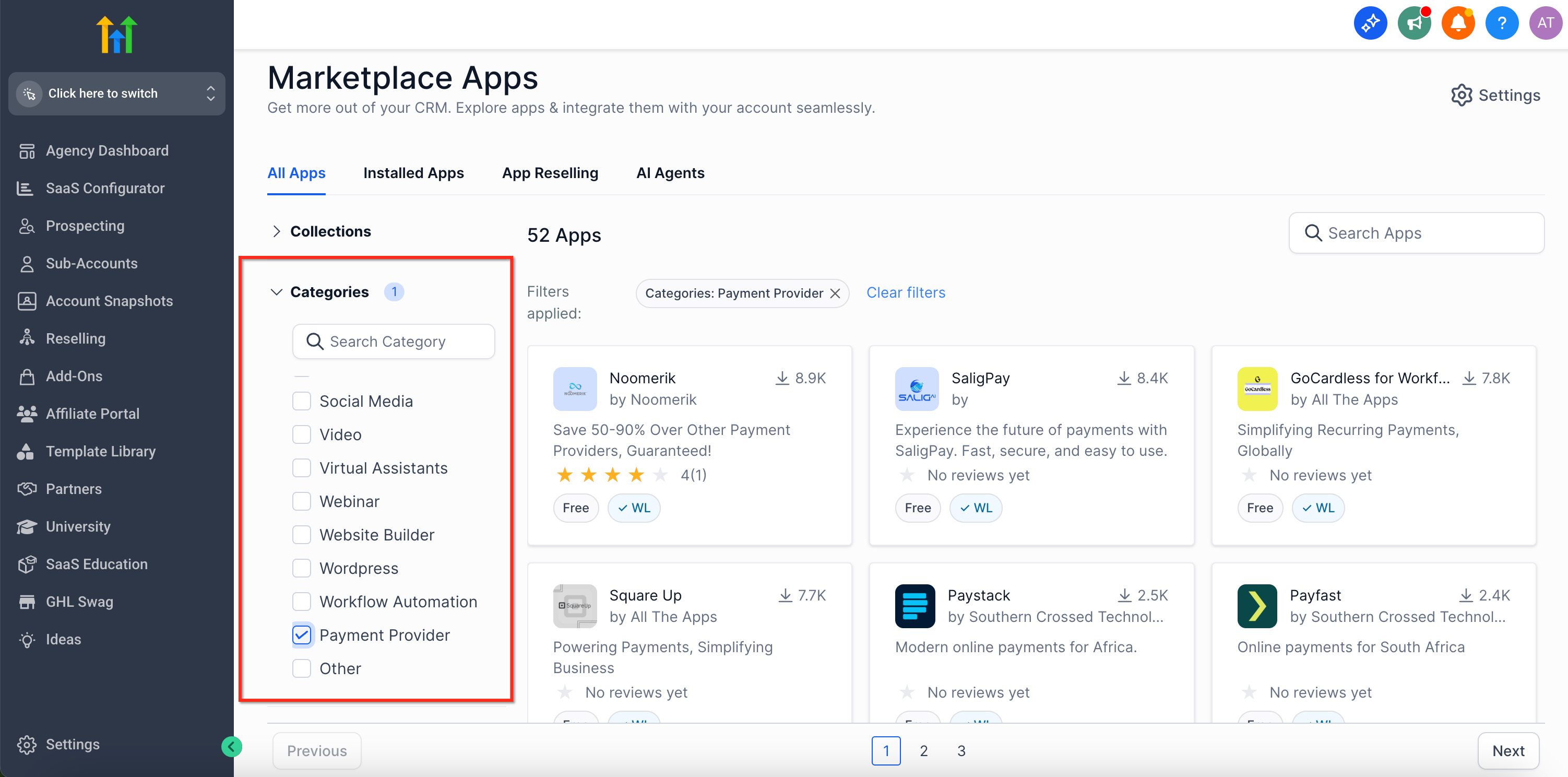
Install a payment provider app
- From the Agency View open the App Marketplace.
- Search for the desired payment provider and select it.
- Click Install to add the app to the agency subaccount.
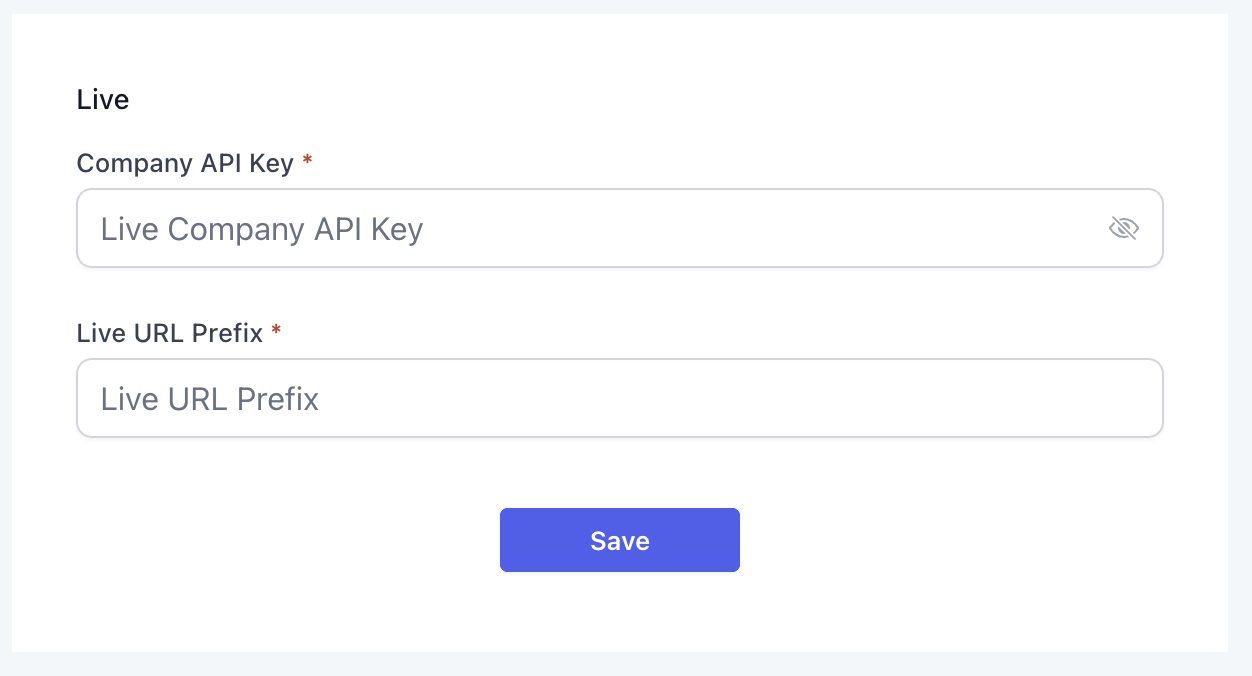
Configure the integration
- Open the settings page of the installed payment provider.
- Enter the required fields such as Account ID and API token.
- Save the configuration.
Create and sell SaaS products
- In the agency subaccount create a new SaaS product.
- Generate a payment link or embed the checkout in a funnel.
- When checkout succeeds, a new subaccount is created and the selected plan is attached.
Convert existing subaccounts to SaaS
- In Agency View go to Subaccounts then Manage Client.
- Open the SaaS tab and select Add SaaS Subscription.
- Choose the integrated payment provider, pick a plan, and confirm.
Wallet & add on handling
- Enable wallet top ups and choose automatic or manual recharge.
- Add sellable add ons such as AI Employee, WordPress, or Marketplace Apps.
- When an add on is purchased, deduct its cost from the subaccount wallet.
07What it looks like in HighLevel
08Settings that matter
- Account ID. Identifies the merchant account with the selected payment provider.
- Authorization / API token. Authenticates the platform to the payment provider’s API for transaction processing.
09Things to know before you rely on it
- Only payment providers that support recurring payments and off session charging can be used; providers without those capabilities, such as Razorpay, are not supported.
- Each provider may require slightly different configuration fields.
- The Marketplace offers more than fifty payment providers for selection.
- If a SaaS plan stays on hold because payment fails, an Agency Admin can detach the pending plan without disabling SaaS mode, restoring subaccount access.
10How it connects to the rest of HighLevel
- Overview of all SaaS Configurator features SaaS Configurator
- HighLevel pricing and plan details Pricing
- Start a 30 day HighLevel trial Free trial
Michael's take

This feature helps agencies sell SaaS overseas without being locked into Stripe or Square. It lets you plug in the local provider your customers trust and automates the checkout and billing flow.
Don’t forget to verify that the provider supports recurring and off session charges before you install it.