
01Who this is for
- SaaS agency Founders who need to collect sales tax across multiple jurisdictions; the feature lets them set registrations and rates centrally.
- Finance managers of subscription businesses using Stripe; they can define tax behavior and product codes without manual calculations.
- Compliance officers overseeing tax compliance; they can rely on automatic calculations while noting that HighLevel does not give legal advice.
02Automatic tax collection, explained
The automatic tax feature works inside the SaaS Configurator under Automatic Tax. It connects to Stripe Automatic Taxes so that tax rates are calculated based on the customer billing address and the jurisdictions you register. You can choose a product tax code, set a default tax behavior, and optionally override settings for individual product categories.
All configurations apply only to new or reactivated subscriptions. Existing active subscriptions keep the tax settings that were in place when they were created, even if you change the settings mid cycle. The feature is limited to agencies running SaaS V1 with Stripe as the payment provider.
03How businesses use automatic tax collection
- Digital marketing agency. The agency enables automatic tax collection, adds the states where it must collect tax in Stripe, and selects a tax code that matches its service offering. When a client signs up for a new subscription, the correct tax is calculated and displayed.
- Online education platform. The platform configures the default tax behavior to inclusive for most regions, then creates a category for premium courses and sets that category to exclusive tax. New enrollments use the appropriate tax treatment automatically.
- Project management SaaS. The SaaS provider chooses a product tax code for its software, sets automatic tax behavior, and optionally disables tax for a free tier category. Reactivated accounts inherit the latest tax settings without further effort.
04The numbers and rules that matter
- Available only for SaaS V1 (Stripe based) system.
- Not available for SaaS V2 or non Stripe payment providers.
05Before you start
- Agency must be on SaaS V1 with Stripe as the payment provider.
- A Stripe account must be connected to HighLevel.
06How to set up and use automatic tax collection in HighLevel
Enable automatic tax collection
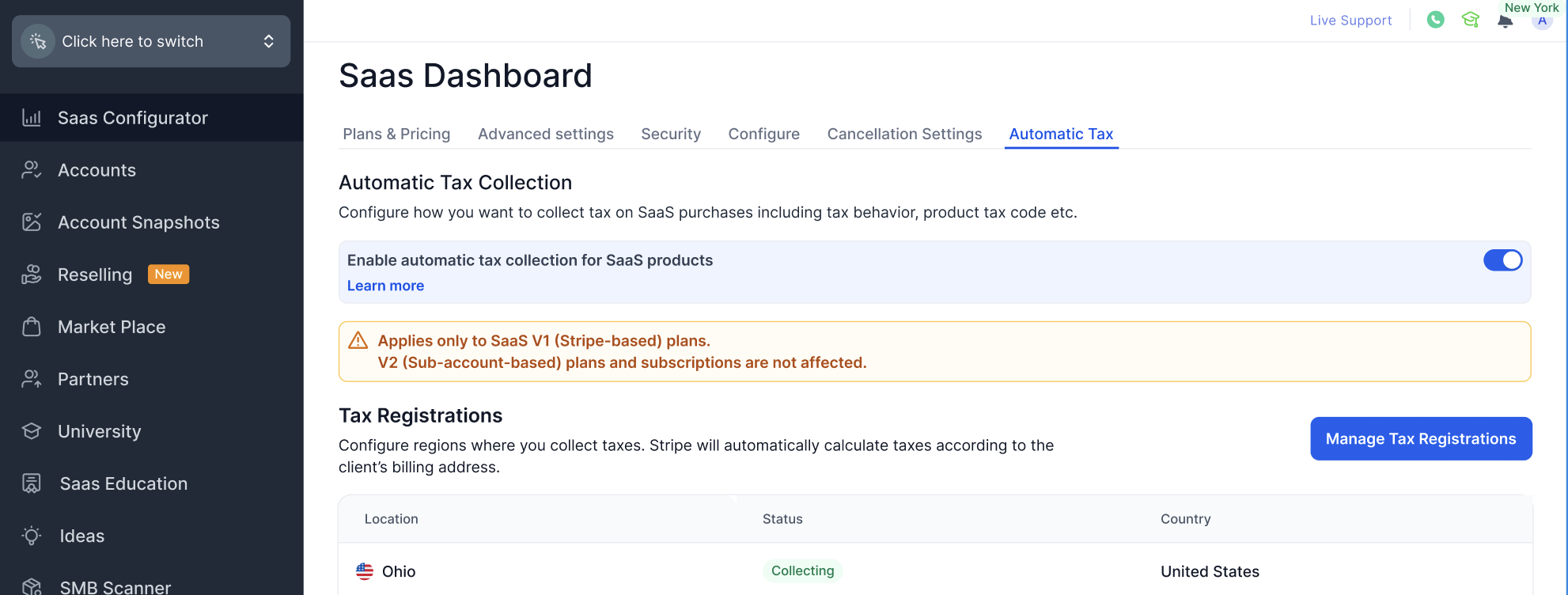
- Open SaaS Configurator and navigate to Automatic Tax.
- Toggle the Enable automatic tax collection for SaaS products switch to ON.
- Click Save.
Configure tax registrations
- Open SaaS Configurator and go to Automatic Tax.
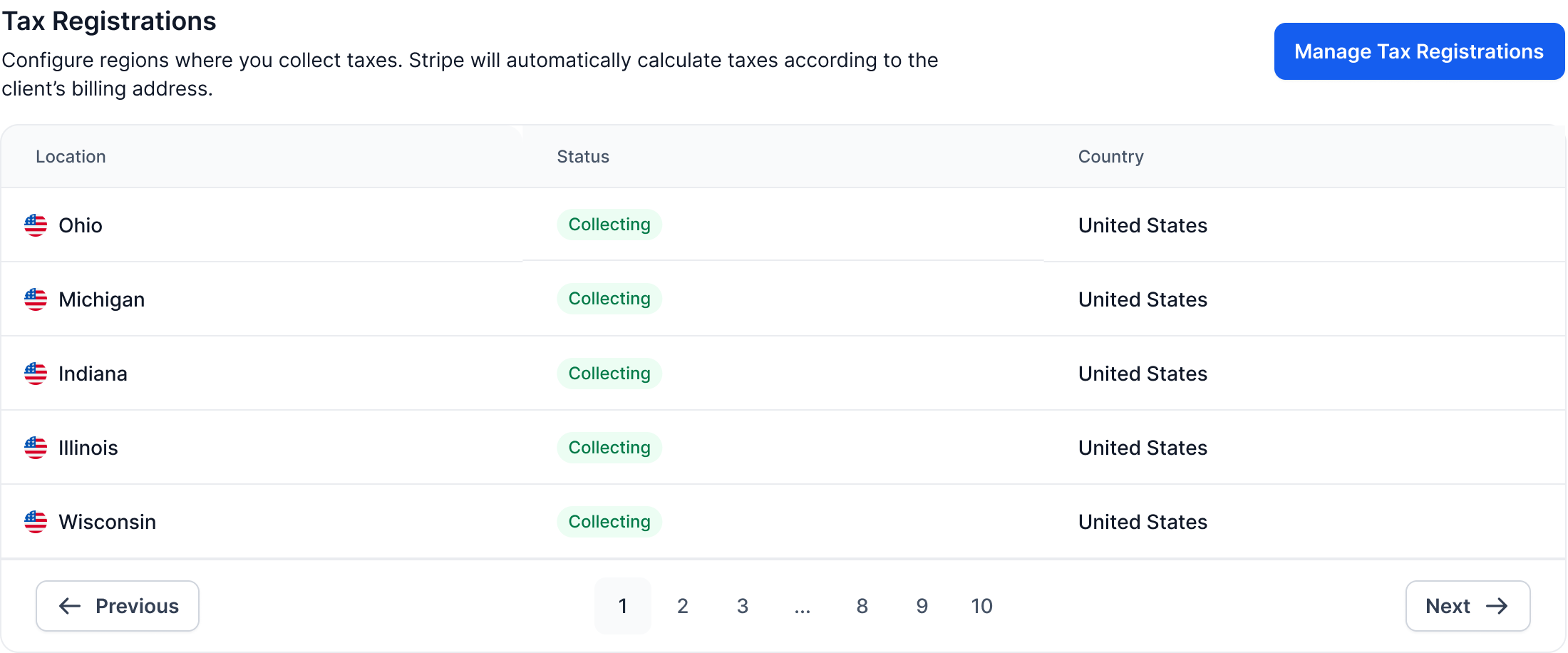
- Select Manage Tax Registrations under Tax Registrations.
- In the Stripe window, add or edit the jurisdictions where tax must be collected.
- Return to HighLevel and confirm the registrations appear in the list.
Select product tax code
- In Automatic Tax, locate the Product Tax Code dropdown.
- Choose the appropriate tax code for your product.
- Click Save.
Configure tax behavior
- Under Tax Behaviour, select Automatic, Inclusive, or Exclusive as the default setting.
- Click Save.
Configure category level overrides (optional)
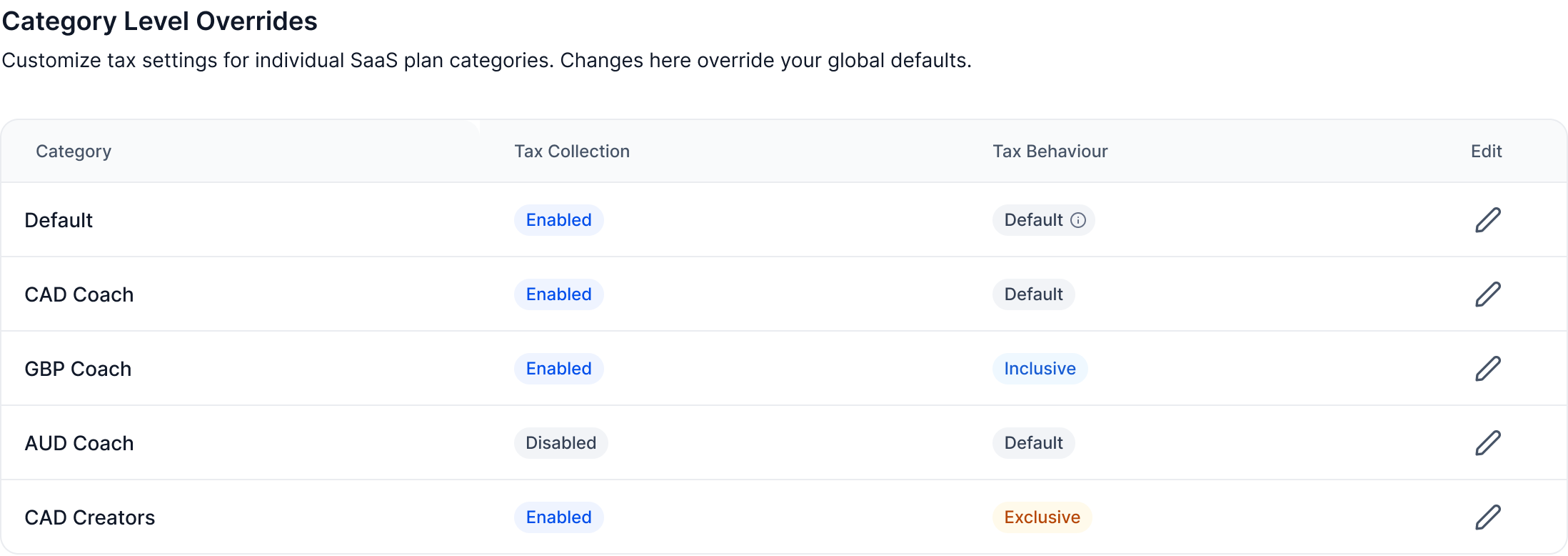
- Scroll to the Category Level Overrides section in Automatic Tax settings.
- Tap the edit icon next to the category you want to modify.
- Turn tax collection on or off for that category.
- Pick Inclusive, Exclusive, or Default tax behavior for the category.
- Save the changes.
07What it looks like in HighLevel


08Settings that matter
- Enable automatic tax collection for SaaS products. Activates Stripe Automatic Taxes for all SaaS items.
- Tax Registrations. Specifies the jurisdictions that Stripe will use to calculate tax.
- Product Tax Code. Selects the Stripe tax code that determines how tax is calculated for the product.
- Tax Behaviour. Sets the default method for displaying prices as inclusive, exclusive, or automatic.
- Category Level Overrides. Allows individual product categories to have custom tax collection and behavior settings.
09Things to know before you rely on it
- Configurations apply only to subscriptions created or reactivated after the change.
- Existing active subscriptions are not updated retroactively.
- If settings are changed mid cycle, active subscriptions retain their original tax configuration.
- The feature works only for SaaS V1 agencies using Stripe; SaaS V2 and other payment providers are not supported.
- Category level overrides take precedence over the global tax settings.
10How it connects to the rest of HighLevel
- Explore all SaaS Configurator capabilities All SaaS Configurator features
- Review HighLevel pricing options and plans HighLevel pricing and plans
- Start a free trial to test automatic tax collection Start a 30 day HighLevel trial
Michael's take

Tax compliance can feel like a moving target for SaaS businesses. Without the right automation, you end up manually adjusting invoices or risking errors that bite you later. HighLevel’s automatic tax collection hooks straight into Stripe so you can declare the places you owe tax, pick the correct tax code and let Stripe do the math for every new or revived subscription.
The first setting I’d lock down is the tax registrations in Stripe. If the jurisdictions are wrong, the whole calculation is off, and you’ll spend time fixing it later. Once the locations are solid, the rest of the workflow. Product codes, default behavior, category overrides. Falls into place.