
01Who this is for
- Digital agencies that build and maintain many client sites benefit from the role based file controls.
- Small business owners running a single WordPress site can use the free plugin to edit files without FTP.
- Freelance web developers can quickly access site files directly from the HighLevel dashboard.
02WP file manager plugins, explained
The WP File Manager plugin adds a file manager interface inside the WordPress admin area. From there you can browse, upload, edit, move and delete files without opening an FTP client. The plugin appears under the WordPress dashboard once activated.
The core version is free to download and install. A paid license unlocks advanced capabilities such as creating private folders and assigning different file operation permissions to specific user roles. Those features help teams that manage several sites.
While the plugin avoids the plain text transmission used by FTP, it still requires careful handling of files. The article advises restoring the site from the most recent stable backup if any issues arise after using the plugin.
03How businesses use WP file manager plugins
- Digital agency. Install the plugin on each client’s WordPress site hosted in HighLevel. Use the role based permissions to let designers edit assets while developers manage core files. The free version handles basic file edits, and a purchased license adds private folders for each client.
- Small business owner. Add the plugin to the single WordPress site running on HighLevel. Open the file manager from the dashboard to update images or tweak theme files, removing the need to set up an external FTP account.
- Freelance web developer. Activate the plugin on a client’s HighLevel WordPress site, then use the dashboard interface to quickly edit plugin files or upload custom scripts. The free version suffices for basic work, while a license can be purchased for more granular role control.
04Before you start
- Make sure a recent stable backup of the WordPress site exists before using the plugin.
05How to set up and use WP file manager plugins in HighLevel
Install the WP File Manager plugin
- Open the WordPress admin area.
- Select the Plugins option.
- Choose Add New.
- Enter WP File Manager in the search field.
- Pick the plugin shown in the results.
- Click Install and then Activate.
06What it looks like in HighLevel
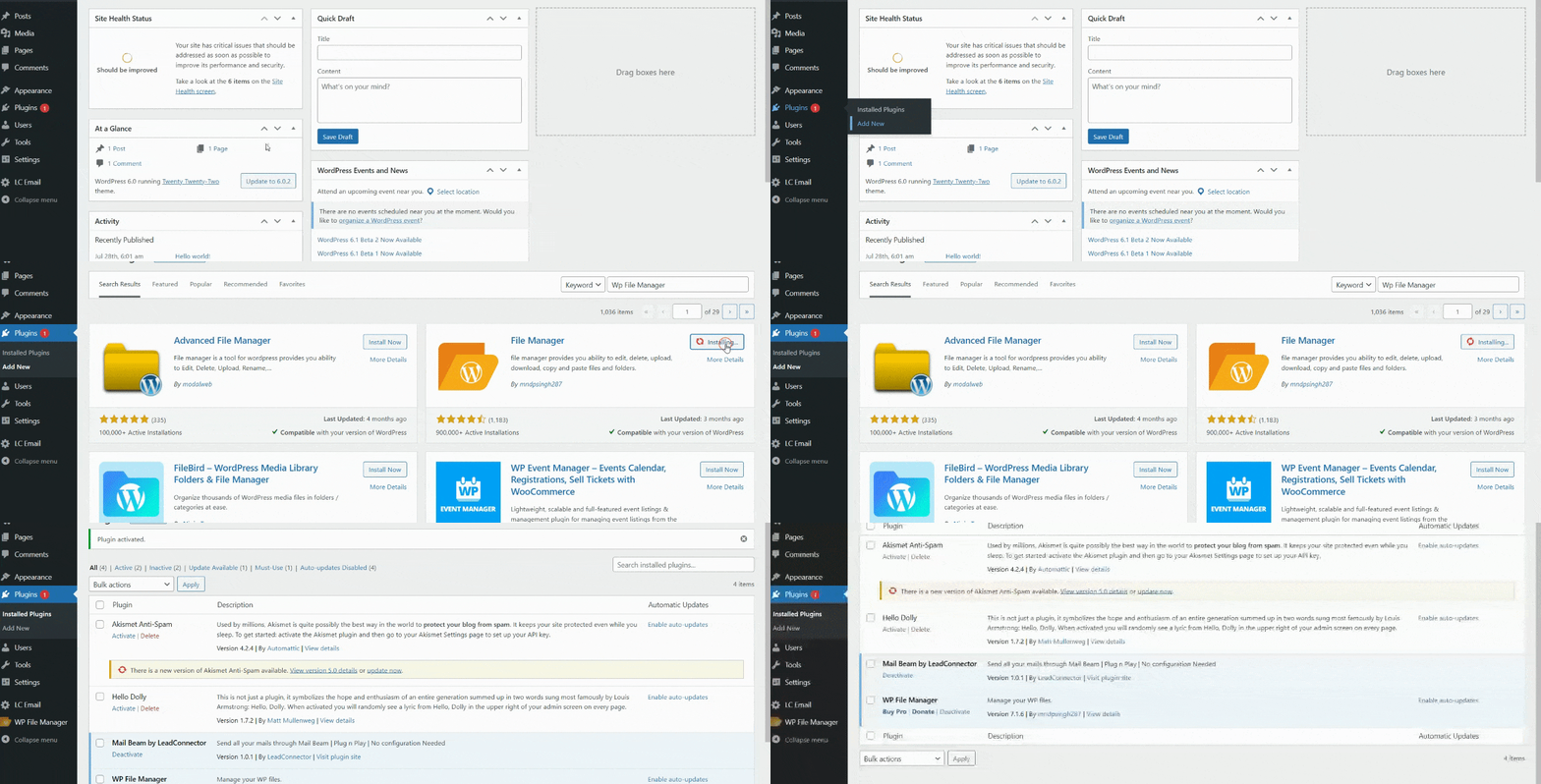
07Things to know before you rely on it
- The plugin is free to download, but advanced features require a purchased license.
- Using the plugin still carries risk; handle files carefully and restore from backup if problems appear.
08How it connects to the rest of HighLevel
- Manage WordPress plugins and themes inside HighLevel Plugin and theme management
- Single sign on to WordPress from the HighLevel dashboard WP Admin button
- Set up WordPress hosting for clients in HighLevel WordPress hosting guide
Michael's take

WP File Manager plugins give a small business a quick way to edit site files without juggling an FTP client, saving time and reducing exposure to plain text transfers. The visual interface is handy for team members who need limited file access.
Avoid assuming the plugin is as secure as a proper FTP setup; always keep a recent backup before making changes.