
01Who this is for
- Agency owners who manage multiple client WordPress sites benefit from a single place to spot SEO gaps.
- Small business Founders running their own WordPress site gain quick, actionable insights without external SEO tools.
02SEO reports, explained
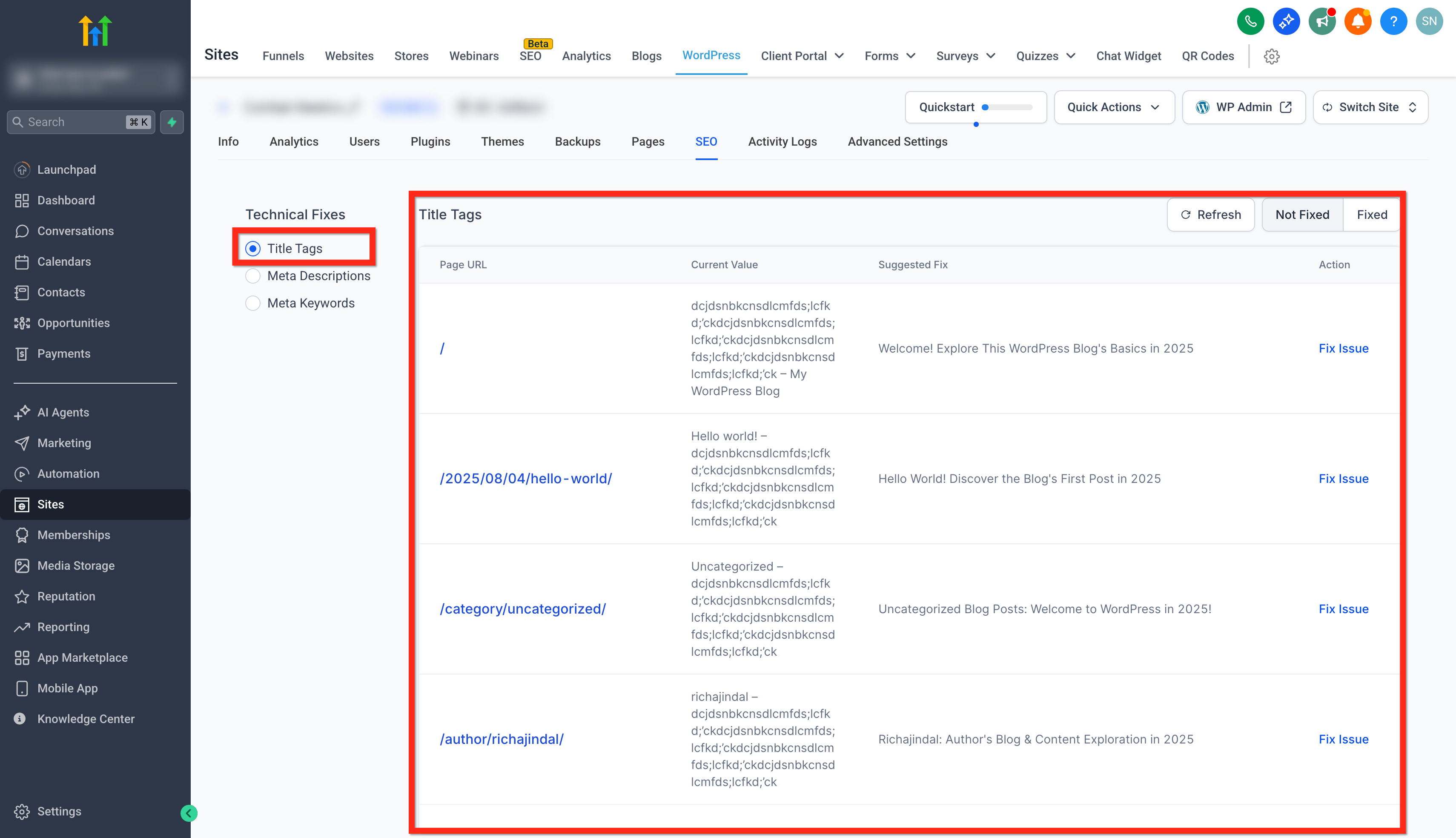
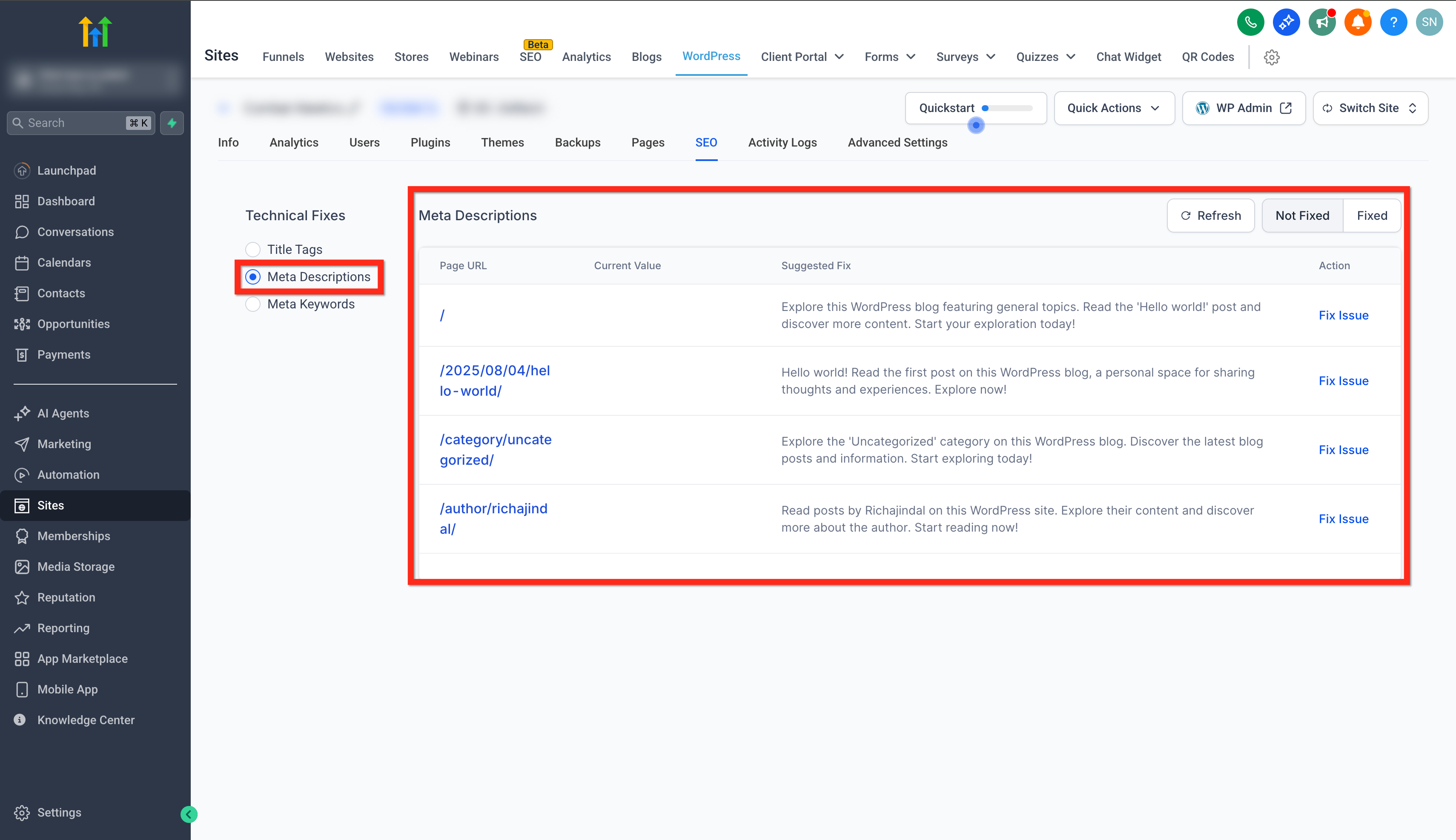
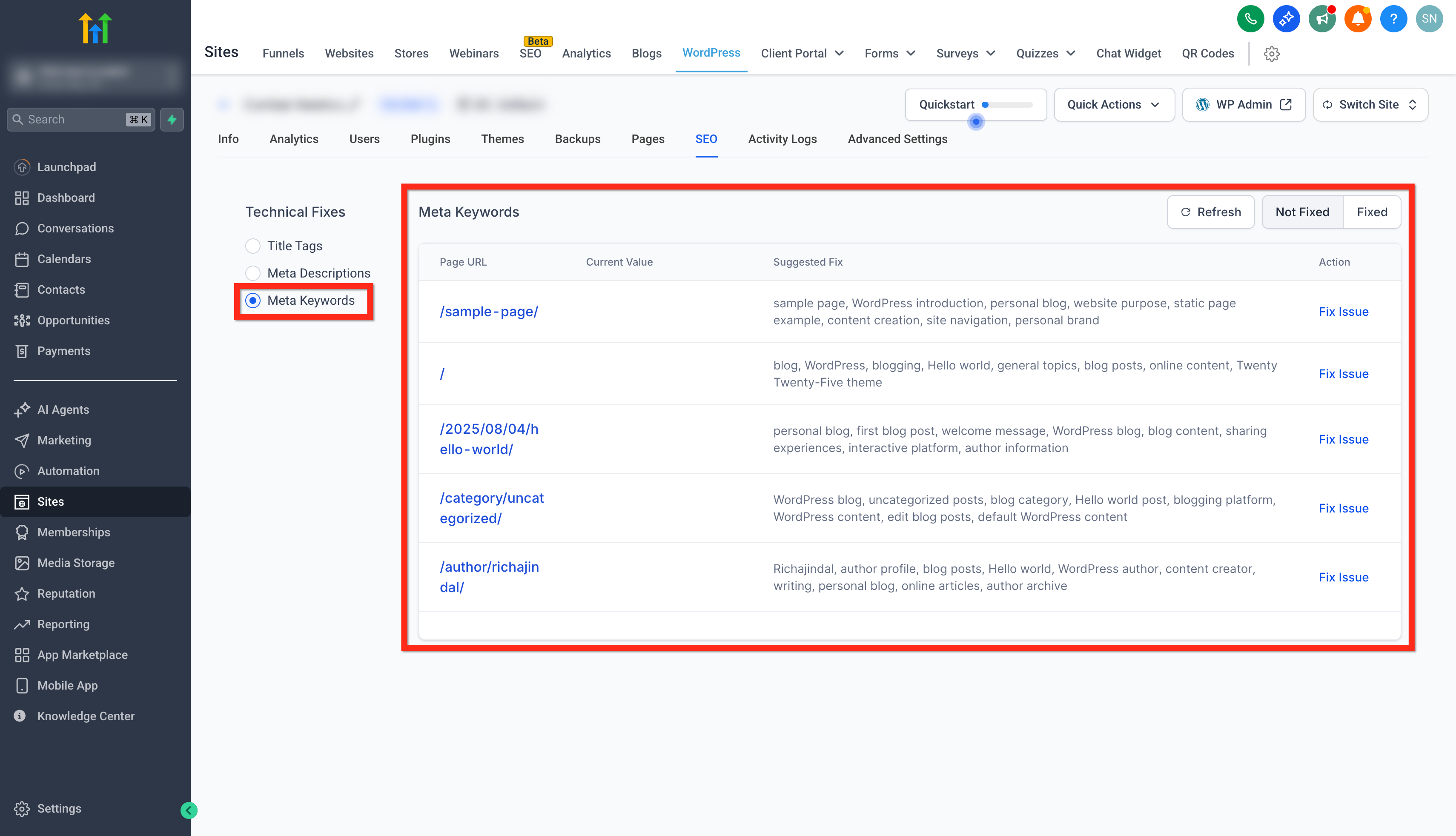
The SEO Report lives inside the WordPress Hosting dashboard for each hosted site. When you open the tab, the platform runs automated checks on title tags, meta descriptions and meta keywords. It then displays a list of detected issues and whether each item is fixed or not.
Each issue shows a “Fix Now” or “Fix Issue” button that opens the relevant WordPress edit view. After you adjust the metadata and save the changes, the report updates to reflect the new status. Insights refresh on a periodic schedule, and a manual re scan may be available after publishing.
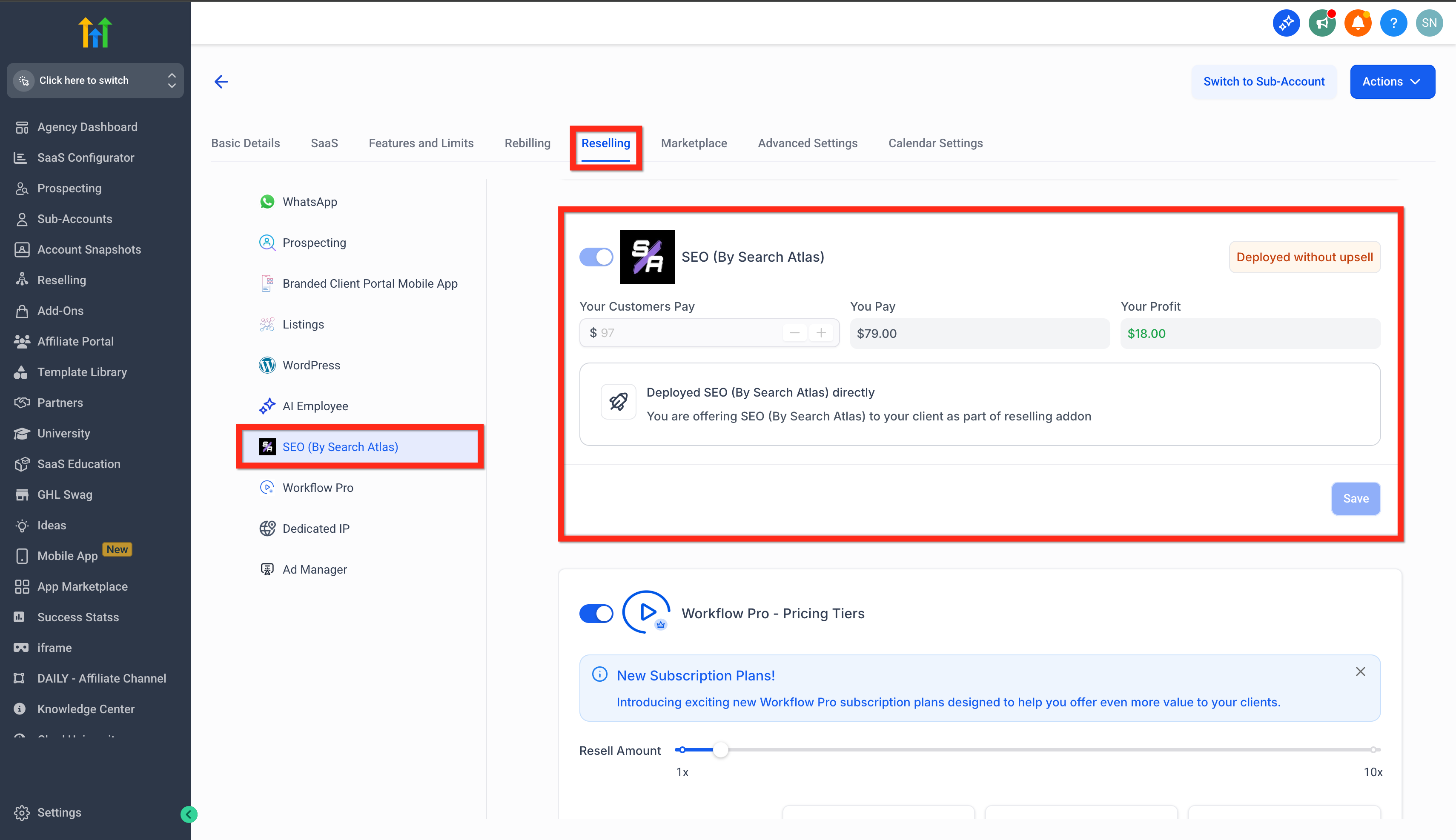
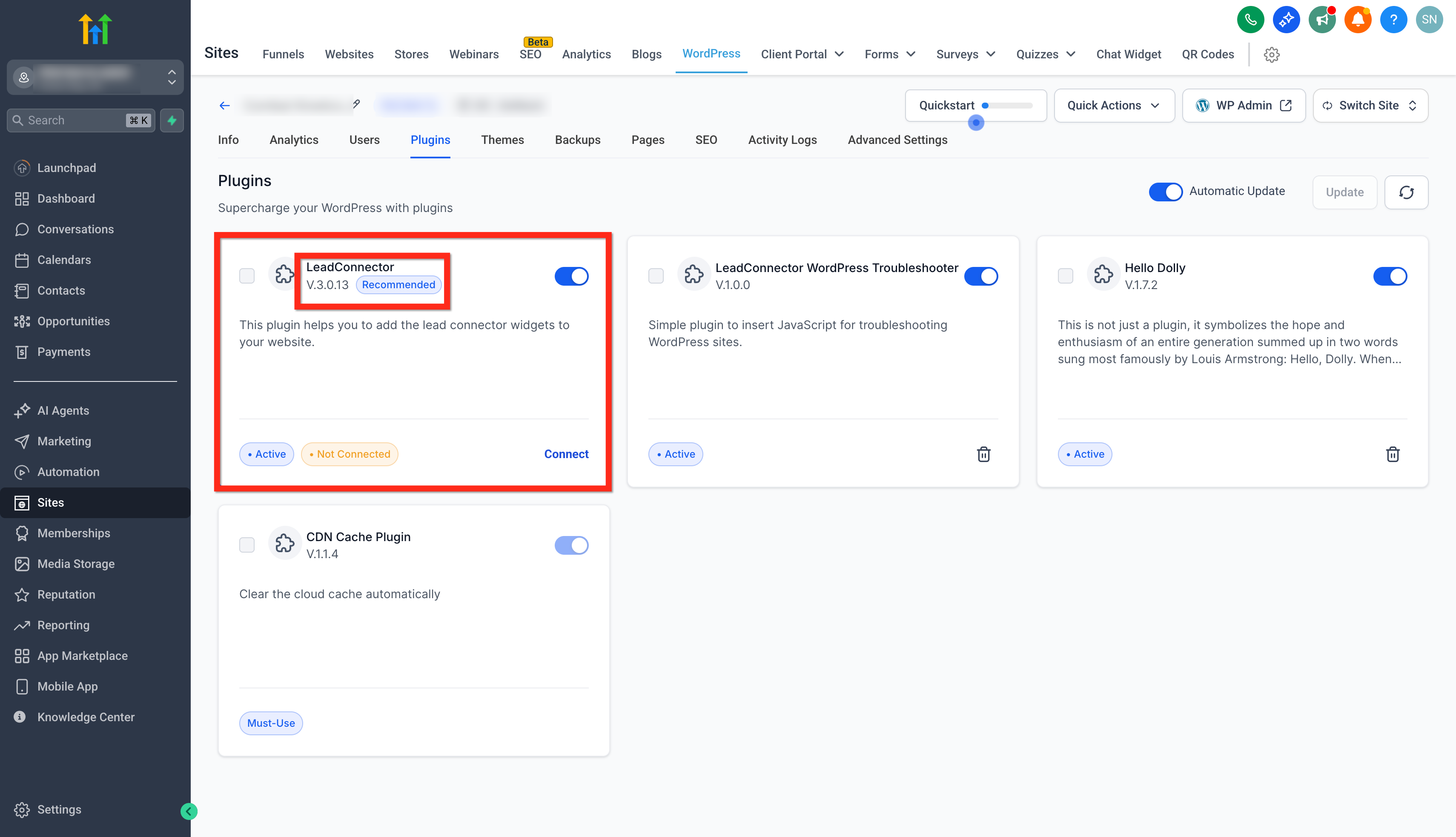
The feature requires an active SEO subscription at the subaccount level and the LC (LeadConnector) WordPress plugin version 3.0.12 or later installed on the site. Without these prerequisites the SEO tab does not appear.
03How businesses use SEO reports
- Digital marketing agency. The agency opens the SEO tab for each client site, reviews the highlighted title tag and meta description issues, clicks the Fix Now buttons, edits the content in WordPress, and saves. This streamlines the audit process within the agency’s HighLevel workspace.
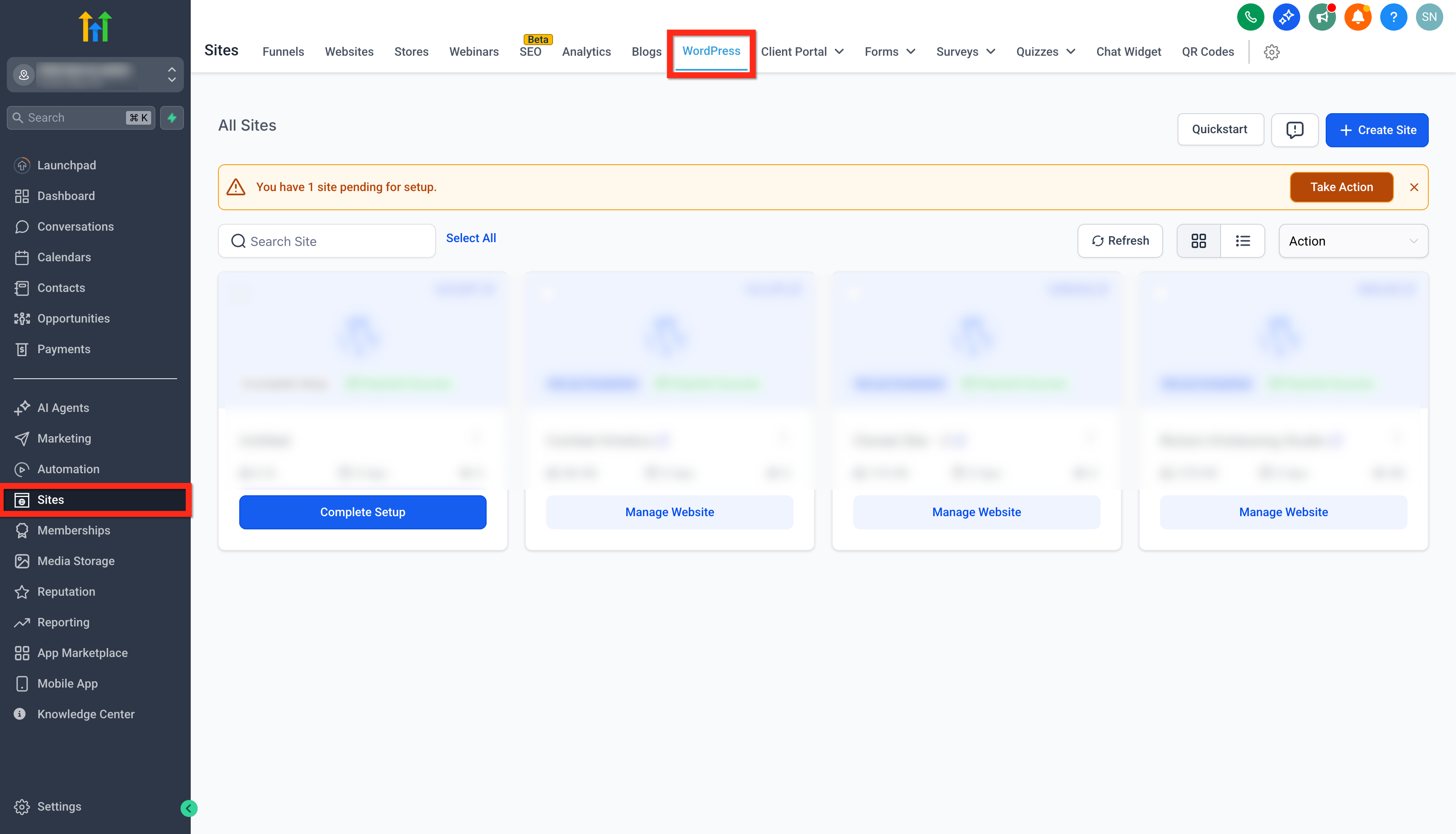
- Local bakery with a WordPress site. The bakery owner navigates to Sites > WordPress, selects its site, and checks the SEO report for missing meta descriptions. Using the Fix Issue button, the owner adds a concise description in WordPress and publishes, improving the site’s search preview.
- Online tutoring platform. The platform’s manager verifies that the LC plugin is up to date, then uses the SEO report to refine meta keywords. By following the guided suggestions and saving the changes, the site’s keyword focus stays aligned with its course content.
04The numbers and rules that matter
- LC (LeadConnector) WordPress Plugin v3.0.12 or later must be installed and active.
05Before you start
- Active SEO subscription must be enabled for the subaccount.
- LC (LeadConnector) WordPress plugin version 3.0.12 or later must be installed and active on the site.
06How to set up and use SEO reports in HighLevel
Open the SEO report for a WordPress site
- Navigate to Sites > WordPress in the HighLevel dashboard.
- Click the Manage Website button for the site you want to evaluate.
- Select the SEO tab to load the report.
Fix issues identified in the SEO report
- Click the Fix Now or Fix Issue button next to the highlighted problem.
- Edit the title tag, meta description or keywords as suggested in the WordPress editor.
- Save or publish the changes to apply the update.
07What it looks like in HighLevel
08Settings that matter
- Active SEO subscription at sub, account level. Controls whether the SEO tab appears in the WordPress Hosting dashboard.
- LC (LeadConnector) WordPress Plugin v3.0.12 or later. Enables the platform to collect on page SEO data and display insights.
09Things to know before you rely on it
- The SEO tab only checks core on page elements; it does not replace the full SEO suite in HighLevel.
- Insights refresh on a periodic schedule; immediate updates require a manual re scan if the control is available.
10If something goes wrong
- SEO tab does not appear in WordPress Hosting.. Confirm that an SEO subscription is active for the subaccount via Agency View > Subaccounts > Manage Client > Reselling > SEO.
- SEO insights fail to load.. Verify that the LC (LeadConnector) WordPress plugin version 3.0.12 or newer is installed and active under Sites > WordPress > Manage Website > Plugins.
11How it connects to the rest of HighLevel
- Set up WordPress hosting for clients WordPress hosting guide
- Manage plugins and themes in HighLevel Plugin management
- Add domains to WordPress sites Domain setup
Michael's take

Beware that the SEO tab only appears when the subaccount has an active SEO subscription and the LC WordPress Plugin v3.0.12 or later is installed and active; otherwise, the tab is not visible.
When the prerequisites are met, the report provides a quick checkpoint for core on page elements. You can see missing titles or unoptimized descriptions and fix them from the dashboard.