
01Who this is for
- Web designers who need quick theme tweaks can edit files safely inside the platform.
- Agency owners managing multiple client sites benefit from a single interface for all file operations.
02WordPress file manager, explained
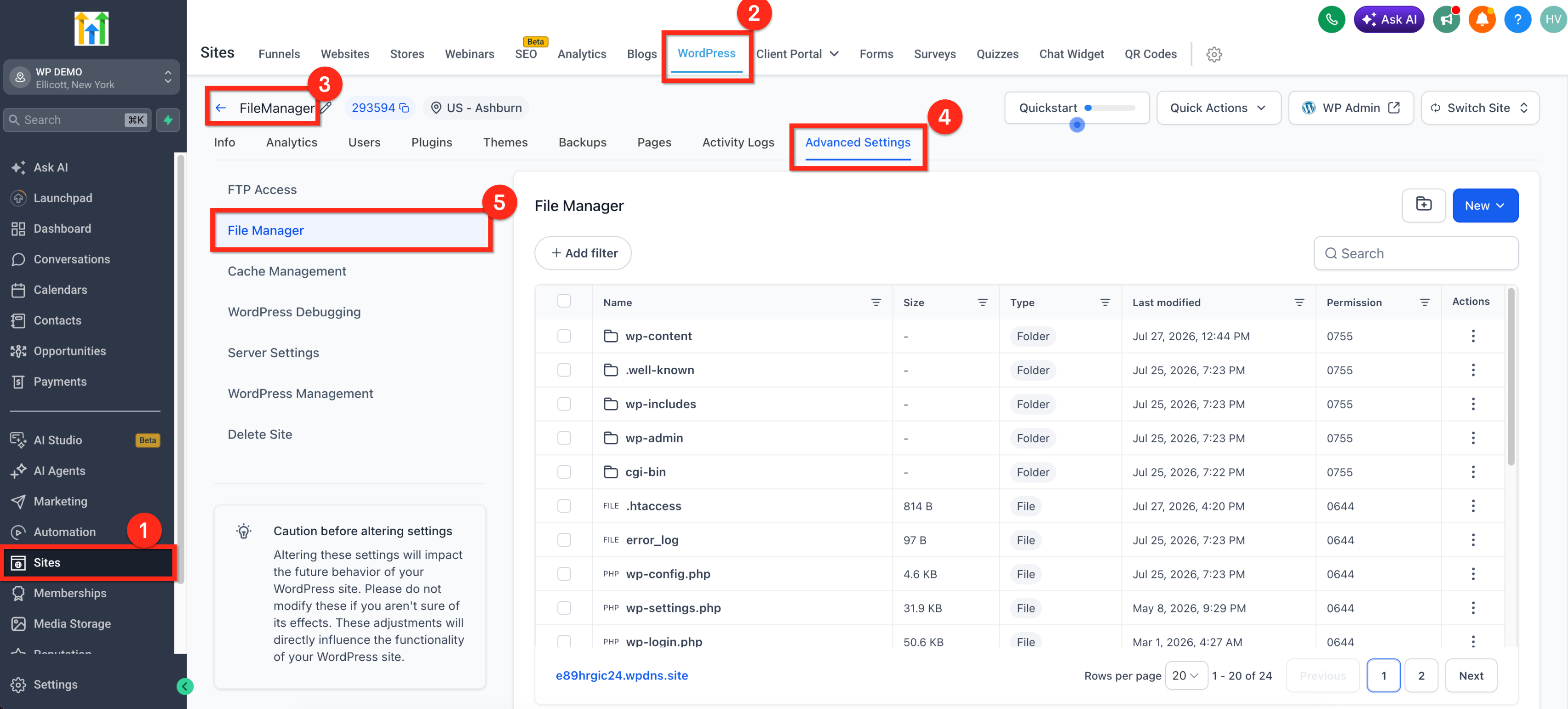
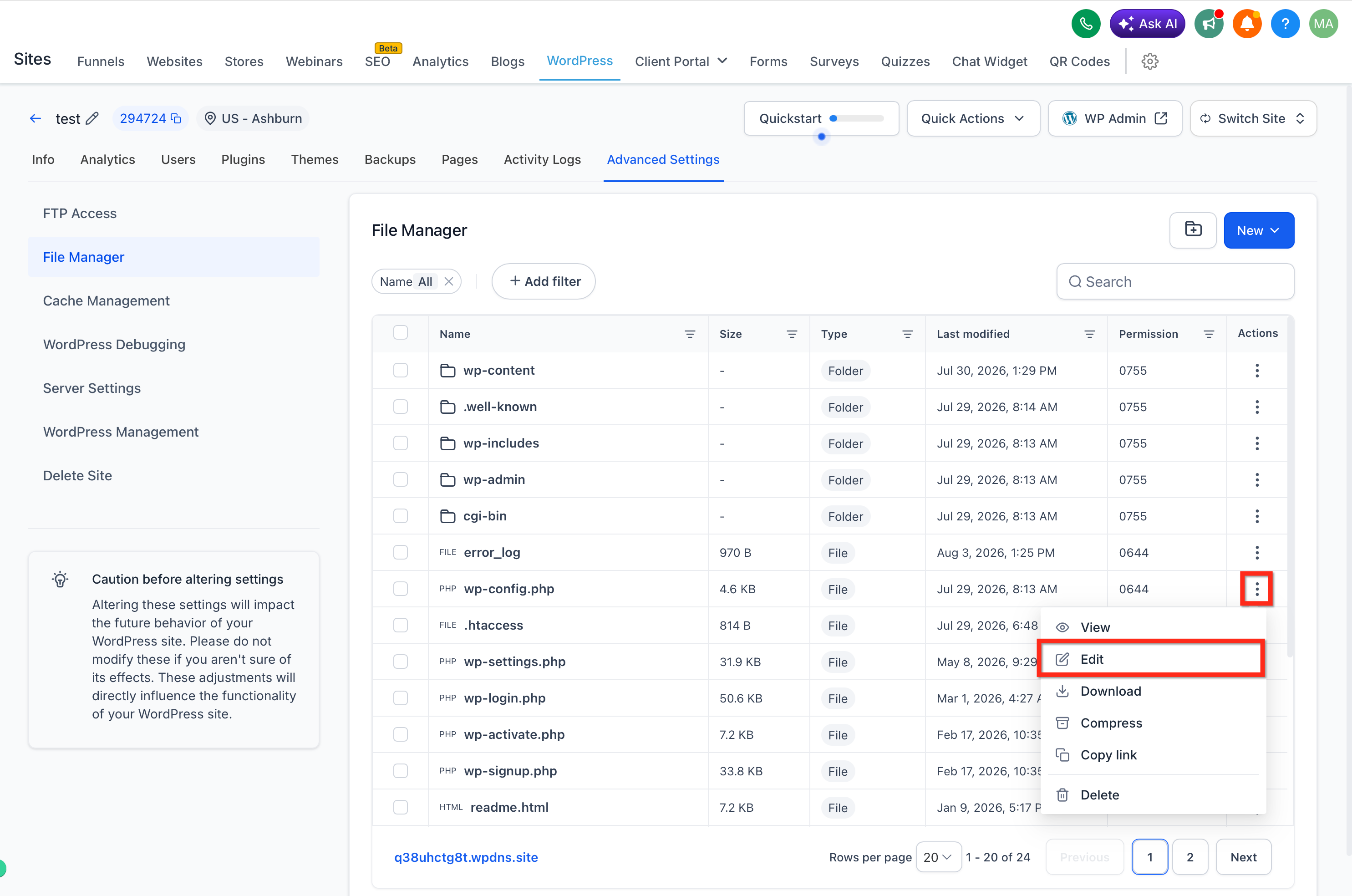
The File Manager appears inside the WordPress management area of HighLevel. It shows a tree view of the site’s directories, a search bar, filter options and pagination for large folders. From this view you can open, upload, download, edit, create, delete, compress or extract files, and adjust chmod values where the host allows it.
All actions happen within the HighLevel UI, so you never leave the platform to reach an FTP client or a hosting control panel. The tool also includes conflict safe alerts that warn if another process has changed a file since it was opened.
03How businesses use the WordPress file manager
- Digital marketing agency. The agency opens the File Manager, searches for a theme stylesheet, edits the CSS directly, and saves the changes. The conflict safe alert ensures the edit does not overwrite a newer version.
- Ecommerce store owner. The store owner uploads a new product image to the /wp content/uploads folder, then downloads a backup of the wp config.php file for offline review.
- Blog publisher. The publisher selects several old draft files, compresses them into a ZIP archive for backup, and later extracts the archive to restore the drafts.
04The numbers and rules that matter
- Upload size limits are set by the hosting environment’s PHP settings.
05How to set up and use the WordPress file manager in HighLevel
Browse and search files
- Open the File Manager from the WordPress section.
- Click folders to expand the directory tree.
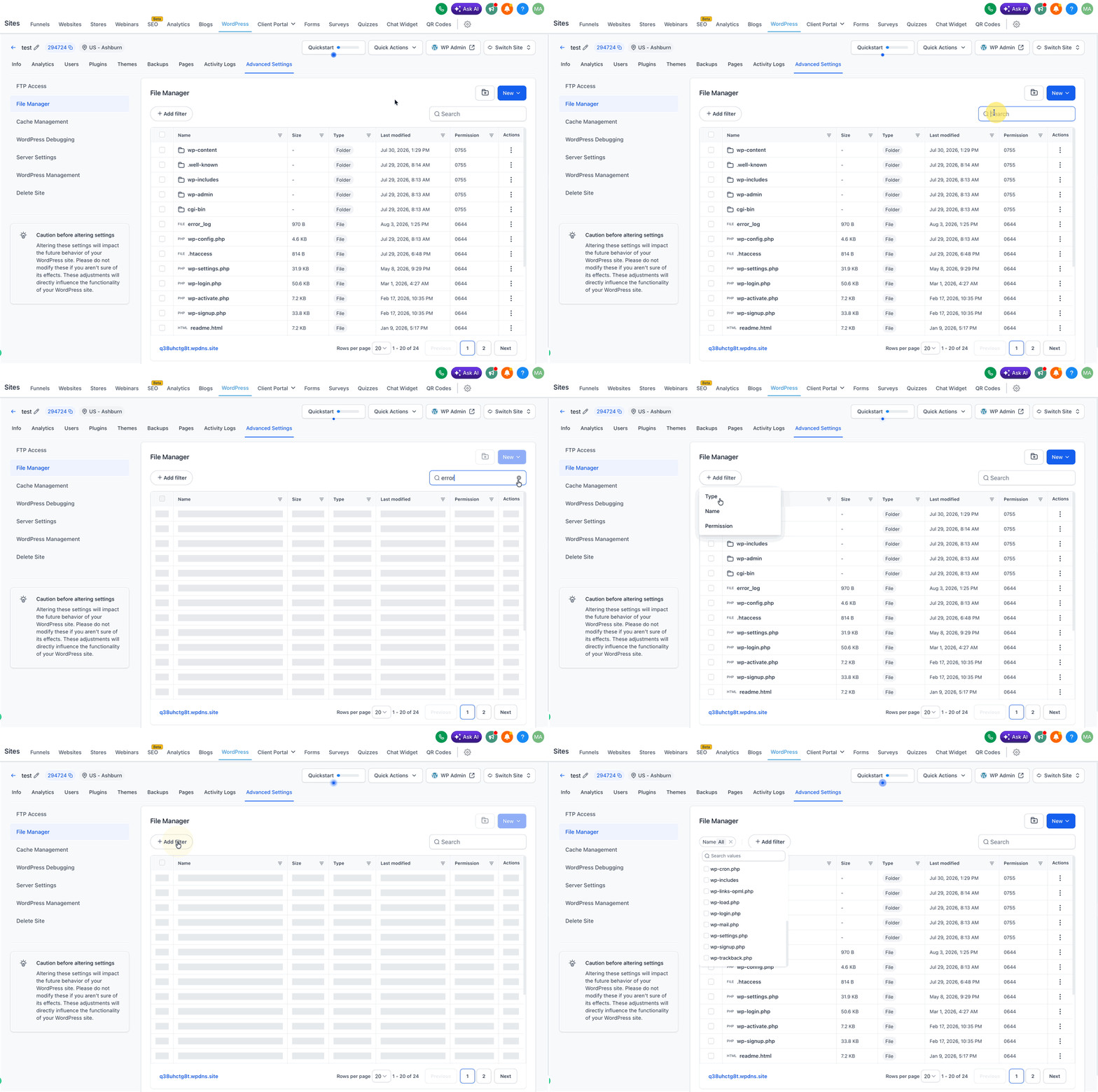
- Enter a filename in the search bar to locate a specific file.
- Apply a filter to narrow the file list.
- Use the pagination controls to move through large folders.
Upload or download files
- Navigate to the folder where the new file should reside.
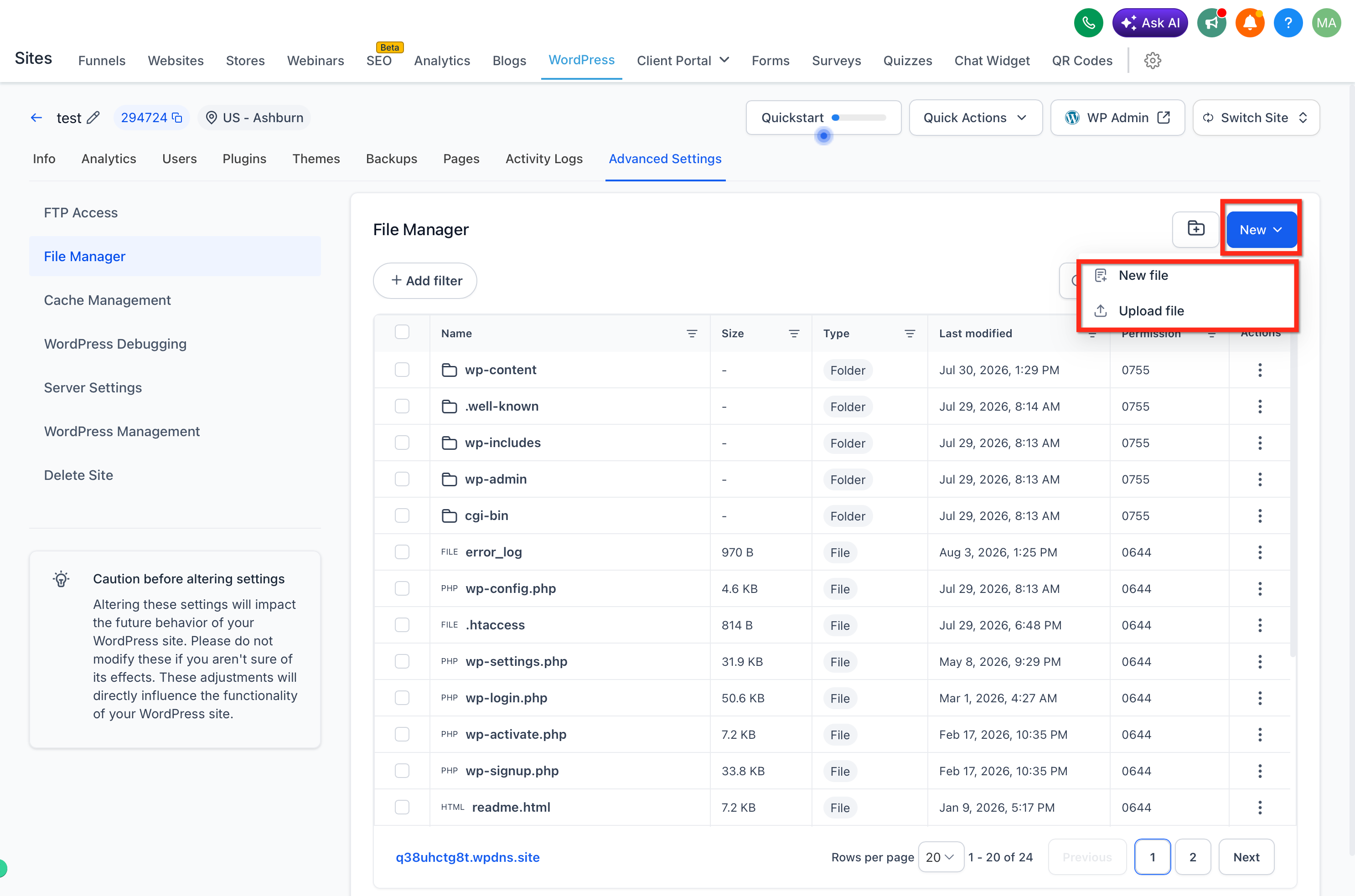
- Press the Upload button and choose files from your computer.
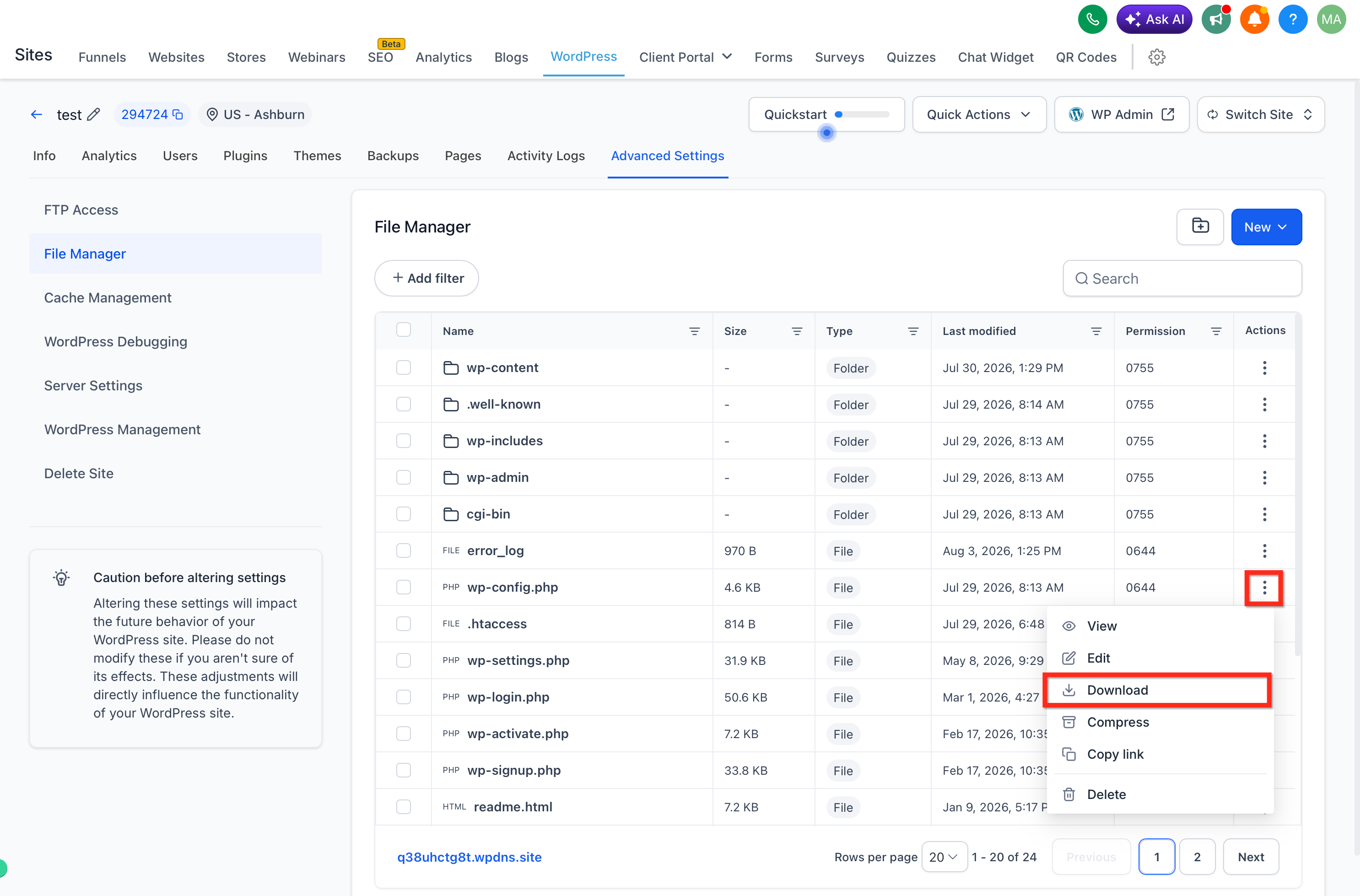
- Select the file or folder you want to retrieve.
- Press the Download button to save it locally.
Edit files safely
- Choose the file you wish to modify.
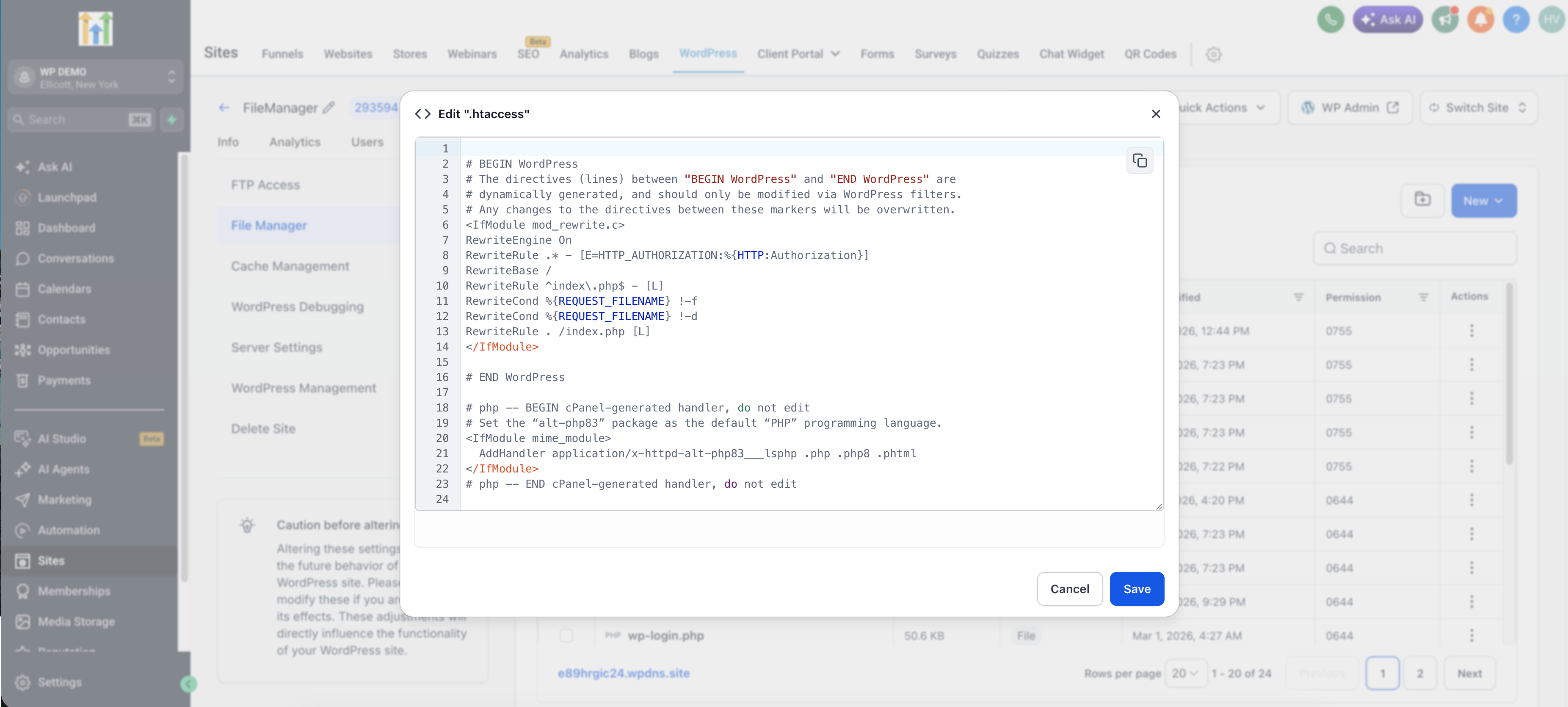
- Click the Edit button to open the preview editor.
- Make the desired changes inside the editor window.
- Press Save to write the changes back to the server.
- If a conflict warning appears, review the notice before confirming the save.
Manage files and folders
- Click New File or New Folder to add a new item in the current directory.
- Select one or more items and click Delete to remove them.
- Select items and click Compress to create a ZIP archive.
- Select an archive file and click Extract to unpack its contents.
Update file permissions
- Select the target file or folder.
- Click the Permissions (or Properties) button.
- Adjust the read, write and execute values for owner, group and others.
- Click Save to apply the new permission set.
06What it looks like in HighLevel
07Settings that matter
- Permissions. Controls the read, write and execute rights for a selected file or folder, where the hosting environment supports chmod changes.
08Things to know before you rely on it
- Permission changes only work if the host allows chmod operations; otherwise the option is hidden.
- File upload size is limited by the server’s PHP configuration.
- Incorrect permission values can break site functionality or expose security risks.
09If something goes wrong
- Upload fails because the file is too large. Check the server’s PHP upload limits and increase them or contact the host.
- Conflict alert appears when saving a file. Review the notification, merge changes if needed, or cancel the save to avoid overwriting newer content.
- Permissions button is missing. Use the hosting provider’s control panel or support to modify chmod values.
10How it connects to the rest of HighLevel
- WordPress plugin and theme management in HighLevel Plugin & Theme Management
- How to add domains to WordPress sites in HighLevel Add WordPress Domains
- HighLevel guide to creating and managing WordPress sites Create WordPress Sites
Michael's take

Every WordPress site needs a quick way to change a theme file or replace a broken plugin without hopping between tools. The built in manager in HighLevel gives you that single pane of glass, so you can fix things fast and stay in the same workflow.
The first setting I’d get right is the conflict safe protection. It tells you when someone else has already changed a file, which saves you from overwriting work and potentially breaking the site.