
01Who this is for
- Agencies that clone funnel steps for multiple clients, because they need to avoid carrying over client specific pixels.
- Ecommerce owners who use thank you pages for purchase confirmations, to ensure conversion scripts run only on the appropriate page.
- Local service businesses that embed contact form tracking, to keep each location’s analytics separate when pages are duplicated.
02Tracking code, explained
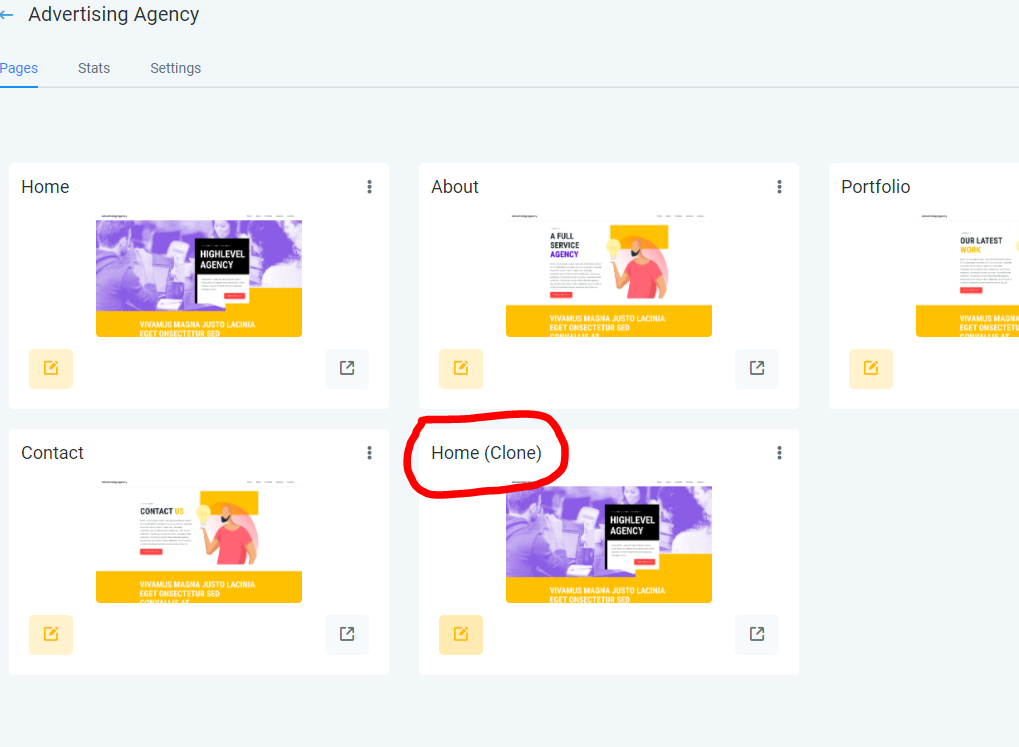
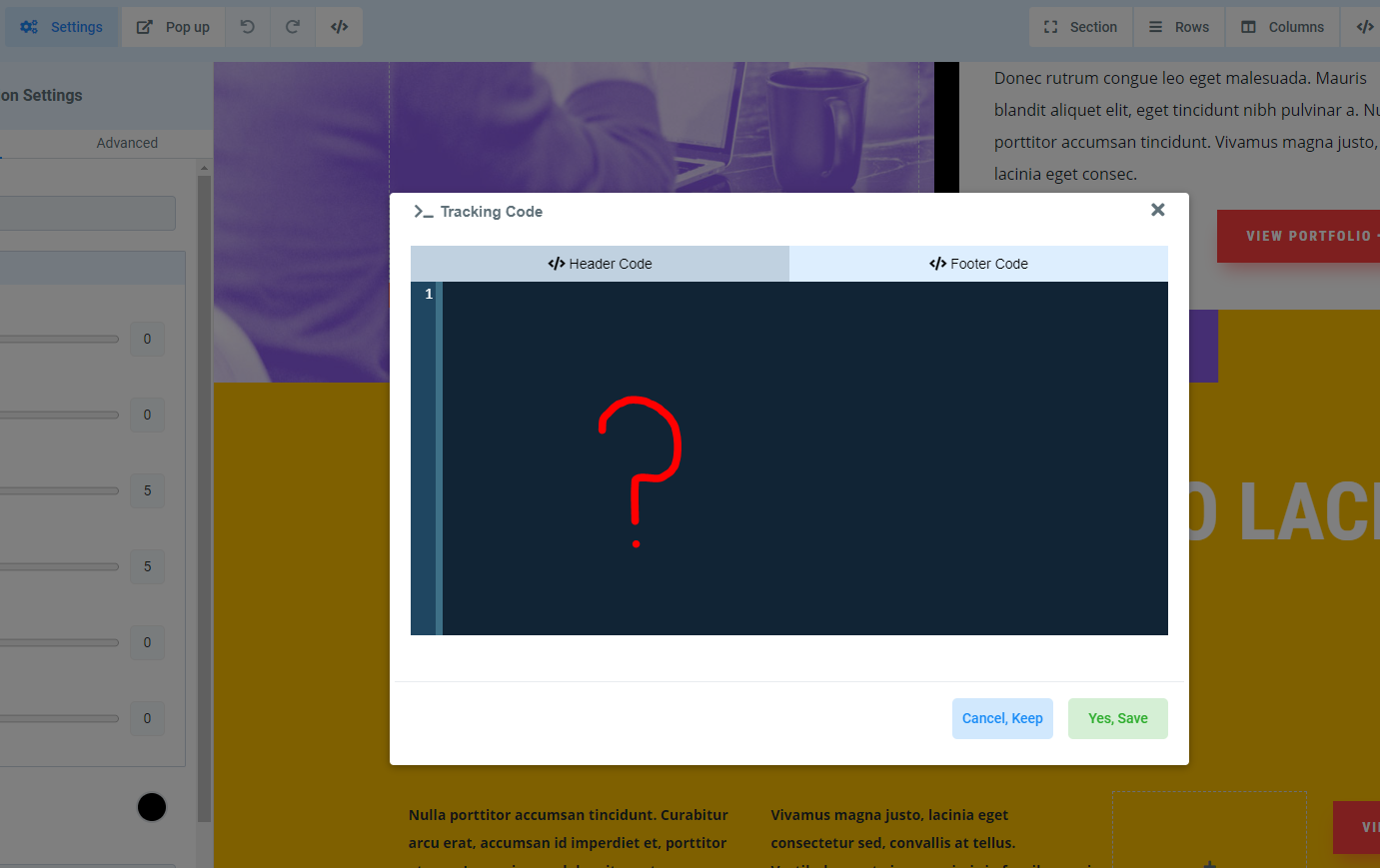
Cloning a page in HighLevel copies the design and content but deliberately excludes any tracking code that was entered directly on that page. This design choice stops scripts that belong to one page from automatically firing on another.
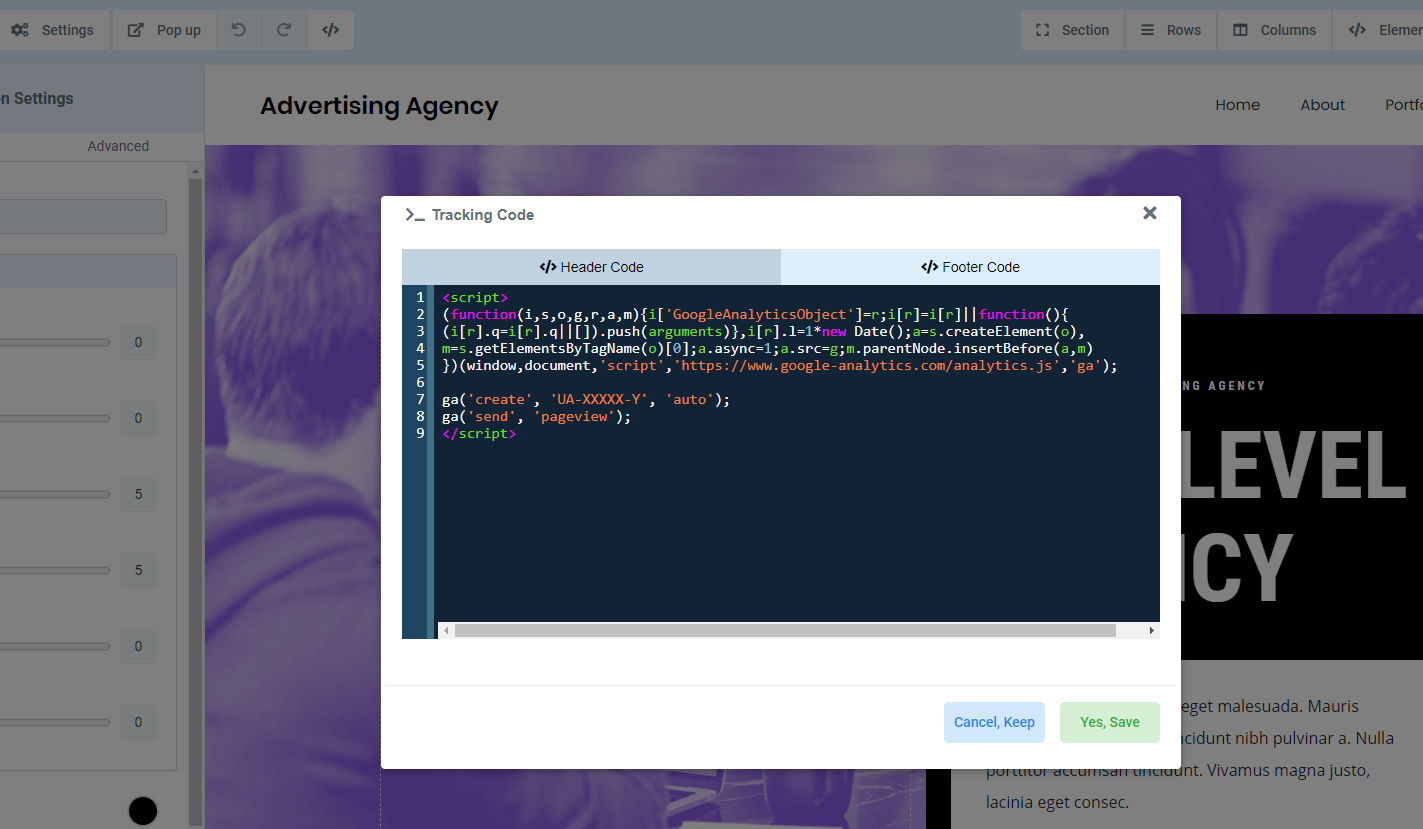
Page level tracking is added inside the page builder using the Tracking Code icon, where you can place scripts in Header Tracking or Footer Tracking. Site wide tracking is set in the funnel or website Settings, using the Head tracking code or Body tracking code fields, so the same script runs on every step.
To manage tracking, open the page in the builder for page specific scripts, or open the funnel/website Settings for scripts that should apply to all pages. Save and test after adding code to confirm proper operation.
03How businesses use tracking code
- Ecommerce store. After cloning a checkout page, the owner opens the page in the builder, clicks the Tracking Code icon, and pastes the order confirmation pixel into Footer Tracking. This ensures the pixel fires only on the new thank you page.
- SaaS company. The team adds a general Google Analytics base script in the funnel Settings’ Head tracking code field, so every page in the sales funnel reports to the same analytics property without needing page level inserts.
- Local service agency. When duplicating a location specific landing page, the agency opens the copied page, adds a custom event script to Header Tracking, and saves, guaranteeing the event tracks only for that location’s page.
04Before you start
- Check whether the same script is already configured at the funnel or website level before adding page level code.
05How to set up and use tracking code in HighLevel
Add tracking to one page
- Go to Sites.
- Select Funnels or Websites where the cloned page resides.
- Open the chosen funnel or website.
- Open the copied page in the builder.
- Click the Tracking Code or code icon.
- Paste the script into Header Tracking or Footer Tracking as the provider directs.
- Click Save.
- Preview the page and test the script before sending live traffic.
Add tracking across the entire funnel or website
- Open the relevant funnel or website.
- Open its Settings.
- Locate the Head tracking code or Body tracking code field.
- Paste the required script into the appropriate field.
- Save the changes.
- Verify the script appears on the published pages that should use it.
- Do not add the same base script at the page level if it already exists in the funnel or website settings.
06What it looks like in HighLevel
07Settings that matter
- Header Tracking. Controls scripts that are injected into the head section of a specific page.
- Footer Tracking. Controls scripts that are injected into the footer section of a specific page.
- Head tracking code. Controls site wide scripts placed in the head of every page in the selected funnel or website.
- Body tracking code. Controls site wide scripts placed in the body of every page in the selected funnel or website.
08Things to know before you rely on it
- Page level tracking code is intentionally excluded when a page is cloned.
- Adding the same script at both page and site levels can cause duplicate events.
- Tracking code may be injected dynamically and not appear in the static page source.
09If something goes wrong
- Tracking disappeared after copying a page. Open the copied page and add the correct page specific script if it is still required.
- The copied page records no analytics events. Check both the copied page's Tracking Code area and the funnel or website Settings to confirm where the script is installed.
- Events fire twice. Check whether the same script is installed at both the page level and the funnel or website level.
- The wrong conversion fires on the cloned page. Confirm that the copied page uses the correct event code, tracking ID, analytics property, pixel, and destination URL.
- Code does not appear in View Page Source. Tracking code can be injected dynamically. Test with browser network tools or the tracking provider's diagnostic tools instead.
- Custom code affects page rendering. Temporarily remove custom code, page level tracking code, and custom CSS to isolate the script causing the issue.
10How it connects to the rest of HighLevel
- Learn how to add tracking scripts to funnels and websites. Add tracking code
- Overview of creating and publishing sites in HighLevel. Website setup
- View HighLevel pricing and plan options. Pricing
Michael's take

Tracking code is deliberately left out of cloned pages to keep old pixels and analytics from leaking into the wrong place.
If you rely on page specific events, you’ll need to paste the script back in after cloning; skip this if you only use site wide tracking.