
01Who this is for
- Founders who want a dynamic visual experience to capture visitor attention on landing pages.
- Marketing managers looking to reinforce brand messaging with video that plays behind key content.
- Design teams that need precise control over video scaling and transparency for polished layouts.
02Video backgrounds, explained
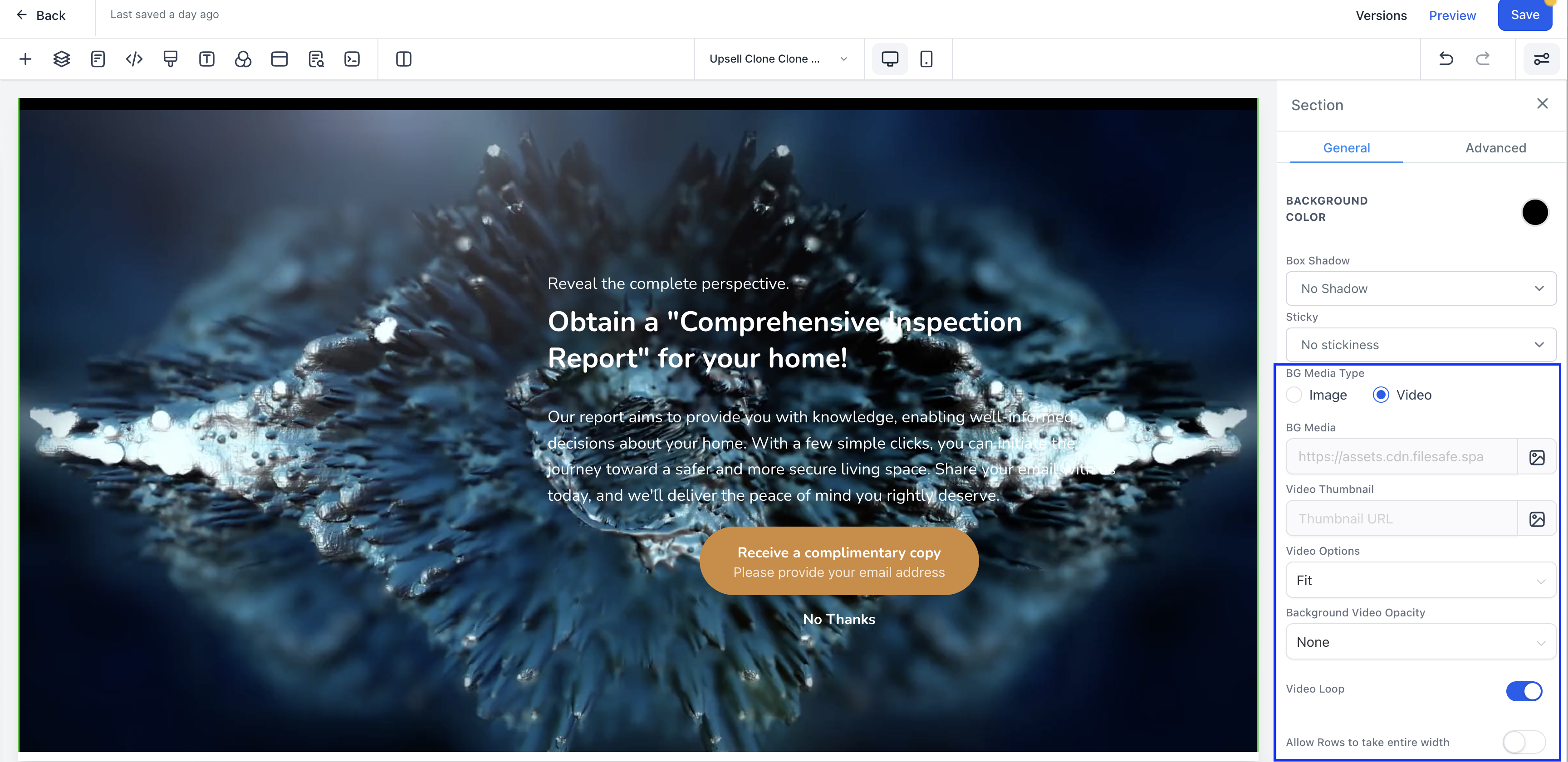
Video Background adds the ability to embed HTML5 MP4 or WebM videos as the background of any section, row, or column in the builder. The video replaces a static image and can be previewed in real time. The setting lives in the right hand panel of the selected element under BG media type.
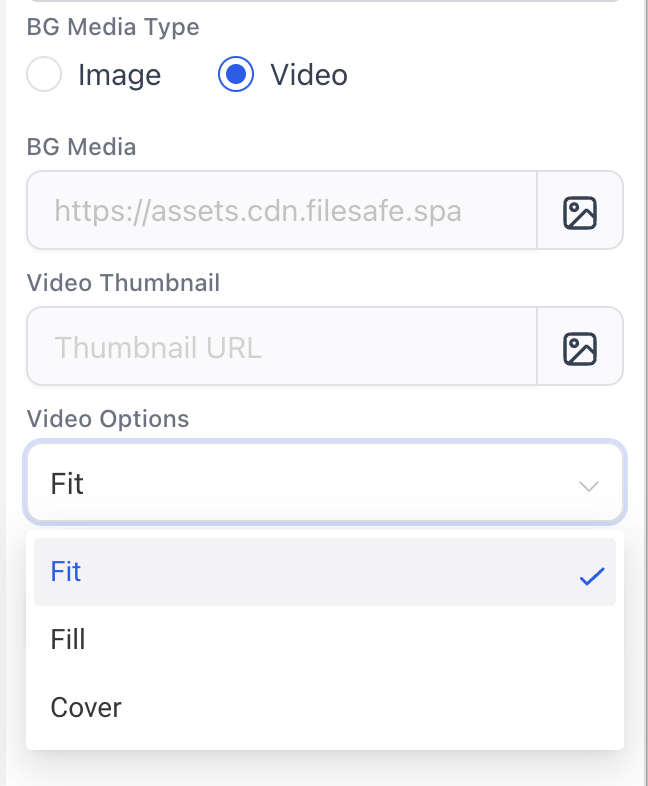
Three display modes, Fit, Fill, and Cover, determine how the video scales or crops within its container. Fit keeps the entire video visible with possible letterboxing. Fill forces the video to cover the whole area, cropping or stretching as needed. Cover balances scaling and aspect ratio preservation, covering the space without distortion.
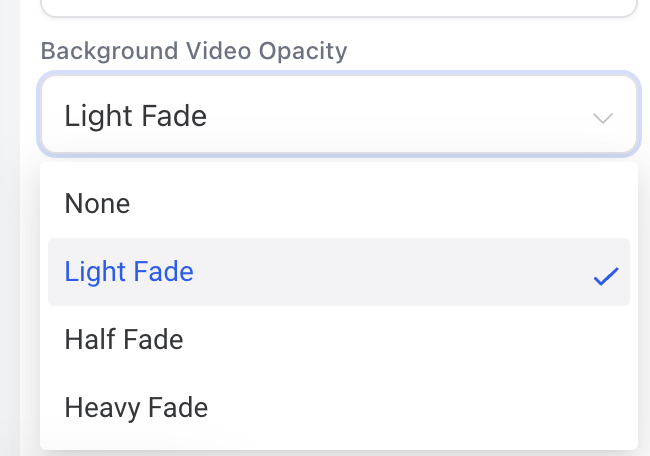
Background Opacity offers four levels, None, Light Fade, Half Fade, Heavy Fade, letting you make the video more or less transparent. A toggle controls whether the video loops continuously or plays once.
03How businesses use video background
- Real estate agency. The agency selects a section on a property showcase page, sets the BG media type to Video, uploads a walkthrough MP4, and chooses Cover to fill the area while keeping aspect ratio. They set Light Fade to let property details remain readable.
- Online fitness trainer. The trainer adds a video background to the header row of a class sign up funnel, picks a promotional MP4, selects Fill for full coverage, and turns on Loop so the clip repeats during the visitor’s stay.
- Event planner. The planner creates a landing page for a conference, places a video in a column behind speaker bios, chooses Fit to show the entire clip, and applies Half Fade to blend the background with the text.
04The numbers and rules that matter
- Supports HTML5 standard video formats, including MP4 and WebM.
05How to set up and use video background in HighLevel
Enable video background in a section
- Select the section you want to modify.
- In the right hand settings panel, change the BG media type to Video.
- Choose the desired video from your media library.
- Click the Preview icon to see how the page appears in the browser.
06What it looks like in HighLevel

07Settings that matter
- BG media type. Switches the background source from an image to a video.
- Video Options. Controls how the video scales inside the container with choices Fit, Fill, or Cover.
- Background Opacity. Sets the transparency level of the video background, offering None, Light Fade, Half Fade, or Heavy Fade.
- Video Loop. Determines whether the video repeats continuously (on) or plays once (off).
08Things to know before you rely on it
- Only HTML5 standard video formats MP4 and WebM are supported.
- The feature applies to sections, rows, and columns within the builder.
09How it connects to the rest of HighLevel
- Explore all Sites features in HighLevel. All Sites features
- Review HighLevel pricing and plans for access. Pricing
- Start a 30 day trial to test video backgrounds. 30 day trial
Michael's take

Clients often struggle to keep a landing page lively without adding clutter. A video background gives that movement while keeping the layout clean. The first thing I would get right is selecting the appropriate video option, Fit, Fill, or Cover. So the visual looks intentional.
Once the option is set, I’d check the opacity level to make sure the text stays readable. A Light Fade usually provides enough contrast without hiding the video’s impact.