
01Who this is for
- Design agencies can upload client font files directly in the builder, keeping each brand’s typography consistent without extra code.
- Marketers can apply custom typefaces to landing pages and funnels, ensuring brand consistent visuals across campaigns.
02Custom fonts, explained
Custom Font Support is a native HighLevel feature that allows uploading, storing, and applying your own font files inside the Funnels and Websites Builder. The fonts are saved in Media Storage and become available to any text element in the same subaccount.
After a font is uploaded, it appears in the Typography panel’s font dropdown. You can choose the font and then adjust size, weight, and style just like any built in typeface. No @font face CSS or external hosting is required.
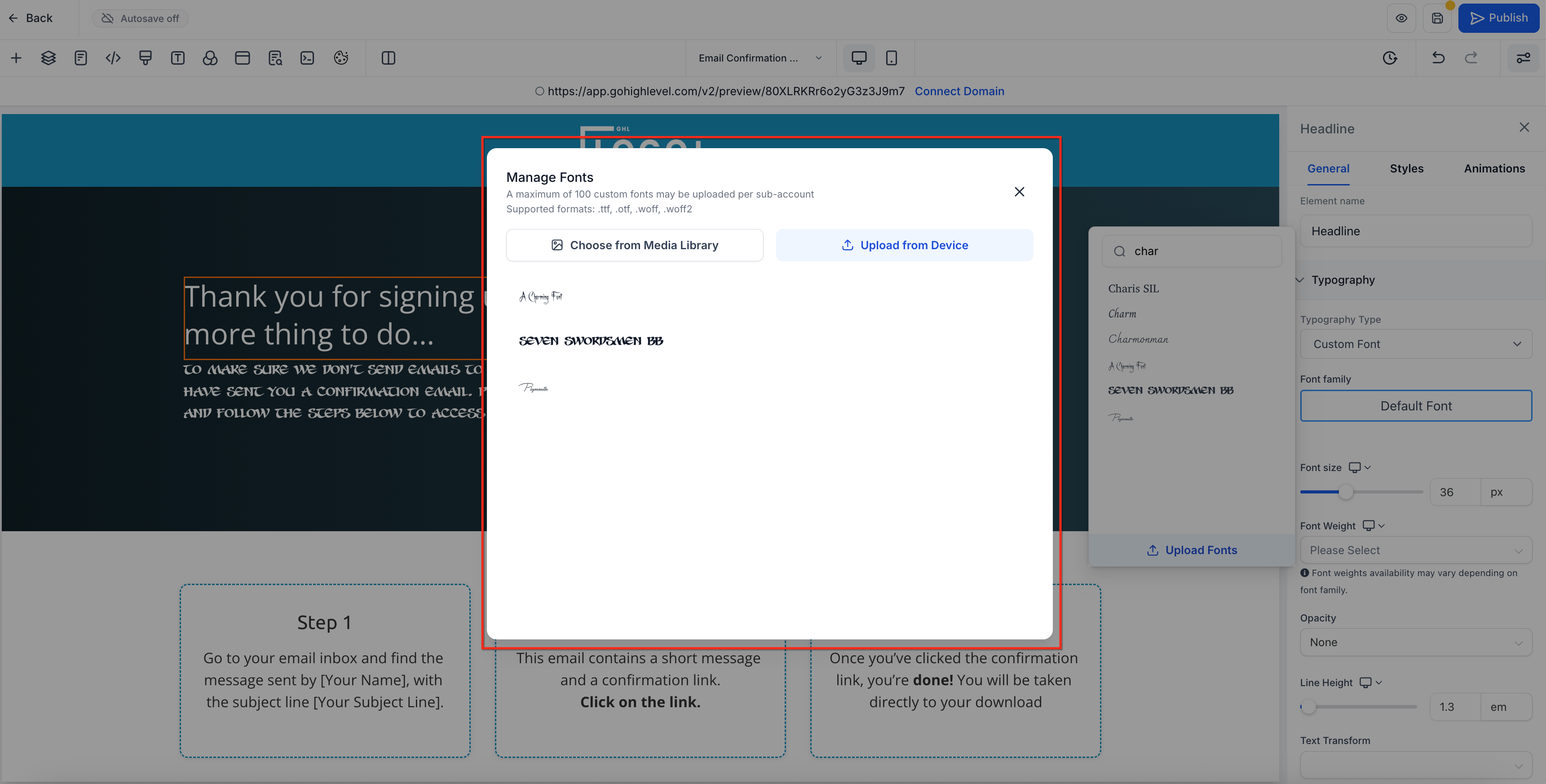
The feature is managed from the Labs section of Agency Settings. Once enabled, the upload interface, the Custom Fonts Modal, can be opened from any font dropdown, letting you drag and drop or browse for .ttf, .otf, .woff or .woff2 files.
03How businesses use custom font support
- Branding agency. The agency enables the feature in Labs, uploads each client’s font files, and then selects those fonts in the builder when designing funnel pages. This keeps every client’s visual identity consistent across all deliverables.
- Marketing team. The team turns on Custom Font Support, adds campaign specific fonts, and applies them to headline and body text in landing pages, ensuring that ads and pages share the same typography.
- Designer. A designer uploads a custom typeface, opens the required funnel step or webpage, selects the text element, and applies the new font directly from the dropdown without writing any CSS.
04The numbers and rules that matter
- Supported formats:.ttf,.otf,.woff,.woff2.
- No hard limit on the number of fonts stored.
05Before you start
- Feature must be turned on in Agency Settings > Labs.
- You must have font files in one of the supported formats (.ttf, .otf, .woff, .woff2).
- Access to the subaccount where the funnel or website will be edited.
06How to set up and use custom font support in HighLevel
Apply custom font in Funnels & Websites
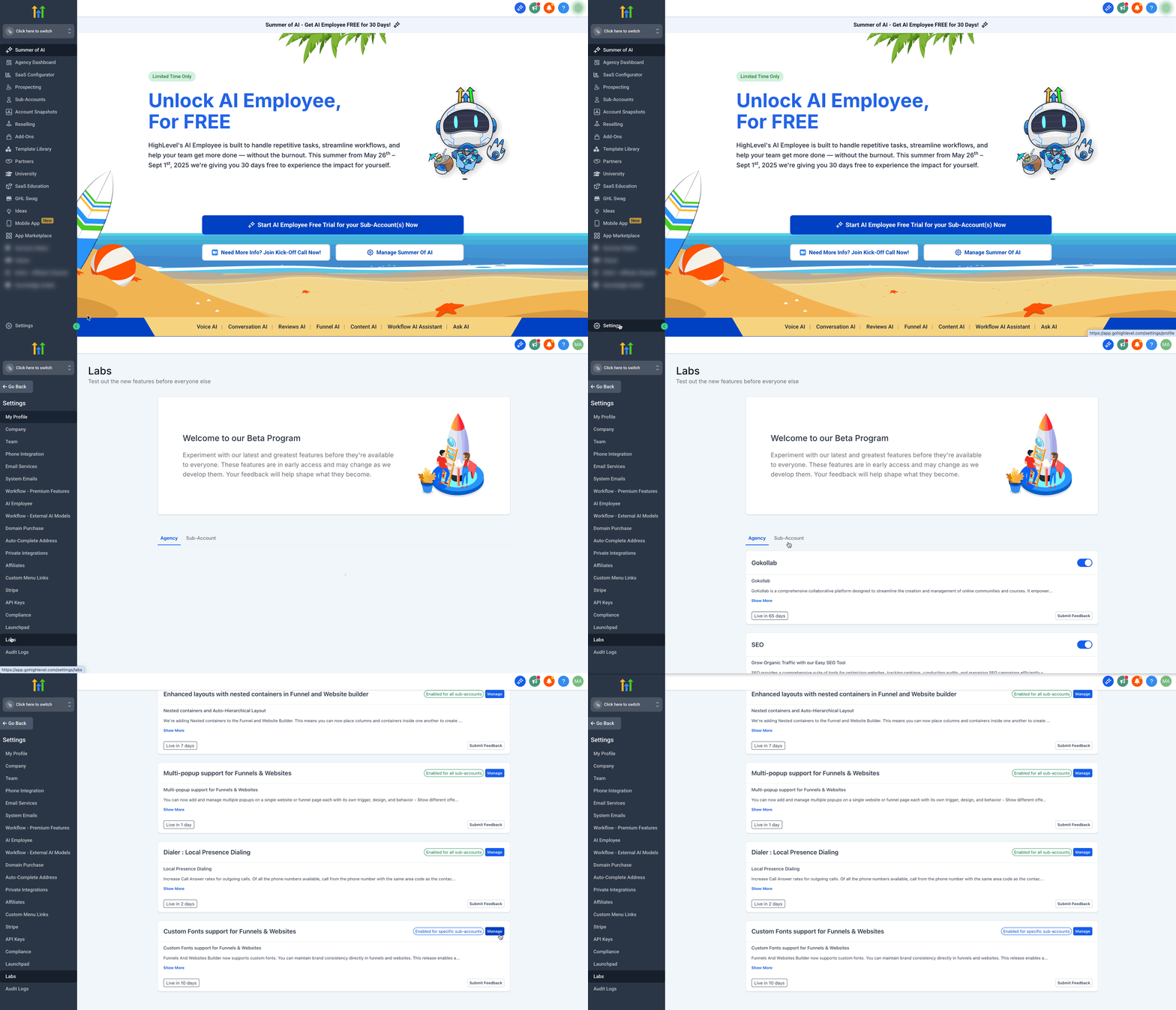
- Open Agency Settings and select Labs.
- Find Custom Font Support for Funnels and Websites and click Manage to enable it.
- Switch to the subaccount that contains the funnel or webpage.
- Open the builder for the specific funnel step or website page you want to edit.
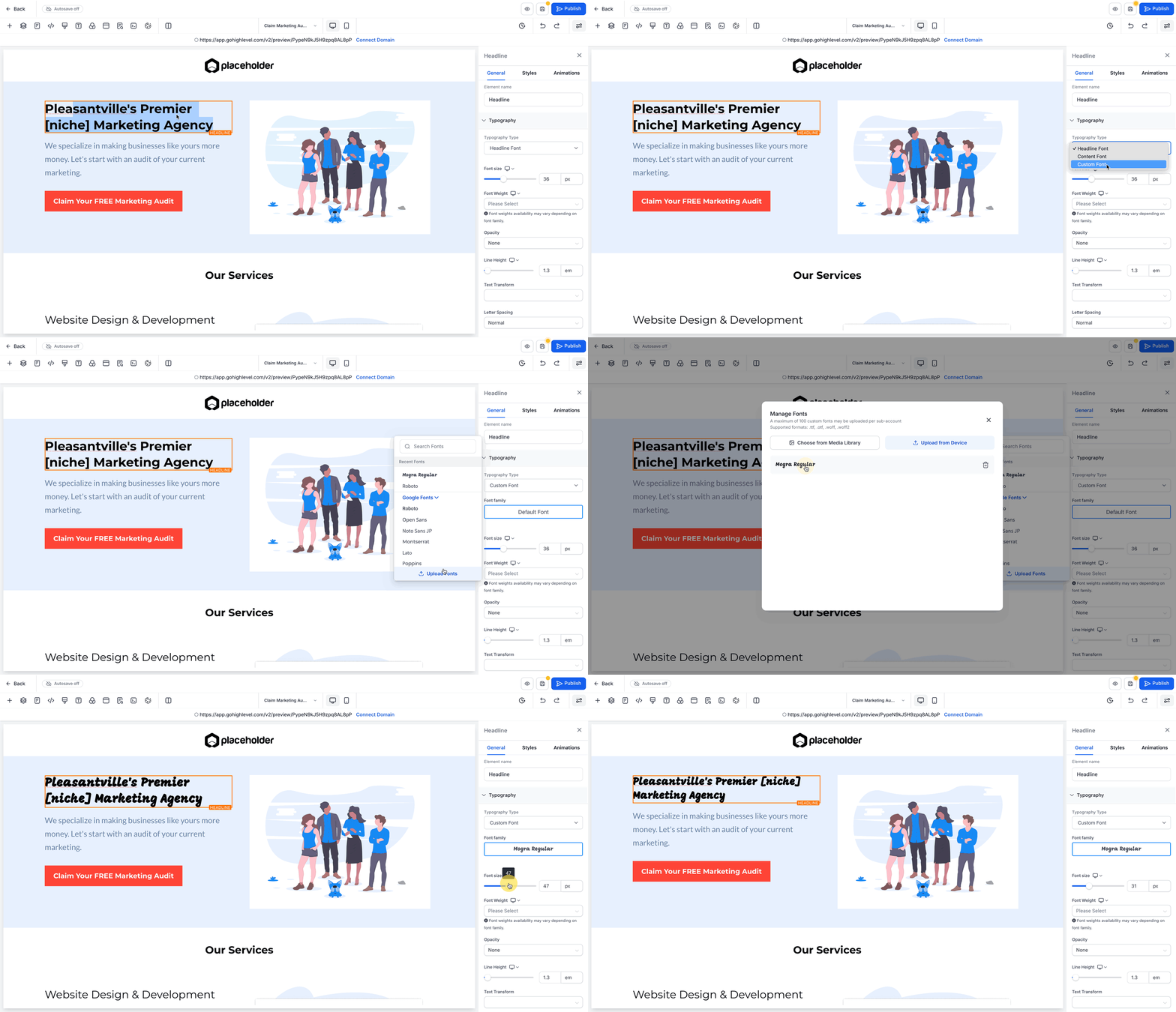
- Click a text element on the canvas to select it.
- In the right hand panel choose Typography, then Typography type, then Custom Font, then Upload Fonts, and finally Upload from Device.
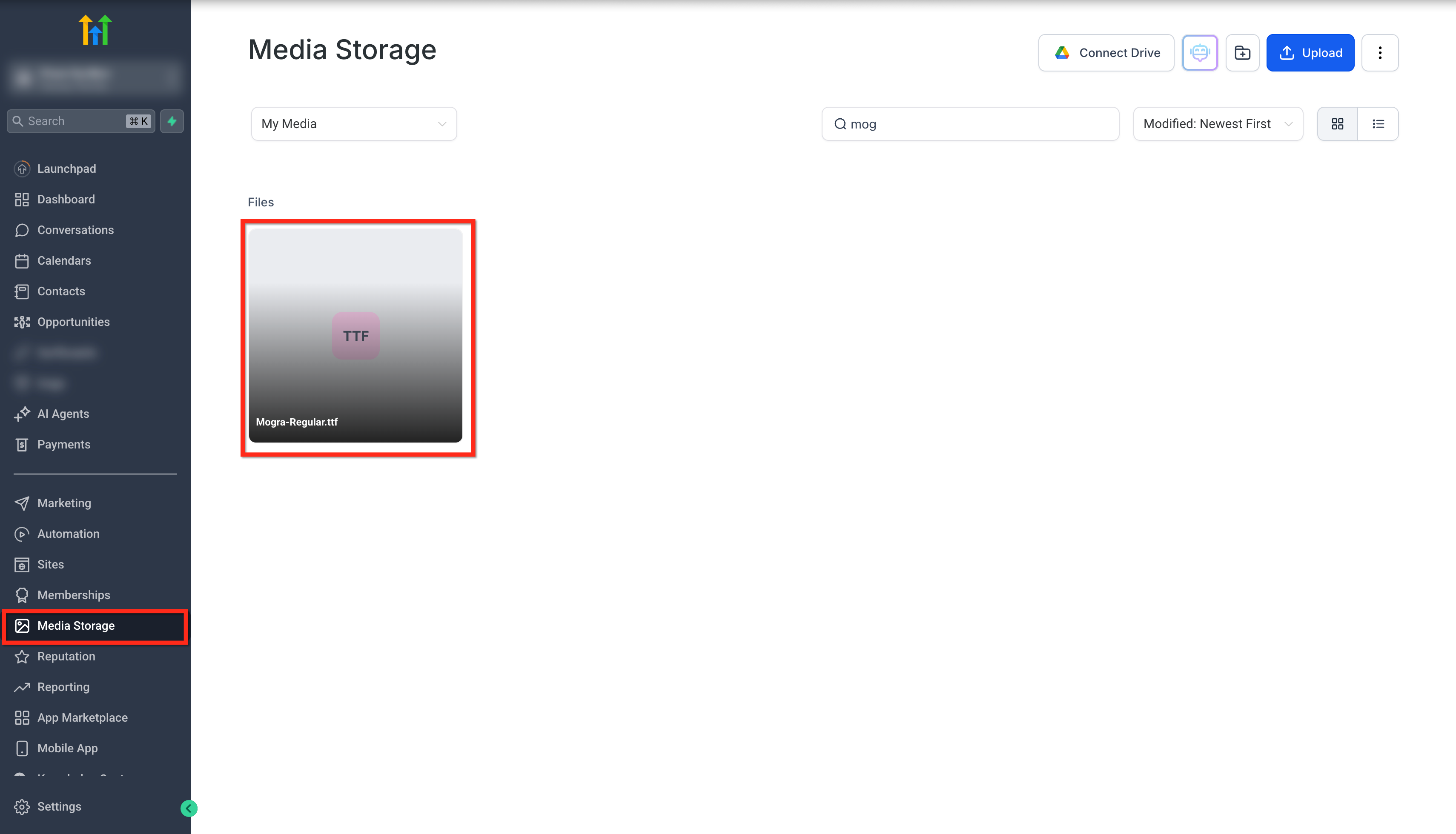
- Select a .ttf, .otf, .woff, or .woff2 file from your computer or Media Storage and wait for the confirmation message.
- Pick the newly uploaded font from the dropdown and adjust size, weight, or style as needed.
07What it looks like in HighLevel

08Settings that matter
- Custom Font Support for Funnels and Websites. Controls whether custom font files can be uploaded and used inside the Funnels and Websites Builder.
09Things to know before you rely on it
- Supported file formats are .ttf, .otf, .woff, and .woff2.
- There is no hard limit on the number of fonts stored, but keeping Media Storage organized is recommended for faster page loading.
10If something goes wrong
- Font does not display after upload. Verify the correct font family is selected in the Typography panel, clear the browser cache, and ensure the file name has not been changed in Media Storage.
11How it connects to the rest of HighLevel
- Learn more about Media Storage for font files All Sites features
- Set up and design pages with HighLevel’s builder HighLevel website setup
- Review pricing to ensure your plan includes Labs features HighLevel pricing and plans
Michael's take

Brands often waste time hunting for work arounds to get the right typeface on their pages. The ability to upload a font directly into HighLevel removes that friction and keeps your visual identity intact across every funnel and site.
The first setting I would get right is turning on Custom Font Support in Labs. Once it’s enabled, I’d upload the core brand font and verify it appears in the typography dropdown before rolling it out to any client pages.