
01Who this is for
- Marketers who need to tailor landing page copy for each visitor without writing code.
- Funnel builders who want to reuse the same variable across multiple buttons or headings.
- Small business owners who wish to show dynamic information such as city or product name on their public pages.
02URL parameters, explained
The feature adds a native URL Parameter token to the Custom Value Picker. When a visitor lands on a page with a matching query string, the token inserts the supplied value into supported text areas. You can also define a default value that shows when the parameter is absent or empty.
The token respects case insensitive matching, sanitizes incoming data, and can apply UPPERCASE, lowercase, Title Case, or Sentence case transformations. Hyphens and underscores are automatically turned into spaces, making UTM style strings readable. Tokens appear as visual placeholders in the editor, making future edits straightforward.
The URL Parameter workflow is available in all HighLevel builders, Funnels, Websites, Stores, and Webinars, and works in button text, sub text, headings, paragraphs, rich text, bullet lists, FAQs, and pop ups.
03How businesses use URL parameters
- Real estate agency. The agency adds a URL Parameter token for the city name into the headline of a landing page. When a paid ad links to ?city=Houston, the page headline automatically reads "Houston Homes for Sale" without extra coding.
- Online course creator. In a webinar registration page, the creator inserts a token for the first name into the welcome paragraph. The link includes {{contact.first_name}} so each registrant sees a personalized greeting like "Welcome, Alex."
- Ecommerce store. The store places a URL Parameter token in a button’s sub text to show a discount code passed in the URL. If the link contains ?code=SPRING20, the button displays "Use code: SPRING20" with automatic formatting.
04The numbers and rules that matter
- Supported Builders: Funnels, Websites, Stores, Webinars.
- Supported Text Areas: Button text, Button subtext, Headings, Paragraphs, Rich text, Bullet lists, FAQs, Popups.
05How to set up and use URL parameters in HighLevel
Set up a URL parameter in a page element
- Open the Funnel, Website, Store, or Webinar page and edit a supported text element or button.
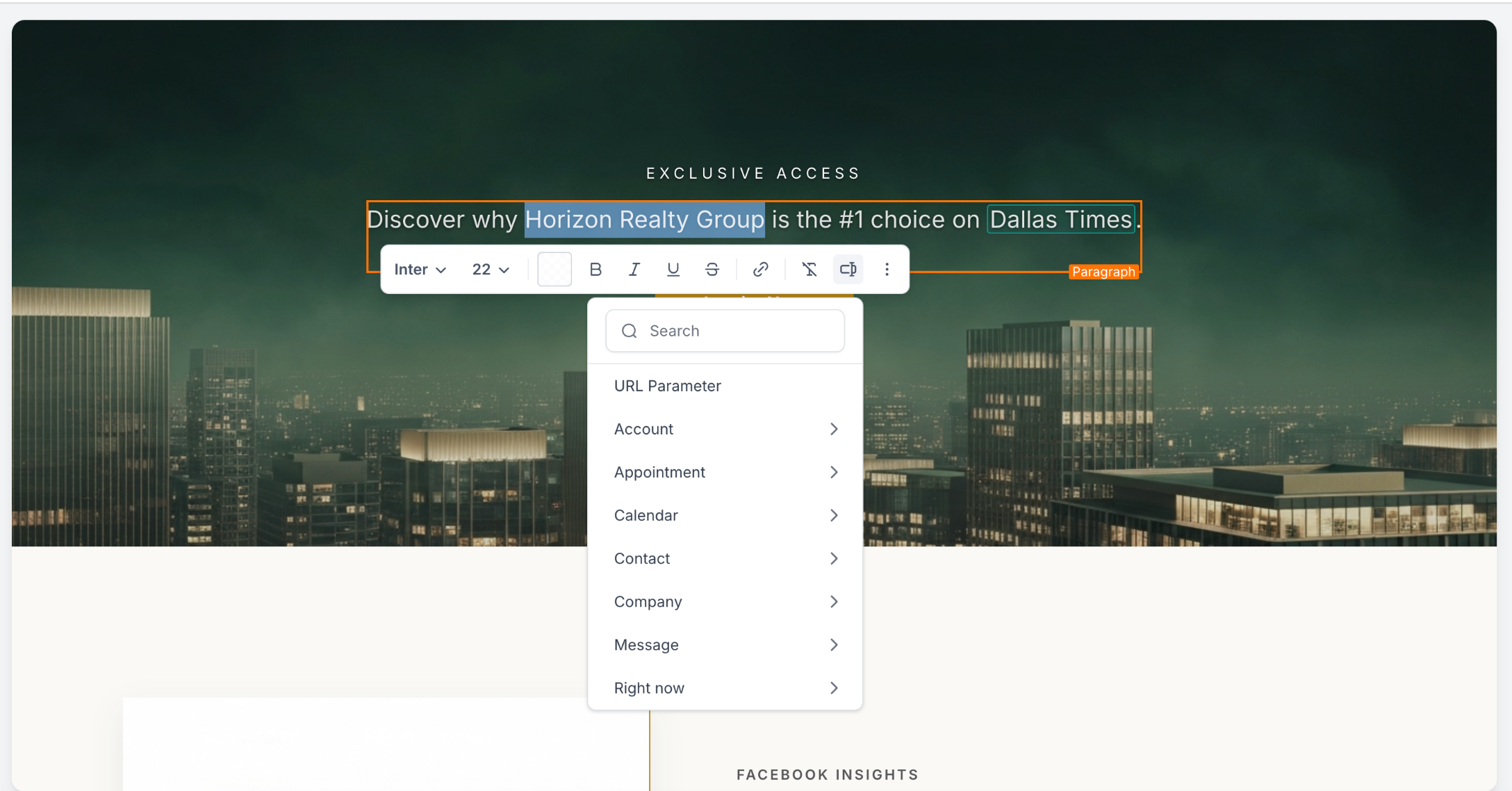
- Open the Custom Value Picker and choose the URL Parameter option.
- Enter the parameter name, add a default value if desired, and select a text transformation.
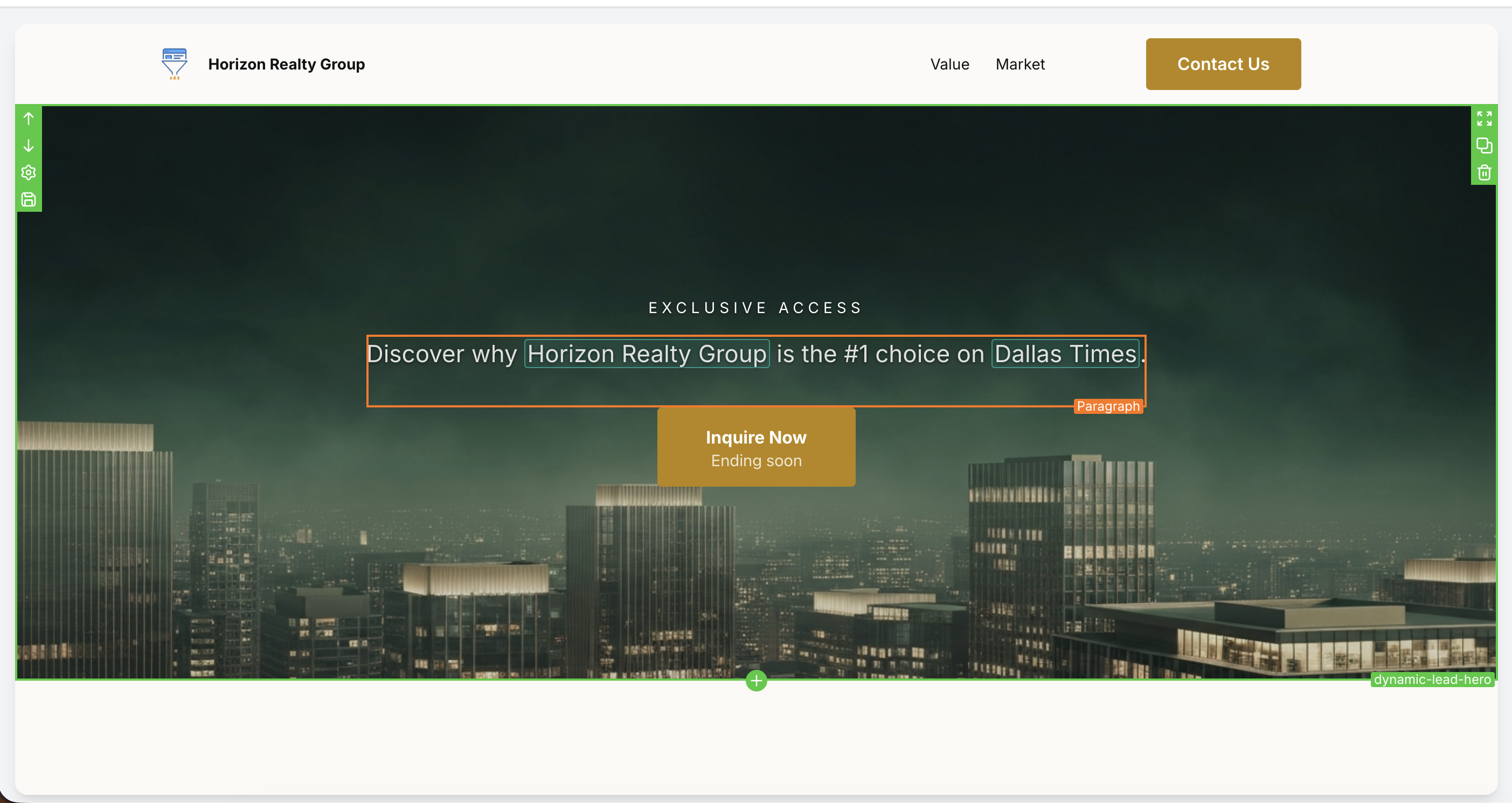
- Insert the token into the element; it appears as a visual placeholder in the editor.
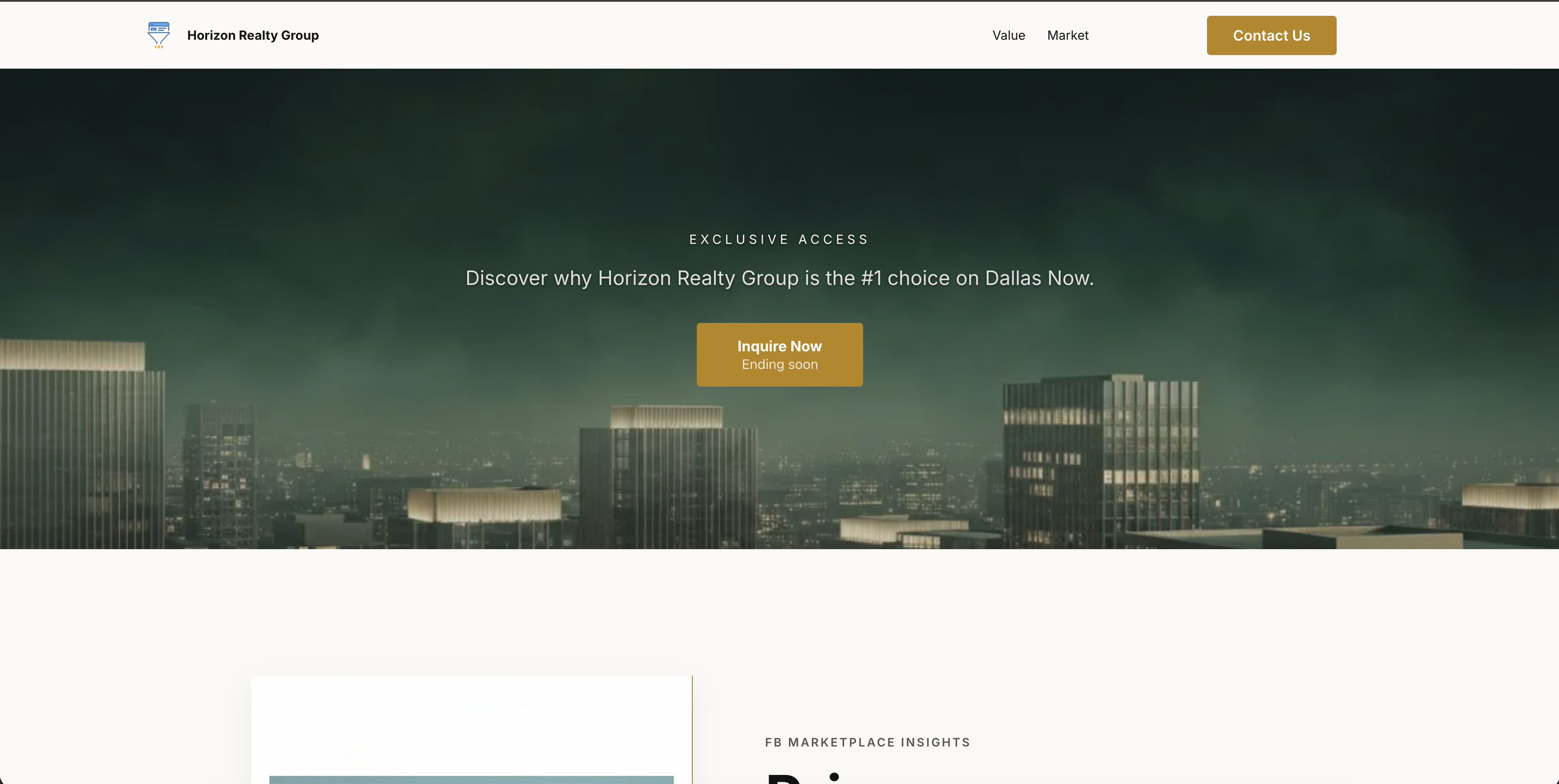
- Save the changes, publish the page, and then open it with the matching query string.
- Test the output by adding ?city=Austin to the URL and confirming that the token displays "Austin".
06What it looks like in HighLevel
07Settings that matter
- Parameter name. Specifies the key that HighLevel looks for in the page URL to replace the token with its value.
- Default value. Provides fallback text shown when the URL does not contain the parameter or its value is empty.
- Text transformation. Controls how the incoming value is capitalized, options include UPPERCASE, lowercase, Title Case, and Sentence case.
08Things to know before you rely on it
- Only builders for Funnels, Websites, Stores, and Webinars support URL Parameters.
- Supported text areas include button text, button sub text, headings, paragraphs, rich text, bullet lists, FAQs, and pop ups.
- Parameter names match without regard to case; ?City= and ?city= are treated the same.
- Hyphens and underscores in incoming values are automatically converted to spaces.
- Each token can have its own default value and text transformation, even if the same parameter is used in multiple locations.
- Values are sanitized before rendering to prevent markup injection.
09How it connects to the rest of HighLevel
- Learn how to create and customize pages before adding URL parameters. Website setup guide
- Add analytics or conversion scripts to pages that use URL parameters. Add tracking code
- Review plan options that include page builder features. Pricing
Michael's take

URL parameters let you drop a token into a heading or button without writing code.
A local service business that runs separate city specific ads will love this. They can send traffic to https://example.com/offer?city=Boston and have the page greet the visitor with "Boston" in the headline, button, or FAQ. If I were setting it up, I’d test the default text first to make sure the page never looks empty when a link is broken.