
01Who this is for
- Marketing agencies benefit because clean funnel URLs reduce duplicate content signals and simplify SEO reporting.
- Ecommerce store owners gain clearer tracking and a better visitor experience when funnel links are tidy and consistent.
- Coaches and course creators avoid broken links and improve search visibility by managing canonical tags and redirects.
02Funnel URL indexing issues, explained
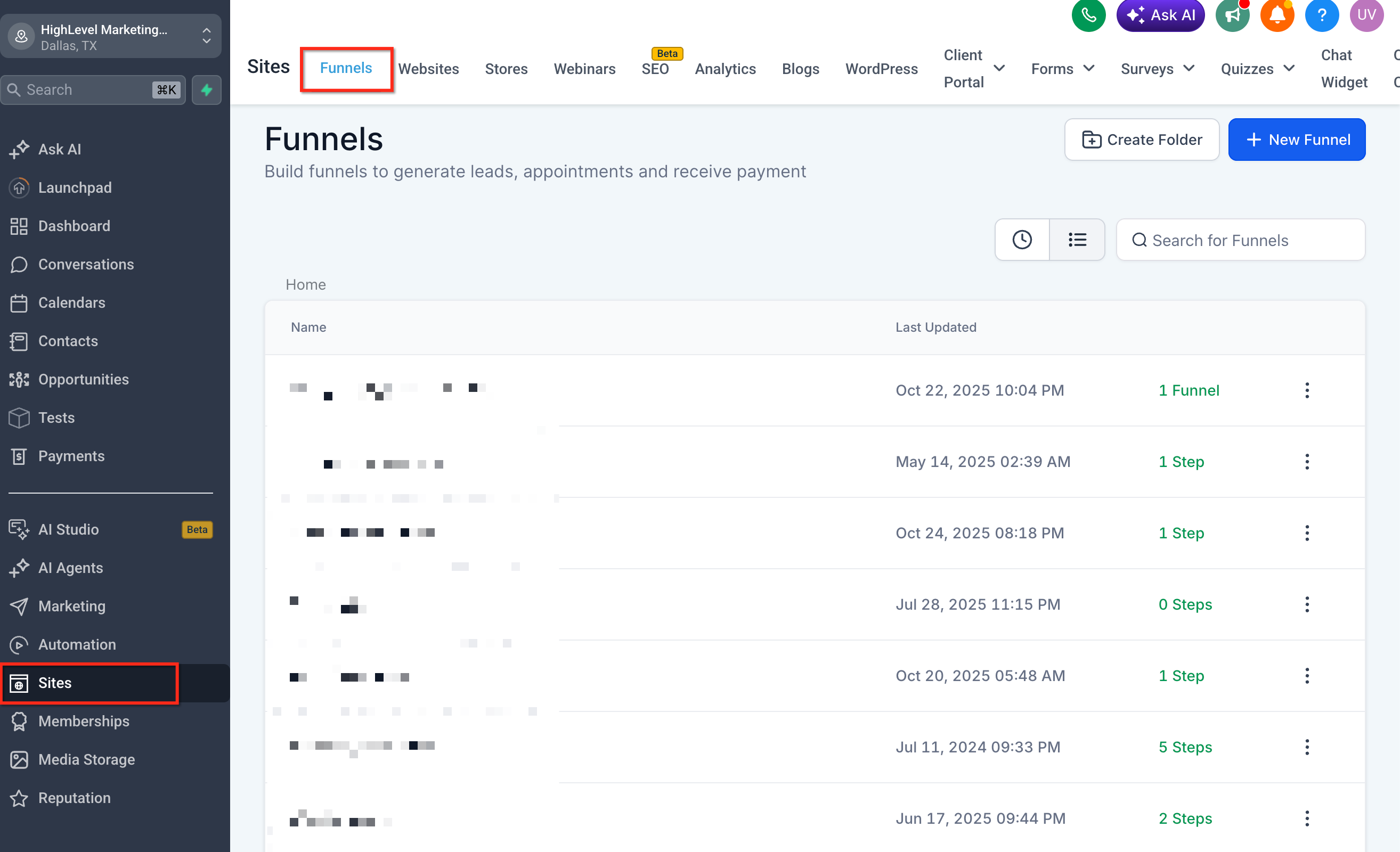
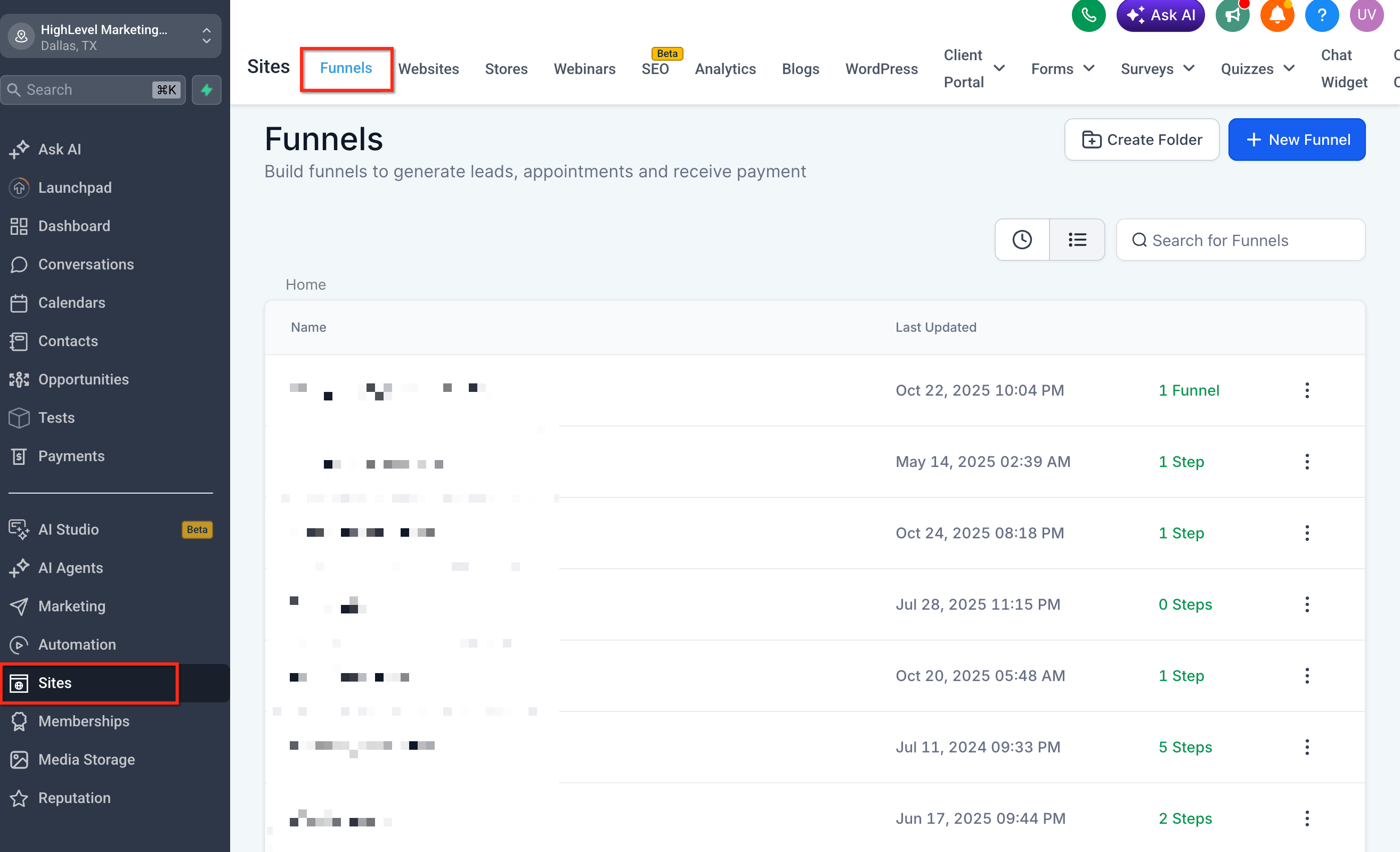
The feature lets you edit the Path field of each funnel step, add custom meta tags such as a canonical link, and configure permanent (301) redirects. Updating the Path field removes the random number suffix that HighLevel adds when a URL conflict exists. Adding a canonical tag tells search engines which version of a page to treat as primary without changing the address bar. A 301 redirect automatically forwards traffic and crawlers from an old URL to a new one. All controls are found under Sites > Funnels for path edits, Sites > Funnels > Edit > SEO Settings for meta tags, and Sites > URL Redirects for redirects. After changes, use Google Search Console to see how Google indexes the updated URLs.
03How businesses use the funnel URL indexing issues
- Digital marketing agency. The agency opens the client funnel in Sites > Funnels, updates the Path field to remove the system generated number, adds a canonical tag in the SEO Meta Data area, and sets a 301 redirect for any old URLs. This keeps the client’s SEO clean and prevents duplicate content warnings.
- Online course creator. The creator edits the step URLs of a sales funnel so each path is unique, places a canonical tag pointing to the main registration page, and configures a redirect for any previously shared links that used the old URL. This ensures search engines index the correct page.
- Local service provider. The provider modifies the funnel step path to a readable form, adds a canonical tag to signal the preferred service page, and creates a 301 redirect for an old promotional URL. This helps local search listings show the right page.
04The numbers and rules that matter
- 301 redirect sends visitors and search engines from an old URL to a new URL.
05How to set up and use the funnel URL indexing issues in HighLevel
Remove random numbers from funnel URLs
- Open Sites and select Funnels.
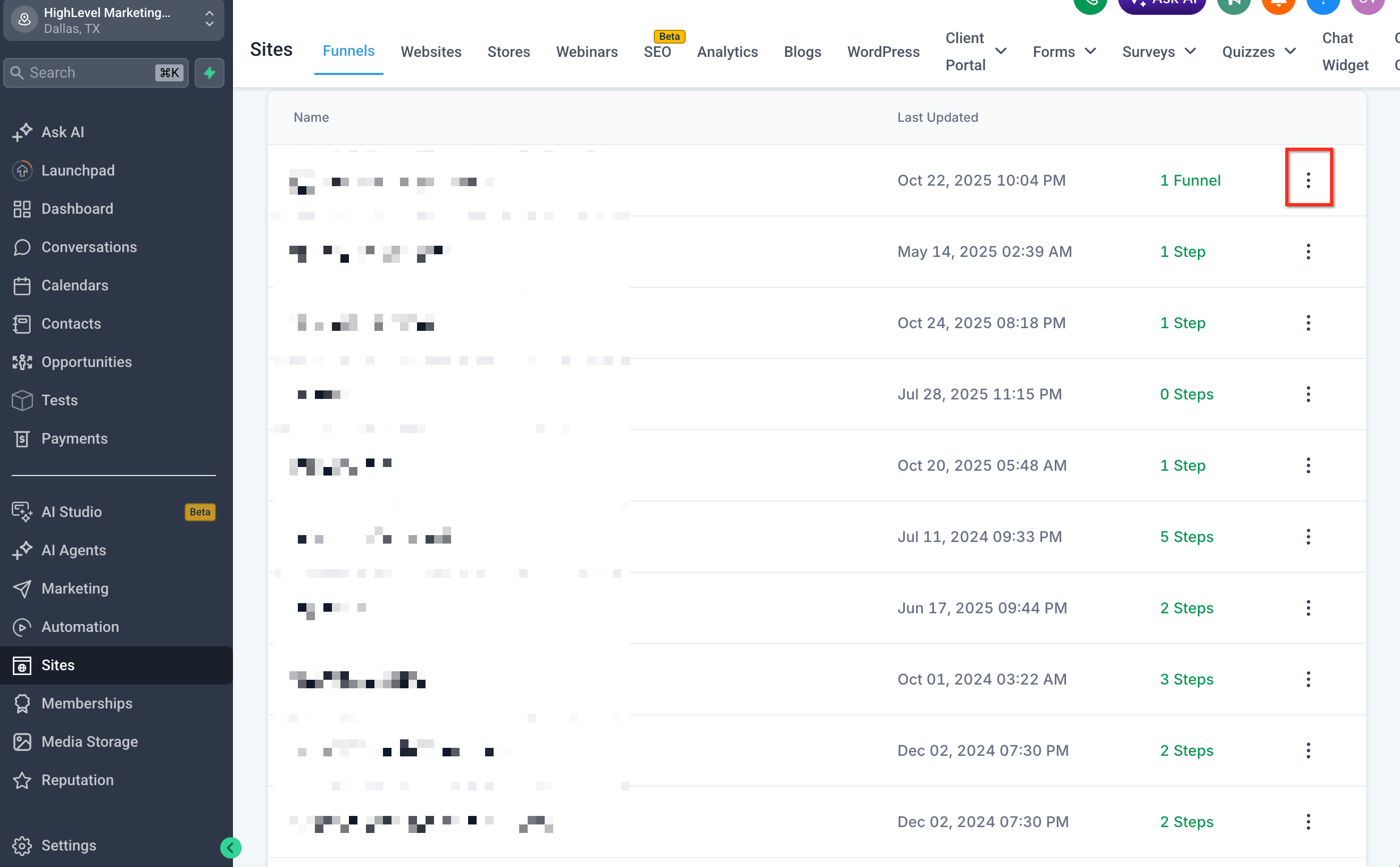
- Choose the funnel that contains the affected step.
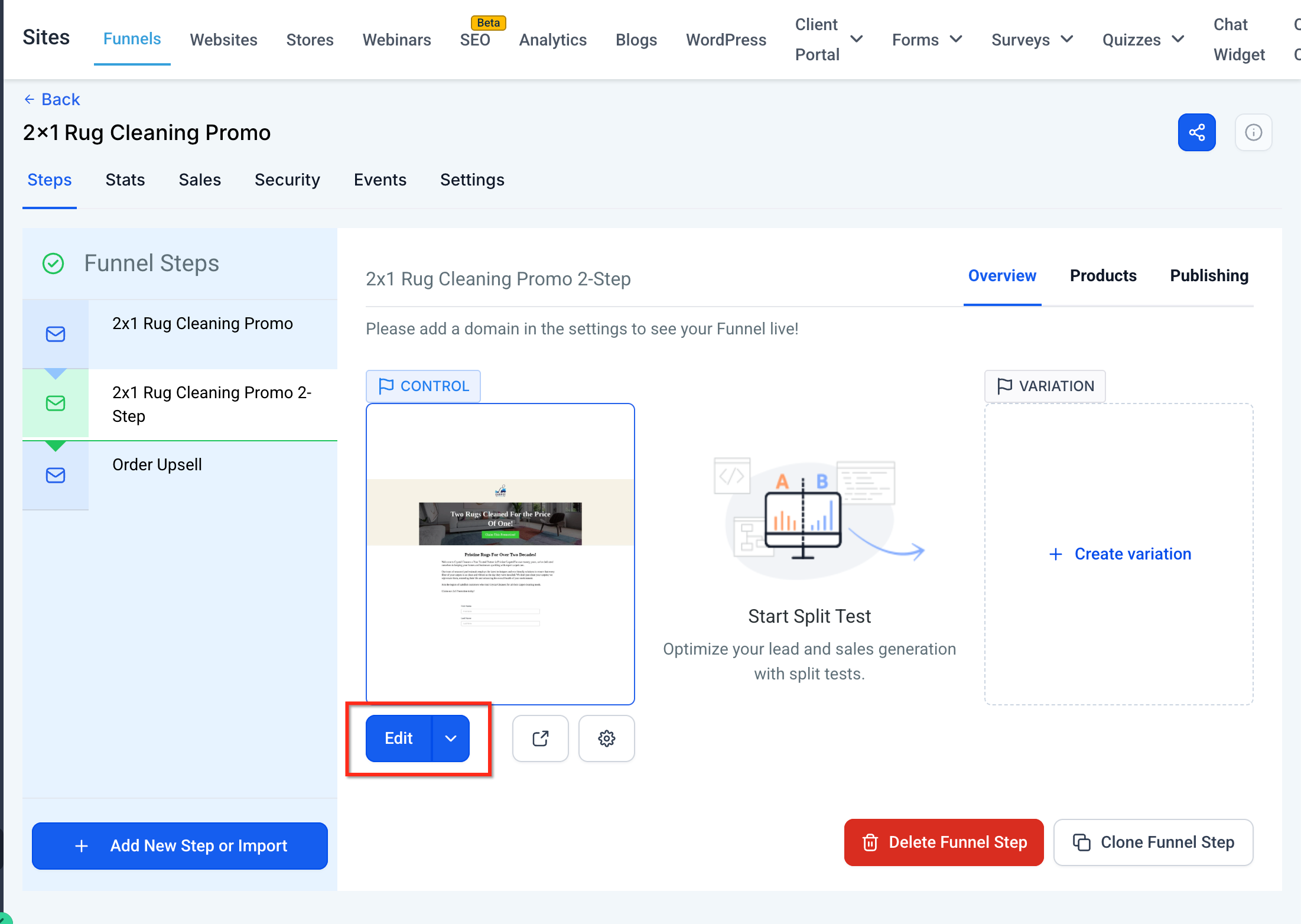
- Pick the specific funnel step where random numbers appear.
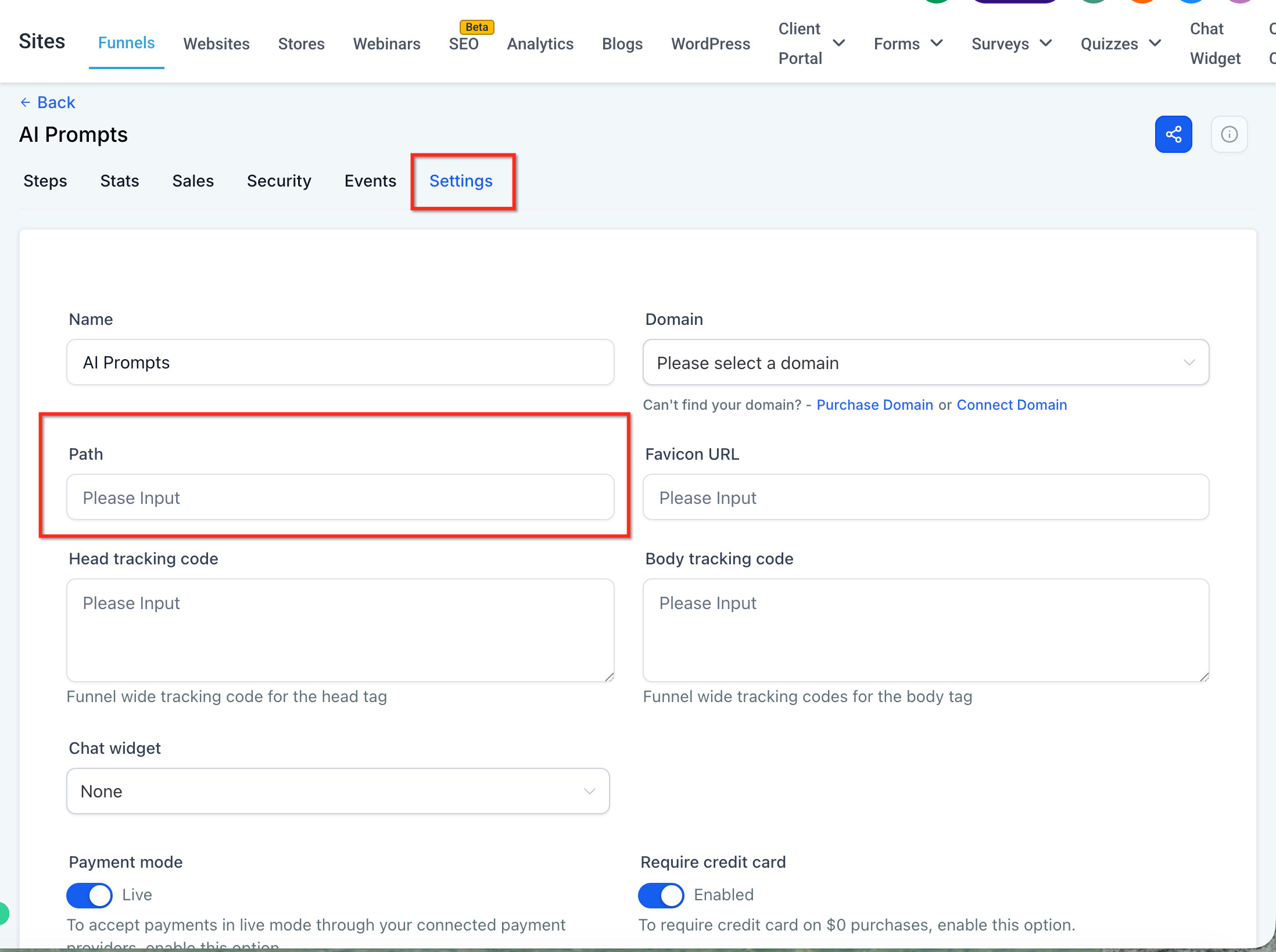
- Open the settings for that funnel step.
- Find the Path field within the settings.
- Enter a new, unique path that is not already used on the domain.
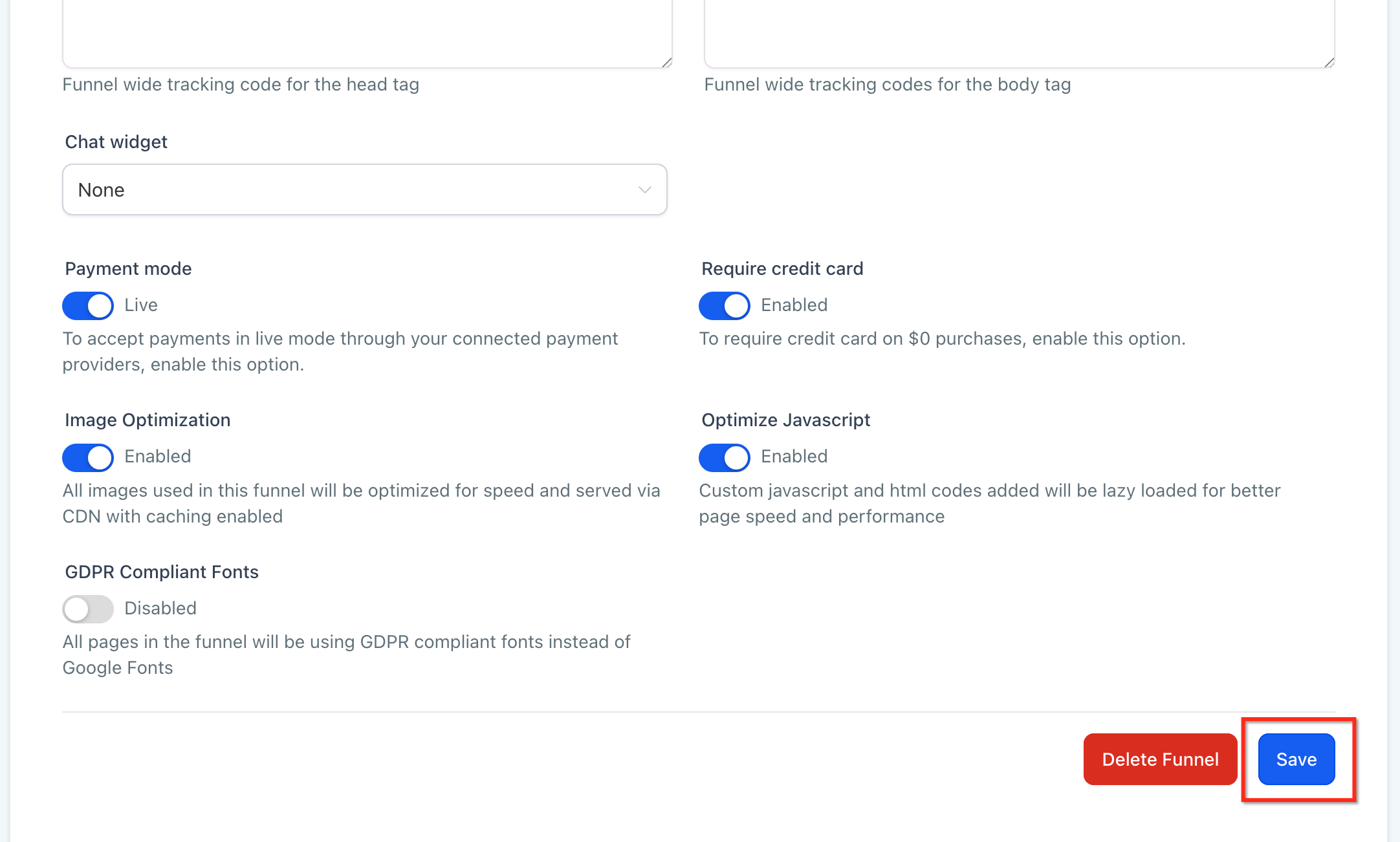
- Save the changes to update the URL.
- Important: each page path must be unique on the same domain; otherwise HighLevel will add a number automatically.
Add a canonical tag
- Open Sites and select Funnels.
- Choose the funnel that needs a canonical tag.
- Click Edit and go to the SEO Settings section.
- Open the SEO Meta Data panel.
- Locate the custom meta tags area.
- Insert the canonical tag markup with the preferred funnel page URL.
- Save the changes to apply the tag.
Create a 301 redirect for a changed funnel URL
- Open Sites and select URL Redirects.
- Click the option to add a new redirect.
- Enter the old funnel URL in the source field.
- Enter the new, updated funnel URL in the destination field.
- Set the redirect type to 301 Permanent.
- Save the redirect to activate it.
Check Google Search Console after updates
- Open Google Search Console.
- Select the URL Inspection Tool.
- Enter the preferred funnel URL you edited.
- Review the indexed URL and canonical URL details shown.
- If needed, request indexing for the preferred URL.
06What it looks like in HighLevel
07Settings that matter
- Path field. Defines the URL segment for a funnel step; it must be unique on the same domain to avoid automatic number addition.
- custom meta tags area. Allows you to add HTML tags such as a canonical link that influence how search engines treat the page.
- SEO Settings. A section within a funnel where SEO metadata, including custom meta tags, can be edited.
08Things to know before you rely on it
- HighLevel adds random numbers only when a path conflict exists on the same domain.
- Canonical tags do not redirect visitors; they only advise search engines on the preferred URL.
- A 301 redirect forwards both visitors and crawlers from the old URL to the new one; existing links must be updated or redirected.
- Google ultimately decides when to recrawl and index the updated URLs.
09How it connects to the rest of HighLevel
- Explore all site related features in HighLevel All Sites features
- Learn how to add custom meta tags to funnels and websites Custom meta tags guide
Michael's take

The right move is to first make the path unique, then add a canonical tag or a 301 redirect so search engines and visitors are always directed to the preferred address.
If I were cleaning up a funnel, I’d start by updating the step path, then immediately add a canonical tag pointing to the new URL. After that I’d set a 301 redirect from the old address and verify everything in Google Search Console. That sequence keeps both SEO signals and user experience intact.