
01Who this is for
- Coaches who need automated reminders and follow ups to keep client sessions on schedule.
- Spas that want confirmation, cancellation and reschedule alerts sent to both guests and staff.
- Consulting firms that require post appointment feedback messages without building extra workflows.
02Services notifications, explained
Service notifications are a built in messaging option for the Services calendar. They fire when a booking is created, confirmed, cancelled, rescheduled, reminded or followed up. Each trigger can use Email, In App, SMS or WhatsApp and be sent to the client, the assigned staff member or additional internal email addresses.
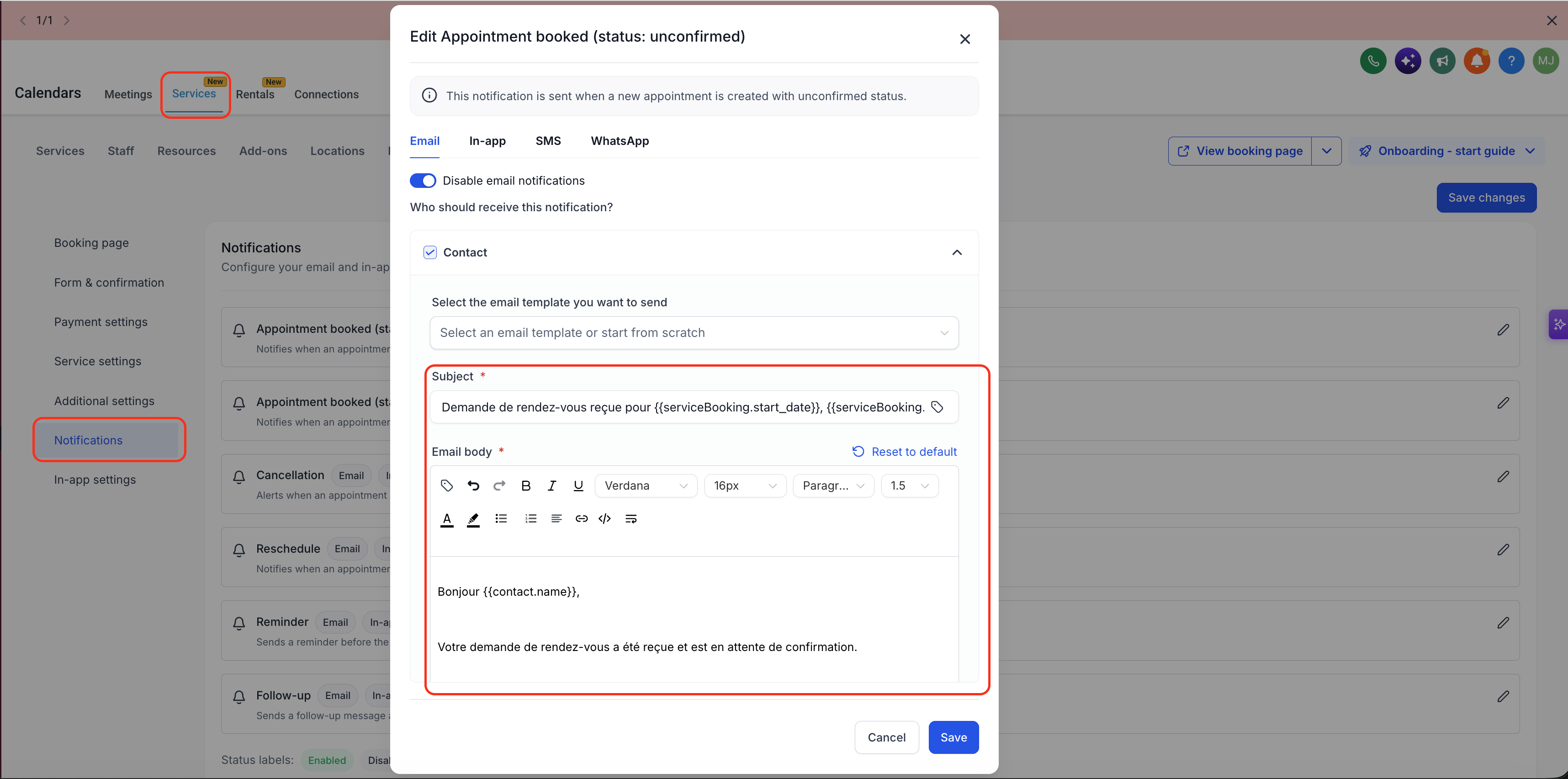
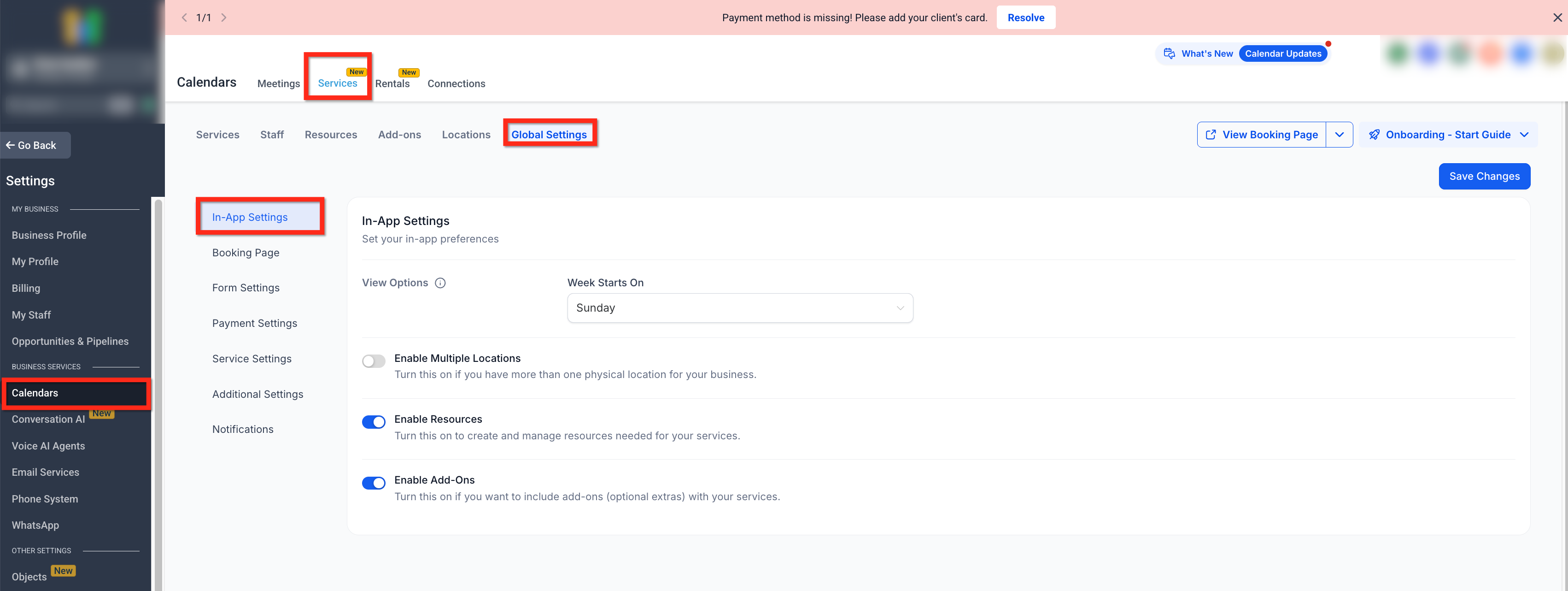
The feature lives under Calendar Settings > Services > Global Settings > Notifications. Templates can be edited for subject lines and body content, and you can insert service specific values such as Service Name, Duration, Price or Assigned Staff. When a booking contains several services, the system consolidates the alerts so only one message is sent.
Service notifications are available only in Private Beta and apply solely to bookings made through the Services calendar. They do not replace workflow based messaging and have no effect on regular calendar appointments.
03How businesses use services notifications
- Fitness studio. The studio creates a reminder notification that sends an SMS 24 hours before each class. It selects the "Reminder" trigger, chooses the SMS channel, picks the client as the recipient and inserts the class name custom value.
- Dental practice. The practice sets up a cancellation alert using Email. It selects the "Cancellation" trigger, customizes the template with the patient’s name and appointment date, chooses Email as the channel and adds both the patient and the front desk email as recipients.
- Online tutoring service. The tutor configures a follow up WhatsApp message to gather feedback. It selects the "Follow Up" trigger, picks WhatsApp, customizes the message with the tutor’s name and session price, and sends it to the student’s contact.
04The numbers and rules that matter
- Delivery channels: Email, In App, SMS, WhatsApp.
05Before you start
- Account must have Private Beta access for Services notifications.
06How to set up and use services notifications in HighLevel
Configure service notifications
- Open Calendar Settings, then go to Services, Global Settings, and select Notifications.
- Pick the notification trigger you want to set up, such as Appointment Booked (Confirmed).
- Edit the notification template to adjust the subject line and message body.
- Choose the delivery channel, Email, In App, SMS, or WhatsApp, for this trigger.
- Select the recipients for the alert, like the Contact, the Assigned User, or additional email addresses.
- Insert any service specific custom values, for example Service Name or Assigned Staff.
- Save the configuration to activate the notification.
07What it looks like in HighLevel
08Settings that matter
- Notification trigger. Determines which booking event (e.g., Confirmation, Cancellation) will cause the message to be sent.
- Notification template. Controls the subject line, content and formatting of the message.
- Delivery channel. Specifies whether the alert is sent via Email, In App, SMS or WhatsApp.
- Recipients. Defines who receives the notification: the client, the assigned staff member, or additional internal email addresses.
- Service, specific custom values. Allows insertion of dynamic data such as Service Name, Duration, Price or Assigned Staff into the message.
09Things to know before you rely on it
- Feature is in Private Beta and not available to all accounts.
- Applies only to bookings created through Services calendars, not to other calendar appointments.
- Does not replace workflow based notifications; workflows can still be used.
- Localized default templates are automatically applied to new service locations; existing locations must be reset manually.
- Smart consolidation sends a single notification for bookings that contain multiple services.
10How it connects to the rest of HighLevel
- HighLevel pricing and plans Pricing
- Start a 30 day HighLevel trial Trial
- The HighLevel Founder Plan Founder Plan
Michael's take

You’ll want to be cautious about rolling this out while it’s still in Private Beta; the feature could change before it’s generally released.
When the feature is stable, I’d map the most common booking events. Confirmation, reminder and follow up. To the channel your clients prefer. That way you keep communication consistent without building extra workflows.