
01Who this is for
- Ecommerce owners who embed HighLevel order forms in their WordPress storefronts and need reliable checkout functionality.
- Marketing agencies that build client funnels on WordPress and must avoid cookie related failures across devices.
- Founders of digital product businesses who use iFrame based funnels and require consistent payment processing.
02Fingerprint issues, explained
The feature addresses a fingerprint error that blocks the order form’s ability to read browser cookies. The error is triggered when the funnel domain does not match the WordPress site domain, or when a visitor’s browser disallows cookie storage. HighLevel renders the funnel inside WordPress through an iFrame, and cross domain restrictions prevent the payment flow from working.
To correct the problem, the funnel must be assigned a subdomain that shares the same root domain as the WordPress site, while remaining a different subdomain. After the subdomain is added, the funnel’s domain setting is updated and saved. Verification confirms that the funnel loads correctly and can access cookies.
The configuration lives inside the HighLevel platform under Settings > Domains for domain creation and within each funnel’s Settings for domain assignment. WordPress specific adjustments are made in the LeadConnector WordPress settings panel.
03How businesses use the fingerprint issue
- Online retailer. The retailer creates a subdomain such as shop.example.com, adds it in Settings > Domains, then points the checkout funnel to that subdomain. This allows customers to complete purchases without cookie errors.
- Coaching business. A coach hosts a WordPress site for content and embeds a HighLevel sign up funnel. By using a separate subdomain like enroll.example.com and updating the funnel’s domain, sign ups work on all browsers.
- Event ticketing provider. The provider sets up a subdomain tickets.example.com, configures the ticket purchase funnel to use it, and refreshes the LeadConnector settings. The ticket purchase flow then accesses cookies correctly across devices.
04Before you start
- A WordPress website must already be live with a root domain in place.
- The chosen subdomain must not host any other website before adding it in HighLevel.
05How to set up and use the fingerprint issue in HighLevel
Add a matching subdomain for the funnel
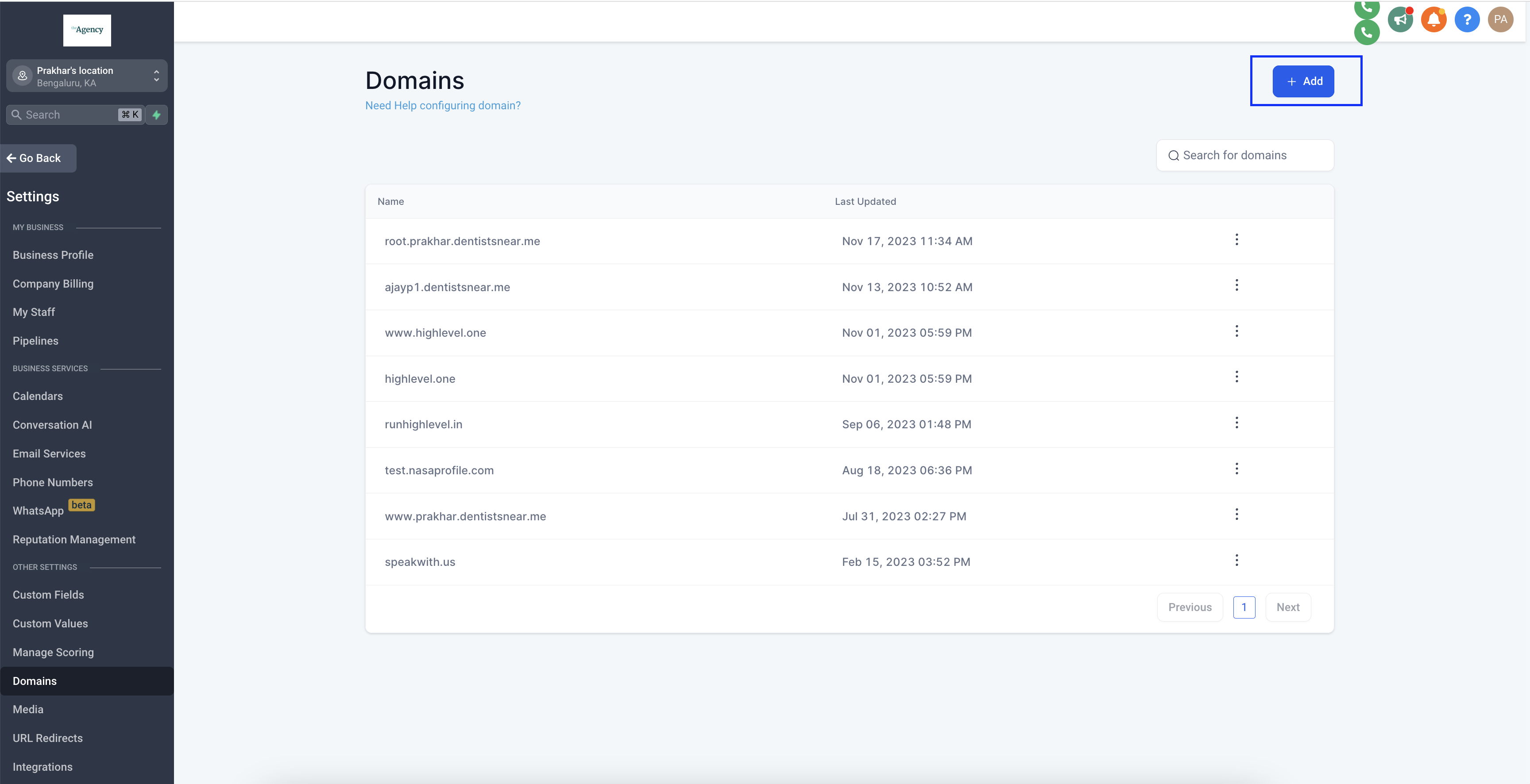
- Open Settings > Domains and create a new entry using the same root domain as the WordPress site but with a different subdomain, making sure no other site uses that subdomain.
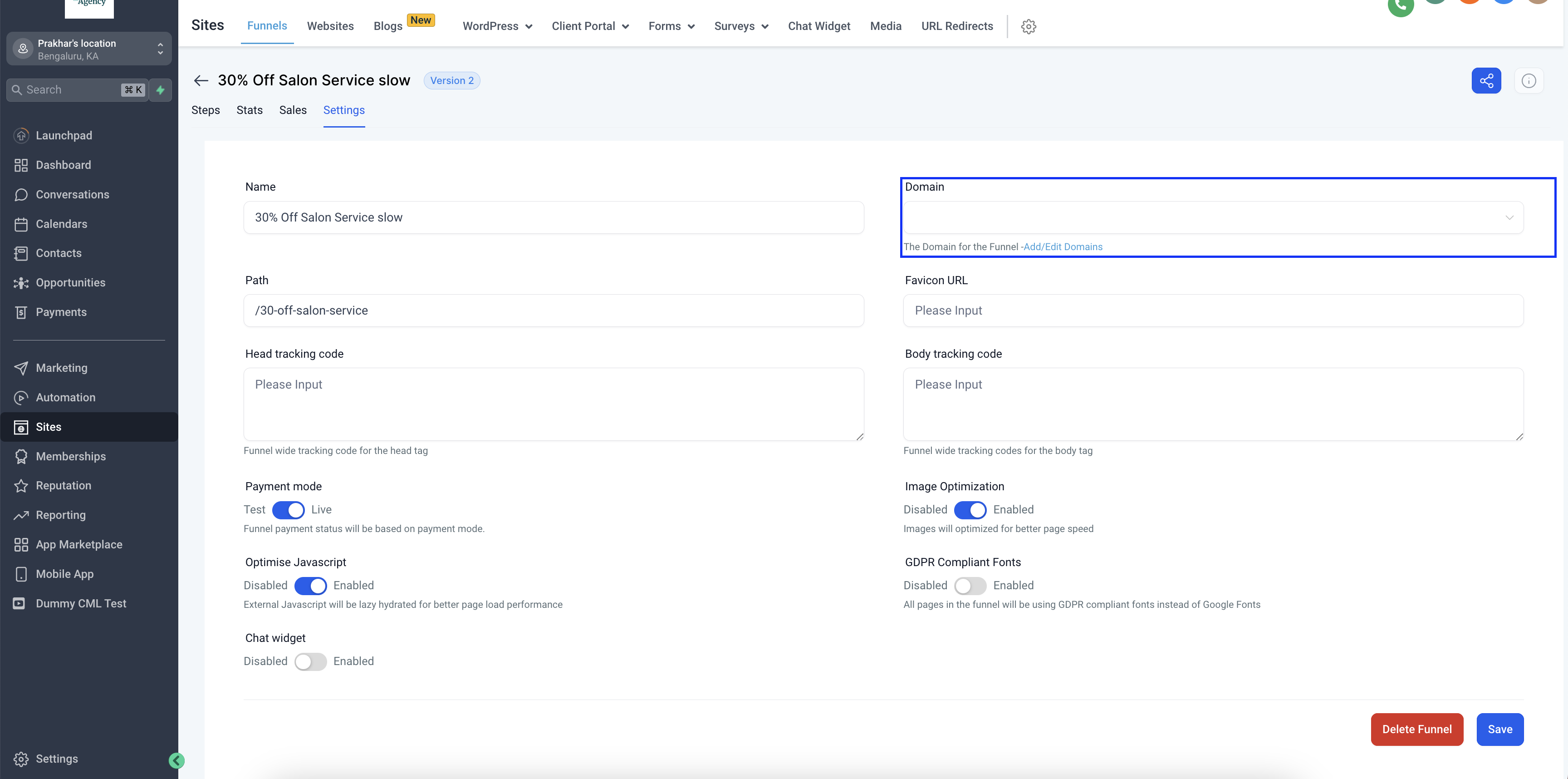
- Navigate to the specific funnel’s Settings, select the newly created subdomain as the funnel domain, and click Save.
- Confirm that the funnel loads and functions correctly when accessed via the new subdomain.
Fix an existing funnel that shows the fingerprint error
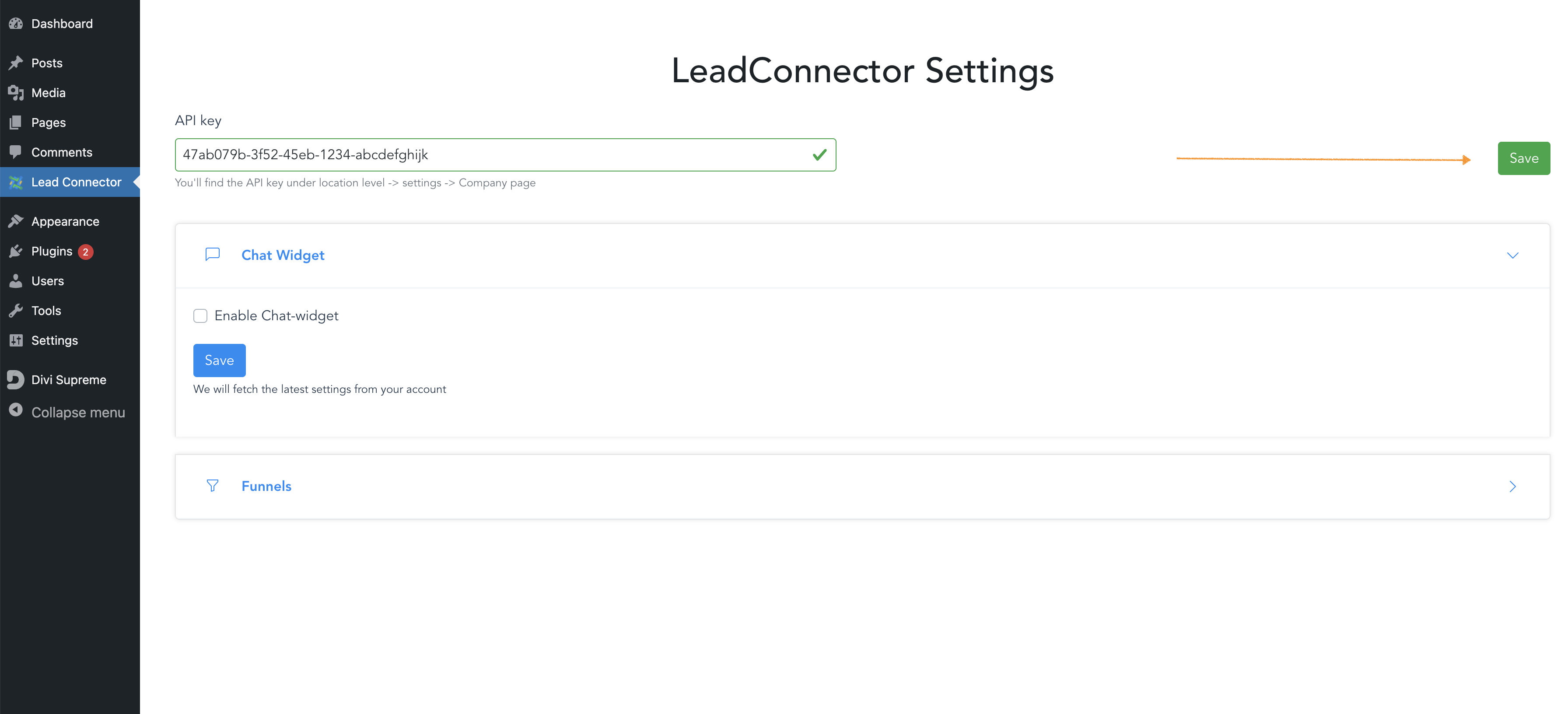
- Open the LeadConnector WordPress settings page and perform a hard refresh of the browser.
- Click the API Key Save button to re authenticate the connection.
- Select the Edit button for the funnel page that needs correction.
- Wait for the loading process to finish so the step information populates automatically.
- Review the preview URL to see the WordPress domain with the new subdomain, then click Save to apply the changes.
06What it looks like in HighLevel



07Settings that matter
- Domains. Controls which domain or subdomain the funnel uses; must match the WordPress site’s root domain while being a distinct subdomain.
- Funnel Settings. Allows assignment of the chosen subdomain to a specific funnel and stores the configuration.
- API Key. Restores the authentication token between WordPress and HighLevel, ensuring the integration can communicate.
08Things to know before you rely on it
- The fingerprint error only appears when the funnel domain differs from the WordPress site domain, because the iFrame cannot access cookies across domains.
- A rare scenario occurs when a visitor’s browser blocks cookies; the quick fix is to have the visitor enable cookies in their browser settings.
- The subdomain used for the funnel must not already host another website.
09If something goes wrong
- Error shows only on some customers’ browsers. Ask the customer to adjust their browser settings to allow cookie access.
- Error occurs for all devices and browsers. Create and assign a matching subdomain for the funnel as described in the add domain procedure.
10How it connects to the rest of HighLevel
- How to add a two step order form in HighLevel funnels Add order form
- How to add a root or subdomain with HighLevel Domain Connect Domain Connect
- HighLevel pricing and plans Pricing
Michael's take

I would first double check that the funnel’s domain uses the same base domain as the WordPress site and that the subdomain is unique. After that I’d verify a few customers can complete the order without changing anything. If the problem persists, I’d walk the client through enabling cookies in their browsers.