
01Who this is for
- Ecommerce Founders who need to showcase multiple product angles and want shoppers to explore images quickly.
- Digital product sellers who prefer a simple single image view without zoom to keep the checkout flow fast.
- UX designers in small businesses looking to improve accessibility by offering keyboard navigation on product pages.
02Product media layouts, explained
Product Media Layouts control the visual presentation of product images and videos on a product details page. The layout options include carousel with thumbnails, grid gallery, stacked vertical column, and single image. Each layout determines how media is arranged and navigated.
Image Zoom defines the interaction when a shopper clicks a media item. Options are Open Lightbox, Click & Hover Zoom, or No Zoom. Open Lightbox opens a fullscreen overlay and activates keyboard shortcuts for faster navigation.
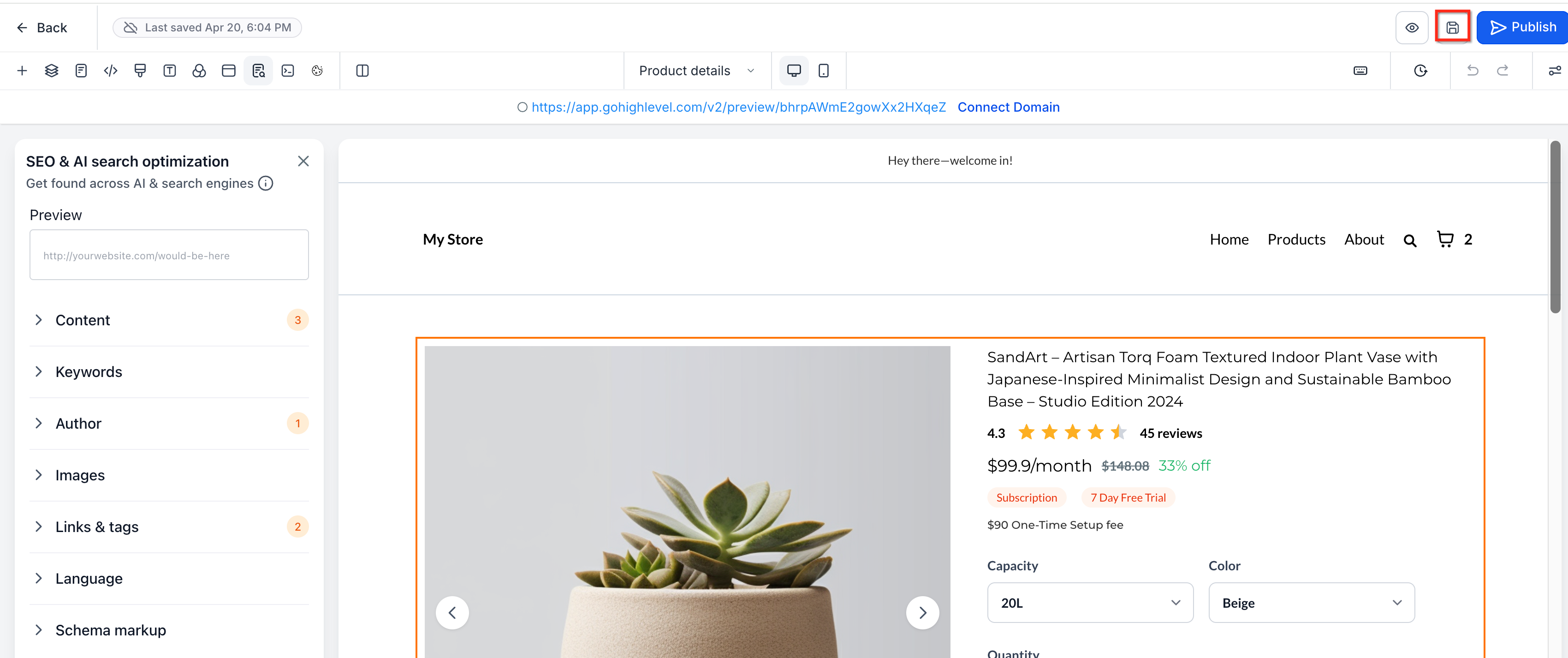
All settings reside in the Product Details element inside the store’s Page Builder. Adjusting the layout or zoom applies to every product displayed on that page, including custom product detail pages.
03How businesses use product media layouts
- Fashion retailer. Select the carousel with thumbnails layout, enable Open Lightbox zoom, and publish the page so shoppers can swipe through multiple angles and use Arrow keys to browse quickly.
- Electronics store. Choose the grid gallery layout, set Click & Hover Zoom to let customers magnify images without leaving the page, and save the configuration for all product listings.
- Online course provider. Apply the single image layout with No Zoom, keeping the page clean for digital products, and publish the changes to the custom product details page.
04How to set up and use product media layouts in HighLevel
Configure product media layouts
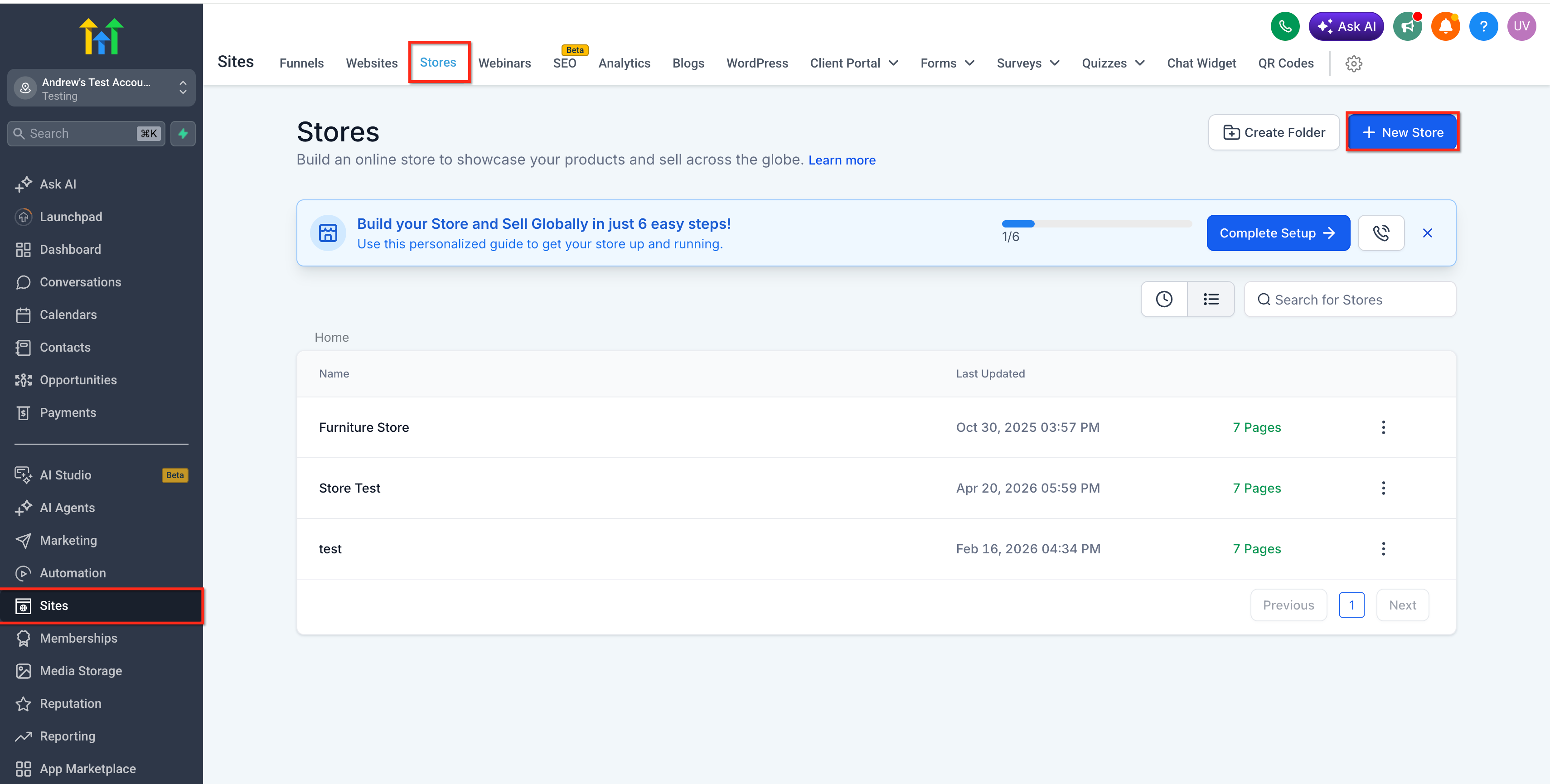
- Navigate to Sites > Stores and select the store that contains the product details page you want to edit.
- Open the Product Details page or a custom product details page from the store’s page list.
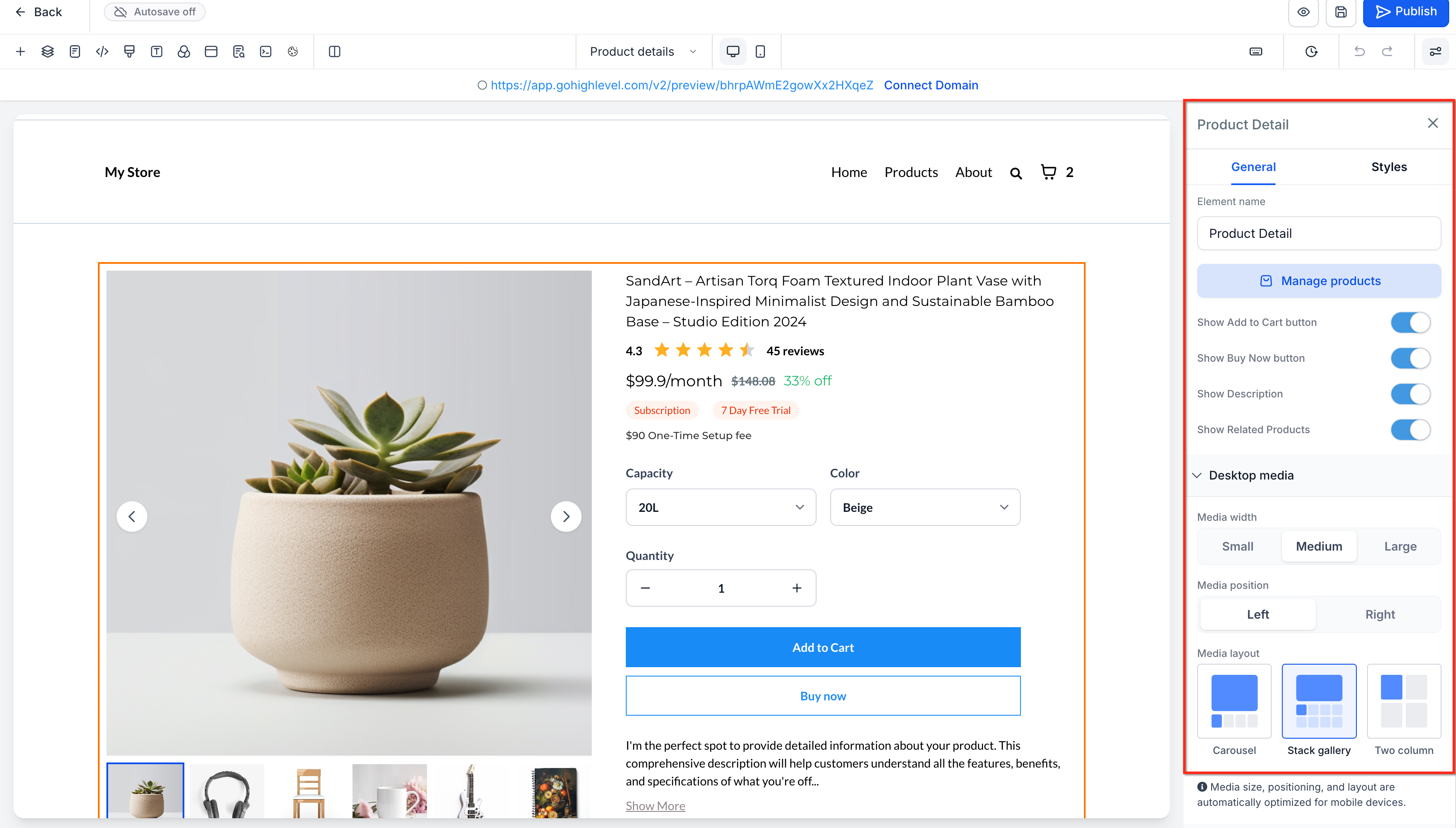
- Click the Product Details element that displays the product images and information.
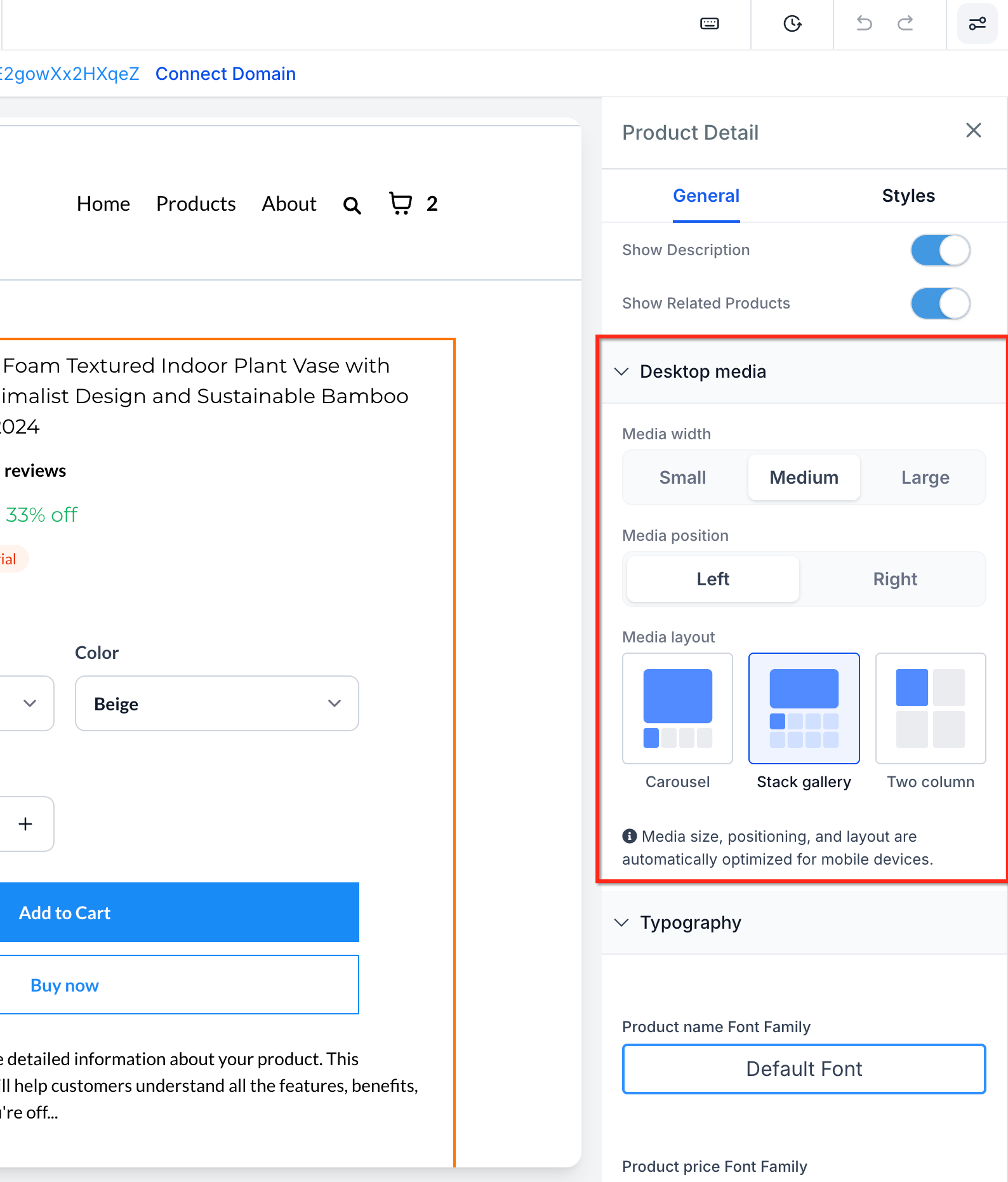
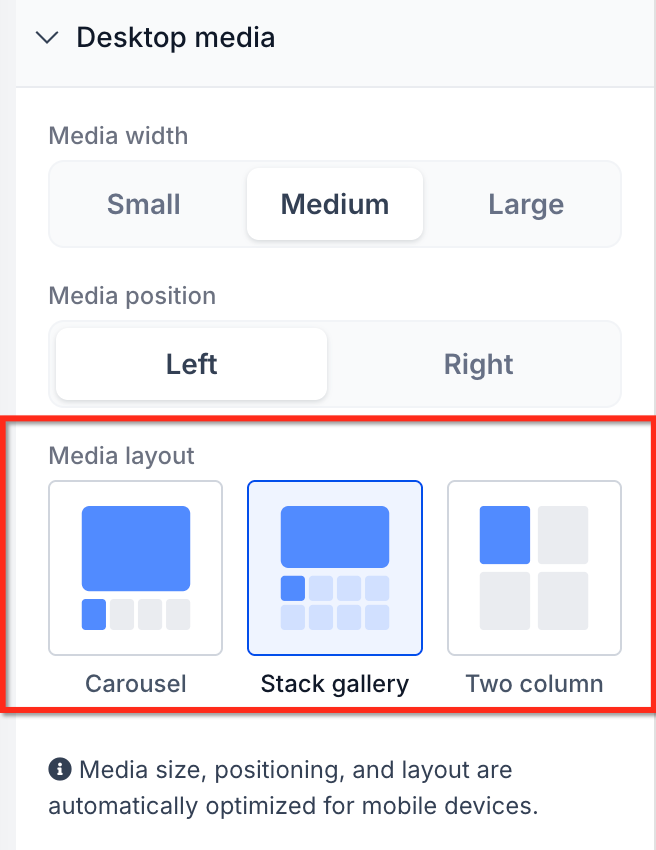
- In the settings panel, find the Product Media Layout (or Desktop Media) field and pick the desired layout.
- Locate the Image Zoom dropdown and choose Open Lightbox, Click & Hover Zoom, or No Zoom; select Open Lightbox to enable keyboard shortcuts.
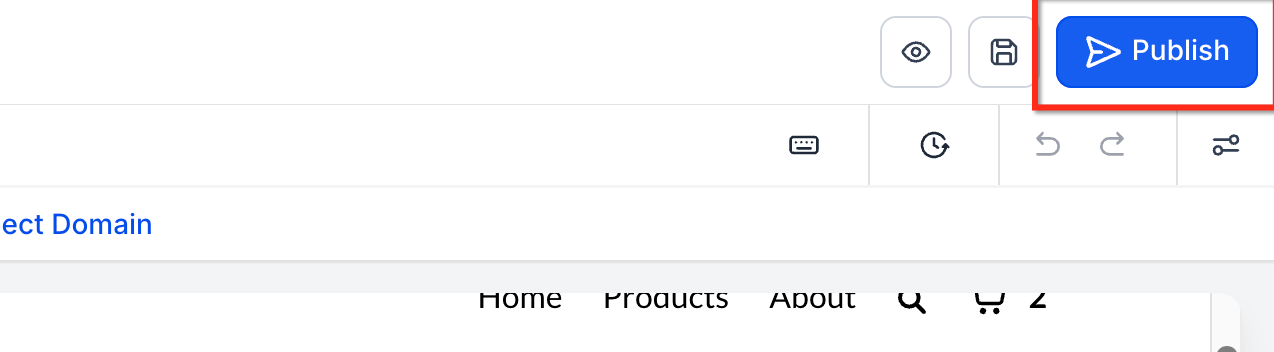
- Press Save, then click Publish to make the changes live.
- Preview the page, open a product image, and test the keyboard shortcuts: use Arrow keys to move between images and Esc to close the lightbox.
05What it looks like in HighLevel
06Settings that matter
- Product Media Layout. Determines whether images appear as a carousel with thumbnails, a grid gallery, a stacked vertical column, or a single image.
- Image Zoom. Specifies how clicking a product image behaves, opening a fullscreen lightbox, showing an inline zoom on click or hover, or displaying no zoom effect.
07Things to know before you rely on it
- Layout names and availability may differ depending on the HighLevel version and the active theme.
- Keyboard navigation shortcuts work only when Image Zoom is set to Open Lightbox.
- Open Lightbox is the sole zoom mode that supports keyboard shortcuts.
- The keys for navigation are fixed to Esc, Right Arrow, and Left Arrow and cannot be remapped.
08If something goes wrong
- Keyboard shortcuts are not responding. Ensure Image Zoom is set to Open Lightbox, save the changes, and publish the page.
09How it connects to the rest of HighLevel
- All Sites features Sites features
- HighLevel pricing and plans Pricing
- Start a 30 day HighLevel trial Free trial
Michael's take

In my experience, using Open Lightbox with keyboard shortcuts gives shoppers a faster, more detailed view, which this page suggests can improve conversion rates for high value products.
If your catalog consists of simple digital goods or you only show a single image, the extra setup may not add much value. In those cases a single image layout with no zoom keeps the experience light and avoids unnecessary steps.