
01Who this is for
- Marketing agencies benefit because they can craft complex landing pages quickly.
- Ecommerce owners gain precise control over product showcase grids.
- Coaches and consultants can build clean opt in pages with side by side content.
02Nested layouts, explained
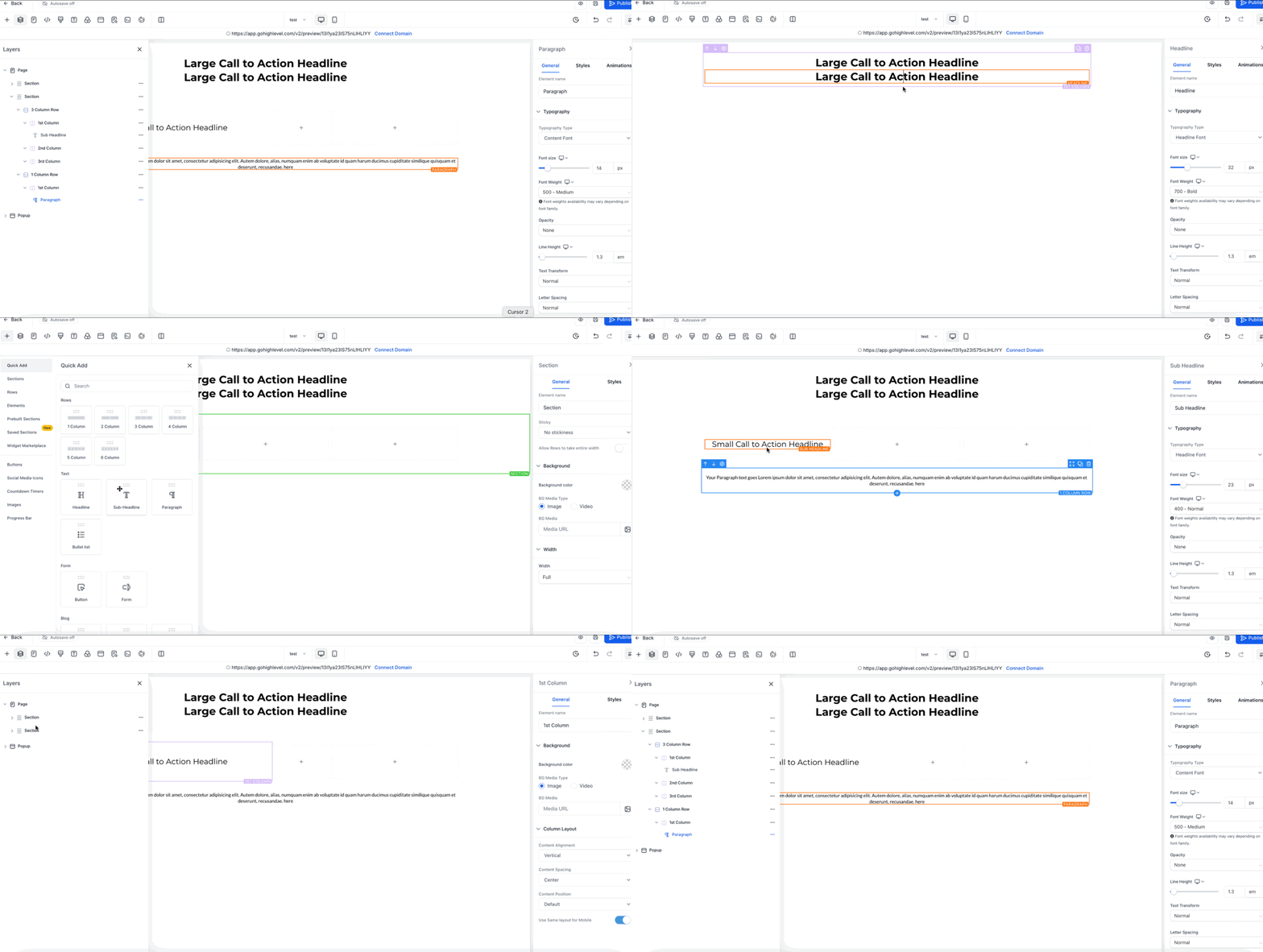
Nested Layouts are containers you can place inside other containers while building a page in the Funnel or Website Builder. They let you stack rows, columns, or collage style groups within one another, giving you granular control over spacing, alignment and responsive behavior.
When you add a Layout Container, you can open its Layout Settings to pick an orientation, row, column, or collage, and then adjust margins, padding and alignment at that level. The changes appear in a live preview, so you see the result right away. Nested structures can be saved as Saved Sections and reused across funnels and websites.
The feature lives in the drag and drop canvas of any funnel or website you edit. You access it by dragging Layout Containers from the left panel onto the page, then configuring them through the layout settings panel.
03How businesses use nested layouts
- Lead generation agency. The agency drags a Layout Container onto a new opt in page, nests a second container for the form, and sets a two column orientation. It then adjusts padding to align headlines with testimonials and saves the section for future campaigns.
- SaaS company. The company creates a pricing comparison page by nesting multiple Layout Containers to form columns for features, pricing tiers and call to action buttons. Each column’s spacing is fine tuned, and the whole layout is saved as a reusable section.
- Photography studio. The studio builds a gallery showcase by adding a collage type Layout Container, nesting additional containers for images and captions, and customizing margins to keep the grid uniform. The final design is stored for reuse on other project pages.
04Before you start
- You must be logged into a subaccount.
- An existing funnel or website must be opened in the Builder.
05How to set up and use nested layouts in HighLevel
Create a nested layout in a funnel or website
- Log in to your subaccount and open the funnel or website you want to edit.
- Drag a Layout Container from the sidebar onto the page canvas.
- Drag another Layout Container into the first one to create a nested structure.
- Open Layout Settings and select the orientation: row, column, or collage.
- Adjust Spacing & Alignment settings for margins, padding and element positioning.
- Repeat the nesting, orientation and spacing steps for any additional levels you need.
- Click Save or add the layout to Saved Sections for future reuse.
06What it looks like in HighLevel
07Settings that matter
- Layout Settings. Controls the orientation of a layout container, letting you choose between row, column or collage arrangements.
- Spacing & Alignment. Sets margins, padding and alignment for each container level, allowing precise placement of content.
08Things to know before you rely on it
- Only Layout Containers can be nested; Sections and Rows cannot be placed inside other containers.
- There is no hard depth limit, but three to four nested levels are recommended for maintainability and load speed.
09How it connects to the rest of HighLevel
- Explore all site features All Sites features
- Set up a website and review mobile settings Website setup overview
- Add a two step order form in funnels Two step order form
Michael's take

Nested layouts feel like a small convenience that can be a real shift for anyone who builds complex pages.