
01Who this is for
- Retail stores that collect cash on delivery can track those orders directly in HighLevel.
- Service providers that accept bank transfers can mark payments as received without leaving the platform.
- Event organizers using surveys for ticket sales can manage check or card payments offline and keep status synced.
02Manual payments, explained
The manual payment feature adds offline payment types, Cash on Delivery and custom methods such as bank transfers, checks, or card payments, to products sold through HighLevel forms and surveys. You activate the desired methods, write a description and a post purchase message, and turn on the option for forms and surveys.
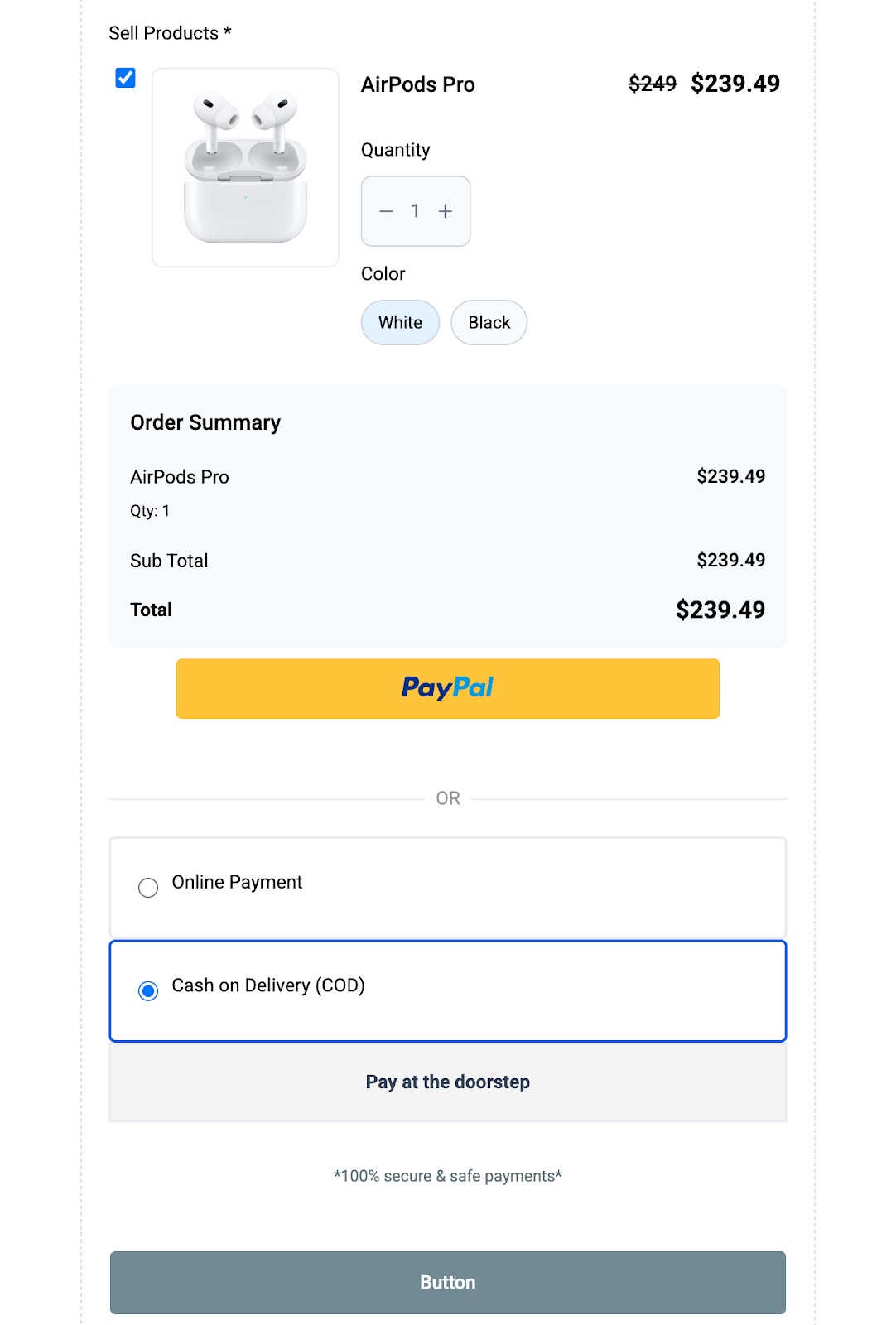
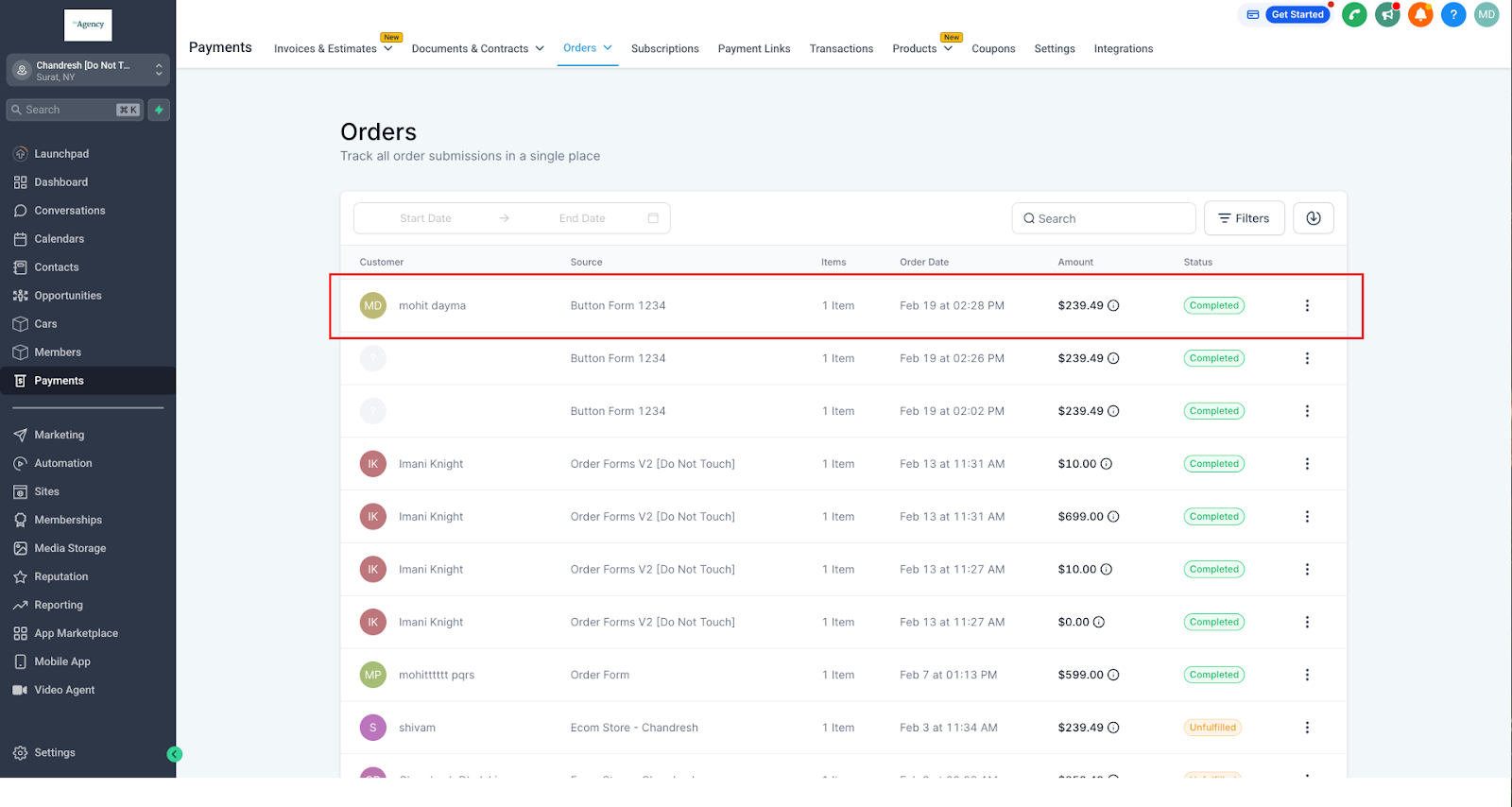
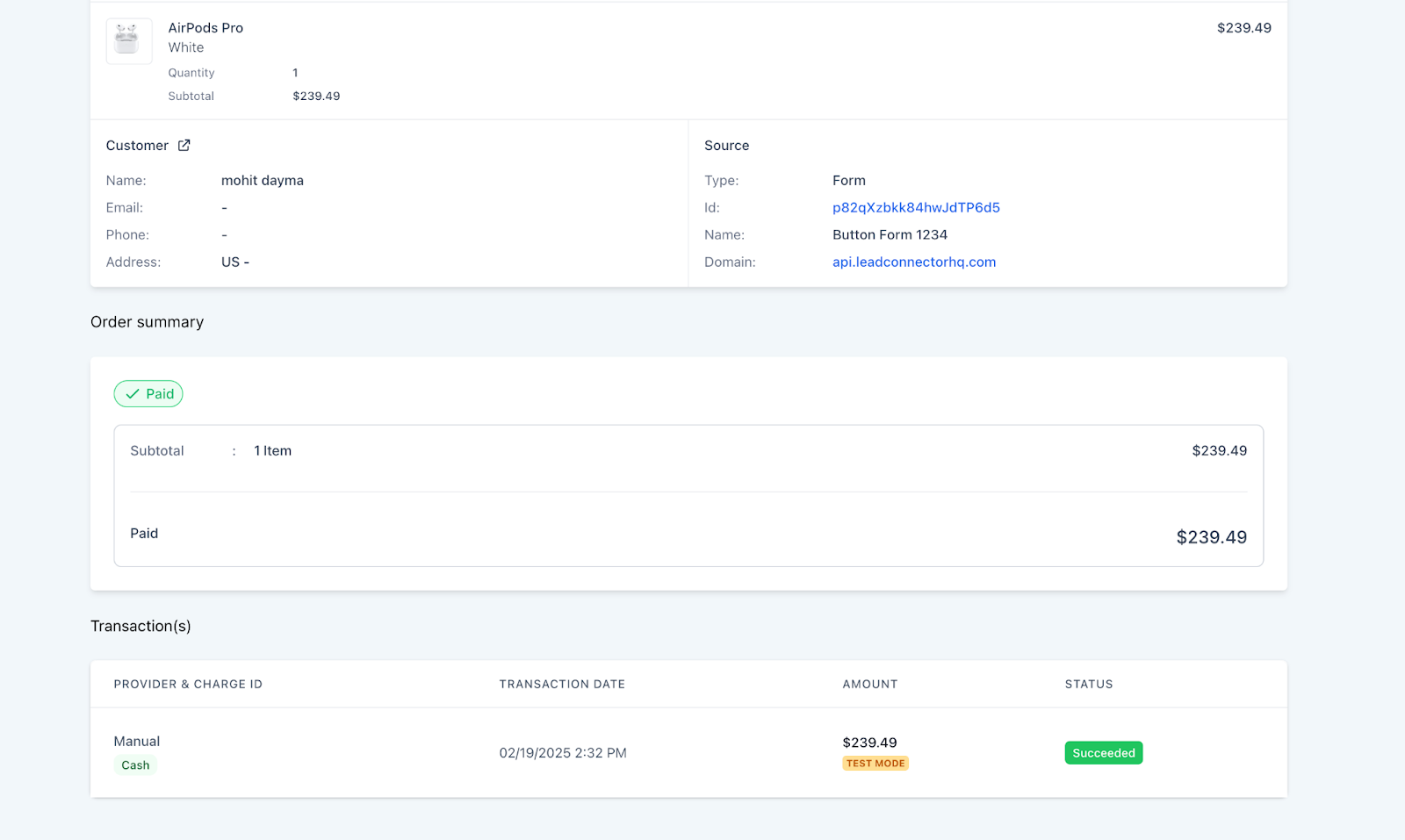
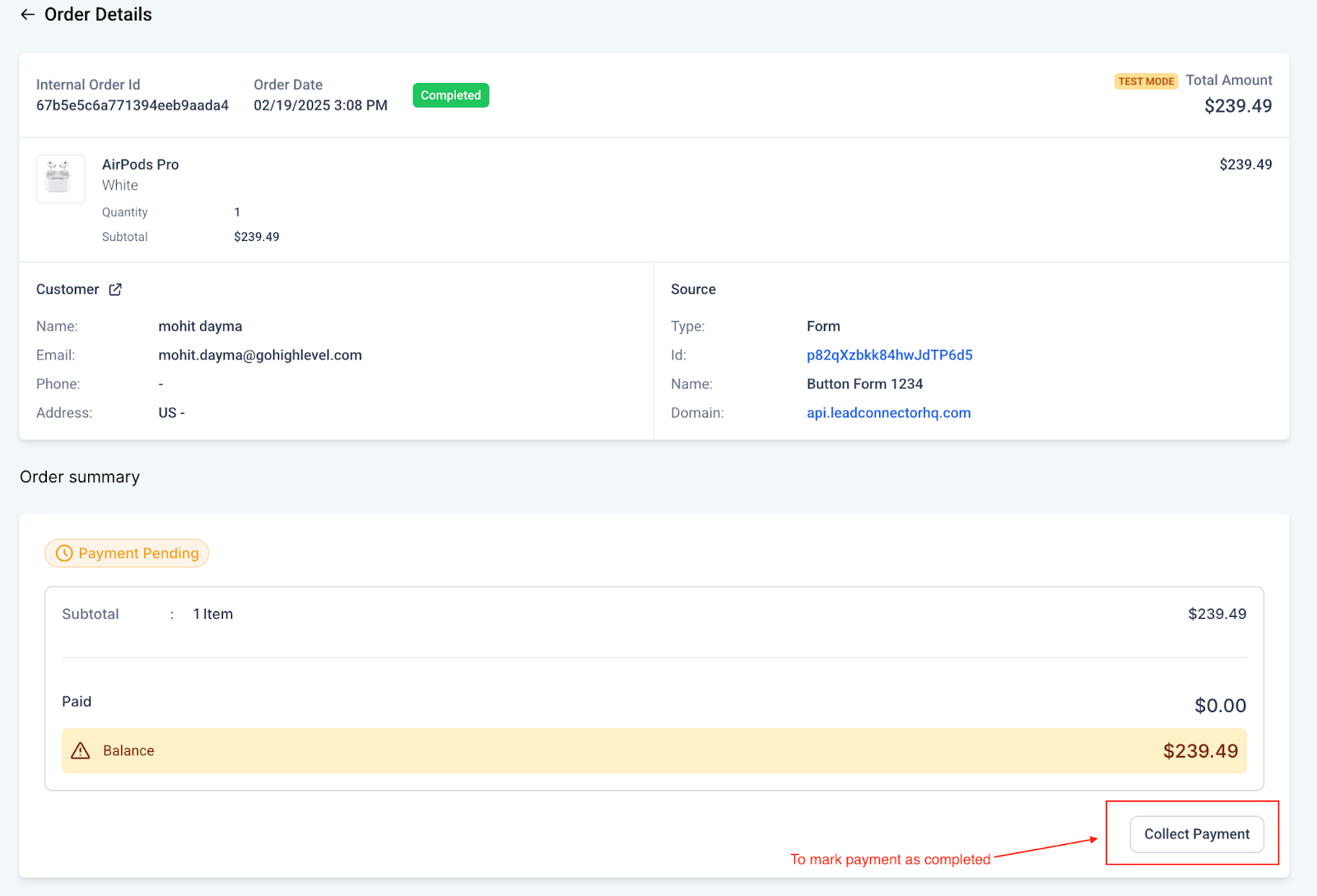
When a product is added to a form or survey, the manual payment option appears automatically. Submissions that choose a manual method create a pending order in Payments > Orders. You can open the order, select the actual payment mode, change the status to Paid, and the update syncs to the Form Submissions view.
03How businesses use manual payments
- Retail store. Enable Cash on Delivery in Manual Payment Methods, then add products to a checkout form. When a customer selects COD, the order shows up as pending; later staff mark it as paid after cash is collected, updating the status in both Orders and Submissions.
- Consulting firm. Configure a custom payment method for bank transfers, include a description, and use a survey to capture client inquiries. After a client submits the survey with the bank transfer option, the firm records the received transfer by changing the order status to Paid within Payments > Orders.
- Event organizer. Add a check payment option to a ticket sale survey, set a post purchase message, and publish the survey. As tickets are sold, each order appears as Pending; once the check clears, the organizer marks the order as Paid, and the change reflects in the Form Submissions list.
04The numbers and rules that matter
- Custom Payment Methods include bank transfers, checks, card payments, or other offline payment options.
05How to set up and use manual payments in HighLevel
Enable manual payments
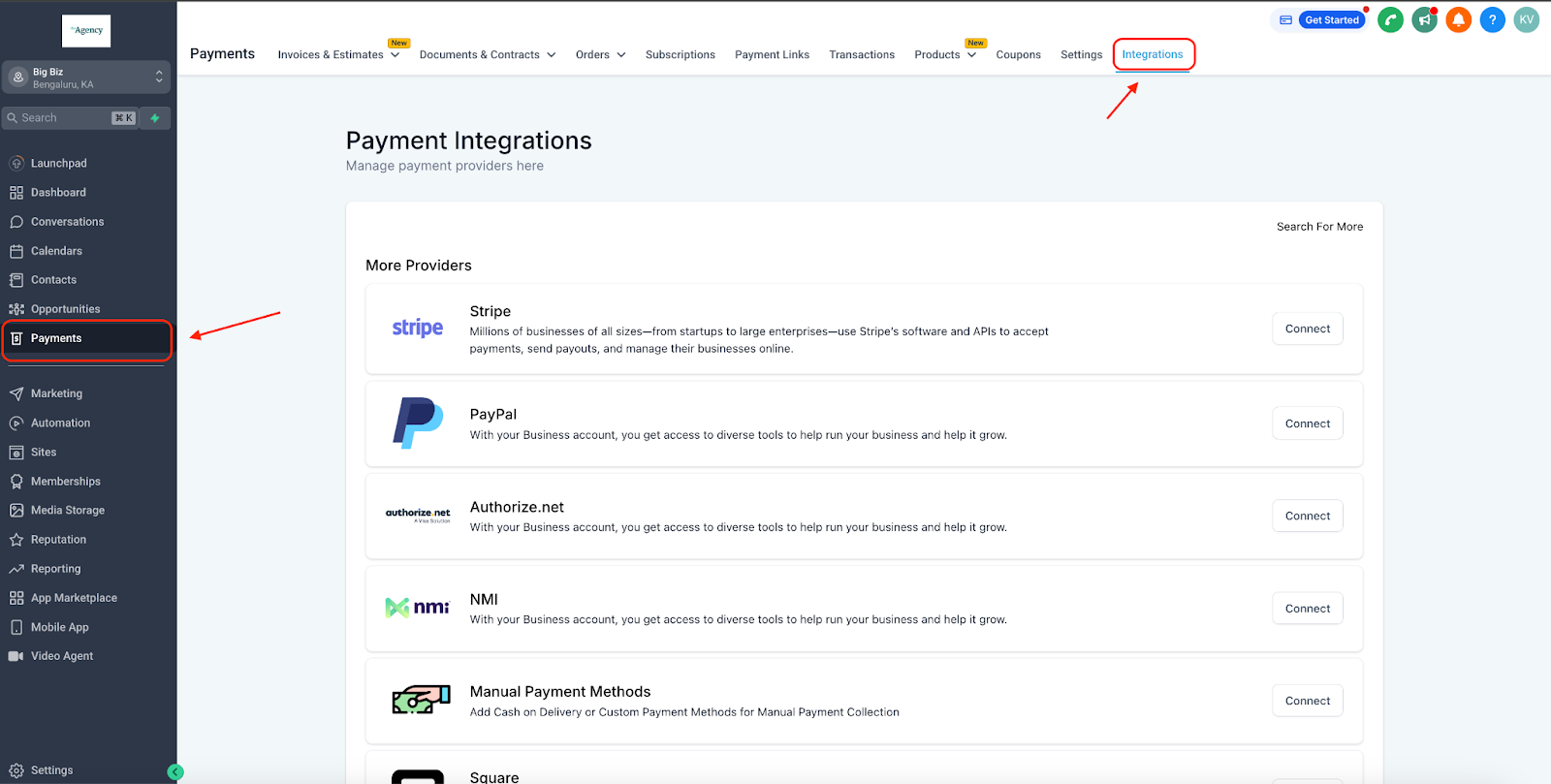
- Open Payments > Integrations > Manual Payment Methods.
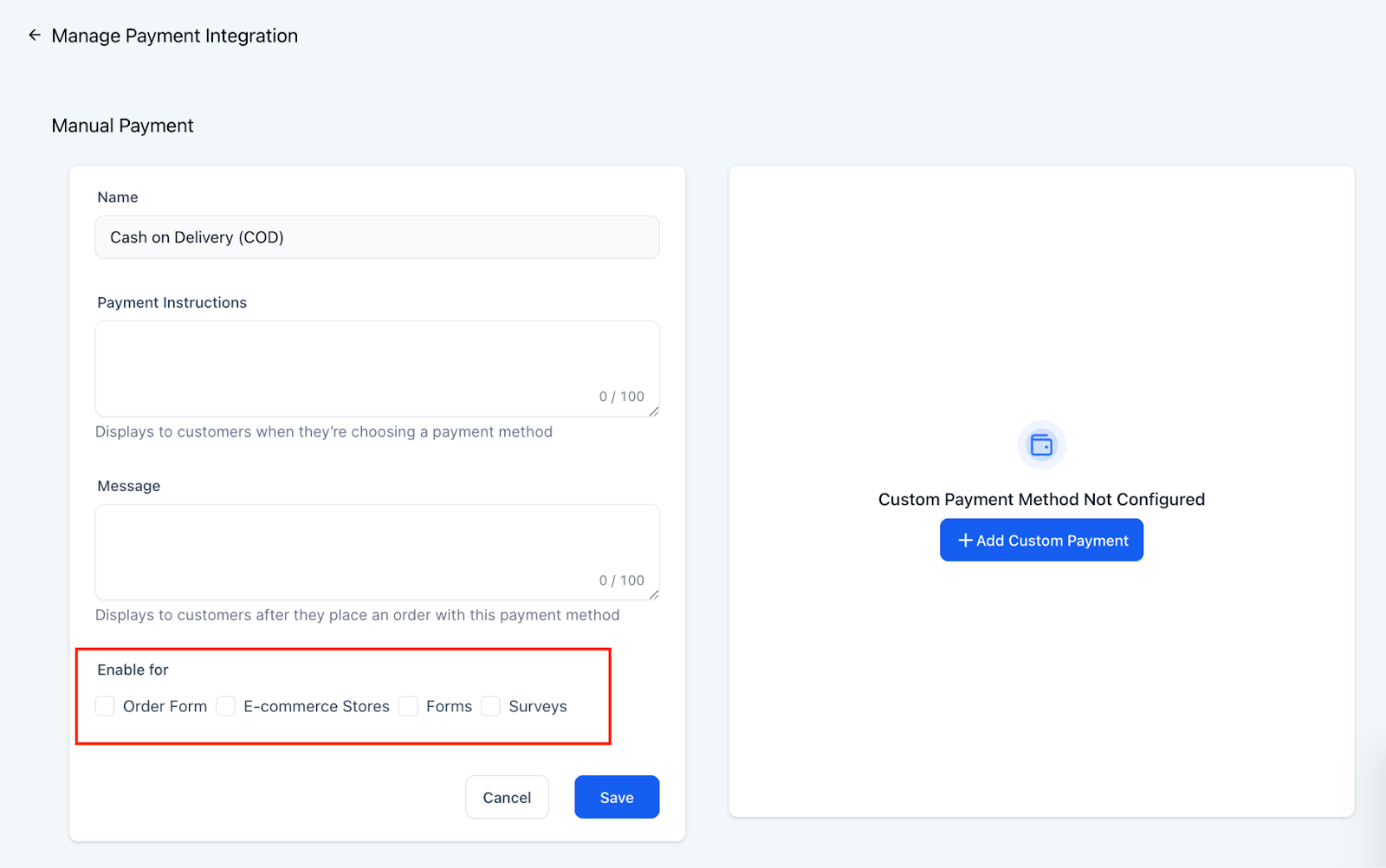
- Turn on Cash on Delivery or Custom Payment Methods as needed.
- Enter a description and a post purchase message for each enabled method.
- Activate the manual payment option for forms and surveys.
Process a pending order
- Navigate to Payments > Orders and locate the order with a Pending status.
- Open the order and select the payment mode (cash, card, check, bank transfer, etc.).
- Change the order status to Paid.
- Confirm that the status update also appears in the Form Submissions section.
06What it looks like in HighLevel
07Settings that matter
- Cash on Delivery (COD). Enables acceptance of cash when the customer receives the order.
- Custom Payment Methods. Allows offline options such as bank transfers, checks, or card payments.
- Description. Text shown to the customer describing the manual payment method.
- Post purchase message. Message displayed after the customer completes the form using a manual method.
- Manual payment option for forms and surveys. Controls whether manual methods appear in the payment selection of forms and surveys.
08Things to know before you rely on it
- Manual payment methods appear only in forms and surveys; they are not available in other checkout contexts.
- The feature supports Cash on Delivery and custom offline methods; it does not process online card transactions.
09How it connects to the rest of HighLevel
- Learn how to add a two step order form that can use manual payments. Add a two step order form
- View all site related capabilities, including forms and surveys. All Sites features
- Check which HighLevel plan includes manual payment support. HighLevel pricing and plans
Michael's take

People often think they need a special checkout page to handle cash or bank transfers, but HighLevel already folds those offline choices into the same form you use for online payments. Turn on the manual payment toggle, add a clear description, and you’ll see the option appear next to your product field without any extra coding.
If I were setting this up, I’d enable COD first, flesh out the postpurchase instructions, and then run a quick test submission to verify the pending order shows up and syncs to the submissions list. Once that’s solid, I’d add any custom methods my clients need, like a bank transfer, and start marking orders paid as soon as the money lands.