
01Who this is for
- Marketers who need to capture contact info before revealing key video content.
- Course creators who want to lock the most valuable lesson segment behind a registration form.
- Coaches who wish to turn webinar clips into lead capture funnels.
02Lead generation with hosted videos, explained
The feature works only with the Hosted Video type. When added to a page, you can turn on a toggle that tells the platform to generate leads from the video. You then set a timestamp in hours, minutes, or seconds. At that moment a form appears.
If the viewer tries to close the form, a setting determines whether they can continue without submitting. When the setting forces submission, the video will not resume until the form is completed.
After a user submits a form for that video, the lock is suppressed for two weeks, letting the user watch without interruptions.
03How businesses use lead generation with hosted videos
- Online course platform. Add a hosted video to a lesson page, enable lead generation, set the lock at the start of the premium segment, and attach the enrollment form. Learners must register to watch the remainder.
- Real estate marketing site. Insert a property showcase video, set a lock before the tour’s highlight reel, and display a contact request form. Prospects must fill the form to view the rest of the tour.
- Fitness trainer website. Place a workout demo video, lock the final technique demonstration, and link a sign up form for the full program. Viewers must submit to continue watching the demo.
04Before you start
- Add a Video element and select the Hosted Video option.
05How to set up and use lead generation with hosted videos in HighLevel
Set up timestamp lock
- Add a Video element to the page and choose Hosted Video.
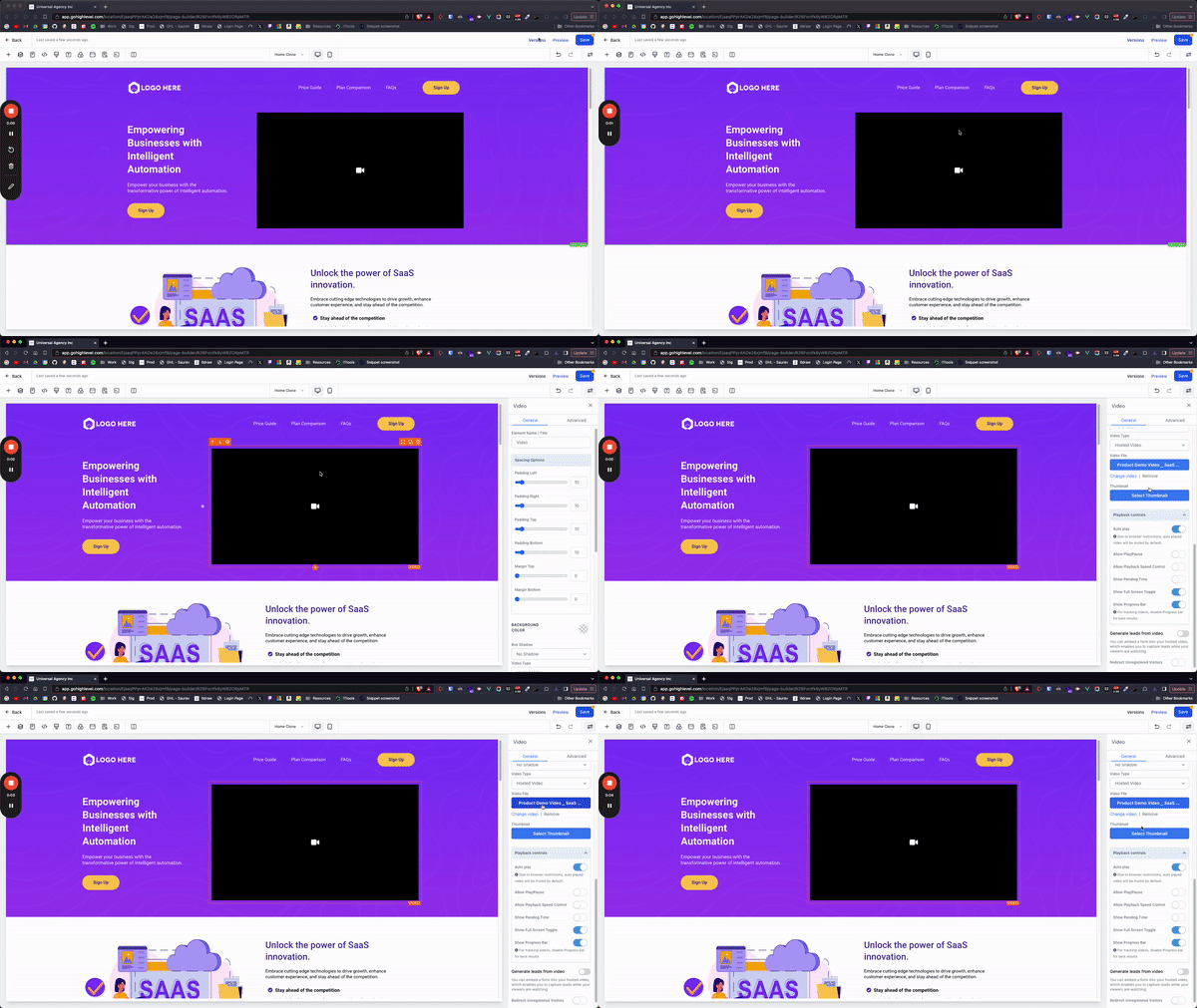
- Turn on the Generate leads from video toggle.
- Enter the timestamp where the form should appear.
- Select the form that will be shown at that point.
- Choose whether users may close the form and keep watching.
06What it looks like in HighLevel
07Settings that matter
- Generate leads from video. Activates the timestamp lock feature for the selected hosted video.
- Timestamp. Defines the exact hour, minute, or second when the form popup will trigger.
- Form selection. Specifies which form will be displayed when the lock occurs.
- Allow user to close the form and continue. Controls if viewers can dismiss the form without submitting; disabling forces submission before playback resumes.
08Things to know before you rely on it
- The lock does not appear for two weeks after a user has already submitted a form for that video.
- Only hosted videos support the timestamp lock; other video types cannot be used.
- Video elements placed inside popups cannot use the timestamp lock feature.
09How it connects to the rest of HighLevel
- All Sites features overview All Sites
- Set up a website in HighLevel Website setup
- Start a 30 day HighLevel trial Free trial
Michael's take

Michael ReimerFounder of CRM Pros, HighLevel Commander and Certified Admin
Great for marketers who need a simple way to turn video content into a lead capture point.
Skip it if you don’t use hosted videos or if you rely on pop up video players.
Get More InformationOpens on HighLevelPublished November 2, 2026 · Updated November 16, 2026