
01Who this is for
- Marketing agencies can showcase client Instagram content directly on landing pages, keeping the design consistent with the rest of the site.
- Ecommerce owners can add a live feed to product pages or store homepages to boost social proof and keep visitors engaged.
- Personal brand coaches can display their latest posts on a website to build credibility and encourage followers to engage.
02Instagram Feed widget, explained
The widget pulls content from an Instagram Business or Creator account that has been linked in Social Planner. It renders the feed inside the Page Builder, so the posts appear alongside other page elements.
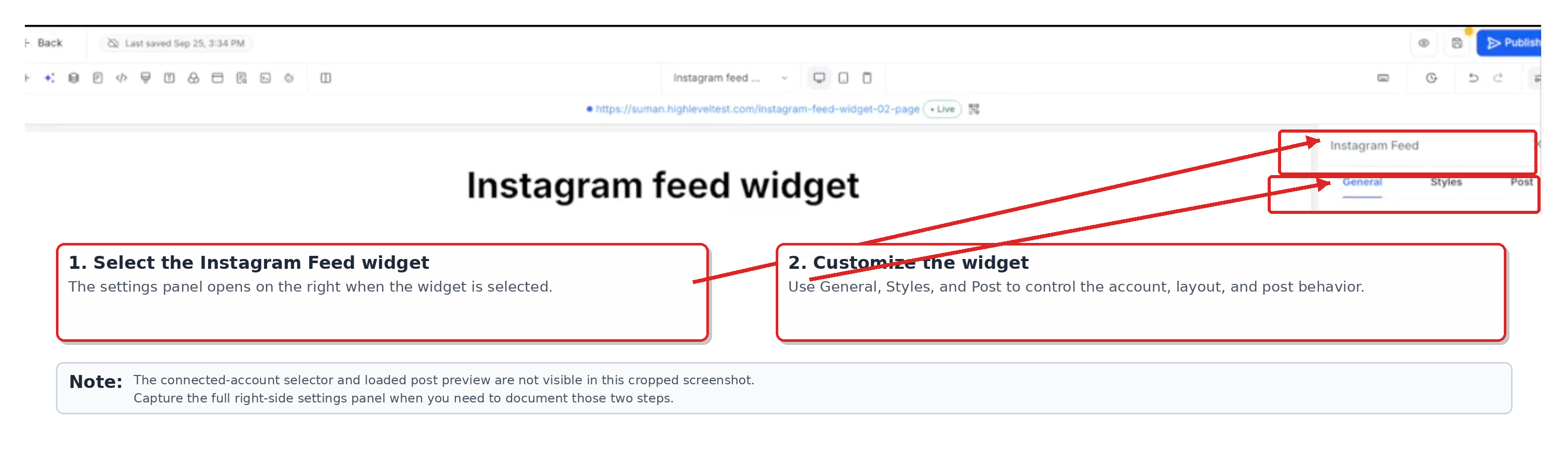
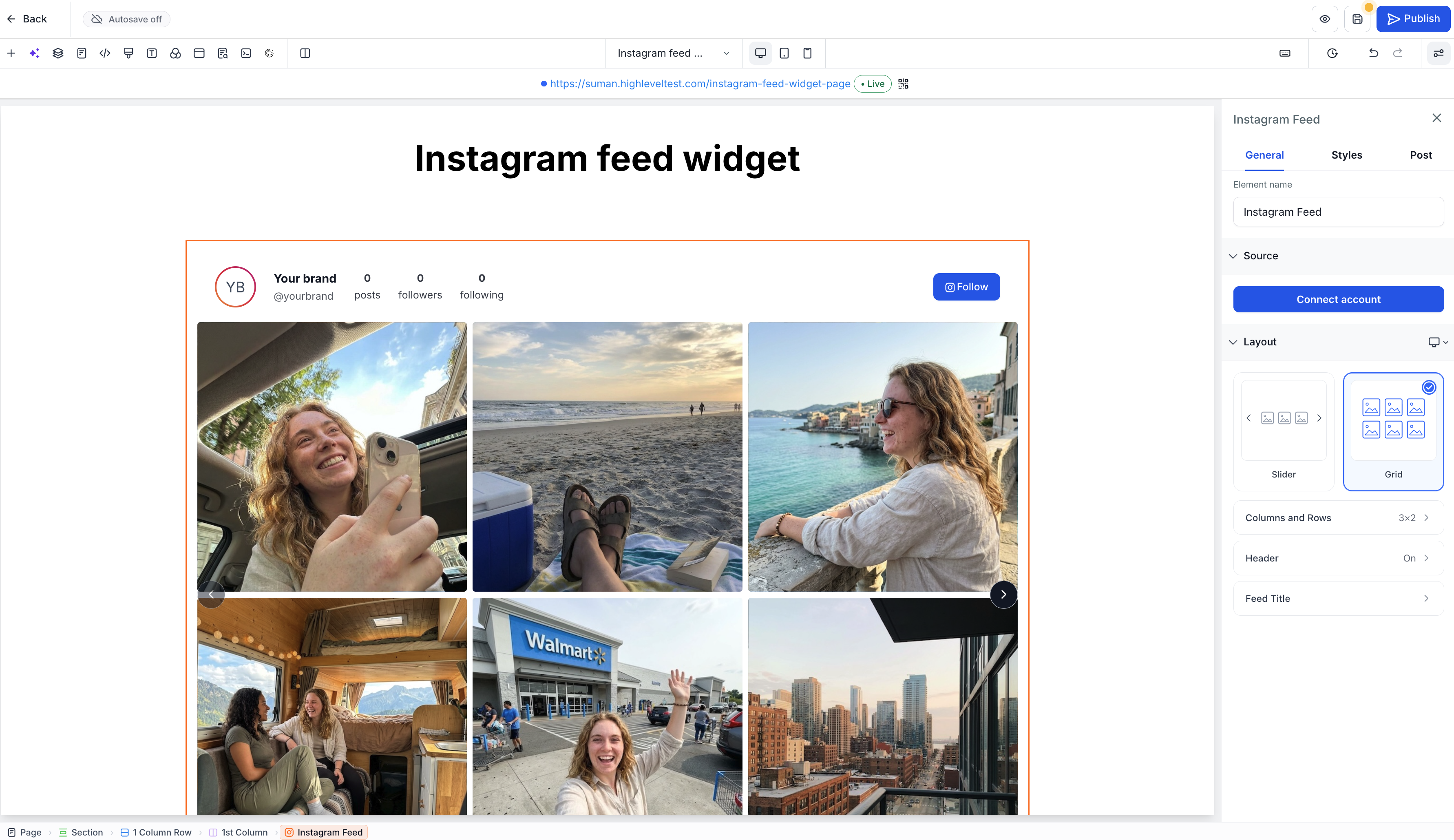
The widget supports grid and slider layouts, responsive column and row settings, lightbox display, and custom colors. All controls are accessed from the widget’s General, Styles, and Post tabs.
03How businesses use the Instagram Feed widget
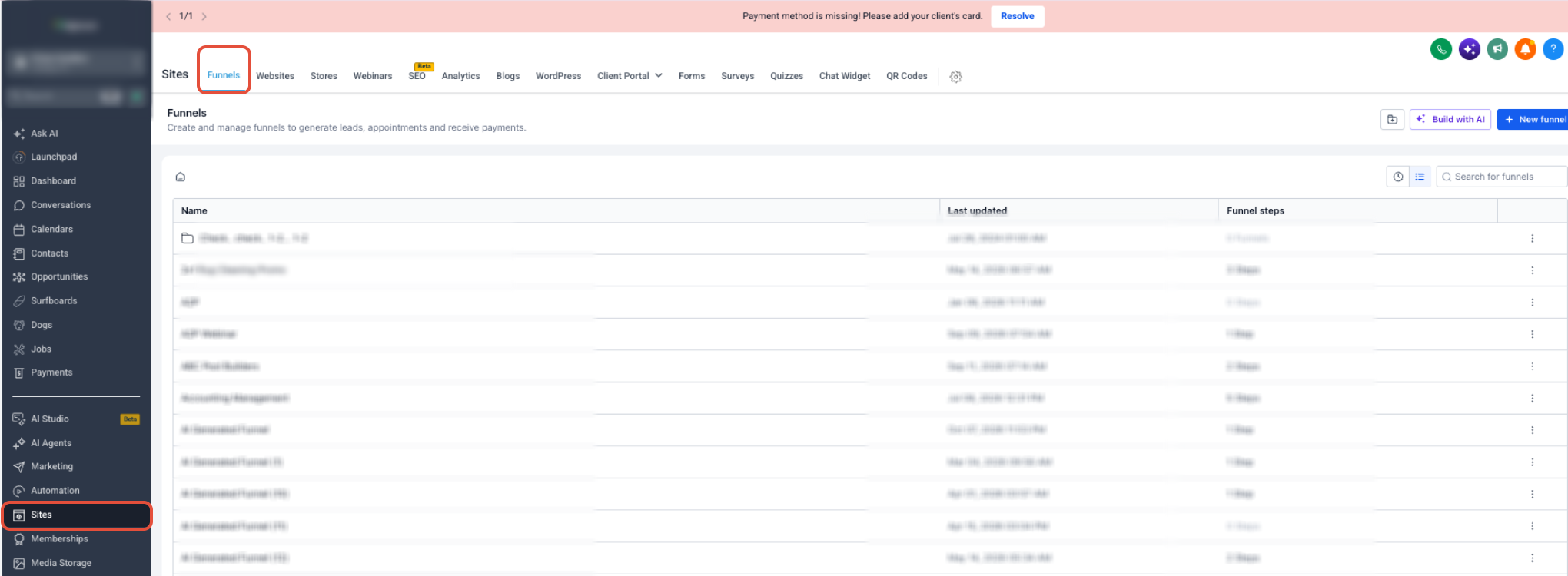
- Funnel page. In the Page Builder, drag the Instagram Feed widget onto a funnel step, select a connected Instagram Business account, choose a template, customize layout and styling, then preview and publish the funnel.
- Website page. Add the widget to a website page, pick the desired starting template, configure columns, rows, and spacing for desktop, tablet, and mobile, set the color scheme, and publish the site.
- Store page. Place the Instagram Feed widget on a store page, select the connected Instagram account, decide whether to show a grid or slider, adjust post click behavior, and make the store live.
04The numbers and rules that matter
- Posts load progressively, with up to 50 posts per request.
- Mobile supports up to 3 columns.
05Before you start
- Connect an Instagram Business or Creator account in Social Planner before adding the widget.
06How to set up and use the Instagram Feed widget in HighLevel
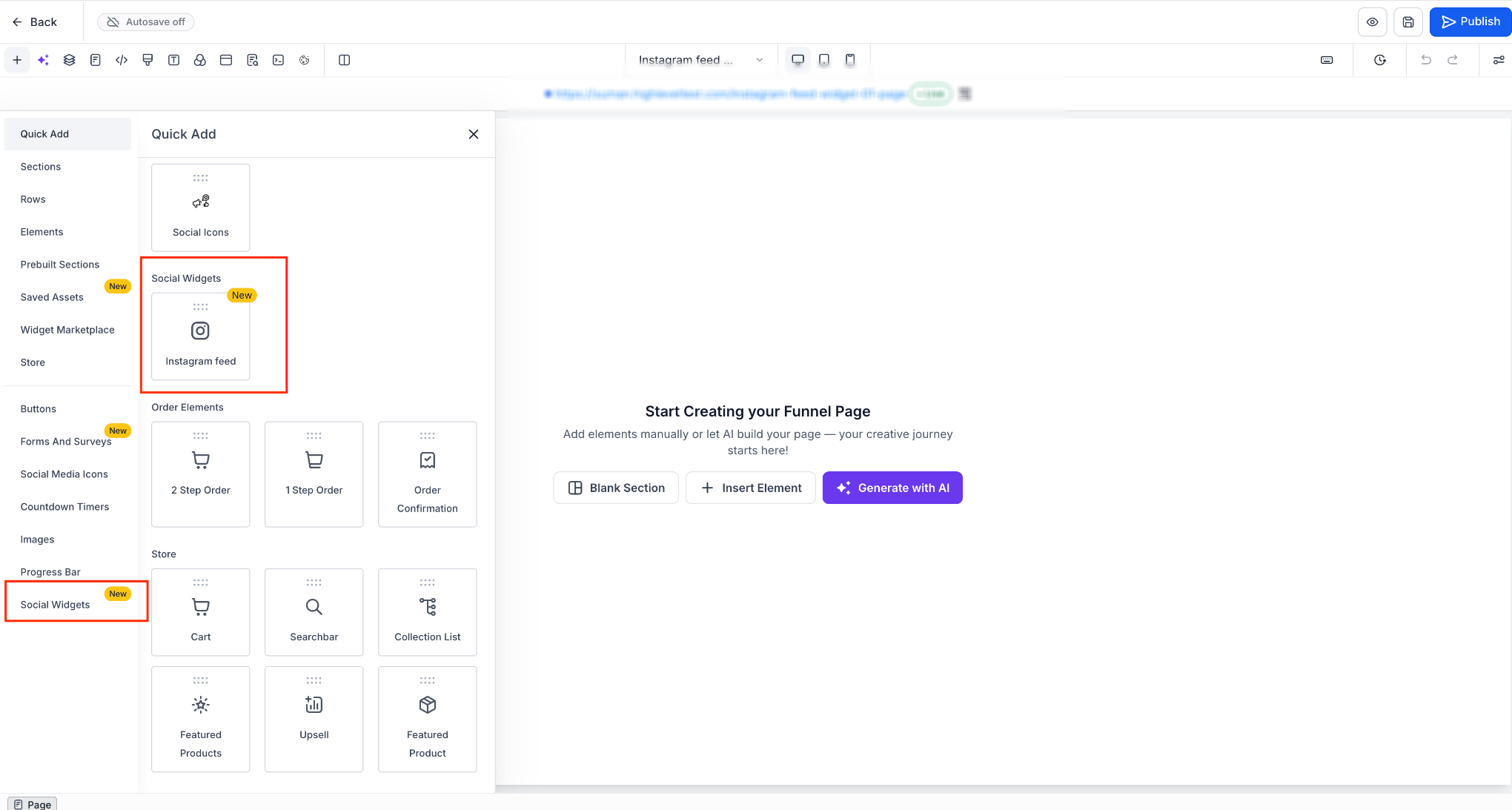
Add Instagram feed widget
- Open the Page Builder for the funnel, website, or store page you want to edit.
- Open the element panel and select Social Widgets.
- Choose Instagram Feed from the list.
- Drag the widget onto the page canvas.
- Pick a starting template such as Profile widget or Grid.
- Select the Instagram account that is already connected in Social Planner.
- Save the page, preview the feed, and publish when ready.
07What it looks like in HighLevel
08Settings that matter
- Starting template. Sets the initial layout of the feed, such as profile header with grid, simple grid, small widget, post slider, or dark profile widget.
- Layout controls. Determines whether the feed uses a grid or slider layout, the number of columns (1 to 10), rows (1 to 5), and spacing (0 to 50 px) per device.
- Feed title. Allows a custom title of up to 200 characters to appear above the feed.
- Profile Header. Controls visibility of profile picture, display name, @handle, post count, follower count, following count, and follow button.
- Posts filter. Chooses which post types to show: all supported posts, photos only, or videos only.
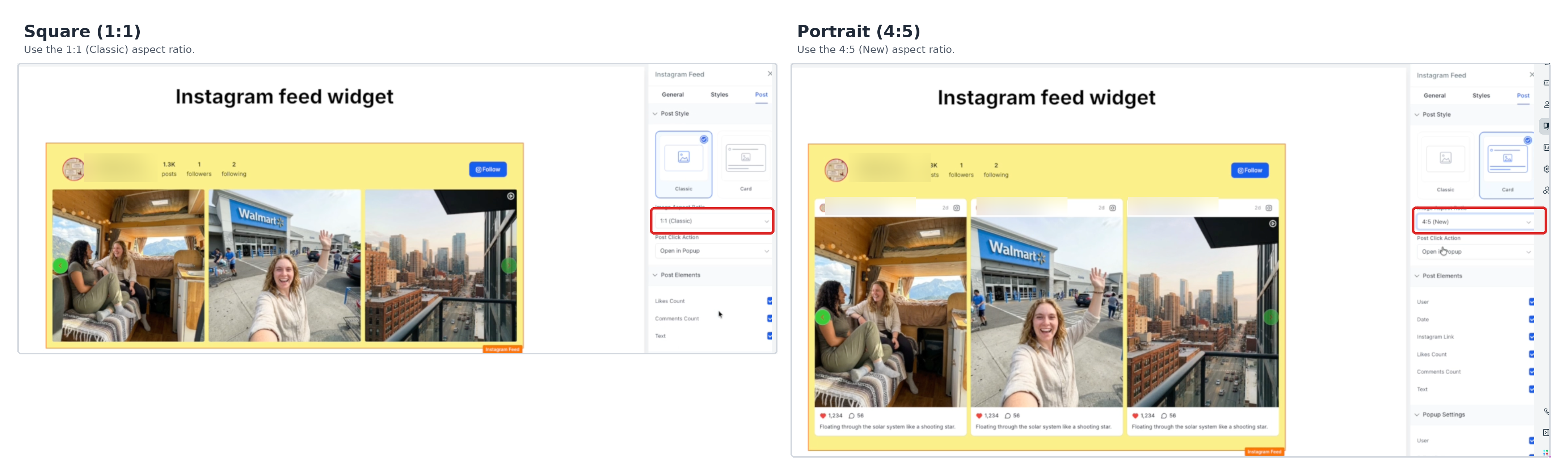
- Tile style. Selects between Classic (image with hover overlay) or Card (image with caption block) presentation.
- Crop. Sets the image crop ratio to square (1:1) or portrait (4:5).
- Lightbox details. Specifies which elements appear in the built in lightbox, such as author, follow button, Instagram link, likes, caption, comments, and date.
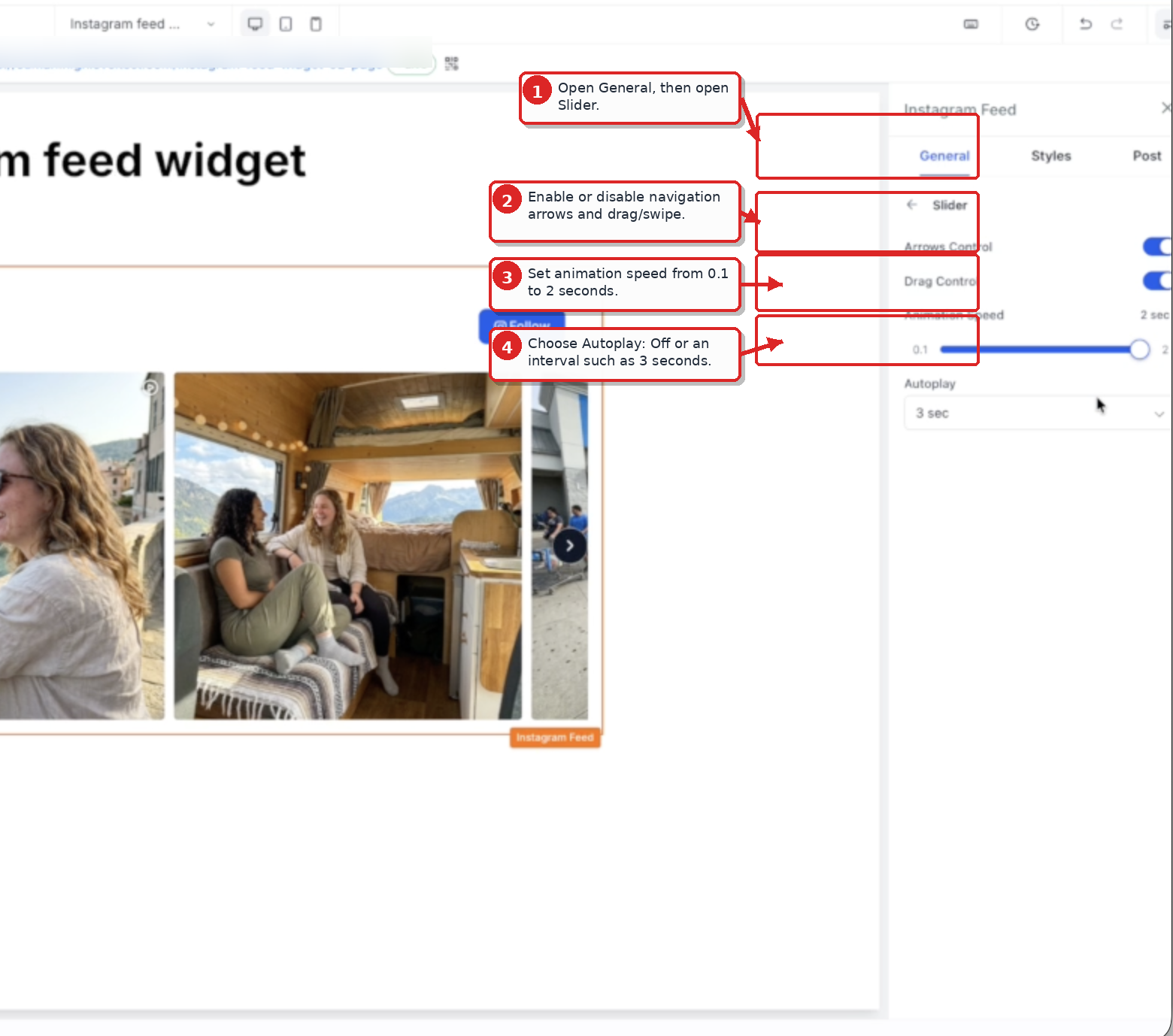
- Slider controls. Enables navigation arrows, drag or swipe gestures, animation speed (0.1 to 2.0 seconds), and autoplay intervals (3 to 30 seconds).
- Post click behavior. Determines the action when a visitor clicks a post: open the built in lightbox, open the post on Instagram, or take no action.
- Color scheme. Starts with a Light or Dark preset and allows custom colors for header, posts, slider arrows, popup, and Load More button.
- Custom CSS class. Adds a developer specified CSS class to the widget for additional styling.
09Things to know before you rely on it
- Only Instagram Business or Creator accounts connected in Social Planner are supported; personal accounts cannot be used.
- Posts load progressively with up to 50 posts per request.
- Mobile devices support a maximum of three columns.
- The widget can display up to ten columns on desktop and five rows.
- Spacing between posts can be set from 0 to 50 px.
- Slider animation speed is limited to a range of 0.1 to 2.0 seconds.
- Autoplay intervals can be set between 3 and 30 seconds.
10If something goes wrong
- Widget shows a Disconnected badge and a Reconnect account button.. Click the Reconnect account button to re establish the Instagram connection in Social Planner.
- No content appears when Instagram or Social Planner is unavailable.. If cached content exists, it will remain visible; otherwise the widget hides automatically.
11How it connects to the rest of HighLevel
- Explore all site features, including the Page Builder where the Instagram Feed widget lives. All Sites features
- Review HighLevel pricing and plan options to ensure the feature is available in your subscription. HighLevel pricing and plans
- Start a free trial to test the Instagram Feed widget on your own funnels or websites. Start a 30 day HighLevel trial
Michael's take

Adding a live Instagram feed feels like a modest convenience that can become a real shift in how a brand looks on its sales pages. It lets you keep the visual story current without juggling external embed codes or copy pasting scripts.
A boutique clothing retailer, for example, can drop the widget onto its product landing page, show the latest outfit snaps, and let shoppers scroll through a slider that opens a lightbox for each look. If I were setting it up, I’d first verify the Business account is linked in Social Planner, then test the lightbox on both desktop and mobile before publishing.