
01Who this is for
- Marketers who need visual storytelling to keep visitors on a page.
- Coaches who want to showcase testimonials or program highlights in a carousel.
- Ecommerce owners who wish to display product images in an engaging slideshow.
02Image slider elements, explained
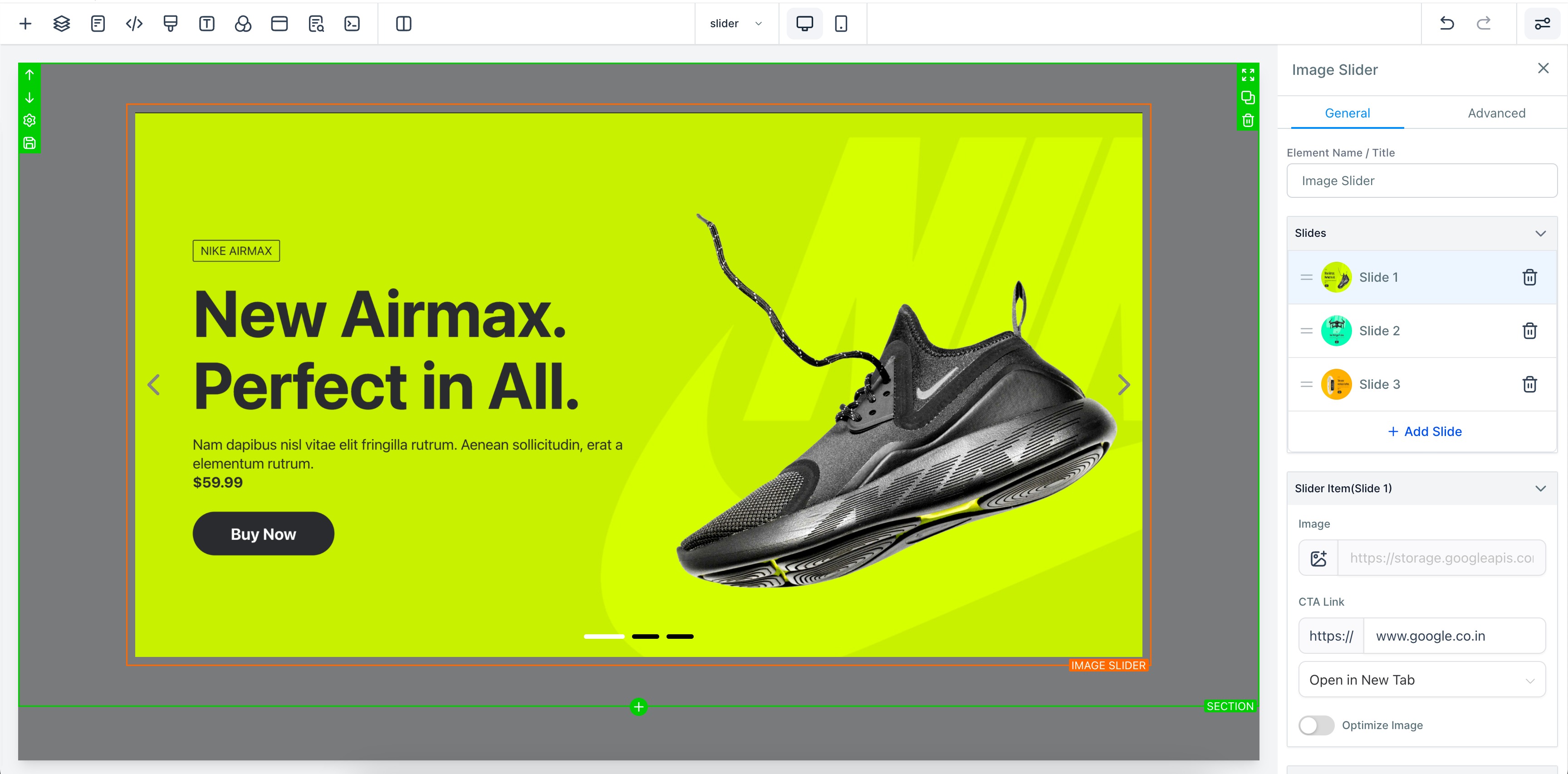
The Image Slider element adds a rotating set of images to a page built in the HighLevel website or funnel builder. You pick the element, drop it into a section, and then set options such as transition style, pagination, autoplay and link behavior. The slider pulls images from the Media Library and respects the 16:9 aspect ratio for optimal display.
The element is fully responsive. It displays the same way on desktop browsers and mobile devices. You can add as many slides as needed, and each slide can open a URL in the same tab or a new tab. Buttons can be placed on the image, acting as the same link.
The slider lives alongside other new elements like Margin Padding, Shadow, Custom Class and Visibility, allowing precise layout control and conditional display.
03How businesses use image slider element
- Real estate agency. The agency drops the Image Slider into a property landing page, uploads photos of a home, sets a fade transition and adds a link on each slide to the listing details. Visitors can scroll through the images and click to learn more.
- Online fitness coach. The coach adds the slider to a sales funnel, inserts screenshots of client transformations, selects autoplay, and links each slide to a testimonial page. The slider runs automatically, keeping prospects engaged.
- Local restaurant. The restaurant places the slider on its homepage, uploads photos of menu items, chooses a slide effect, and sets each slide to open the menu page in a new tab. Mobile visitors see the same carousel with touch navigation.
04The numbers and rules that matter
- Use images with a 16:9 aspect ratio such as 1600x900 px or 1920x1080 px.
- Standard practice is to add 3 to 5 slides.
05Before you start
- Access to the HighLevel website or funnel builder.
- Images uploaded to the Media Library, preferably in a 16:9 ratio such as 1600x900 or 1920x1080.
06How to set up and use image slider element in HighLevel
Add an image slider to a page
- Open the page or funnel in the HighLevel builder and select the location for the slider.
- Drag the Image Slider element from the side panel and drop it into the chosen section.
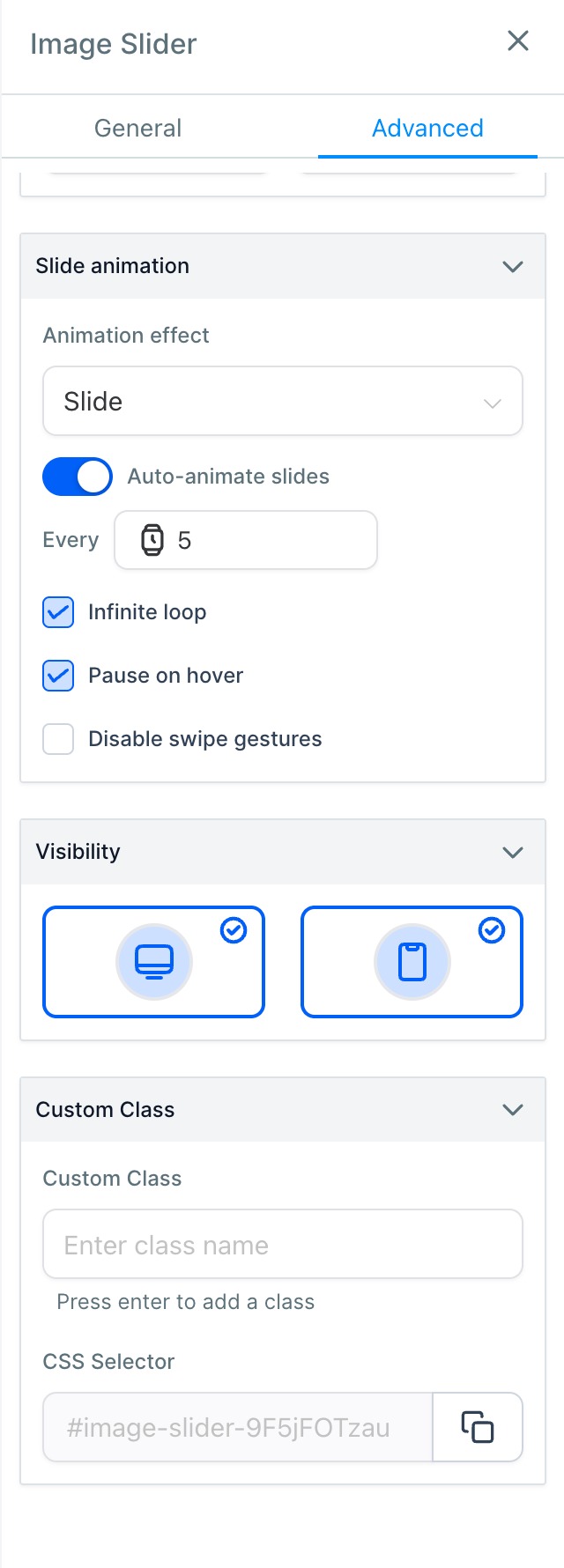
- Edit the element settings to choose transition effects, pagination style and autoplay options.
- Click the image area to open the Media Library, select the desired pictures, and add them to the slider.
- Save the page; the slider now appears on the live website or funnel.
07What it looks like in HighLevel
08Settings that matter
- Transition effects. Controls how slides change from one to the next, such as fade or slide.
- Pagination styles. Determines the visual style of the navigation dots or numbers for the slides.
- Autoplay settings. Sets whether the slider moves automatically and the speed of the rotation.
- URL redirect option. Specifies a web address to open when a visitor clicks on a slide.
- Open in new tab or current tab. Chooses whether the linked page loads in the same browser tab or a new one.
- Resize images. Allows adjustment of image dimensions directly in the slider settings.
- Button in the image. Enables a clickable button overlay on a slide that follows the same link behavior.
09Things to know before you rely on it
- You can add as many slides as you want. Standard practice is to include three to five slides.
- The slider works on both desktop and mobile devices and is responsive by default.
10How it connects to the rest of HighLevel
- Review the overall website builder features and layout options. Website builder overview
- Add tracking code to your funnel or website to monitor slider engagement. Add tracking code
- See the pricing plans to verify access to the builder and new elements. HighLevel pricing
Michael's take

The first setting I get right is the image size. Sticking to a 16:9 ratio like 1920x1080 ensures the slider looks crisp on any screen.