
01Who this is for
- Agency teams managing multiple client WordPress sites; they can isolate problematic plugins without manual testing.
- Freelance developers overseeing a single client site; the tool reduces downtime when a plugin triggers a white screen.
02WordPress Plugin Troubleshooter, explained
The WordPress Plugin Troubleshooter lives inside the Hosting Dashboard of each subaccount. When launched, it cycles through the active plugins, disabling and re enabling them in batches to discover which one breaks the site. If a conflict is found, the tool deactivates the offending plugin automatically. The process works even if the site is showing a severe error such as the White Screen of Death, allowing users to recover site functionality without leaving the HighLevel interface.
03How businesses use WordPress Plugin Troubleshooter
- Digital marketing agency. The agency selects a client’s WordPress site, runs the Troubleshooter, marks essential plugins, and lets the tool deactivate the faulty plugin. This restores the client’s site so the agency can continue delivering services.
- Ecommerce shop owner. The shop owner opens the site manager, starts the Troubleshooter, and allows the system to test plugins. When the problematic plugin is identified, the owner deactivates it directly from the results screen, bringing the store back online.
- Freelance web developer. The developer accesses the WordPress site in HighLevel, runs the tool, and chooses only the core plugins to keep active. After the scan, the developer follows the prompt to deactivate the identified plugin and verifies the site works.
04How to set up and use WordPress Plugin Troubleshooter in HighLevel
Run the WordPress Plugin Troubleshooter
- Log in to the appropriate subaccount.
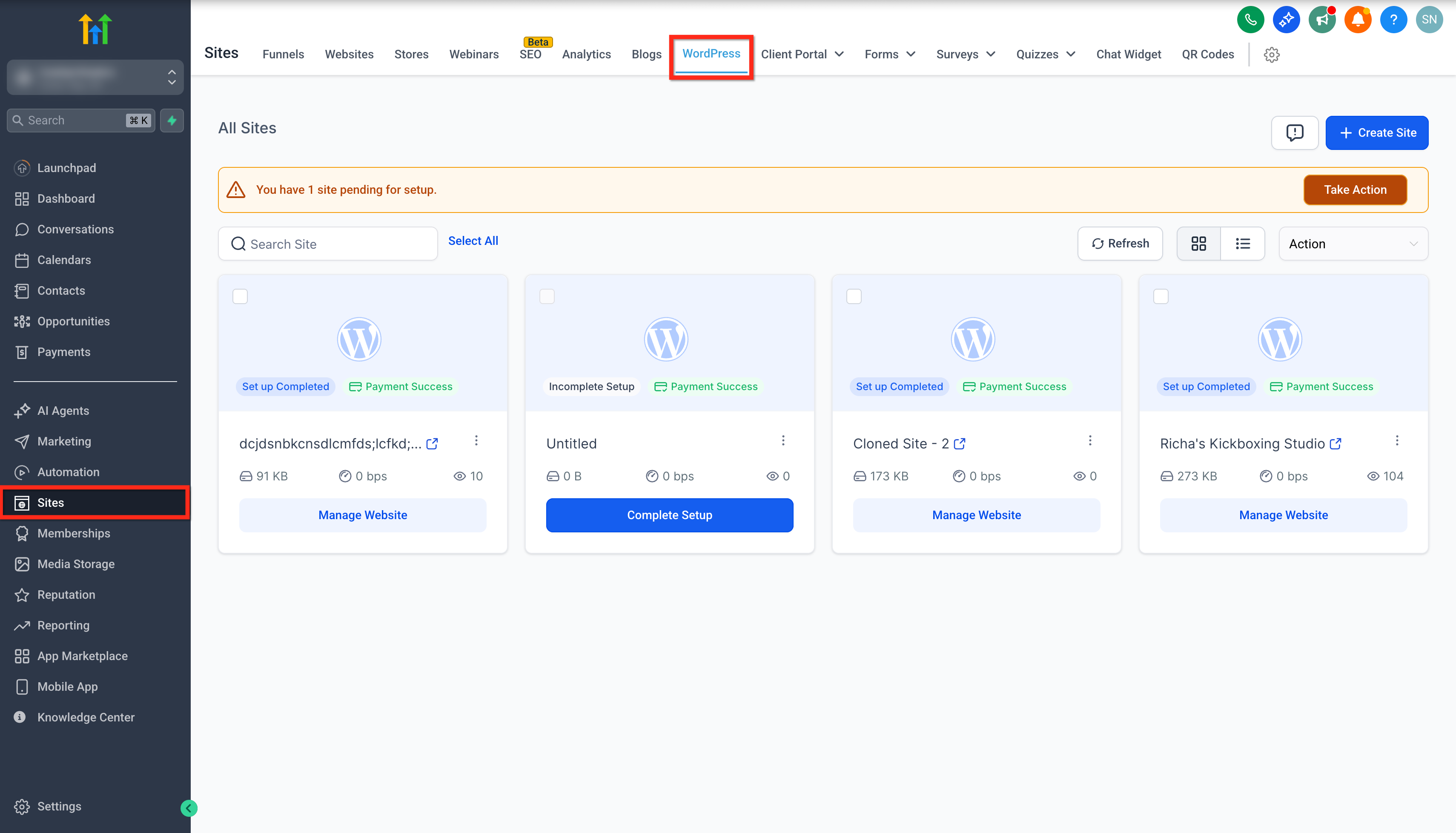
- Navigate to Sites ▸ WordPress.
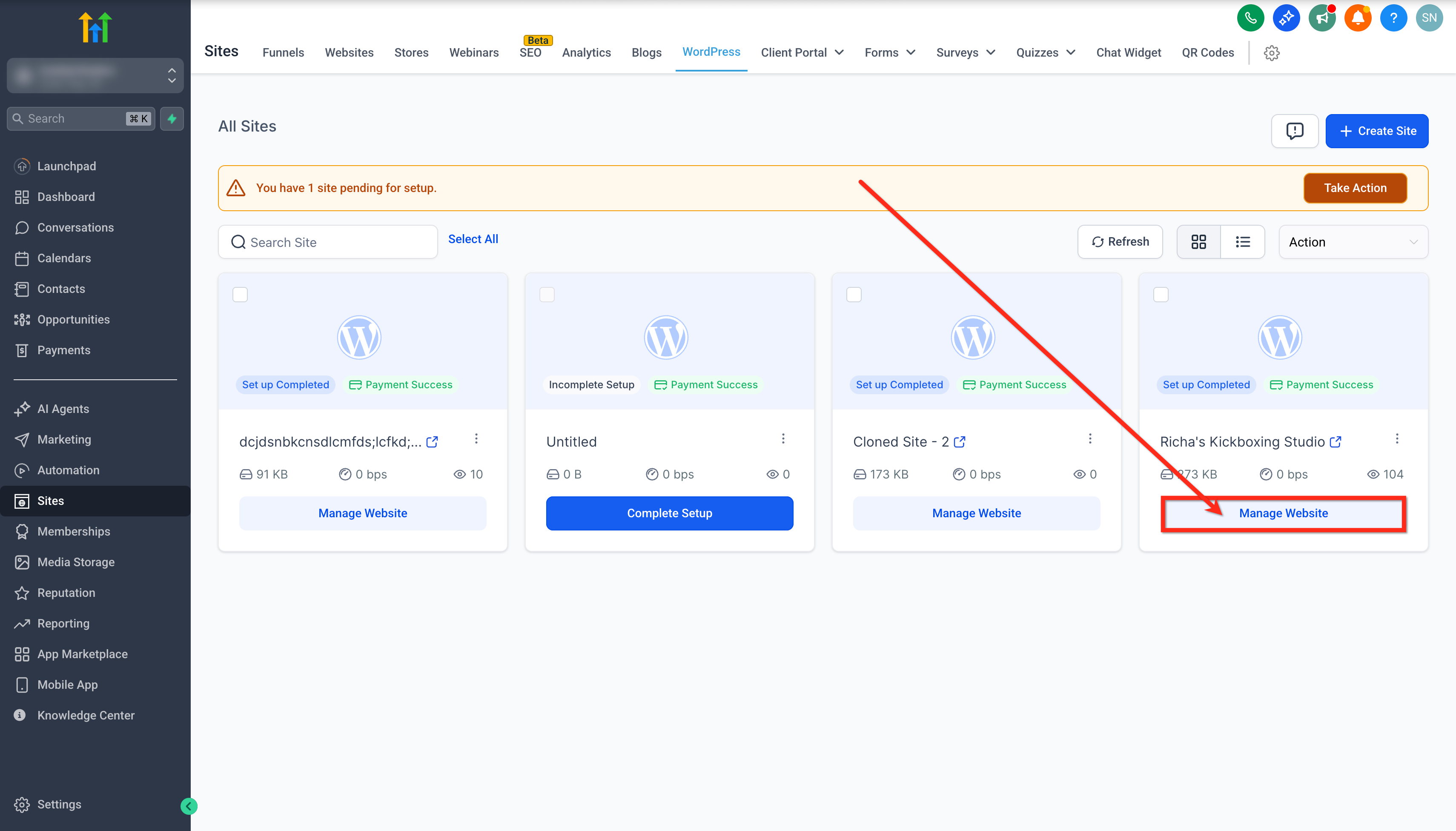
- Find the target WordPress site and click Manage Website.
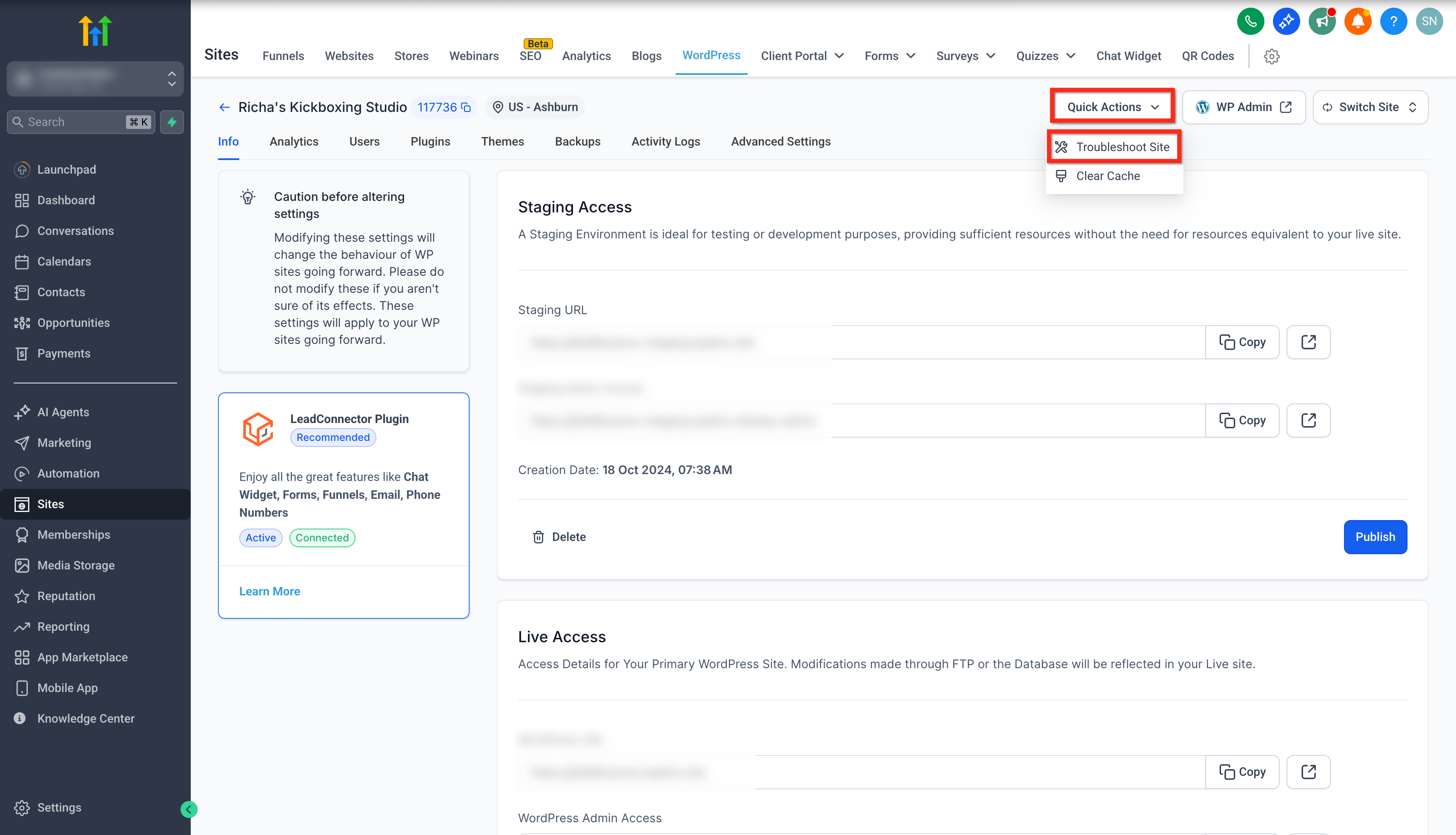
- Open the Quick actions dropdown in the top right corner of the manager.
- Choose Troubleshoot site from the list.
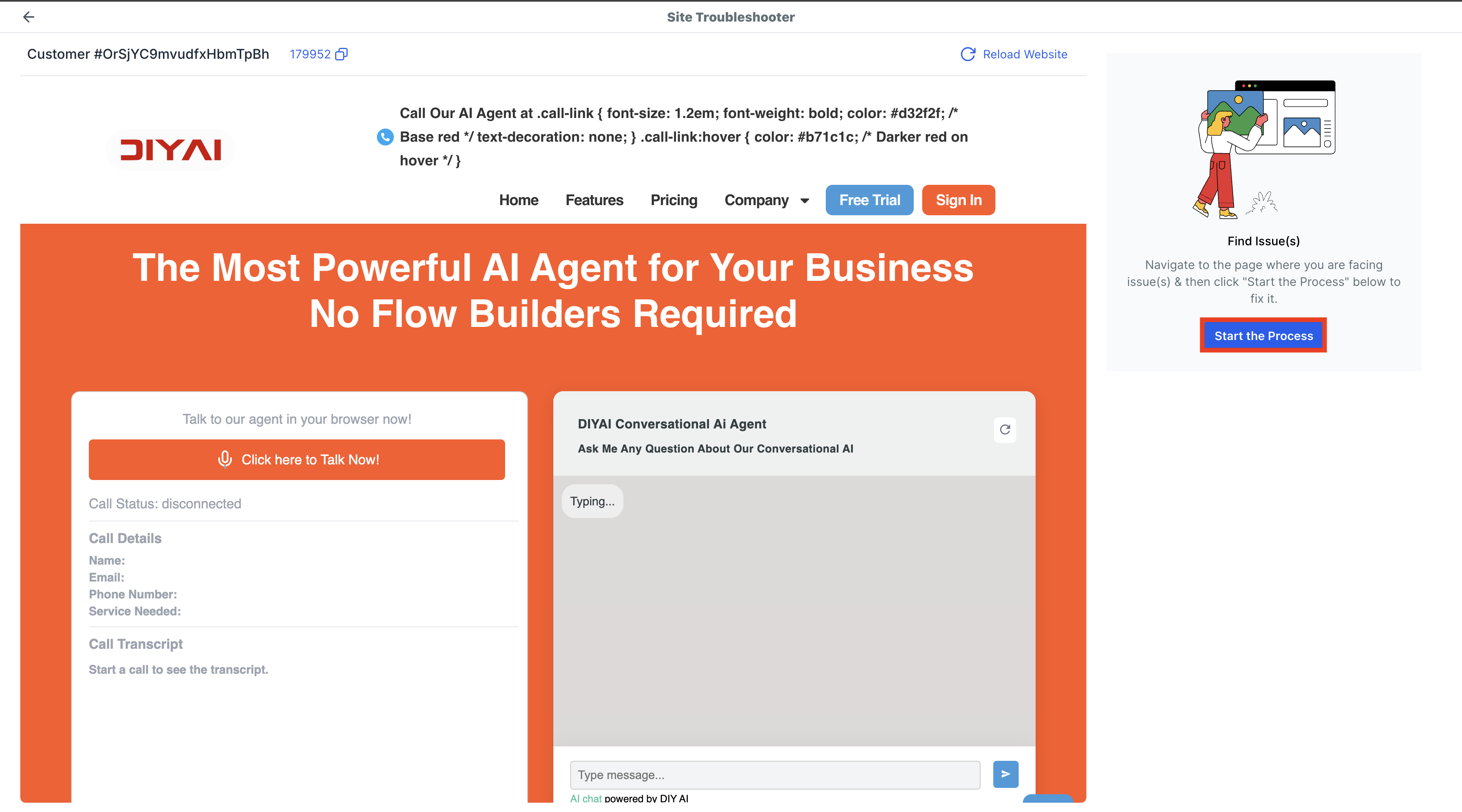
- In the Find issues panel, click Start the process.
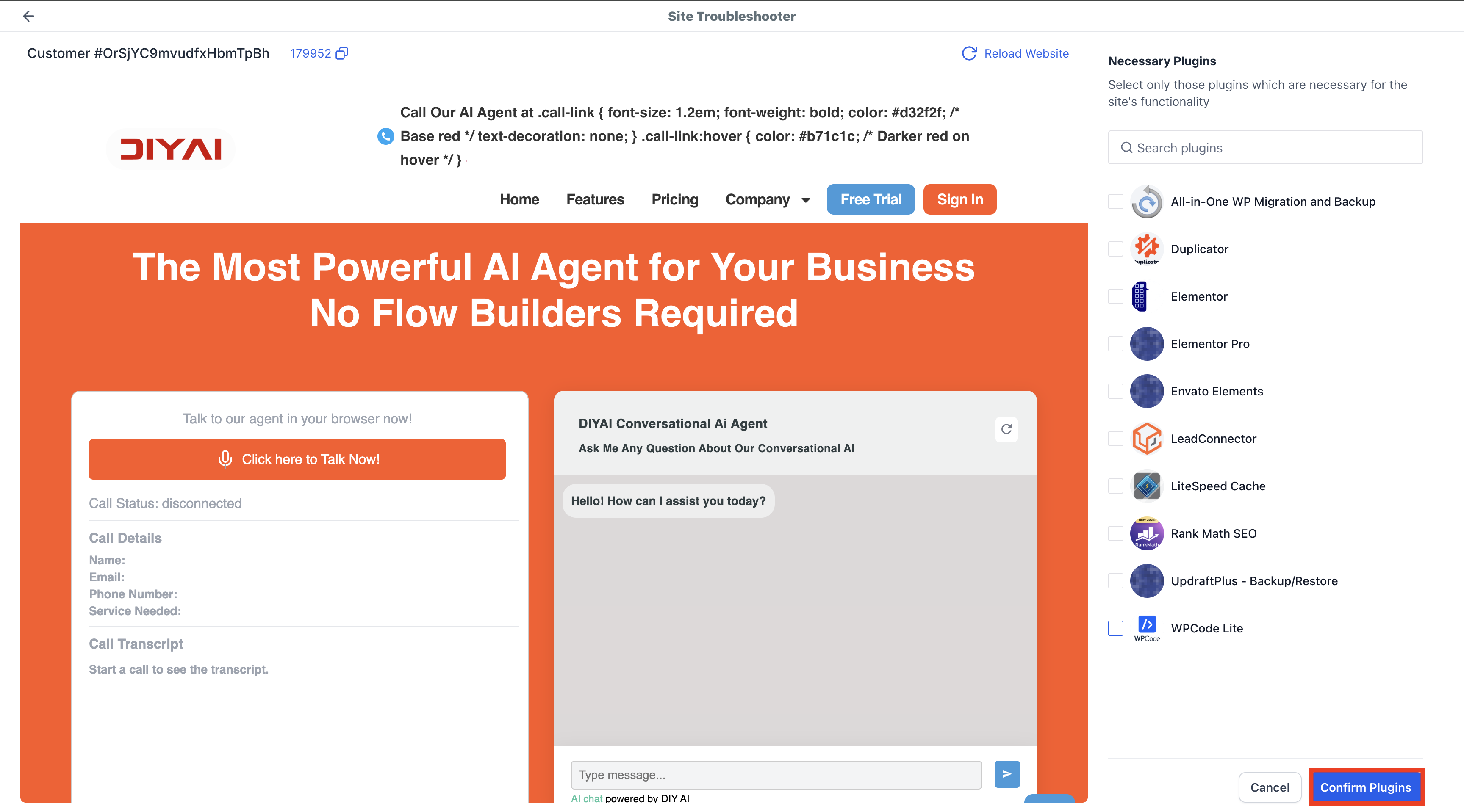
- When prompted, select only the plugins that are essential for core functionality.
- Click Confirm plugins to begin the inspection.
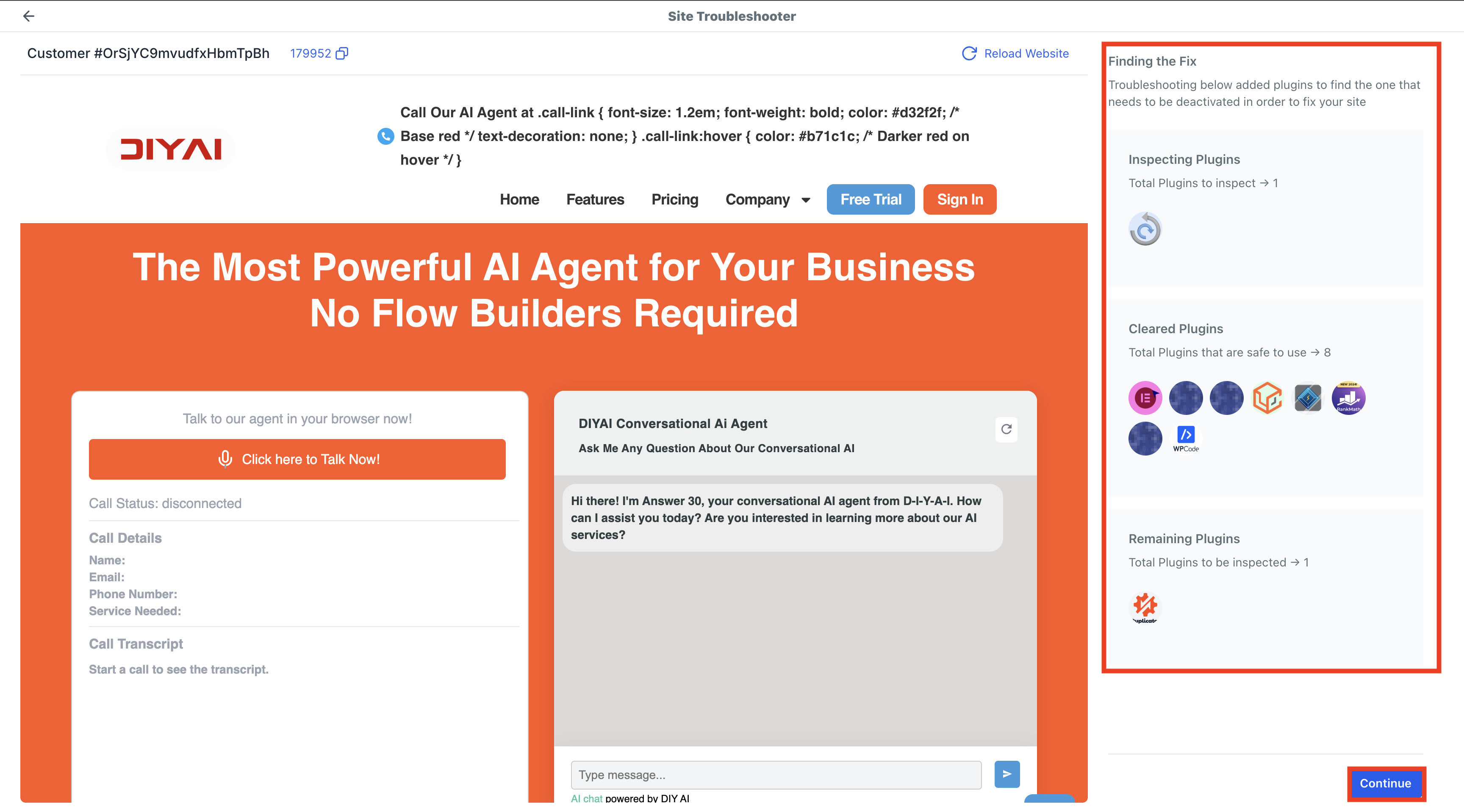
- Observe the Finding the fix screen appear in the right panel.
- Press Continue when the prompt appears.
- If the tool reports broken plugins, click Deactivate the plugin to fix the issue.
- On the Issues fixed screen, click Yes, it is fixed if the site works.
- If the site is still broken, click Still broken to continue troubleshooting.
- If the tool reports no plugin issues found, you can click Return to dashboard or click Restart troubleshooting to run the process again after adjusting the essential plugins selection.
05What it looks like in HighLevel
06How it connects to the rest of HighLevel
- Manage plugins and themes for WordPress sites within HighLevel. Plugin and theme management
- Use the WP Admin button for single sign on access to the WordPress admin area. WP Admin single sign on
- Create and configure WordPress sites before troubleshooting them. Set up WordPress sites
Michael's take

Michael ReimerFounder of CRM Pros, HighLevel Commander and Certified Admin
The WordPress Plugin Troubleshooter is worth the click for anyone who needs a quick safety net when a plugin breaks a site.
If you rarely deal with plugin conflicts or prefer manual debugging, you can skip it.
Get More InformationOpens on HighLevelPublished November 2, 2026 · Updated November 17, 2026