
01Who this is for
- Marketing managers, can provide lead magnets right away without extra download platforms.
- Content creators, can let visitors download templates or artwork directly from their site.
- Agency owners, can set up client funnels that offer brochures or guides with a single click.
02Download file actions, explained
The feature adds a toggle to visual elements that makes them act as a download link. When the toggle is on, clicking the element sends the selected file straight to the user's device.
It works for three element types: buttons, images, and SVG graphics. The option appears in the right hand settings panel of the element inside the funnel or website editor.
Files must come from the Media Library, where any type, PDF, image, ZIP, etc., can be stored. An optional rename lets you set a clean, branded filename for the download.
03How businesses use download file action
- Real estate agency. Create a button labeled "Download Property Guide" on a listing page. Turn on the Download toggle, link the PDF brochure from the Media Library, rename it to the property name, and publish the page.
- Online course provider. Add an image of a worksheet to a lesson page. Enable the Download action, attach the worksheet file, optionally set a friendly filename, and save so students can retrieve the material with one click.
- Graphic design studio. Insert an SVG logo on the portfolio site, activate the Download toggle, link the high resolution PNG version from the Media Library, rename it to the project title, and preview the download.
04The numbers and rules that matter
- Supported elements: Buttons, Images, SVGs.
05Before you start
- A funnel or website must already exist in HighLevel and be opened in the editor.
- The file you want to offer should be uploaded to or available in the Media Library.
06How to set up and use download file action in HighLevel
Enable the Download File action for an element
- Open the desired funnel or website using the HighLevel editor.
- Click on the Button, Image, or SVG that should trigger the download.
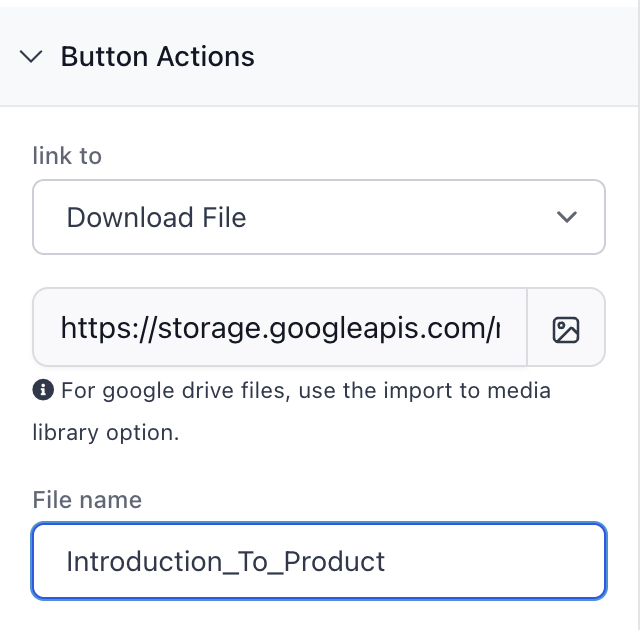
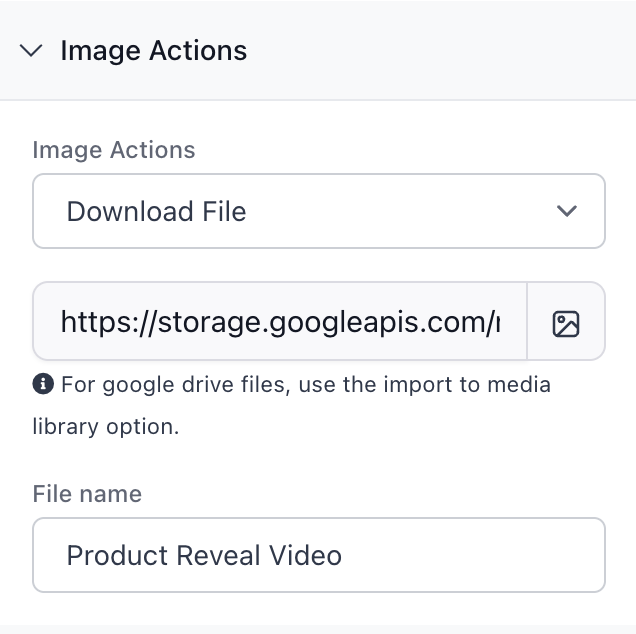
- In the settings panel on the right, switch the "Download" toggle to ON.
- Press the "Link File" button to launch the Media Picker window.
- Choose an existing file or upload a new one to the Media Library.
- Optionally, edit the filename that will appear for the downloader.
- Save the changes and preview the funnel or site to verify the download works.
07What it looks like in HighLevel
08Settings that matter
- Download. Activates the element as a download link when set to ON.
- File name. Allows you to rename the file that users receive, improving branding or clarity.
09Things to know before you rely on it
- Each button, image, or SVG can be linked to only one downloadable file.
- Any file type stored in the Media Library can be used, such as PDFs, images, or ZIP archives.
- Individual download actions are not tracked; consider using form submission automation for tracking.
10How it connects to the rest of HighLevel
- Explore other site features available in HighLevel. All Sites features
- Review pricing options and plan details for HighLevel. HighLevel pricing and plans
- Start a free trial to test the Download File action in your own funnels. 30 day trial
Michael's take

Michael ReimerFounder of CRM Pros, HighLevel Commander and Certified Admin
The download file action is a no brainer for anyone who wants to hand out PDFs or assets with a single click.
If you never give away files, you can skip it.
Get More InformationOpens on HighLevelPublished November 2, 2026 · Updated November 17, 2026