
01Who this is for
- Designers who need precise control over branding across multiple pages can keep colors consistent with a single palette.
- Marketing teams that create landing pages benefit from quickly applying brand colors without remembering codes.
- Agency managers can share labeled custom shades with team members to reduce errors.
02Color picker, explained
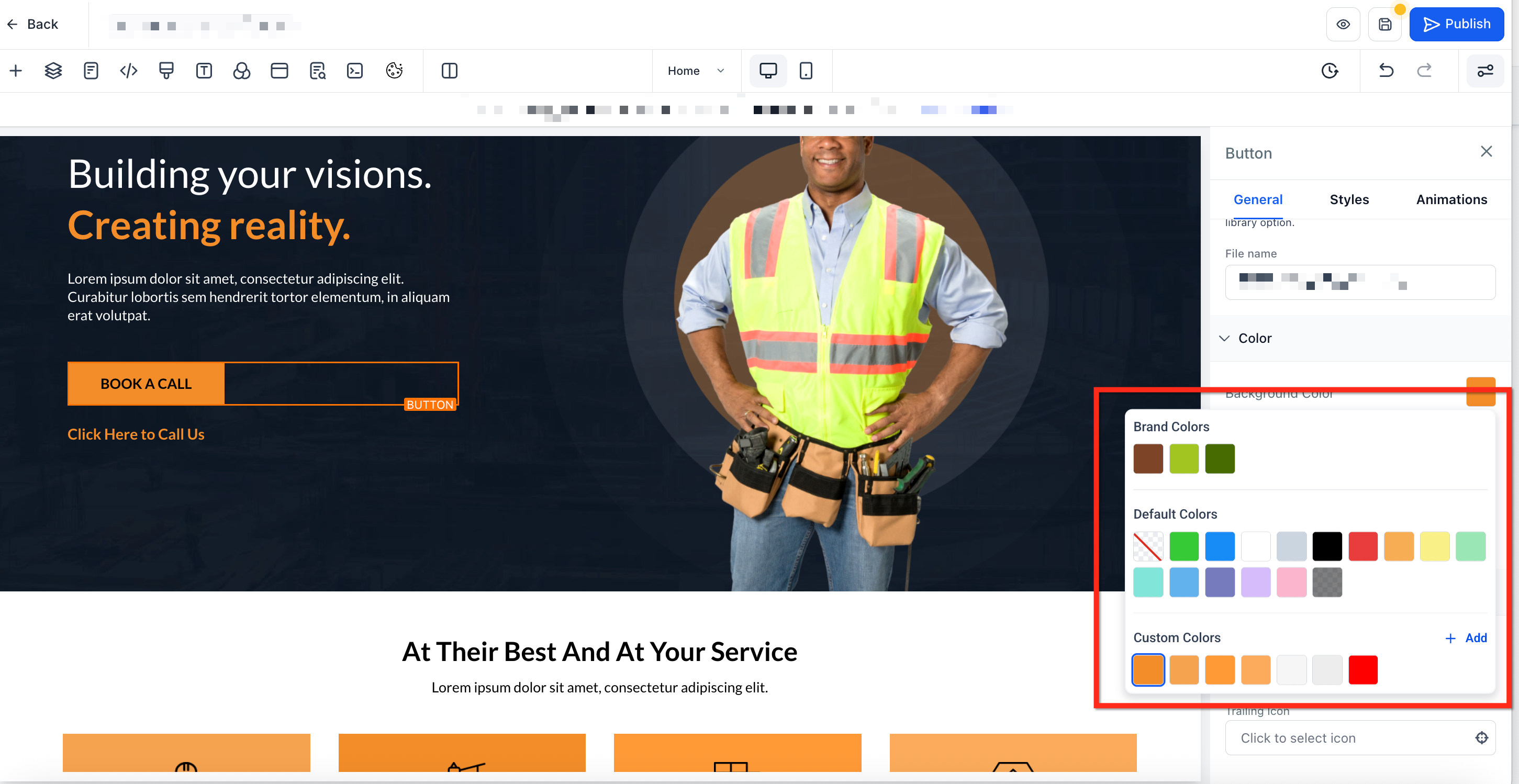
The Color Picker lives inside the Funnels & Websites Builder. It aggregates brand colors, the system’s default palette, and any custom shades you add. From the style panel you can open the picker for any element or use the inline text toolbar to change individual characters.
When you add a new shade, you choose a format, HEX, RGB, or a dynamic token, assign a readable label, and save it. The palette then shows the new tile alongside existing colors. Validation checks that the shade isn’t already present and that any token you enter exists in the current location’s custom values.
03How businesses use the Color Picker
- Real estate agency. Agents open a property listing page, select the headline text, and use the inline toolbar to color a single word for emphasis. They also add a brand specific “CTA Blue” custom shade to the palette for call to action buttons.
- Fitness studio. The studio adds a custom “Energy Orange” shade via the + Add button, labels it, and saves it. Later they apply this color to button icons without altering the button text, keeping the design bright and on brand.
- Ecommerce boutique. The boutique creates a custom token that pulls the primary color from its custom values. They select the token format in the picker, name it “Primary Brand,” and use it across product description text to ensure a single change updates all instances.
04How to set up and use the Color Picker in HighLevel
Use the Color Picker
- Open an existing funnel or website page in the builder.
- Click on a section, element, or text block you want to edit.
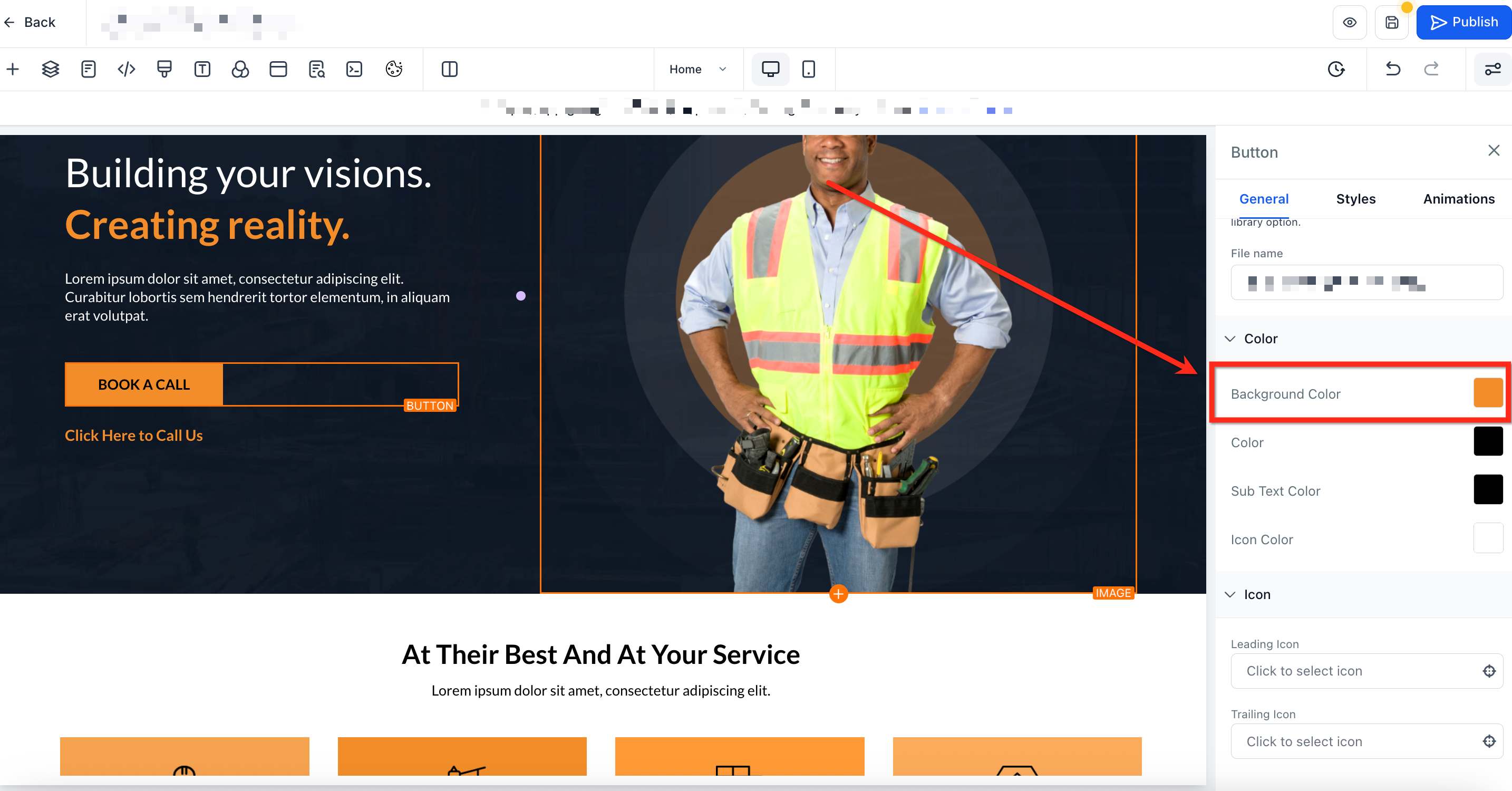
- Press the Color square in the style panel or the A icon in the inline toolbar for text.
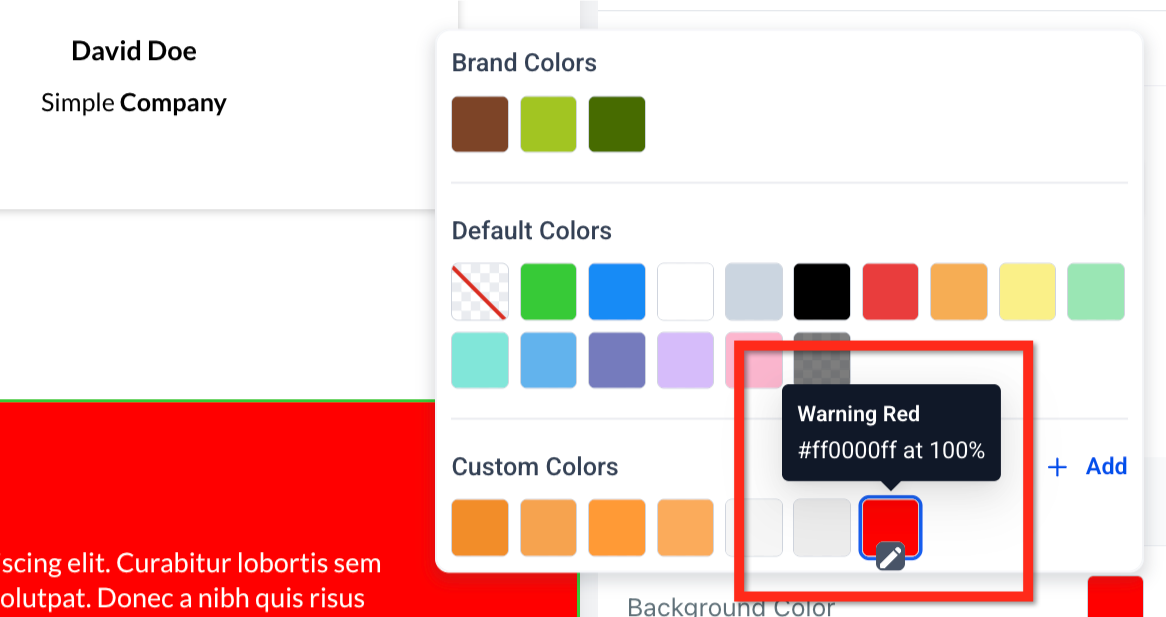
- Select a shade from brand, default, or existing custom palette.
- Click the + Add button to start creating a new custom color.
- In the custom color panel, choose the desired hue.
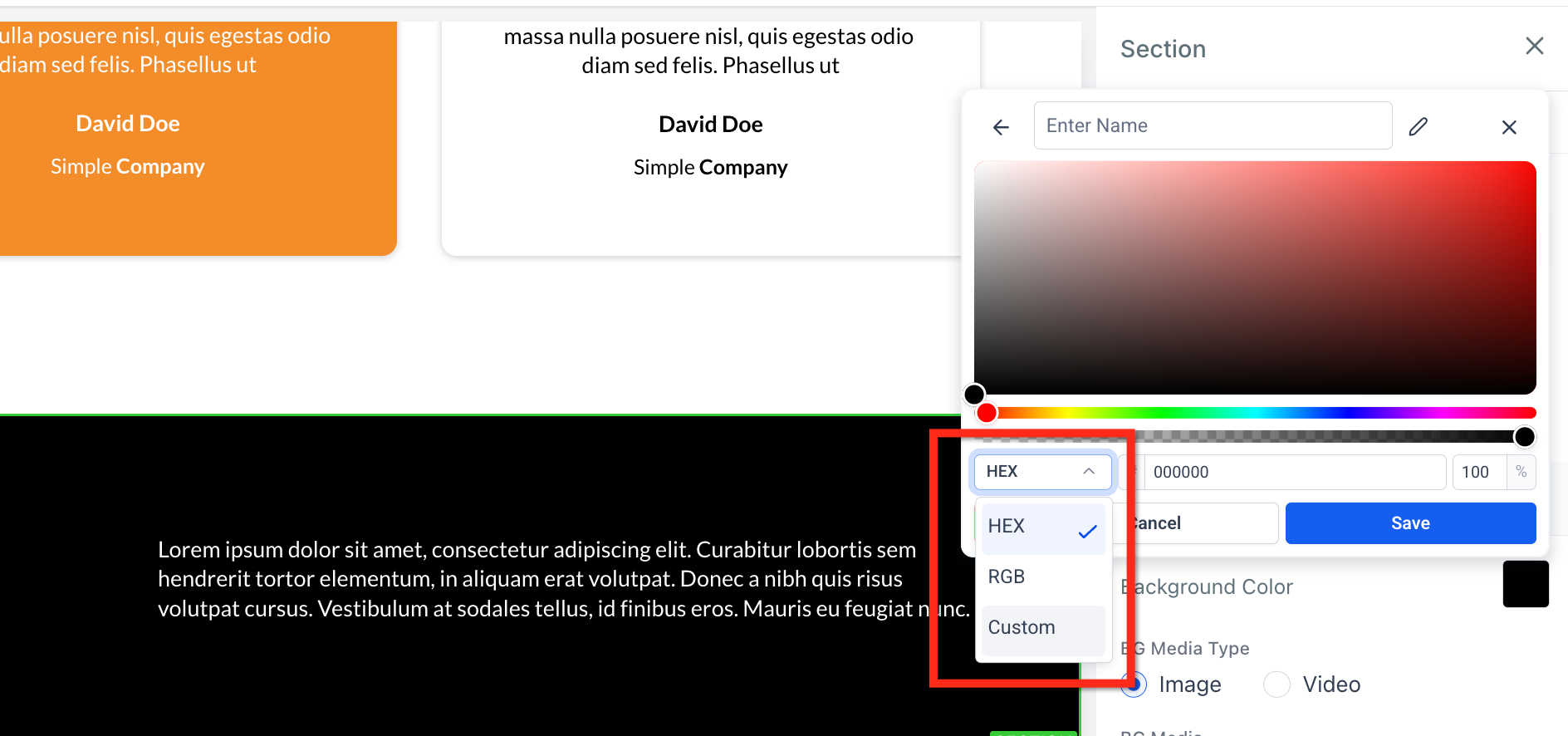
- Use the dropdown to switch between HEX, RGB, or Custom format.
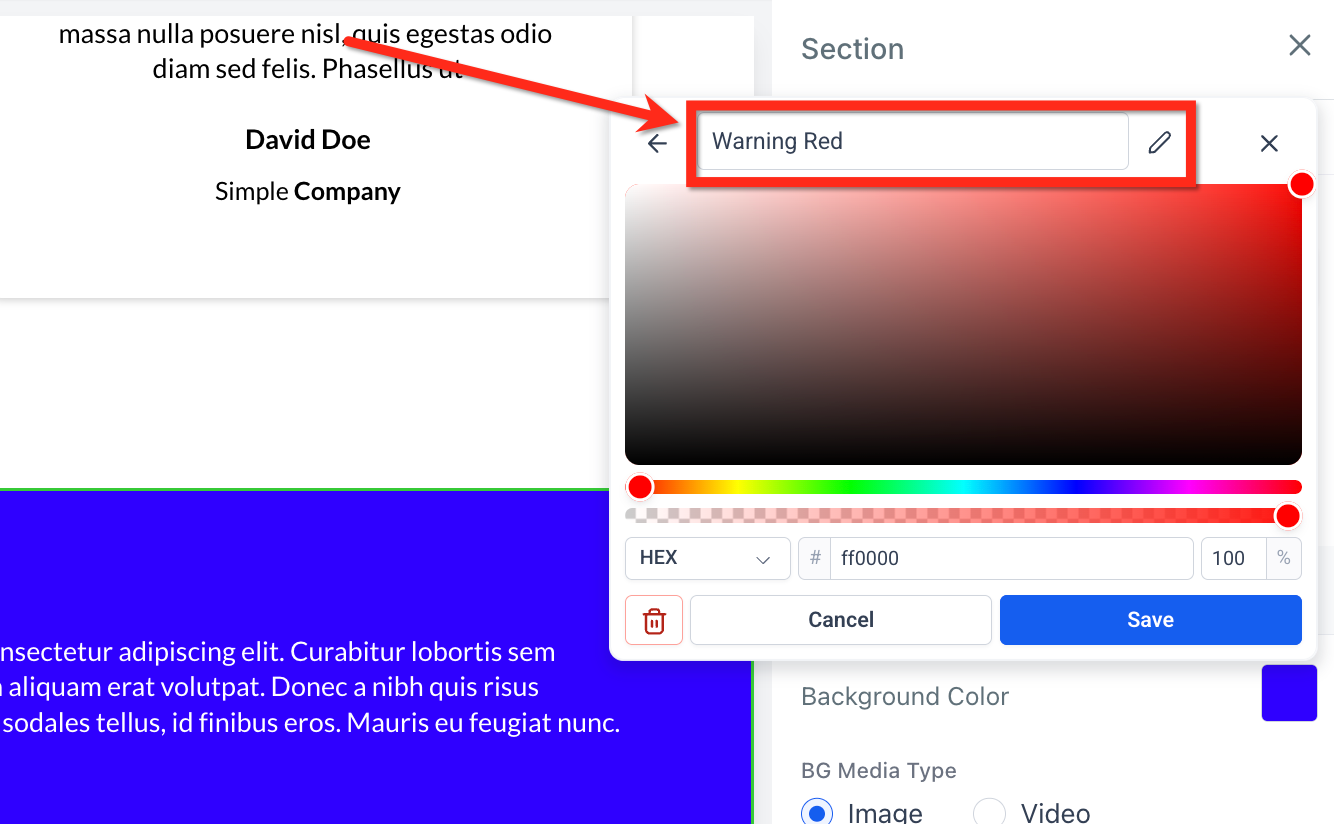
- Enter a descriptive label for the new color.
- Click the Save button to add the color tile to your palette.
05What it looks like in HighLevel
06Settings that matter
- Color square. Opens the color palette for the selected element’s background, border, or text.
- A icon. Launches the inline text color options for highlighted text.
- + Add. Displays the panel where a new custom color can be defined.
- Format dropdown. Allows selection of HEX, RGB, or a custom token format for the color value.
- Color name field. Holds the label you assign to a custom shade for easy identification.
- Save button. Commits the new color to the palette after you have chosen a value and label.
- Icon Color. Enables independent coloring of button icons without affecting button text or subtext.
07Things to know before you rely on it
- Default palette colors may be updated by the platform, so shades can change over time.
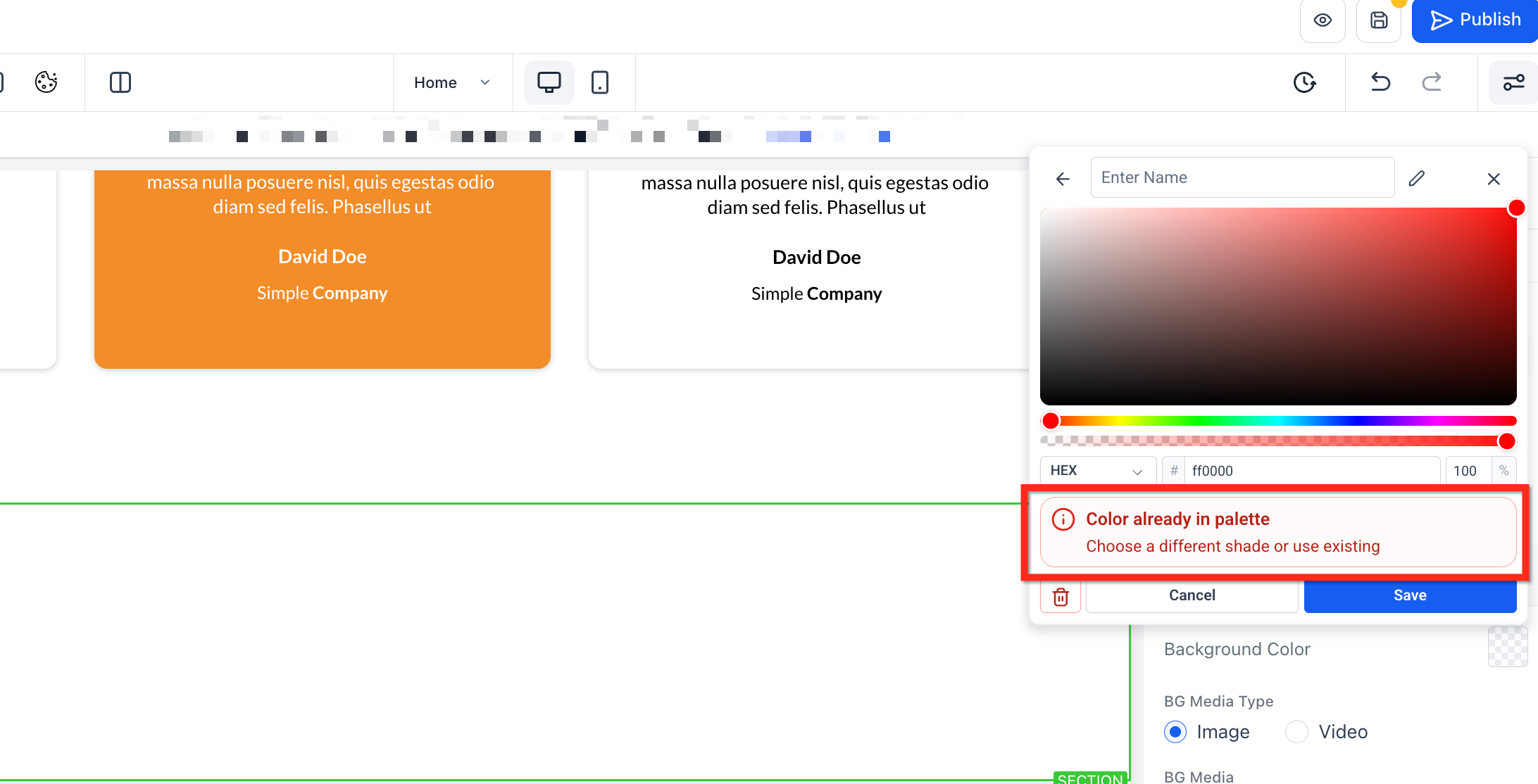
- The picker blocks saving a shade that already exists in the palette.
- Custom token values must be present in the current location’s custom values before they can be stored.
- Duplicate color warnings appear right away if the entered value matches an existing swatch.
08If something goes wrong
- Duplicate color message appears when saving.. Change the color value or edit the existing swatch instead of creating a new one.
- Custom value color will not save.. Confirm the token exists in the account’s custom values and that the final value does not duplicate another swatch.
09How it connects to the rest of HighLevel
- Set up your website pages and review mobile settings before applying colors. Website setup guide
- Start a free trial to experiment with the Color Picker and other design tools. 30 day trial
Michael's take

The Color Picker feels like a small convenience that can become a real shift for anyone who wants tight control over brand visuals. When you can change a single word’s hue without touching the whole block, you get that extra punch of emphasis without rebuilding sections.
A boutique ecommerce shop that relies on highlighted sale terms will love this. They can set a “Sale Red” once, apply it to the word “50%” in multiple product descriptions, and later tweak the exact shade from the Brand Board to keep the look fresh.