
01Who this is for
- Marketing managers who change landing page URLs and need visitors to reach the updated page without error.
- Web developers consolidating multiple domain versions and requiring a single address for all traffic.
- SEO specialists protecting link equity when a page is renamed or moved.
02301 URL redirects, explained
The 301 redirect feature lets you define a source address and a destination within the platform. When a visitor or a crawler requests the source, the platform returns a permanent move response and sends the request to the chosen target. You can apply the rule to an entire domain or to a single path.
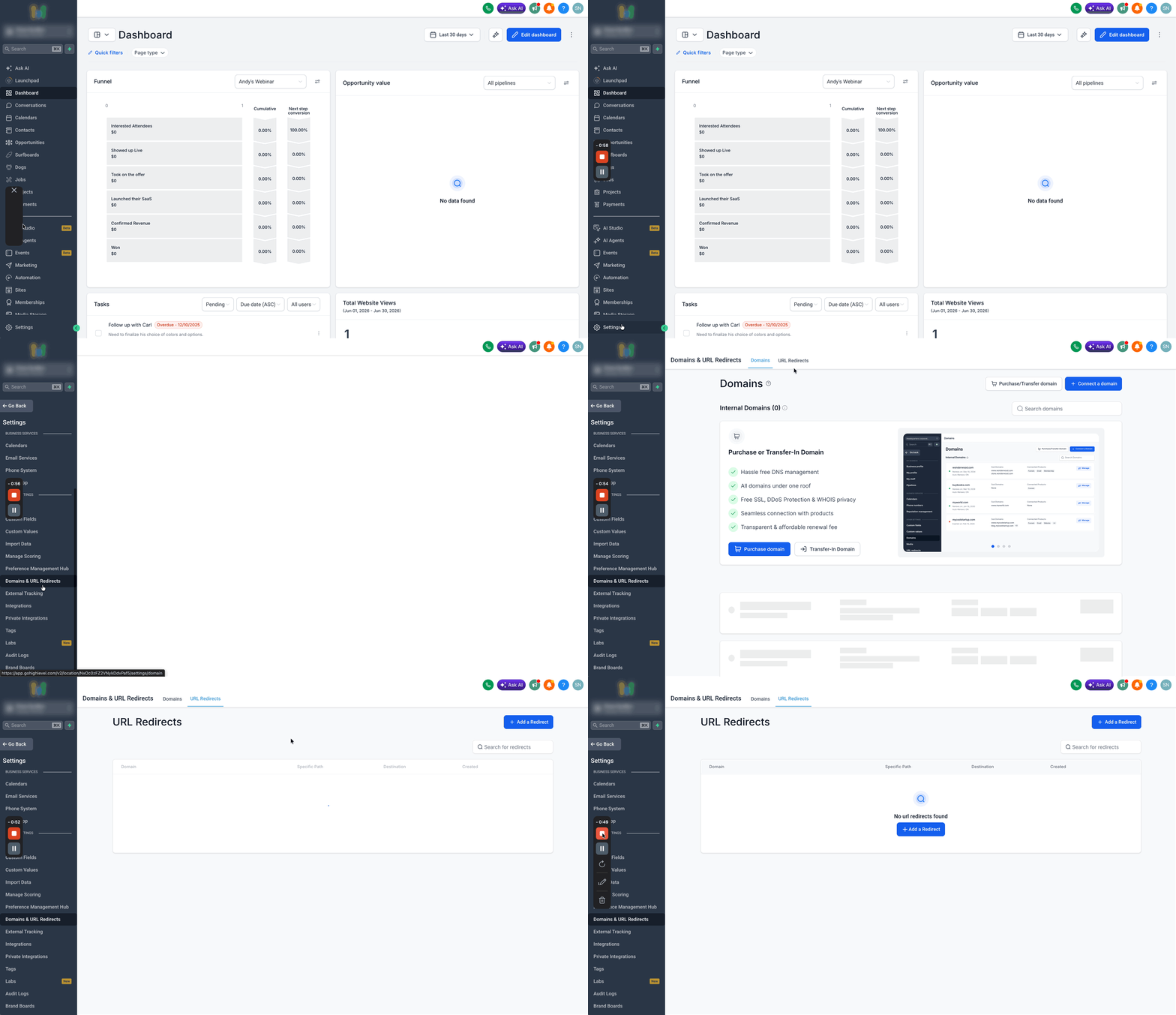
Redirect rules are created in the Settings area under Domains & URL Redirects. The interface shows a list of existing redirects and offers options to add, edit, or delete entries. Each rule records the source domain, the optional path, and the destination type, custom URL, funnel step, or website page, and is saved as a permanent HTTP 301 response.
03How businesses use 301 URL redirects
- Ecommerce store. When a product page URL changes after a redesign, the owner adds a specific path redirect from the old slug to the new product page so shoppers arriving from old links are sent directly to the updated page.
- Coaching business. If the primary domain shifts from www.example.com to example.com, the coach creates a domain wide redirect so all traffic automatically lands on the new root address.
- Local service provider. After retiring an outdated service page, the provider sets a redirect from the old URL to a related service page, ensuring callers using old marketing material see the current offering.
04The numbers and rules that matter
- Reduced broken links: Helps prevent 404 errors when pages are renamed, deleted, or moved.
- Avoid special characters?, %, &, =, # in redirect paths.
- Supported nested paths use lowercase letters, numbers, hyphens (, ) and forward slashes ( / ).
05Before you start
- The domain you intend to redirect from must already be added to your HighLevel subaccount.
06How to set up and use 301 URL redirects in HighLevel
Set up a 301 redirect
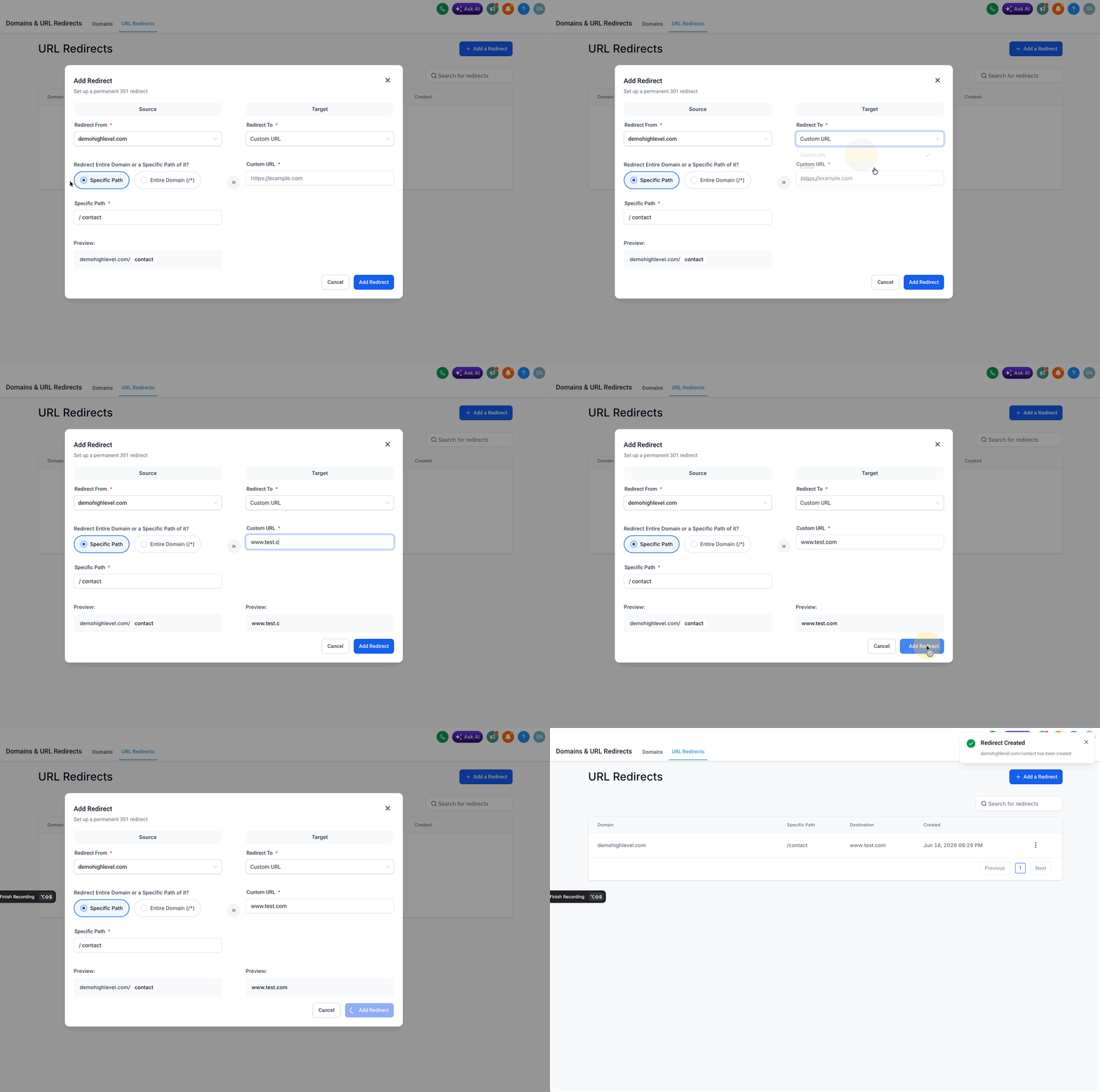
- Open Settings and select Domains & URL Redirects.
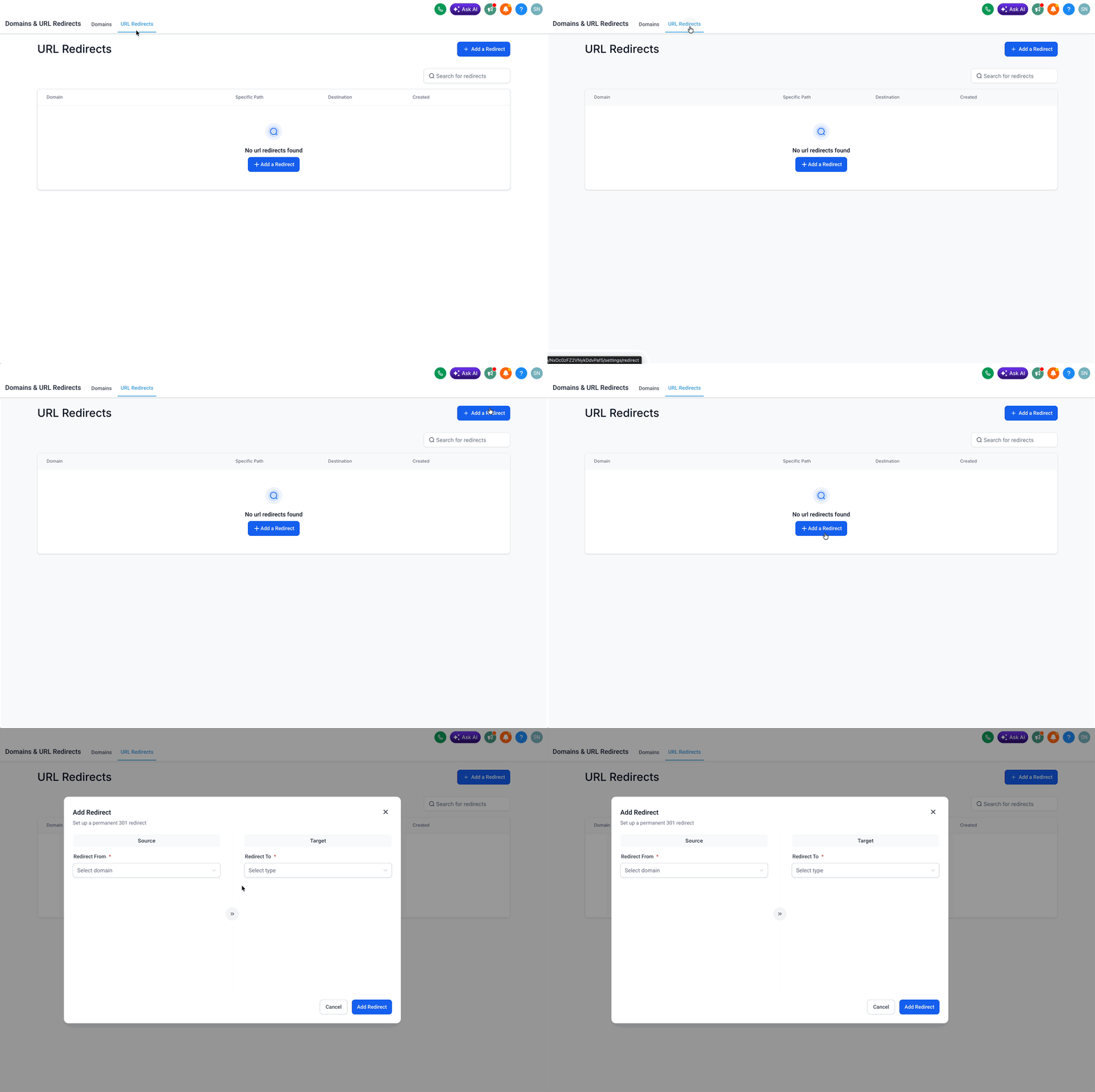
- Click the URL Redirects tab at the top of the screen.
- Press the + Add Redirect button in the upper right corner.
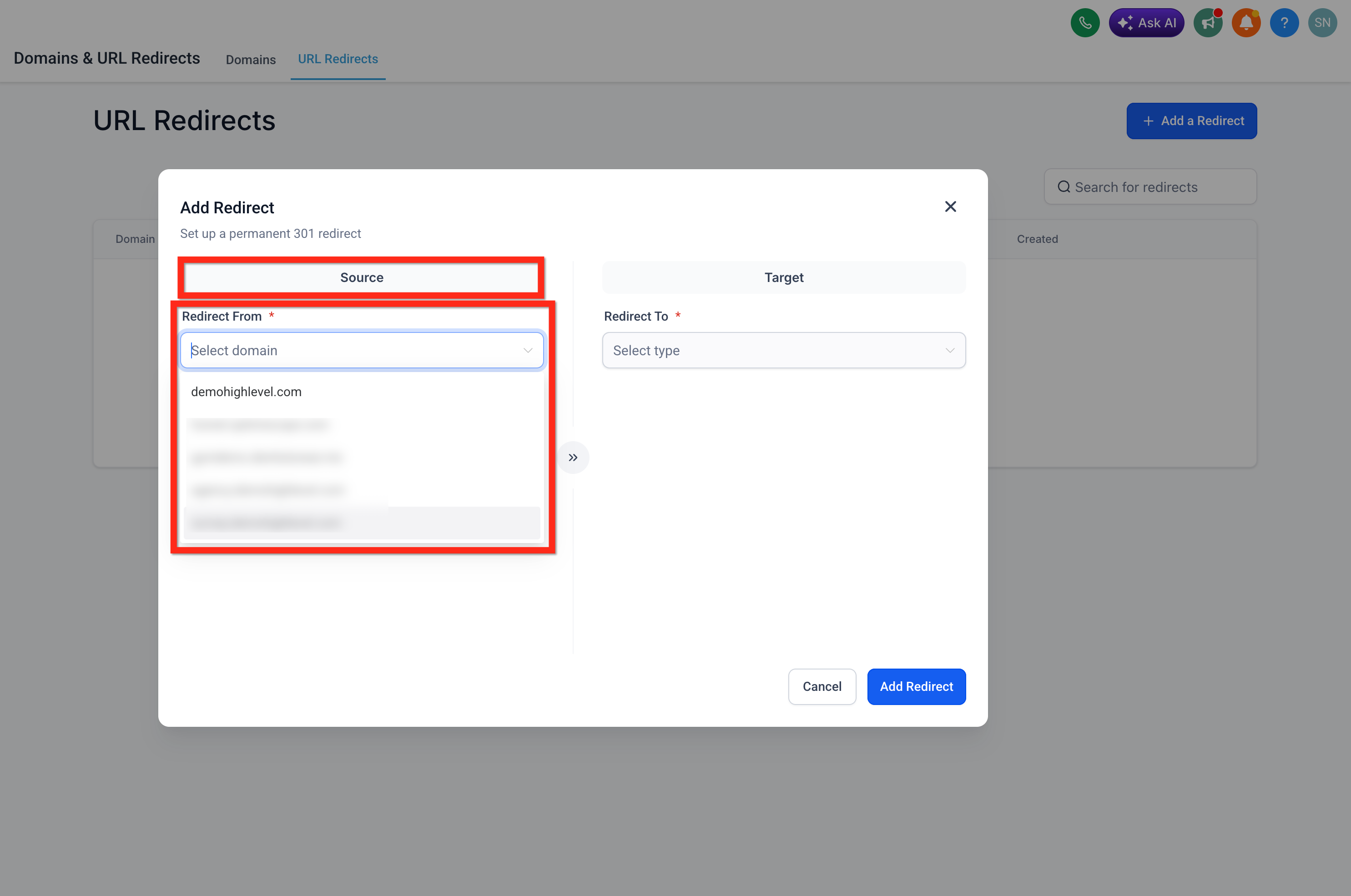
- In the Add Redirect window, open the Redirect From dropdown under the Source section.
- Choose the domain that will serve as the source of the redirect.
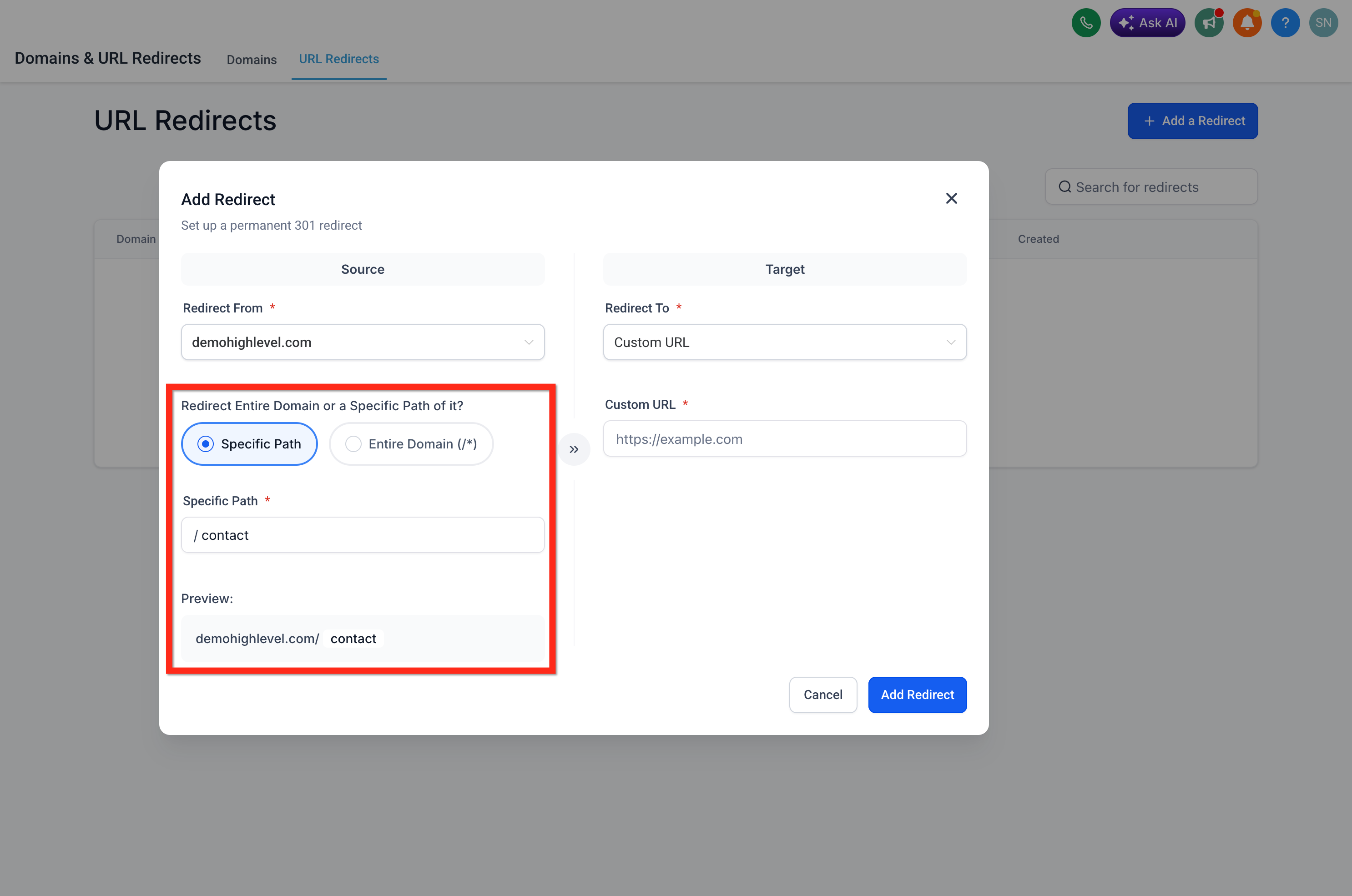
- Select whether to redirect the entire domain or only a specific path.
- If redirecting a path, type the clean URL slug without special characters and ensure the path contains only lowercase letters, numbers, hyphens and slashes.
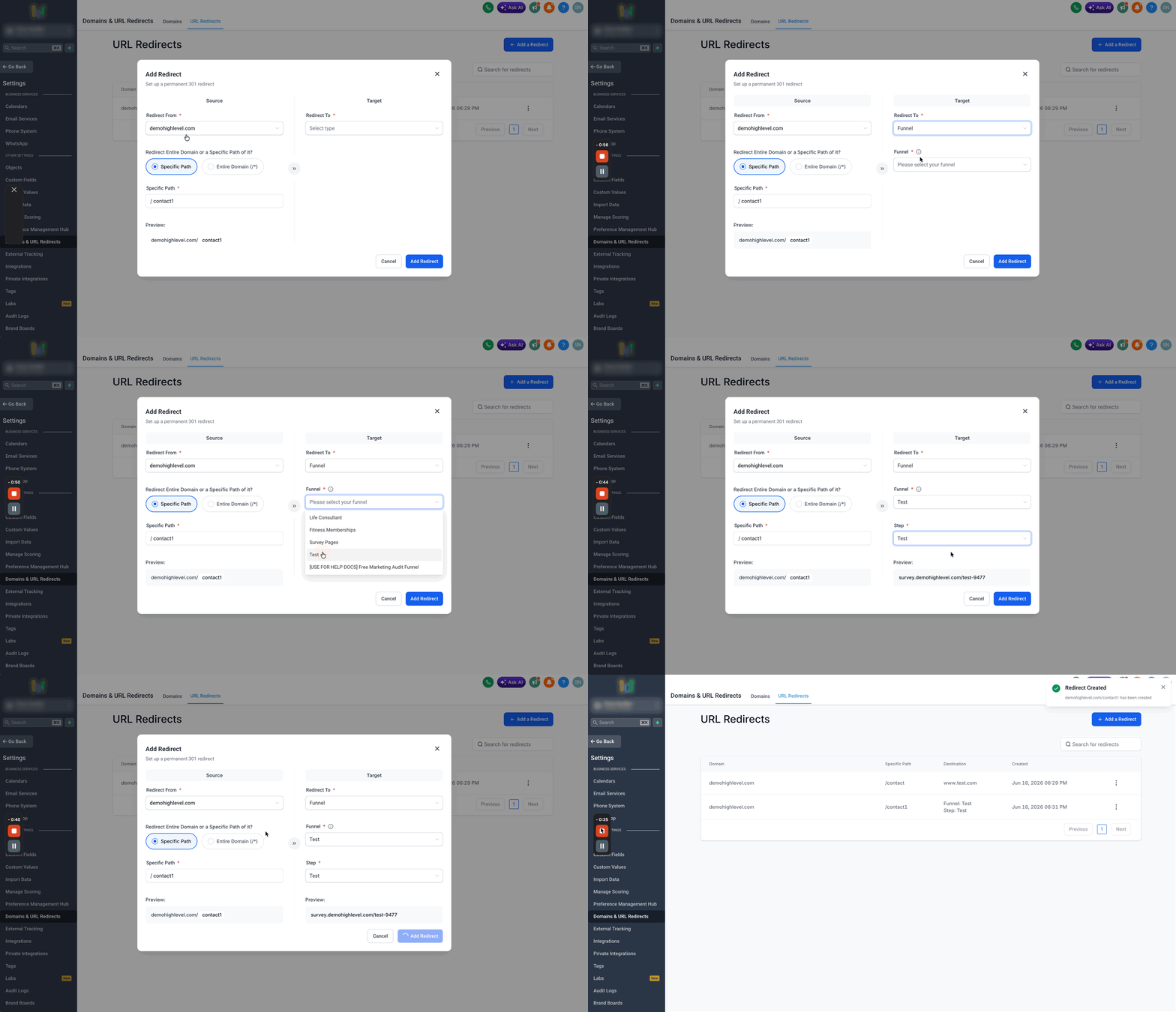
- In the Target section, pick Custom URL, Funnel, or Website, define the destination, and confirm by clicking Add Redirect.
07What it looks like in HighLevel
08Settings that matter
- Redirect From. Determines which domain the redirect will listen to; only domains already added to the account appear.
- Redirect Target. Specifies where traffic should be sent, an external address, a funnel step, or a website page linked to the chosen domain.
09Things to know before you rely on it
- Redirect paths cannot contain characters such as ?, %, &, =, or #; use only lowercase letters, numbers, hyphens and forward slashes.
- Nested paths are supported but must be entered as the full clean path, e.g., /resources/guides/getting started.
- Avoid creating chains of redirects; each source should point directly to the final destination.
- The destination must be published and, for funnels or websites, linked to the same source domain.
10If something goes wrong
- Redirect isn’t working. Make sure the source domain is connected and that the entered path matches the URL exactly.
- Redirect loop. Check that the destination does not point back to the original source URL.
- 404 after changing a page path. Create a redirect from the old path to the new page and verify the target page is published.
- Funnel isn’t available as a target. Confirm the funnel is linked to the selected source domain.
- Website isn’t available as a target. Confirm the website is linked to the selected source domain.
- Specific path redirect fails. Remove any query parameters or unsupported characters and use a clean path.
- Unexpected redirect behavior. Look for other redirects that might affect the same source or destination.
- Google still shows the old URL. Allow time for re crawling; use Google Search Console to request indexing if needed.
11How it connects to the rest of HighLevel
- Learn how to add and verify a domain before creating redirects. Domain Connect guide
- Set up website pages that can serve as redirect destinations. Website setup overview
- Review HighLevel pricing to confirm access to redirect features. Pricing page
Michael's take

Michael ReimerFounder of CRM Pros, HighLevel Commander and Certified Admin
A clean slug makes the redirect work every time.
Get More InformationOpens on HighLevelPublished November 2, 2026 · Updated November 16, 2026