
01Who this is for
- Agency owners can let migration specialists access client sites without exchanging passwords.
- Small business Founders can protect their WordPress login while still receiving professional migration help.
02Secure access links, explained
The feature creates a one time, time limited URL that gives a LeadConnector Expert full admin access to a WordPress site. The link is generated through the LC Migrator plugin, copied automatically, and can be shared in a White Glove Migration request.
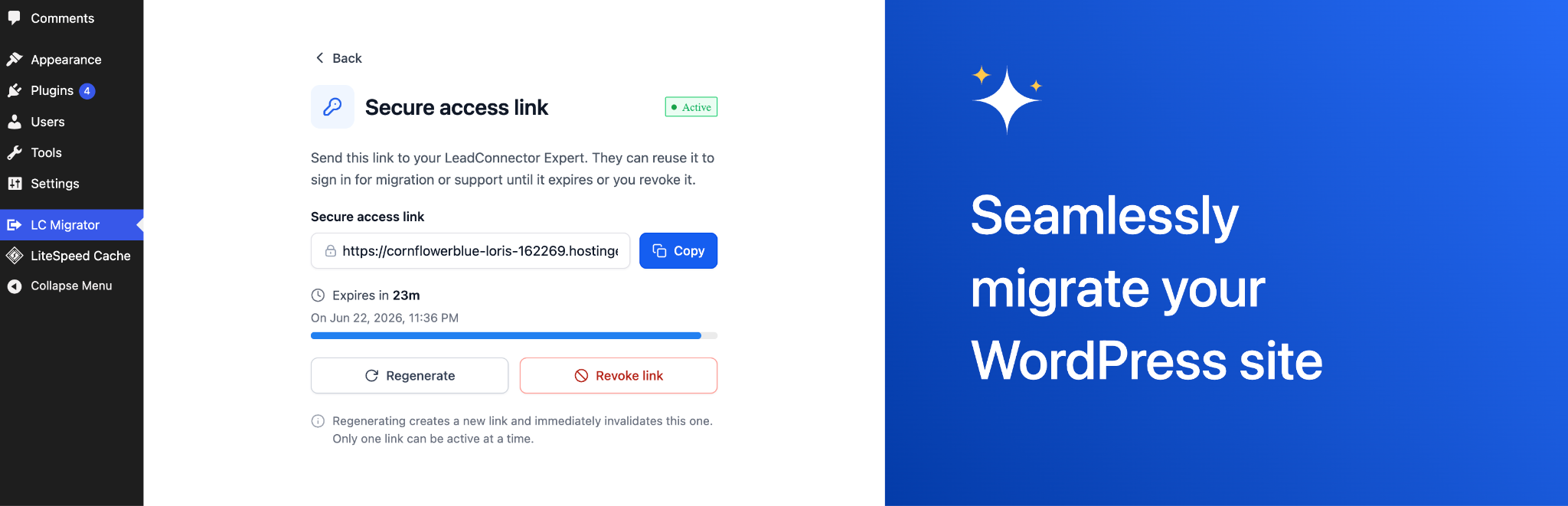
The link lives inside the LC Migrator section of the WordPress admin dashboard. From there, users can set how long the link stays active, copy it, regenerate a new one, or revoke access right away. Only a LeadConnector Expert can use the URL; no other user can sign in with it.
03How businesses use secure access links
- Digital marketing agency. The agency installs the LC Migrator plugin on a client’s WordPress site, generates a secure link, and sends it with the migration request. The LeadConnector Expert uses the link to perform the migration, while the agency never sees the client’s password.
- Ecommerce store owner. The store owner adds the plugin, creates a link set for five days, copies it, and pastes it into the White Glove request form. The expert accesses the site, moves the store to HighLevel, and the link expires automatically.
- Non profit organization. The organization generates a link with the minimum weekend period, shares it with the migration specialist, and revokes the link as soon as the work finishes, ensuring the specialist’s access ends promptly.
04The numbers and rules that matter
- Link active for period can be from 24 hours up to 7 days.
- Default active period is 3 days.
- Minimum active period on Friday, Saturday, or Sunday is 4 days.
05Before you start
- You must have administrator access to the WordPress site you intend to migrate.
06How to set up and use secure access links in HighLevel
Install lc migrator plugin
- Download the LC Migrator plugin zip file from the supplied link without unzipping it.
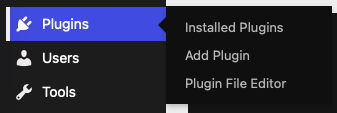
- In WordPress admin, go to Plugins > Add Plugin.
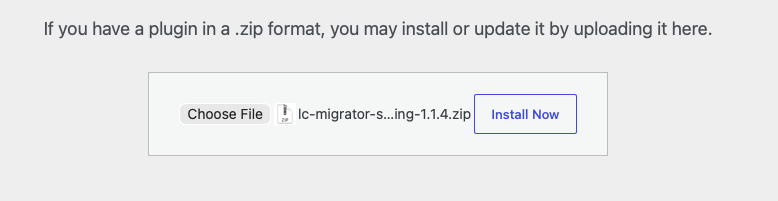
- Press the Upload Plugin button.
- Select the downloaded zip file and click Install Now.
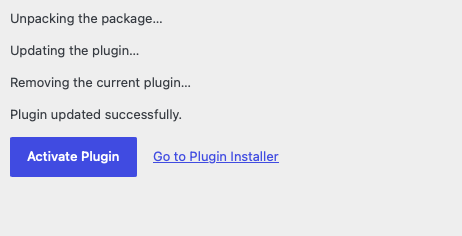
- When installation completes, click Activate Plugin.
Generate the secure access link
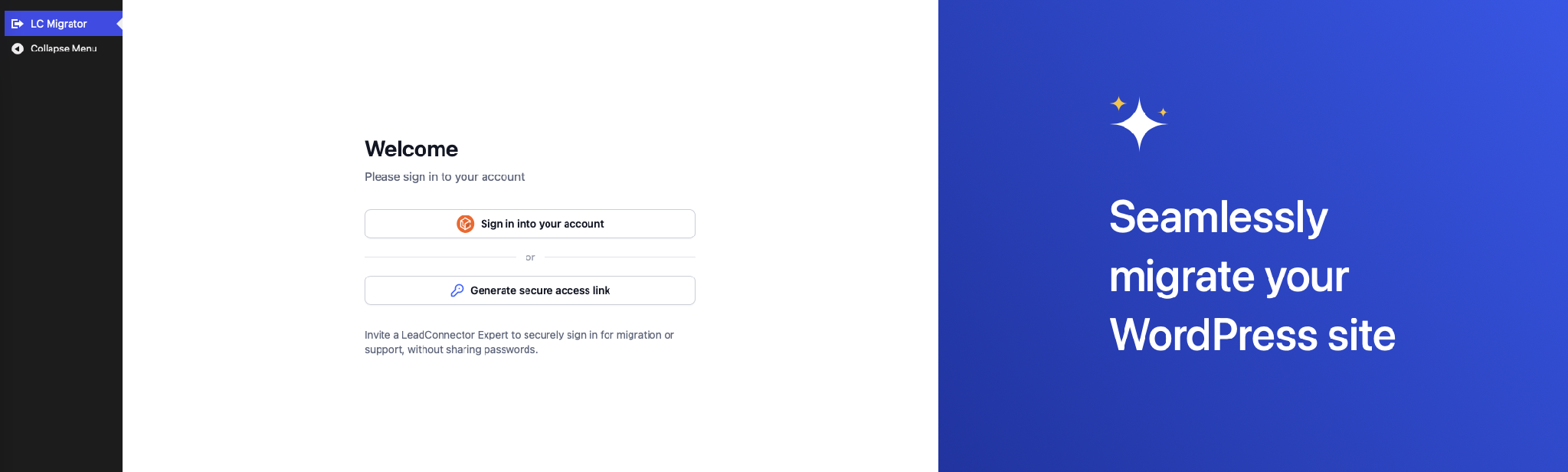
- Open the LC Migrator menu in the WordPress admin sidebar to land on the Welcome screen.
- Click the Generate secure access link button; no account sign in is needed.
- Choose the desired active period under the Link active for option, from 24 hours up to 7 days. If the link is created on Friday, Saturday, or Sunday, the minimum active period is 4 days.
- Read the notice that the link provides full admin access and is usable only by a LeadConnector Expert.
- Press Generate secure access link again to produce the link.
- In the confirmation window, select Generate link to confirm and create the URL.
- The generated link is automatically copied to your clipboard; you can also click Copy later if needed.
Manage your link
- View the active link screen where a countdown shows when the link will expire.
- Select Regenerate to create a new link, which right away invalidates the previous one.
- Choose Revoke link and confirm to terminate access immediately.
07What it looks like in HighLevel

08Settings that matter
- Link active for. Sets how long the generated secure access link remains valid before it expires automatically.
09Things to know before you rely on it
- Only a LeadConnector Expert can use the generated link; no other user can sign in with it.
- The link grants full admin privileges for the duration it is active.
- Link duration can be set from 24 hours up to 7 days; the default is 3 days.
- If the link is created on Friday, Saturday, or Sunday, the minimum active period is 4 days.
- Only one secure access link can be active for a site at any given time.
- The link expires automatically when the timer ends, but it can be revoked earlier.
10How it connects to the rest of HighLevel
- Install the LC Migrator plugin to enable White Glove migrations. LC Migrator plugin guide
- Set up WordPress hosting in HighLevel before generating a secure link. WordPress hosting setup
- Create and manage WordPress sites within HighLevel to prepare for migration. WordPress site management
Michael's take

Security is a big concern when handing over admin rights, and a link that can be timed and revoked gives you a tighter grip on who sees your site. The fact that only a LeadConnector Expert can use the link adds an extra layer of protection, so you aren’t exposing passwords to anyone else.
The upside is clear. You get a migration done without ever typing out your credentials. The link’s autoexpiry and one at a time rule keep control in your hands, and you can revoke or regenerate whenever you need. It’s a clean way to let the experts do their job while you keep the keys.