
01Who this is for
- Businesses that sell recurring subscriptions or payment plans use this feature to confirm a client’s payment method before activation.
- Agencies building client sites in HighLevel need to ensure authorization is turned on for each product to avoid failed enrollments.
02Card authorizations, explained
The authorization option is a toggle inside each product’s settings. When enabled, the system attempts to place a hold for the amount you specify. If the client’s account lacks sufficient funds, the checkout stops and they cannot proceed. Only subscription and payment plan products support this feature. After the hold is approved, HighLevel immediately refunds the amount, though the bank may take up to five business days to release the funds. If a plan includes trial days, the trial begins as soon as the card is authorized. The setting lives in the older Version 1 website builder and is not enabled by default, so you must activate it for every plan attached to a payment form.
03How businesses use card payments
- Fitness studio. The studio adds a $1 authorization to each membership plan in the website builder. When a new member signs up, the platform checks the card for the $1 hold, then refunds it, confirming the card is valid before granting access (per HighLevel's help center, checked November 2026).
- Online course provider. For each course enrollment plan, the provider enables authorization and sets a small amount. Prospective students must have sufficient funds for the hold, ensuring the subscription can be charged when the course starts.
- Software as a Service (SaaS) startup. The SaaS adds authorization to its monthly and annual subscription plans. During sign up, the system places a hold, then refunds it, allowing the startup to verify the payment method before activating the account.
04The numbers and rules that matter
- Funds may take up to 5 business days before being returned.
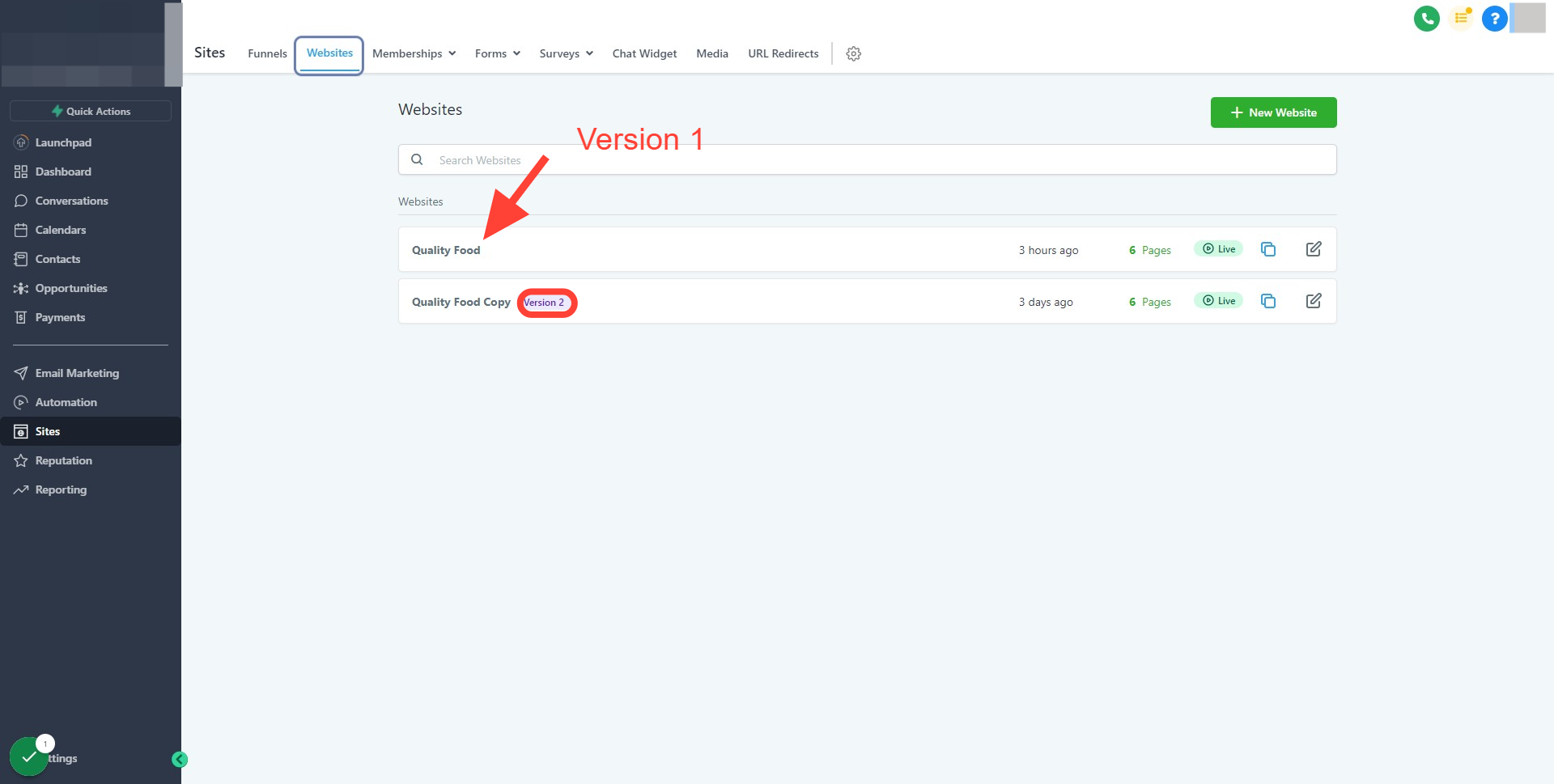
- Only works with the older version (Version 1) of the website builder.
05Before you start
- Use Version 1 of the HighLevel website builder.
- Attach at least one product (subscription or payment plan) to the order form before editing authorization.
06How to set up and use card payments in HighLevel
Authorize card payment for a plan
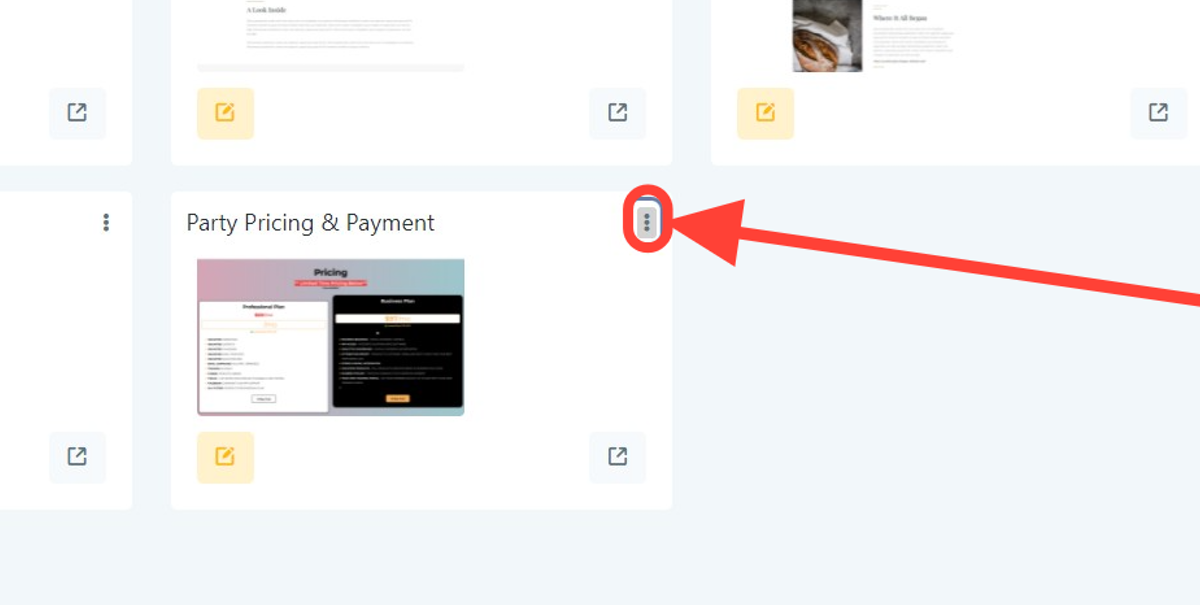
- Open the website page that contains the order form.
- Click the three dot menu on the form element.
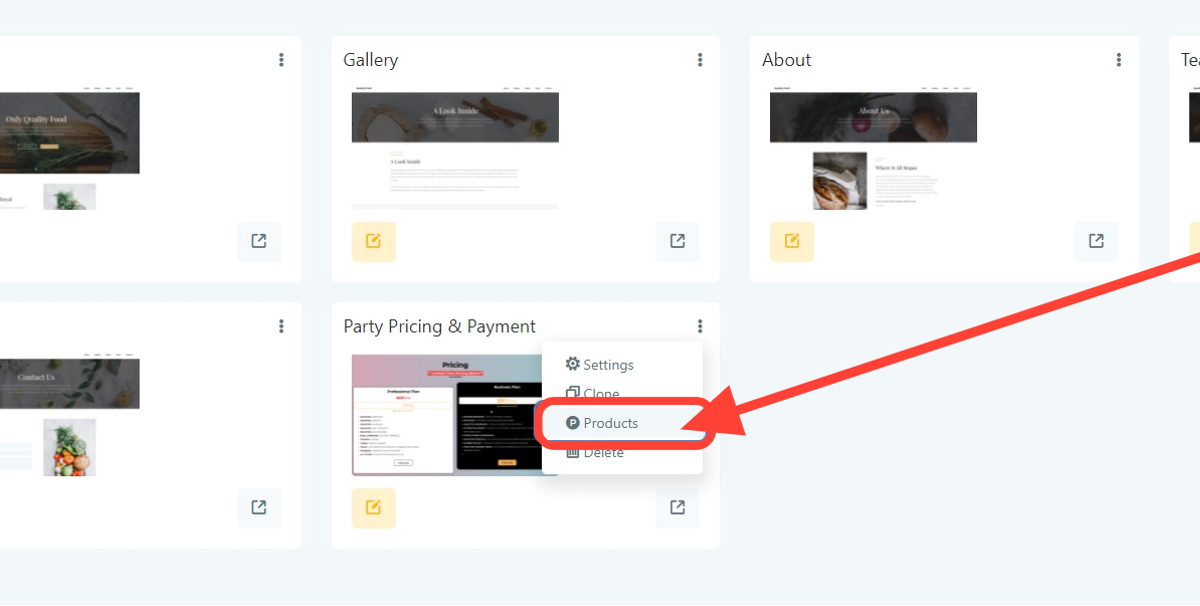
- Select “Products” from the menu.
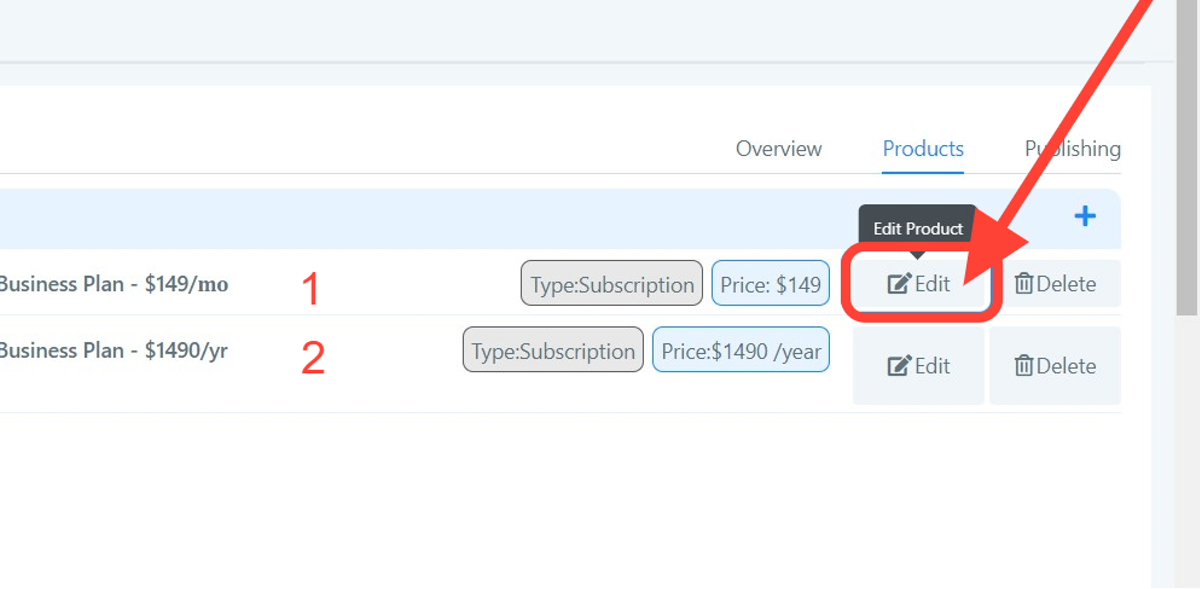
- Press the edit icon next to the plan you want to modify.
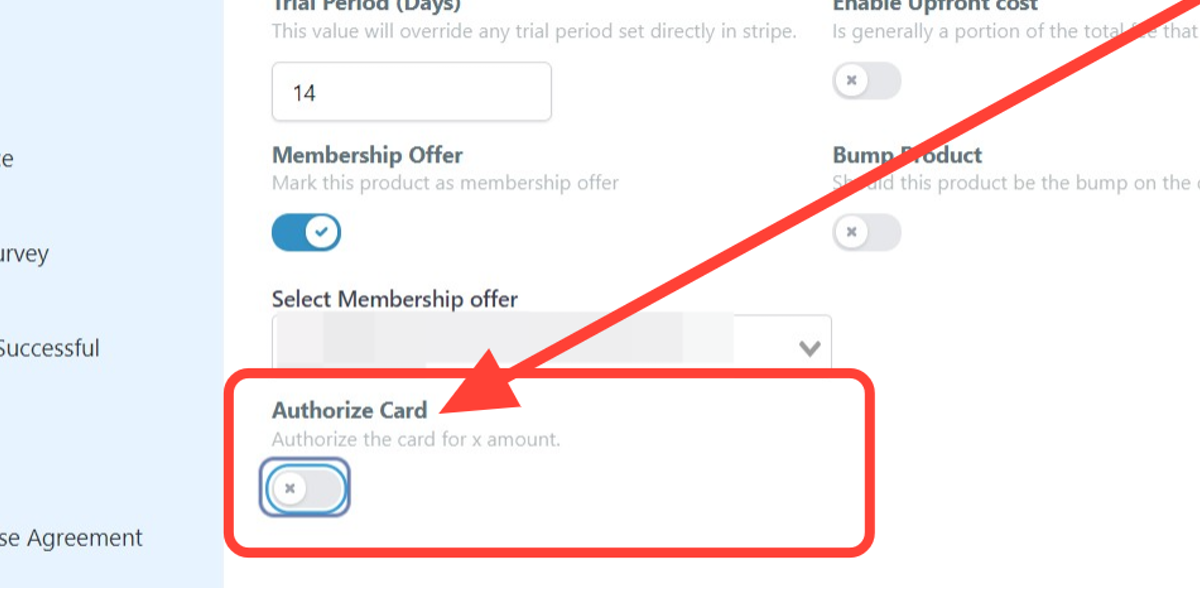
- Choose the “Authorize Card” option.
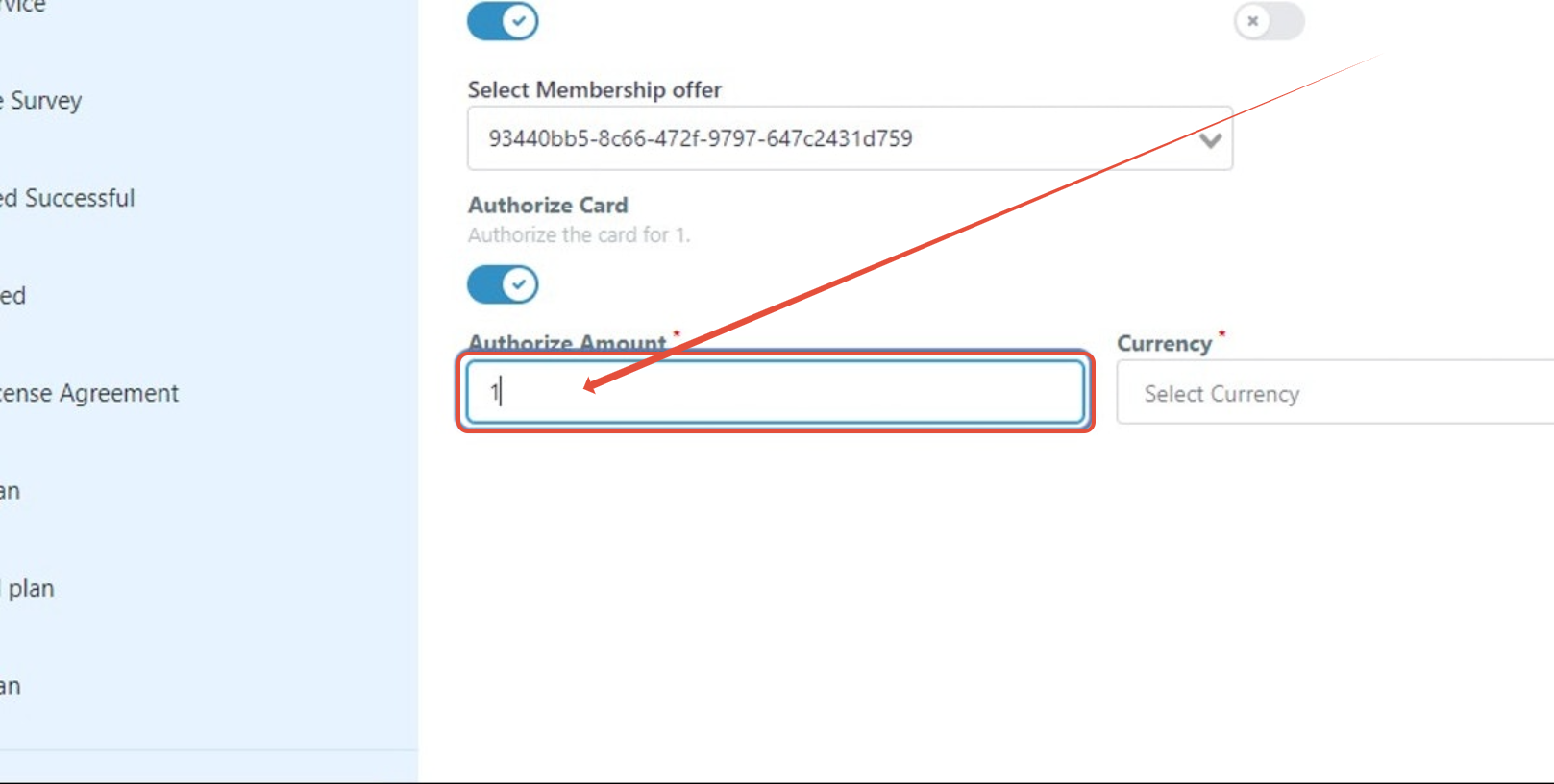
- Enter the dollar amount to authorize (the amount will be deducted and later refunded).
- Click the “Currency” field and select the desired currency, such as USD.
- Click “Update” to save the changes.
- Repeat these steps for each plan attached to the payment form.
07What it looks like in HighLevel
08Settings that matter
- Authorize Card. Enables a hold on the specified amount when a client attempts to purchase the plan.
- Currency. Determines the currency used for the authorization amount.
09Things to know before you rely on it
- Authorization is not enabled by default; you must turn it on for each plan.
- The feature works only with subscription and payment plan products.
- You must repeat the authorization setup for every plan attached to the form.
- The held amount is deducted and later refunded, which may take up to five business days.
- If the client’s account lacks sufficient funds, the checkout process stops.
10How it connects to the rest of HighLevel
- Overview of website building features in HighLevel All Sites features
- Start a free trial to test website builder settings 30 day trial
Michael's take

Putting a tiny dollar amount on the authorization line feels like a small convenience, but for businesses that need to guarantee a payment method before starting a subscription, it can be a real shift in how smooth the checkout feels. The temporary hold lets you catch invalid cards early without turning away a prospect.