
01Who this is for
- Marketing agencies, can create brand aligned CTA buttons without writing code.
- Online course providers, can make enrollment buttons stand out with gradient designs.
- Ecommerce stores, can highlight checkout buttons using blended colors that match their palette.
02Gradient button backgrounds, explained
Gradient button background styling is available inside the Form Builder, Survey Builder, and Quiz Builder. It replaces the single solid fill option with a gradient fill that blends two or more colors.
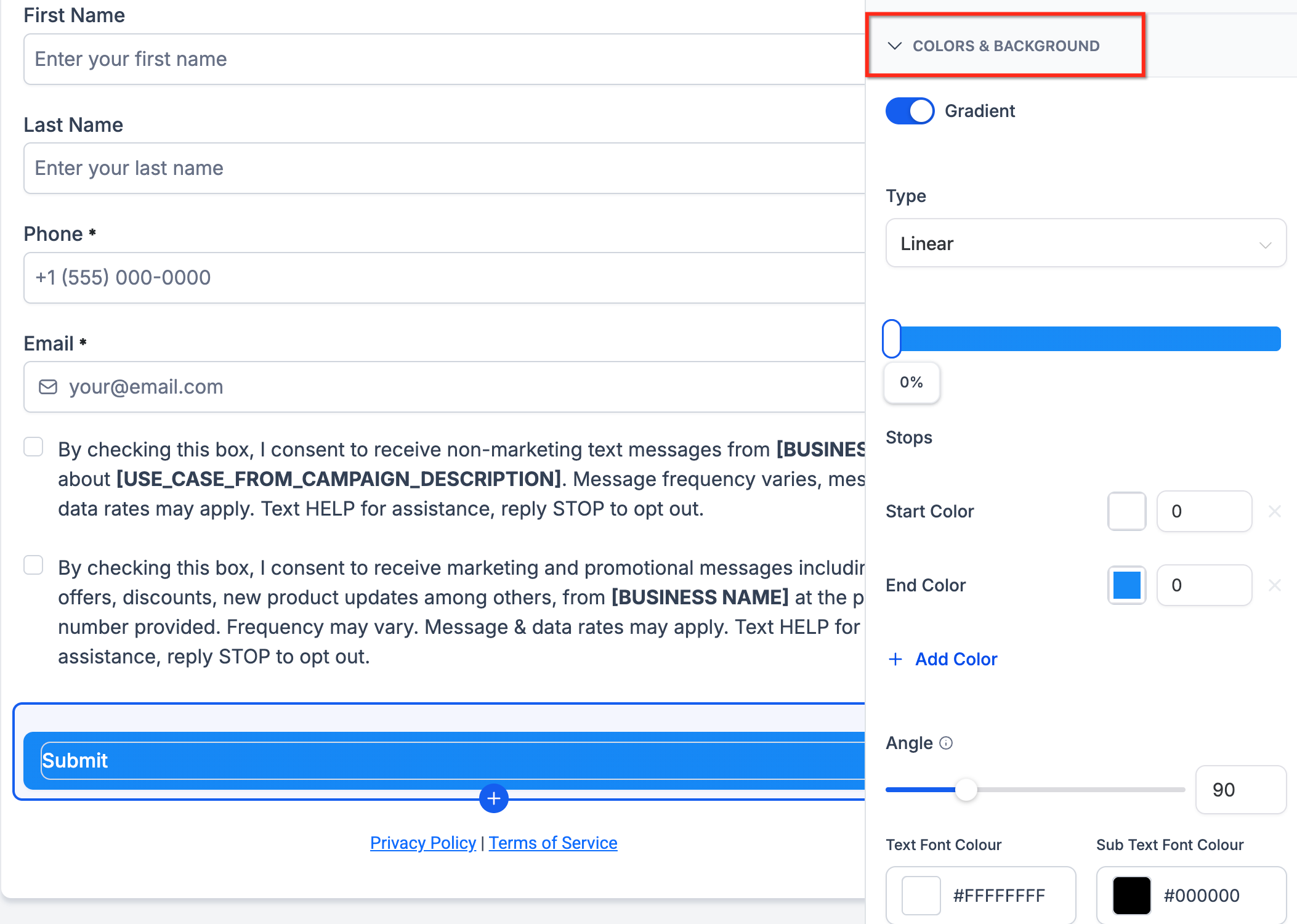
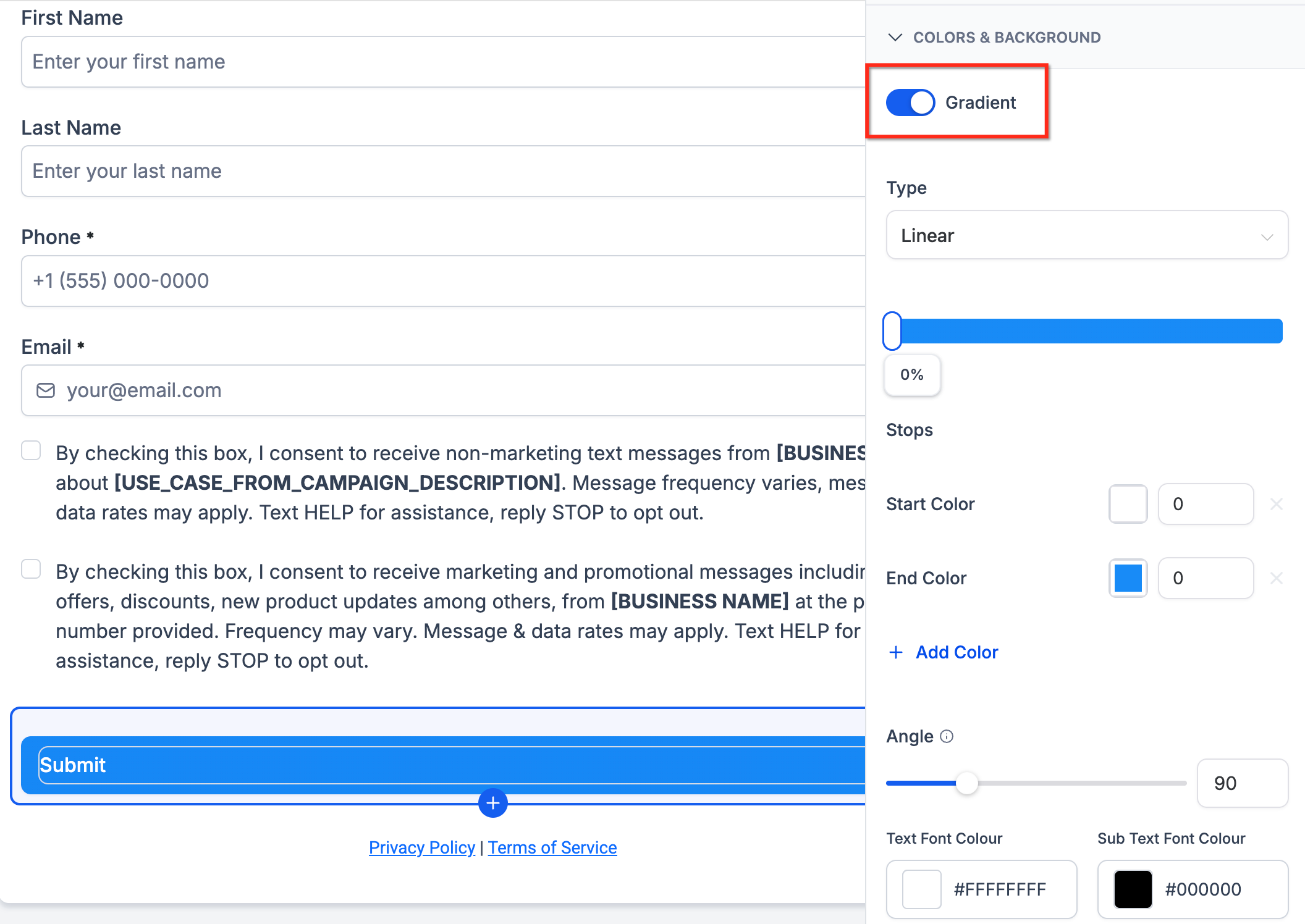
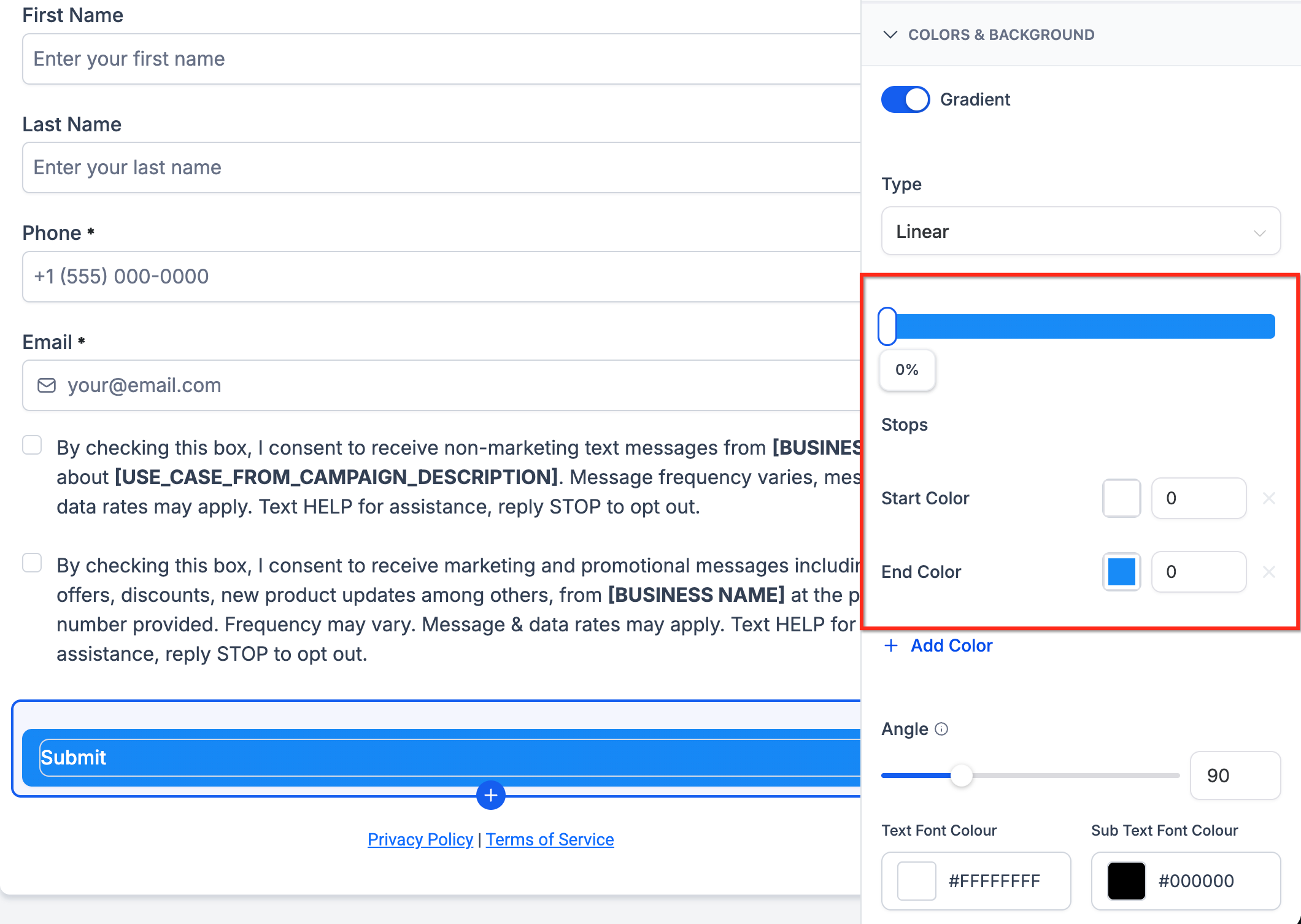
You can choose between a solid color or a gradient for the button background. When gradient is selected, you pick a gradient type, linear, radial, or angular, adjust the angle if the type supports it, and add multiple color stops to control where each hue appears. All options are configured directly in the button style panel, so no custom CSS is required.
The settings are previewed in real time within the builder, and the final design is saved when you publish the form, survey, or quiz.
03How businesses use gradient button backgrounds
- Digital marketing agency. The agency opens a Form Builder, selects the call to action button, switches the background to Gradient, chooses a linear type, sets brand colors as color stops, and publishes the form for client campaigns.
- Online education platform. The platform edits a Quiz Builder button, selects an angular gradient, adds multiple stops to reflect its logo colors, previews the quiz, and saves the changes to improve enrollment button appeal.
- Health clinic appointment system. The clinic accesses the Survey Builder, picks a radial gradient for the booking button, adjusts the angle to fit the page layout, adds two brand colors as stops, and publishes the survey for patient intake.
04The numbers and rules that matter
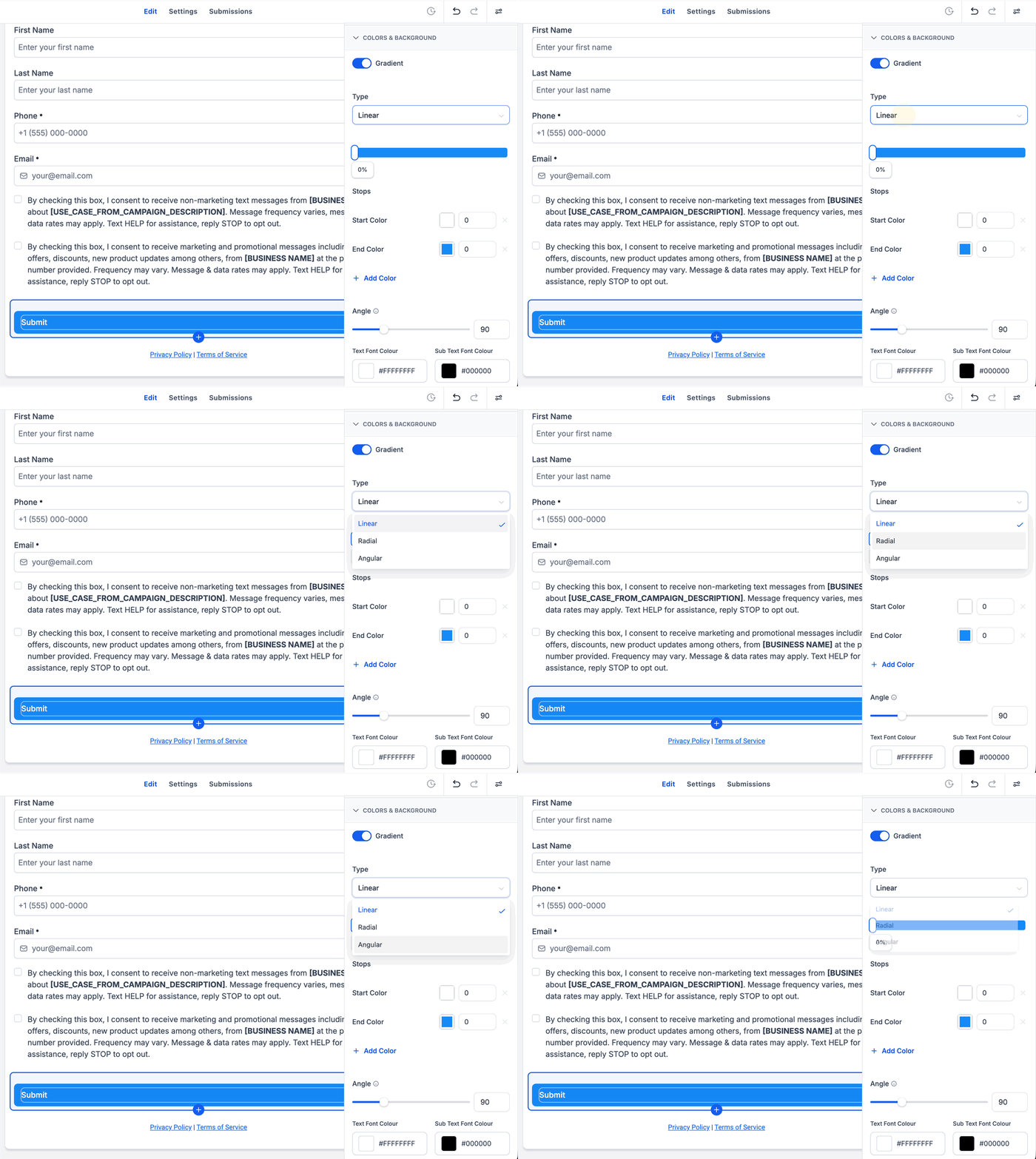
- Supported gradient types: Linear Gradient, Radial Gradient, Angular Gradient.
- Gradient button backgrounds are supported in the Form Builder, Survey Builder, and Quiz Builder.
05How to set up and use gradient button backgrounds in HighLevel
Set up gradient button background
- Open the Form Builder, Survey Builder, or Quiz Builder in HighLevel.
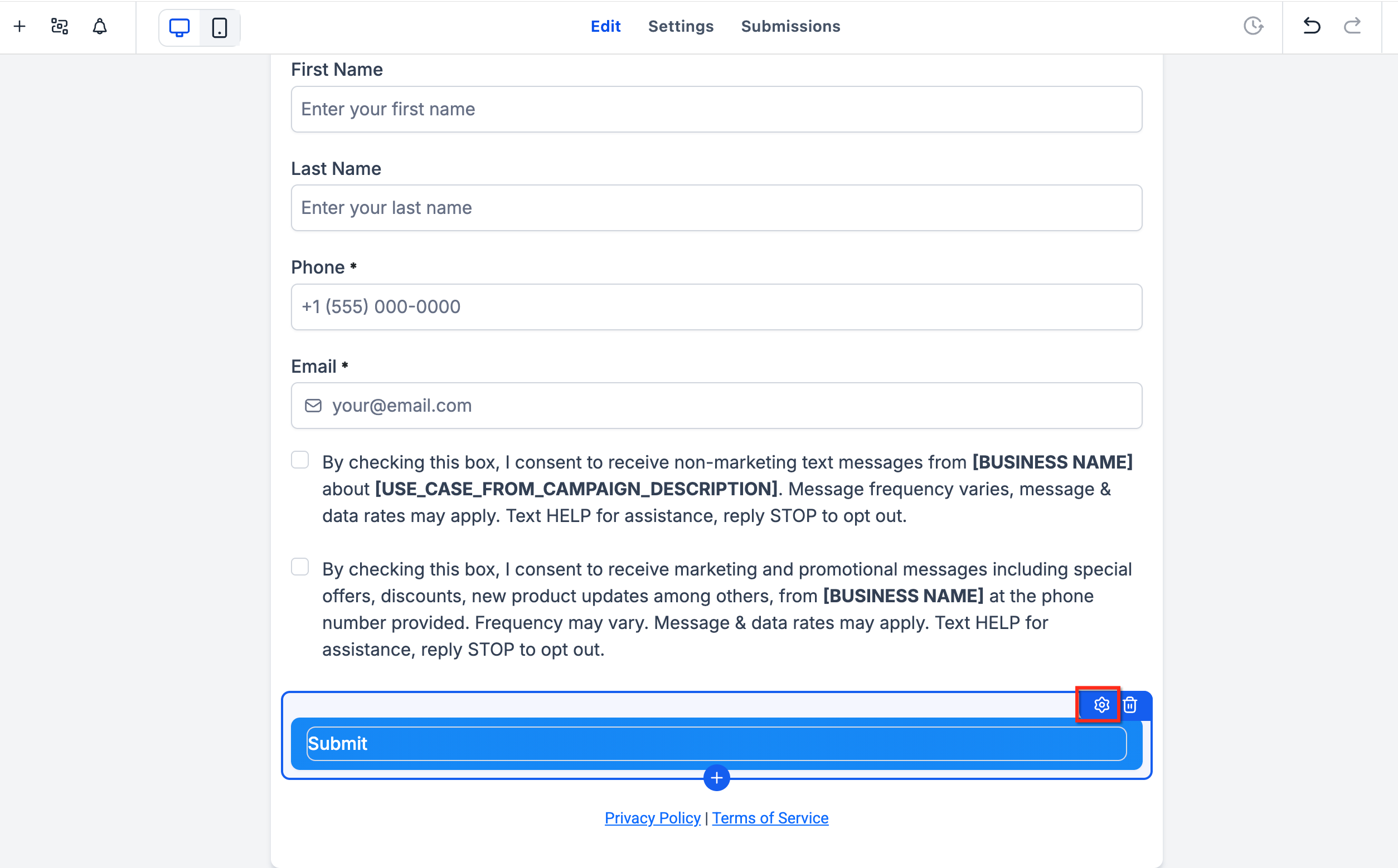
- Select the button element you want to customize.
- Open the button style settings.
- Locate the Button Background section.
- Choose Gradient instead of Solid Color.
- Select the gradient type.
- Add or edit the gradient color stops.
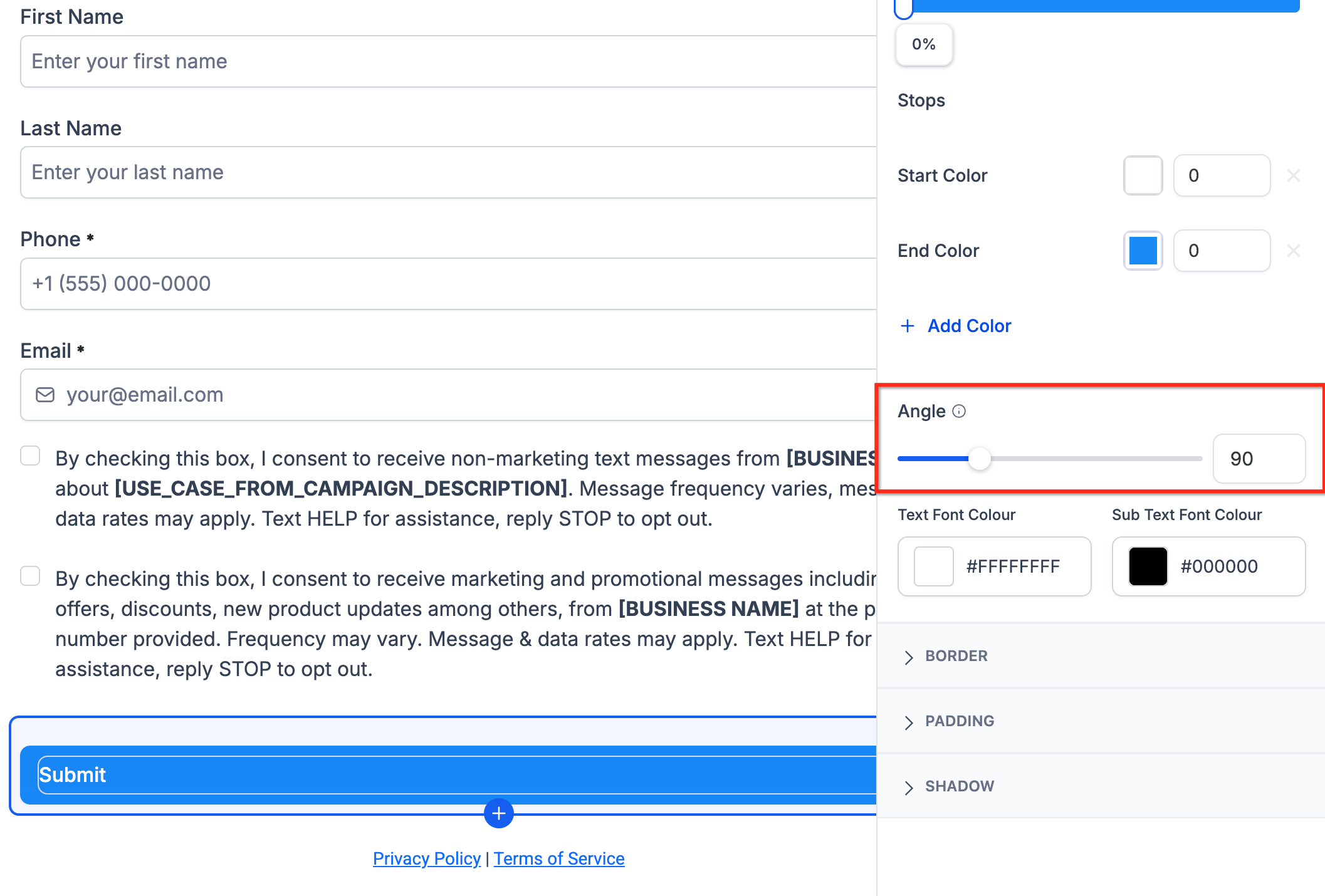
- Adjust the gradient angle if the selected gradient type supports angle customization.
- Preview the form, survey, or quiz to confirm the button appears as expected.
- Save or publish your changes.
06What it looks like in HighLevel
07Settings that matter
- Button Background. Determines whether the button uses a single solid color or a multi color gradient.
- Gradient Type. Specifies how the colors blend across the button, linear, radial, or angular.
- Gradient Angle. Controls the direction of the gradient for types that support angle adjustment.
- Color Stops. Defines the individual colors in the gradient and their positions within the blend.
08Things to know before you rely on it
- Existing solid button styles continue to work; they are not changed automatically.
- Only linear, radial, and angular gradient types are supported.
- Angle adjustment is available only for gradient styles that support it.
- Custom CSS is not required for standard gradient button backgrounds.
09How it connects to the rest of HighLevel
- Explore all site related features in HighLevel All Sites features
- Review HighLevel pricing and plan options HighLevel pricing and plans
- Start a free 30 day trial of HighLevel Start a 30 day HighLevel trial
Michael's take

Wondering if gradient button backgrounds are worth the effort for a new quiz? They give you a quick way to make your CTA pop without writing a line of code, and you can match any brand palette by adding extra color stops. It’s a clean upgrade from a flat button when you want a modern feel.
If I were setting up a survey, I’d pick a linear gradient that runs left to right and use my two brand colors as stops. That lets the button stand out on a busy page.