
01Who this is for
- Marketing managers can make key messages stand out with animated text, increasing visual interest.
- Web designers can enhance page flow by applying slide or fade effects to headings without coding.
- Small business owners can highlight promotions in bullet lists using bounce or zoom animations.
02Entrance animations for text elements, explained
The feature adds a set of motion options to any text block inside a funnel or website page. When the page scrolls and the element enters the viewport, the chosen animation runs automatically. You can watch the animation directly in the builder so adjustments are immediate.
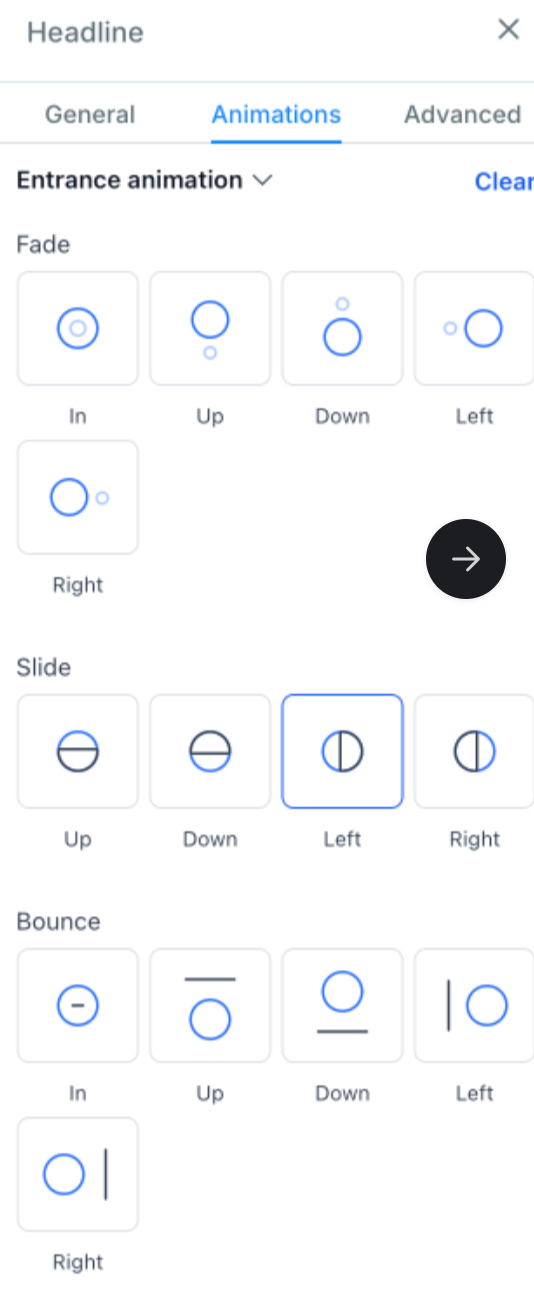
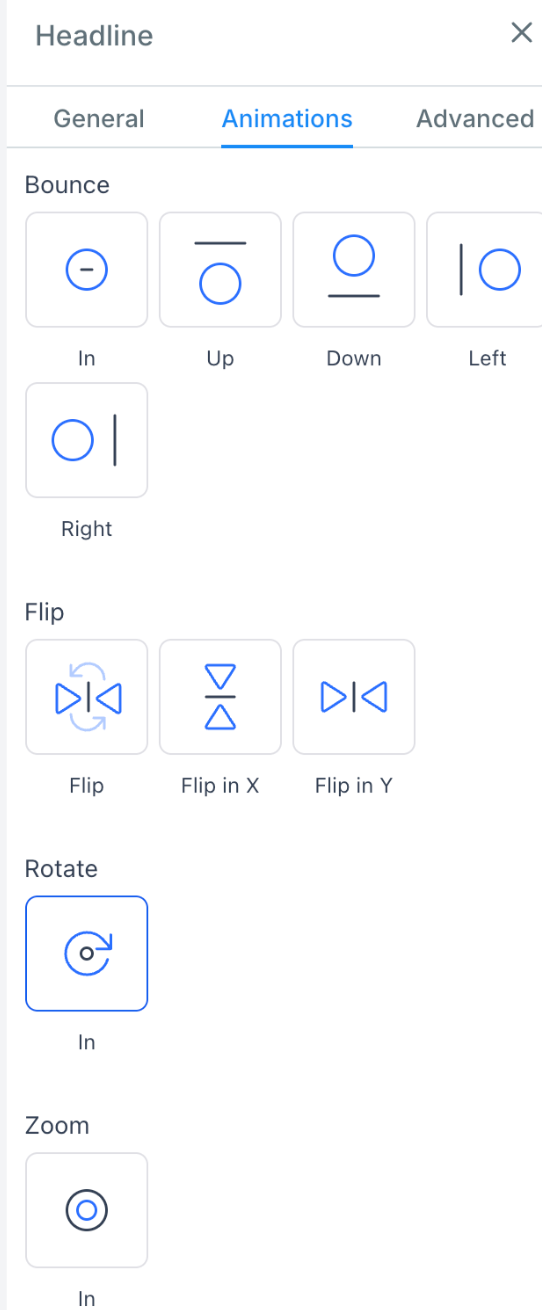
The controls appear in the Style editor under a new Animations tab. From there you select an effect, fade, slide, bounce, rotate or zoom, and the preview updates in real time. After confirming the look, you save the page and publish it to make the animation live for visitors.
All animations work across desktop and mobile browsers, providing a consistent experience regardless of device. The feature is built into the standard page editor, so no extra plugins or scripts are required.
03How businesses use entrance animations for text elements
- Digital marketing agency. The agency selects a slide in effect for client landing page headlines, previews the motion in the builder, and then publishes the page so visitors see the headline animate as they scroll.
- Ecommerce store. The store adds a bounce animation to bullet point product features, chooses the effect in the Animations tab, verifies the preview, and saves the page so shoppers notice the highlighted points.
- Consulting firm. The firm applies a fade entrance to sub headings in a service overview page, watches the fade in the editor, and publishes the site so the sections appear smoothly as users navigate.
04The numbers and rules that matter
- Categories include: Fade, Slide, Bounce, Rotate, Zoom.
05How to set up and use entrance animations for text elements in HighLevel
Add entrance animation to a text element
- Open the funnel or website editor from the builder.
- Select the existing text block or insert a new heading, sub heading, paragraph, or bullet list you want to animate.
- In the style editor, click the Animations tab that has been added.
- Pick an entrance effect such as fade, slide, bounce, rotate, or zoom.
- Observe the animation play directly on the builder page.
- Save the changes and publish the page.
06What it looks like in HighLevel
07How it connects to the rest of HighLevel
- Explore all Sites features in HighLevel All Sites features
- Review HighLevel pricing and plan options HighLevel pricing
- Start a 30 day trial of HighLevel 30 day trial
Michael's take

Most people try to make every word on a page move, which quickly turns a clean design into a distraction. I’d focus on the headline and one or two key points, giving them a subtle fade or slide so the page still feels professional.
If I were setting up a new landing page, I’d add a slide in effect to the main heading, preview it in the builder, then publish.