
01Who this is for
- Ecommerce Founders who need a fast checkout for repeat customers, because the form reduces taps on mobile devices.
- Coaches and consultants who sell digital products and want all purchase details visible at once, simplifying the buyer’s view.
02One Step Order Forms, explained
The One Step Order Form is an element you add to a funnel step. It shows every checkout field, contact information, optional shipping, product choices and payment, on one page. The form can handle both single and recurring pricing.
You first attach the products you want to sell to the funnel step. Once attached, the form can display those items, let customers adjust quantities (if allowed), and apply order bumps or coupon codes. Cart mode, when enabled, lets buyers pick multiple products and see totals right away.
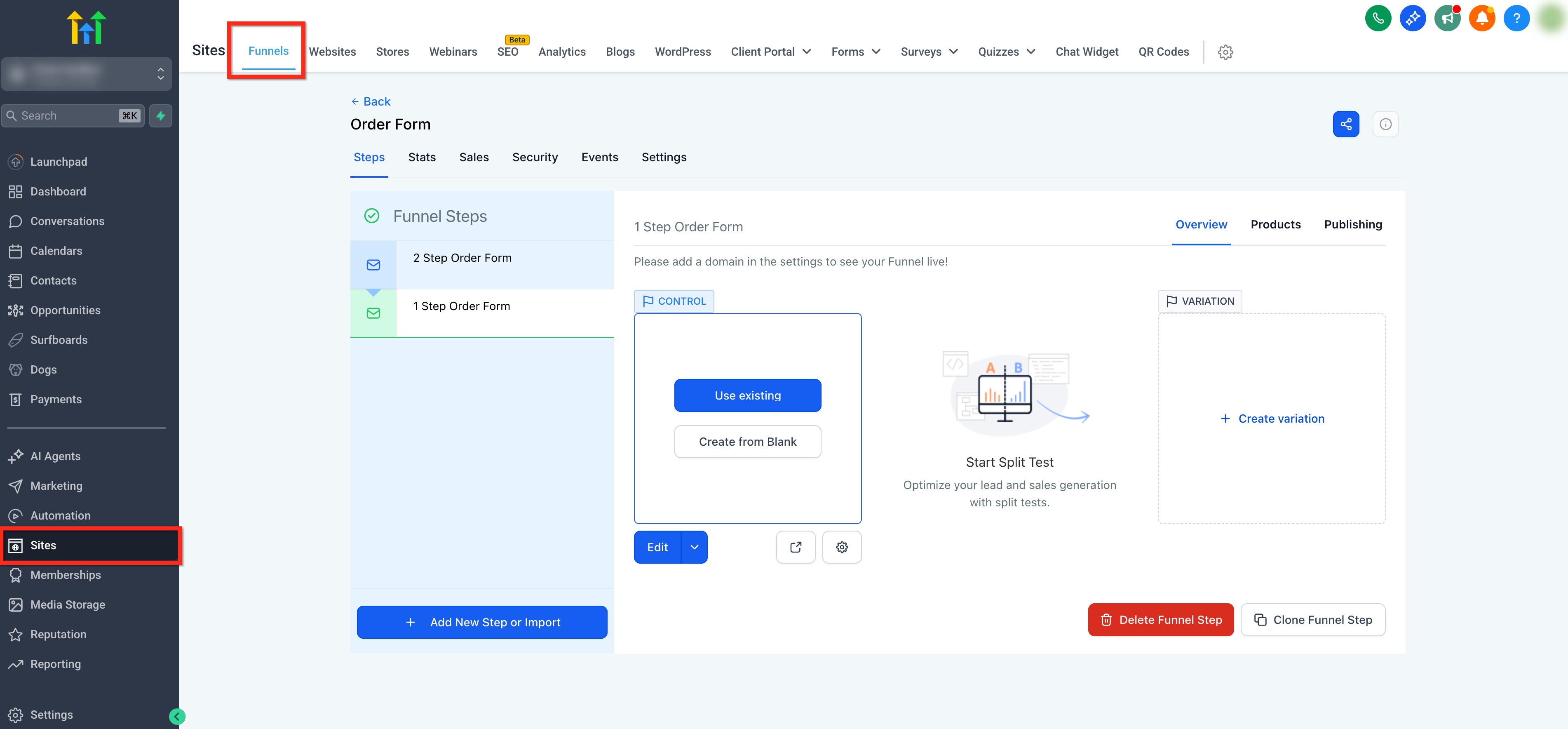
The element lives in the funnel builder under Sites > Funnels. You drag it onto the canvas, then configure fields, appearance and optional features in its settings panel.
03How businesses use one step order forms
- Online boutique. The boutique adds its clothing items as products, enables multiple quantity, and turns on cart mode. Customers can select sizes and quantities on the single checkout page, then complete payment without navigating away.
- Fitness coaching business. The coach creates a subscription product for a monthly program, adds it to the funnel step, and activates the one step form. A coupon code field lets new members apply a discount code at checkout.
- Software SaaS startup. The startup adds a one time license product and an optional add on as a bump product. The one step form shows both items, lets a buyer add the bump, and processes the payment in one screen.
04The numbers and rules that matter
- Maximum quantity per order can be set from 1, 999 units.
- Cart mode is available for supported V2 funnel order forms.
05Before you start
- Create the products and prices you want to sell.
- Attach at least one product with a price to the funnel step before adding the order form.
06How to set up and use one step order forms in HighLevel
Attach products to the funnel step
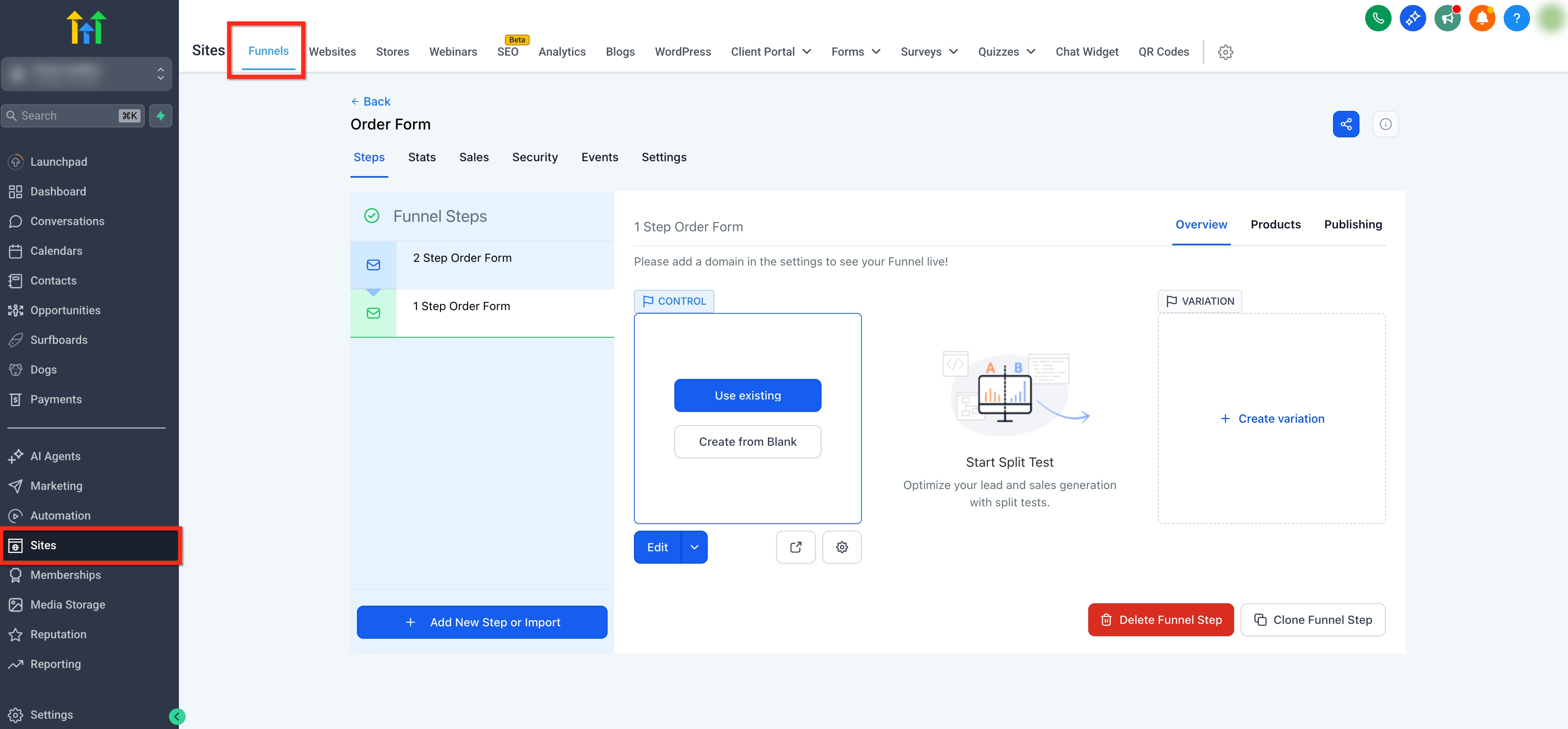
- Go to Sites in the left navigation, open your Funnel, and select the funnel step you want to use.
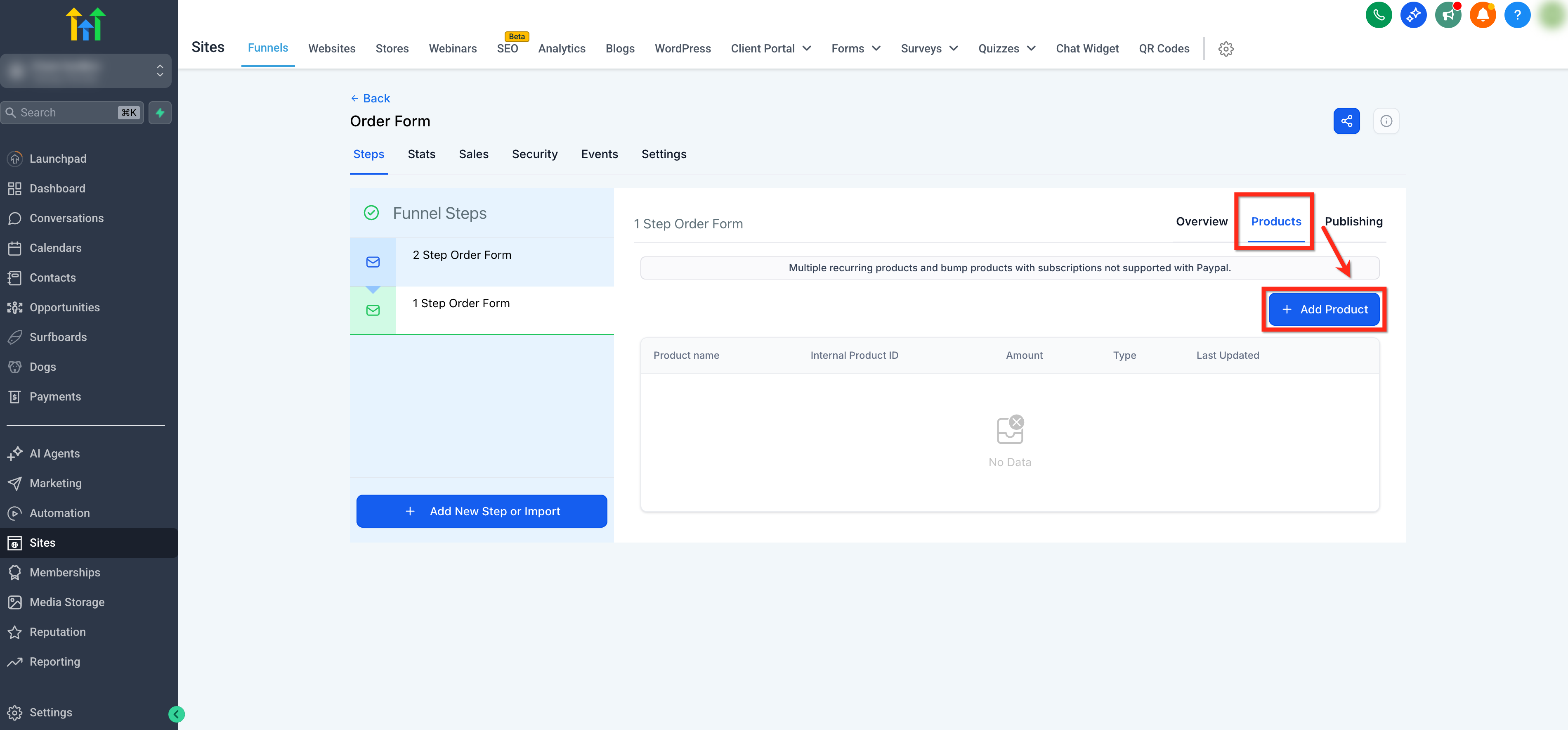
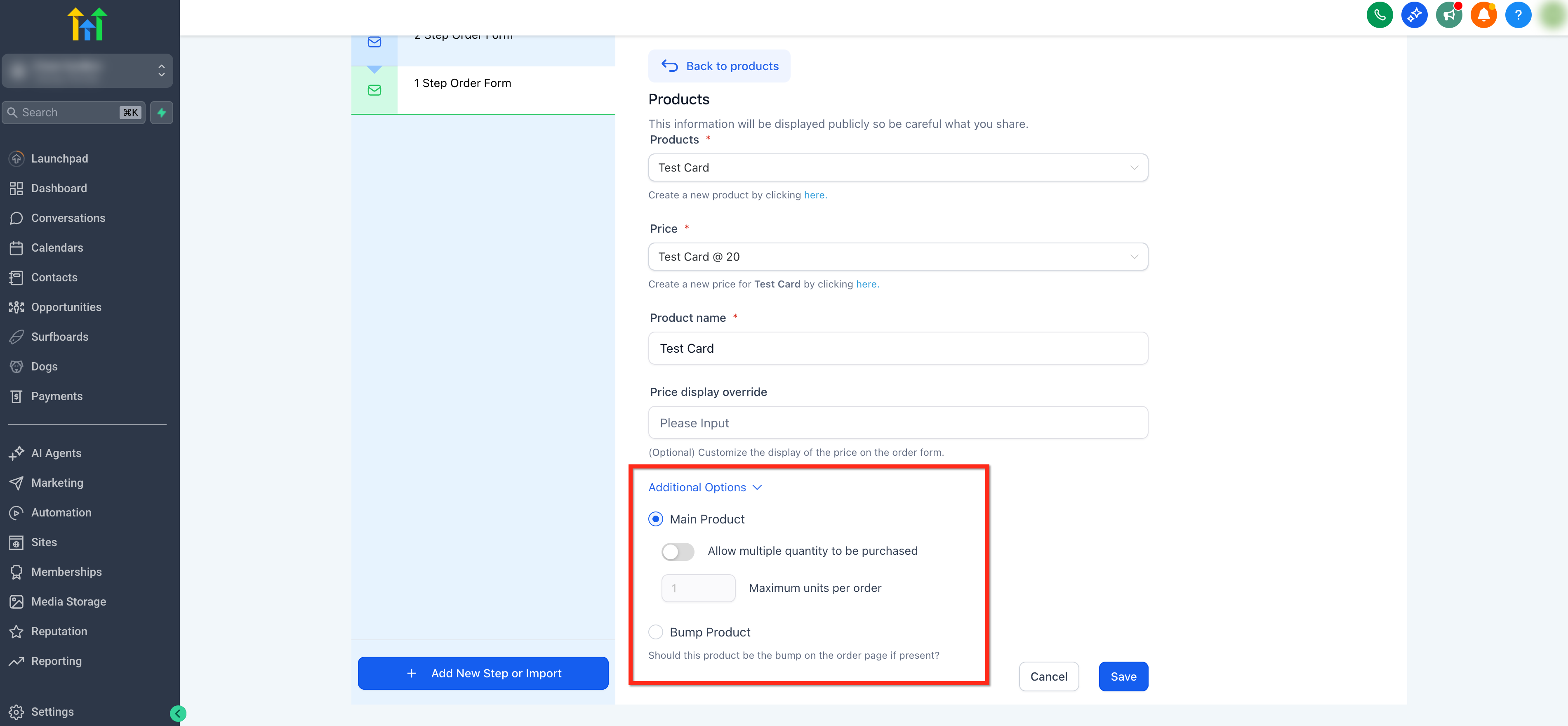
- Open the Products tab on the right and click the + Add Product button.
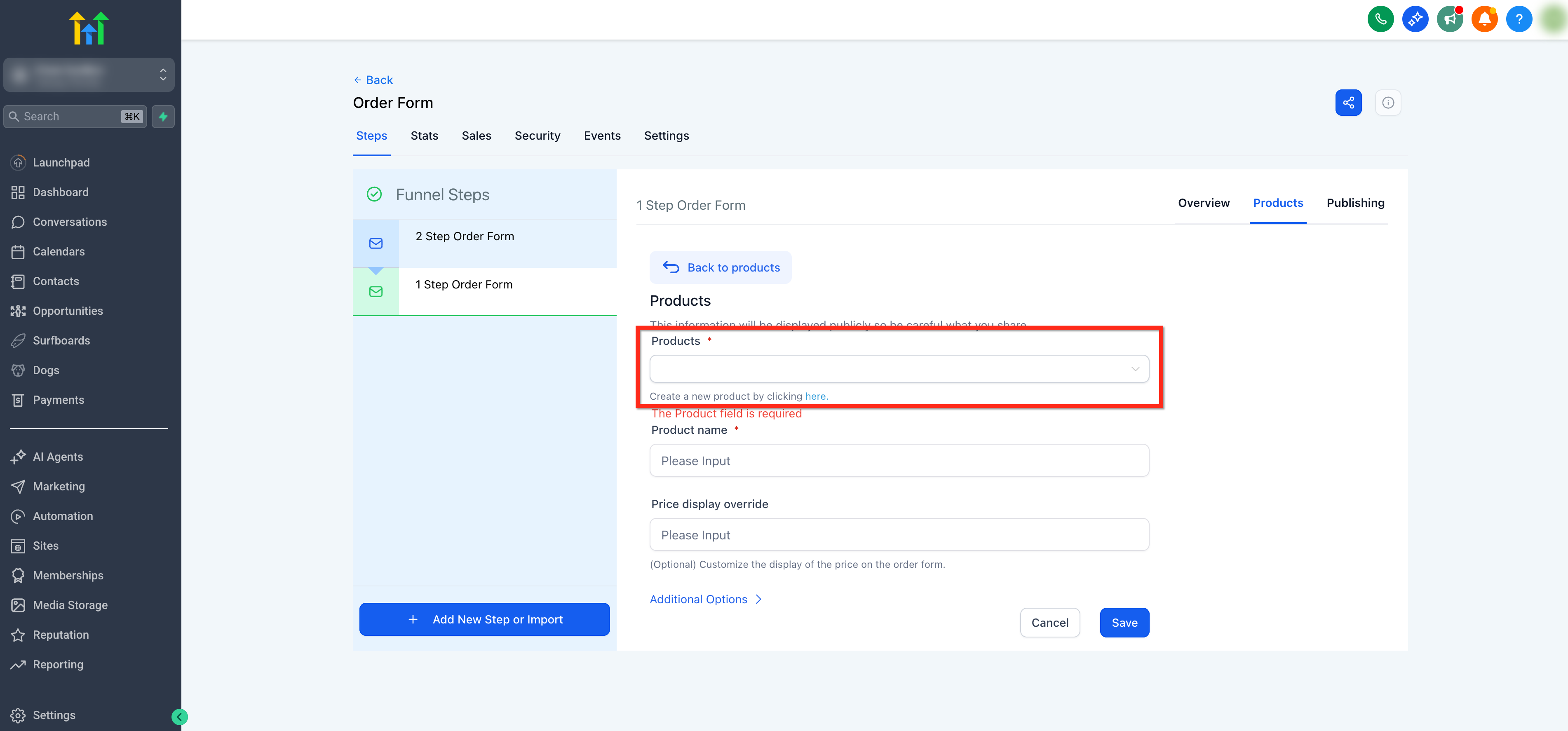
- Use the Product dropdown to select the item you want to sell or click the inline text link to create a new product.
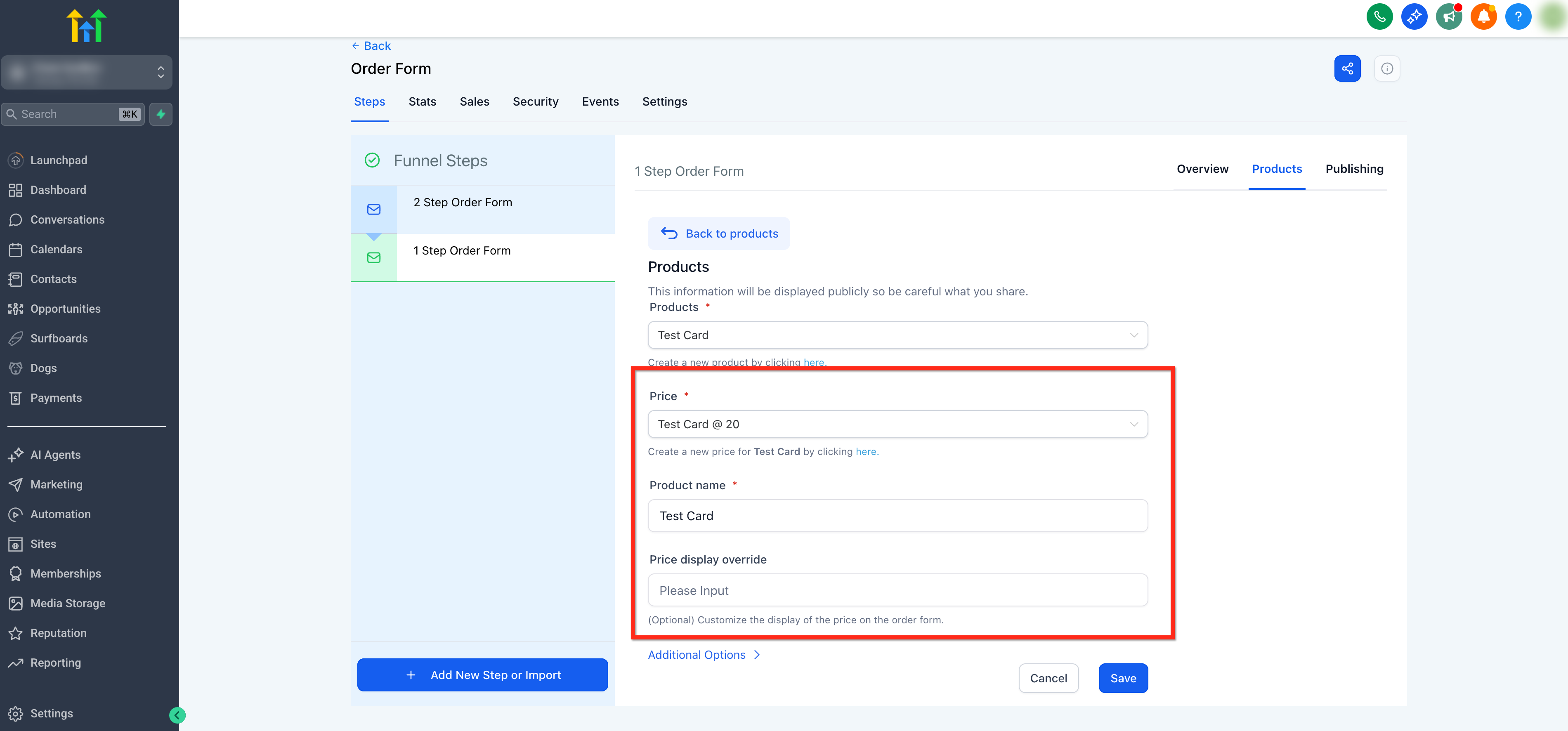
- Under Price, choose an existing price or click the inline text link to create a new price; you can optionally edit the Product Name Override or Price Display Override.
- Click Additional options and enable Allow multiple quantity if needed, set Max per order between 1 and 999, and choose whether the item is a Main product or Bump product.
- Repeat to add any additional products required for the checkout.
Add and configure a One Step Order Form
- Go to Sites > Funnels, open the funnel, and select the specific step where you’ll place the checkout.
- Click Add Elements (+) in the top left, locate the One Step Order element under Order elements, and drag it onto the canvas.
- In the element settings, open Form options and select which fields (company name, shipping, price, etc.) should appear on the form.
- Optional: toggle Enable cart mode if your funnel version supports it, decide whether product descriptions and pricing are shown, enable an Order Bump, and enable Coupon Codes.
- Adjust the button, text and background colors in the element settings to match your brand.
- Click the Preview button in the upper right corner to test the form, then click the blue Publish button to make it live.
07What it looks like in HighLevel
08Settings that matter
- Enable cart mode. Activates the ability for customers to select multiple products and adjust quantities on the same form.
- Product Description and Pricing. Controls whether product details and pricing breakdowns are displayed on the form.
- Enable Order Bump. Allows an optional add on product to be offered alongside the main purchase.
- Enable Coupon Codes. Provides a field where customers can enter discount codes during checkout.
09Things to know before you rely on it
- Max per order can be set from 1 to 999 units.
- Cart mode is only available for supported V2 funnel order forms.
- Allow multiple quantity must be enabled on a product before customers can adjust its quantity.
10If something goes wrong
- Products do not appear in the One Step Order Form. Ensure that at least one product and a price are added in the Products tab for the same funnel step.
- Customers cannot purchase multiple quantities. In Products > Additional options, enable Allow multiple quantity and set an appropriate Max per order.
- One Step Order Form is not available in a V1 funnel. Migrate the funnel step to V2 to access the latest settings such as cart mode.
11How it connects to the rest of HighLevel
- Add a two step order form in HighLevel funnels Two step order form
- HighLevel pricing and plans Pricing
- Start a 30 day HighLevel trial Free trial
Michael's take

A one step order form feels like a small convenience that can become a notable shift for businesses that rely on quick mobile sales. It strips away extra clicks and lets the buyer see everything at once, which can improve the checkout experience for impulse offers.
Imagine a coffee cart that sells a single brew and an add on pastry. With a one step form, the cart can show the drink, let the customer add a muffin, apply a coupon, and pay. All on one screen. That simplicity matches the fast paced nature of a street side purchase.