
01Who this is for
- Designers can craft modern, layered visuals directly in the page editor, reducing reliance on separate design software.
- Marketing managers can improve readability of text over images by adding blur or subtle gradient overlays.
- Small business owners can create polished hero sections and landing pages that stand out without hiring a designer.
02Gradients and background blur, explained
Gradients let you transition smoothly between up to ten colors. You choose linear, radial or angular types and adjust each color stop on a visual slider. The angle slider works for linear and angular gradients, letting you set the direction precisely.
Background blur adds a soft frosted effect behind the selected container. You turn on the blur toggle and set the intensity with a slider. The blur only affects what is behind the element; text and other content inside stay sharp.
Both effects are managed in the Page Builder. Select a section, row or column, scroll to the Background area in the right hand sidebar, and switch between the Color, Image or Video tabs to apply the desired style.
03How businesses use gradients and background blur
- Fitness studio website. The studio adds a linear gradient to the hero section to match its brand colors, then applies a light background blur behind the class schedule column to keep the text legible over a background image.
- Consulting firm landing page. A radial gradient is placed on a row that separates service blocks, creating a subtle visual break, while a moderate blur is added to the testimonial column to highlight quotes.
- Ecommerce product page. An angular gradient overlays the product showcase section for a dynamic look, and a strong blur is used behind the pricing table column to draw focus to the call to action button.
04The numbers and rules that matter
- Up to 10 color stops per gradient.
05How to set up and use gradients and background blur in HighLevel
Add a background gradient
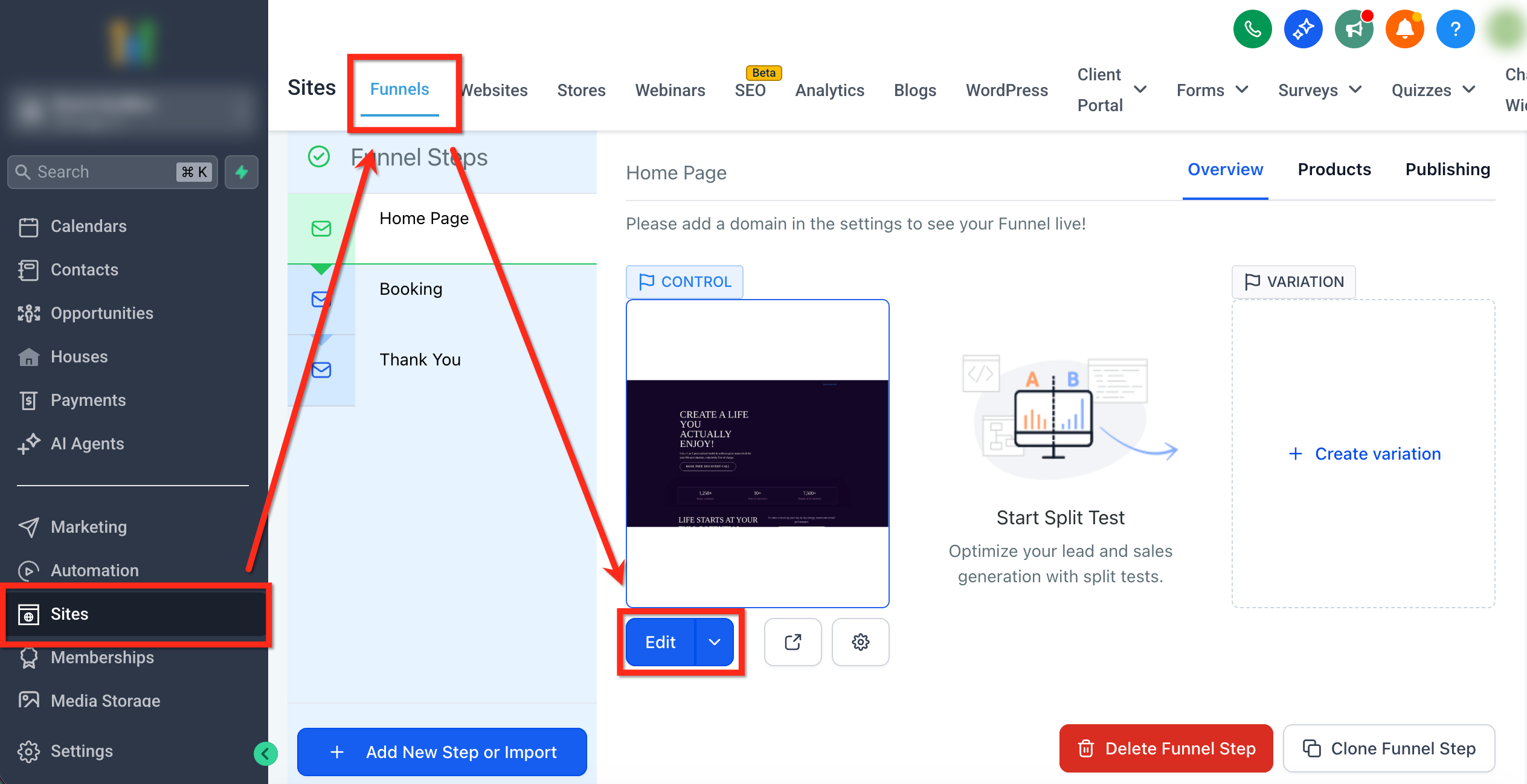
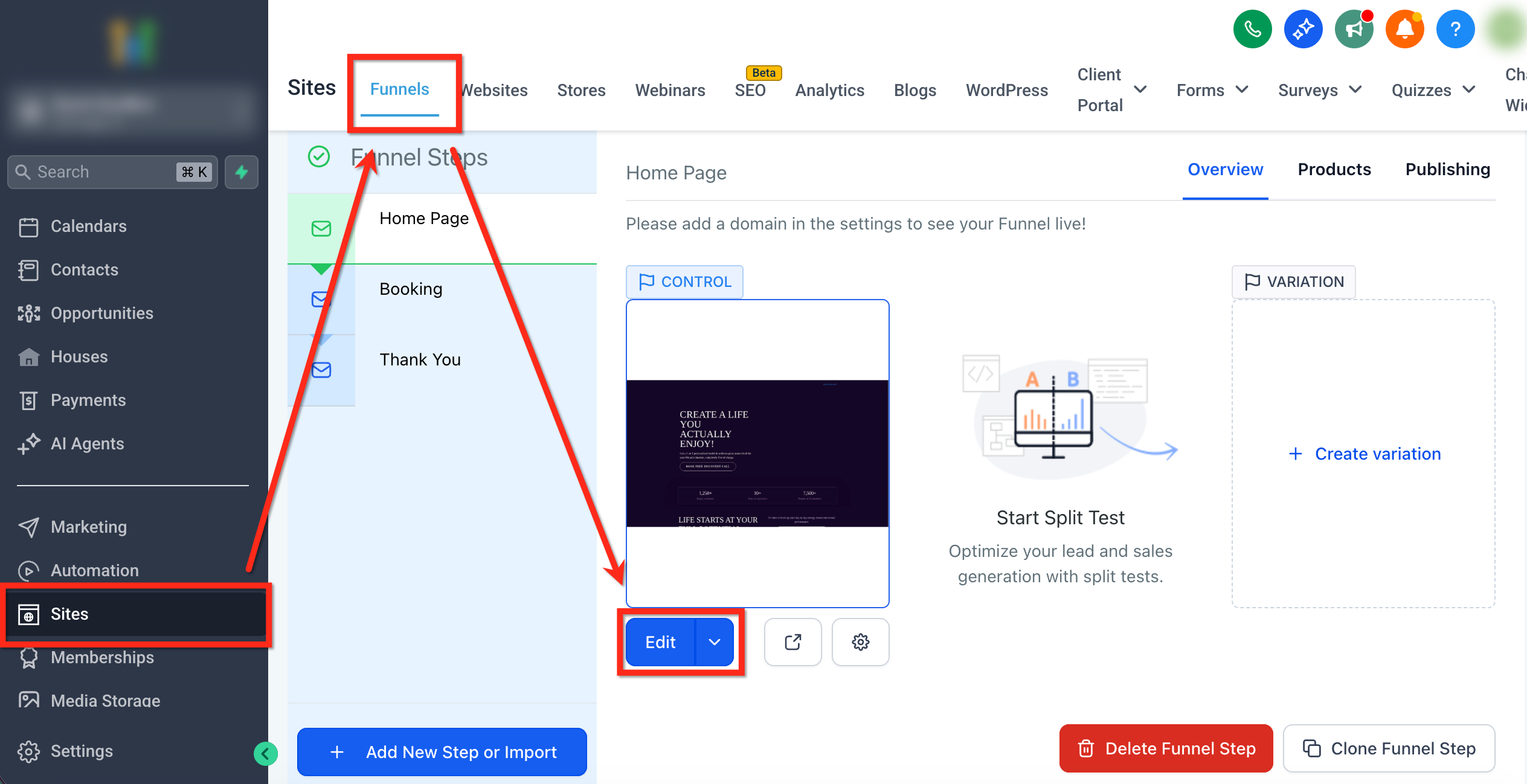
- Open Sites > Funnels / Websites.
- Select the funnel or website you want to edit and open the target page.
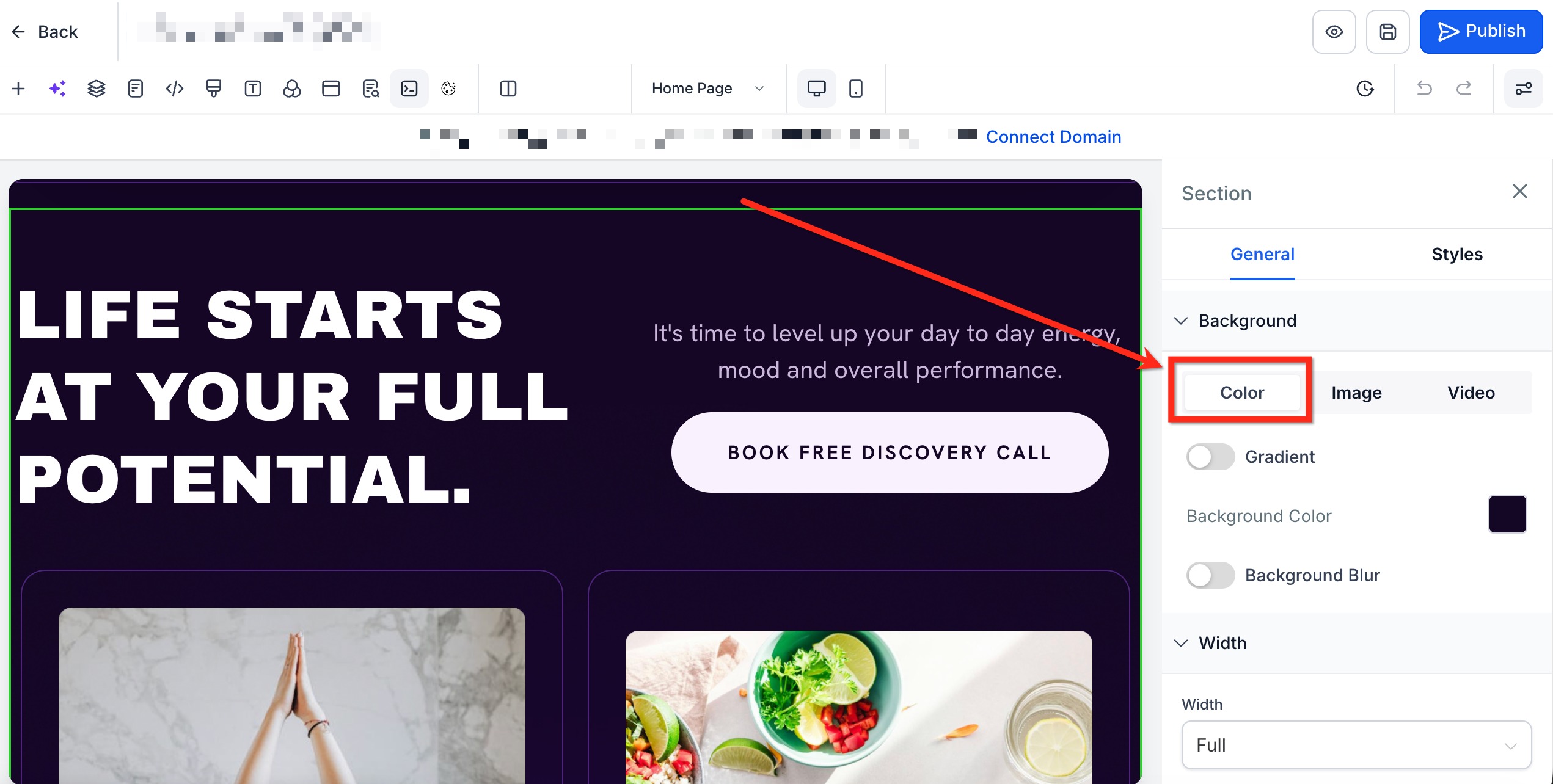
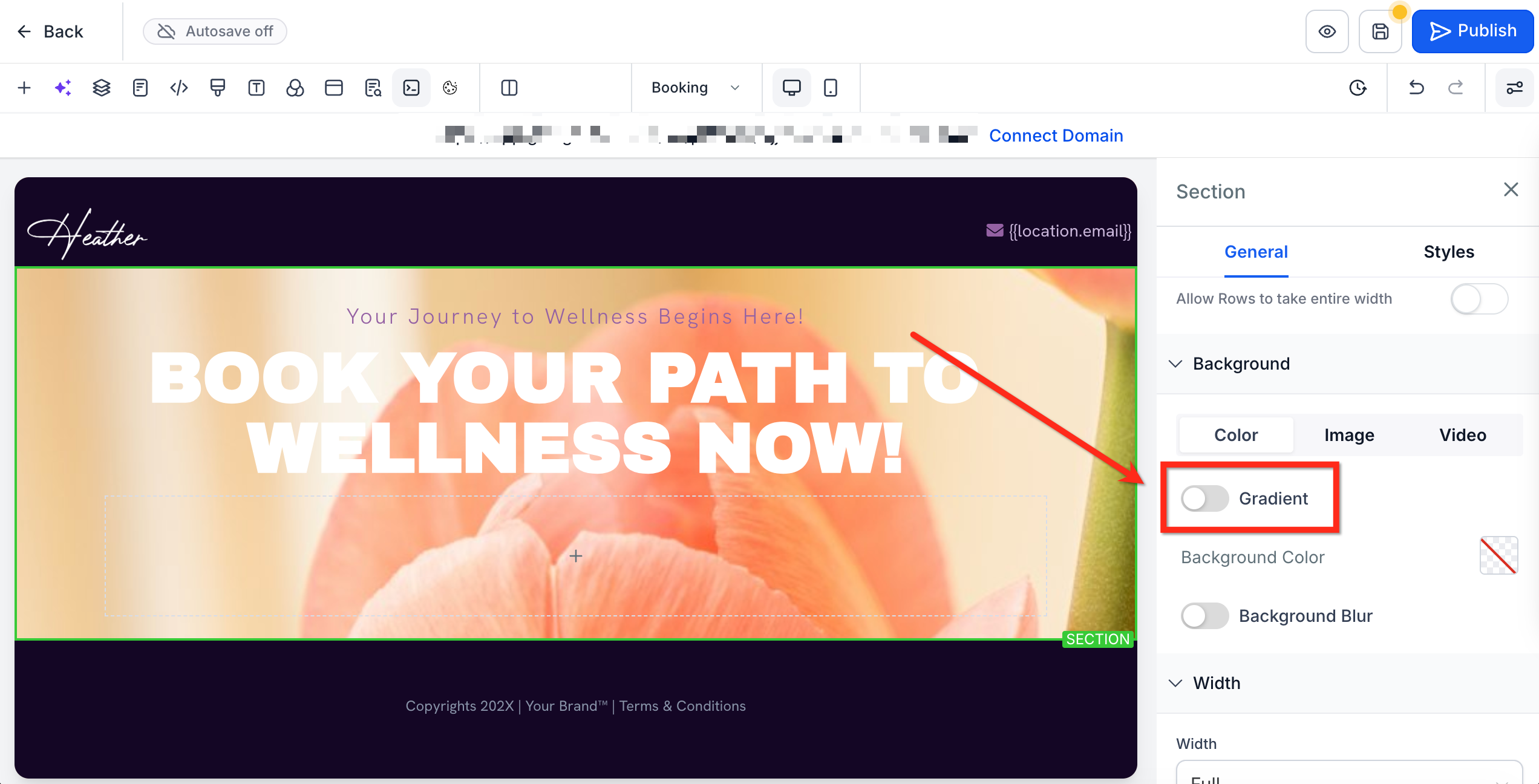
- Click the section, row or column you wish to style and scroll to the Background area in the sidebar.
- Choose the Color tab under Background.
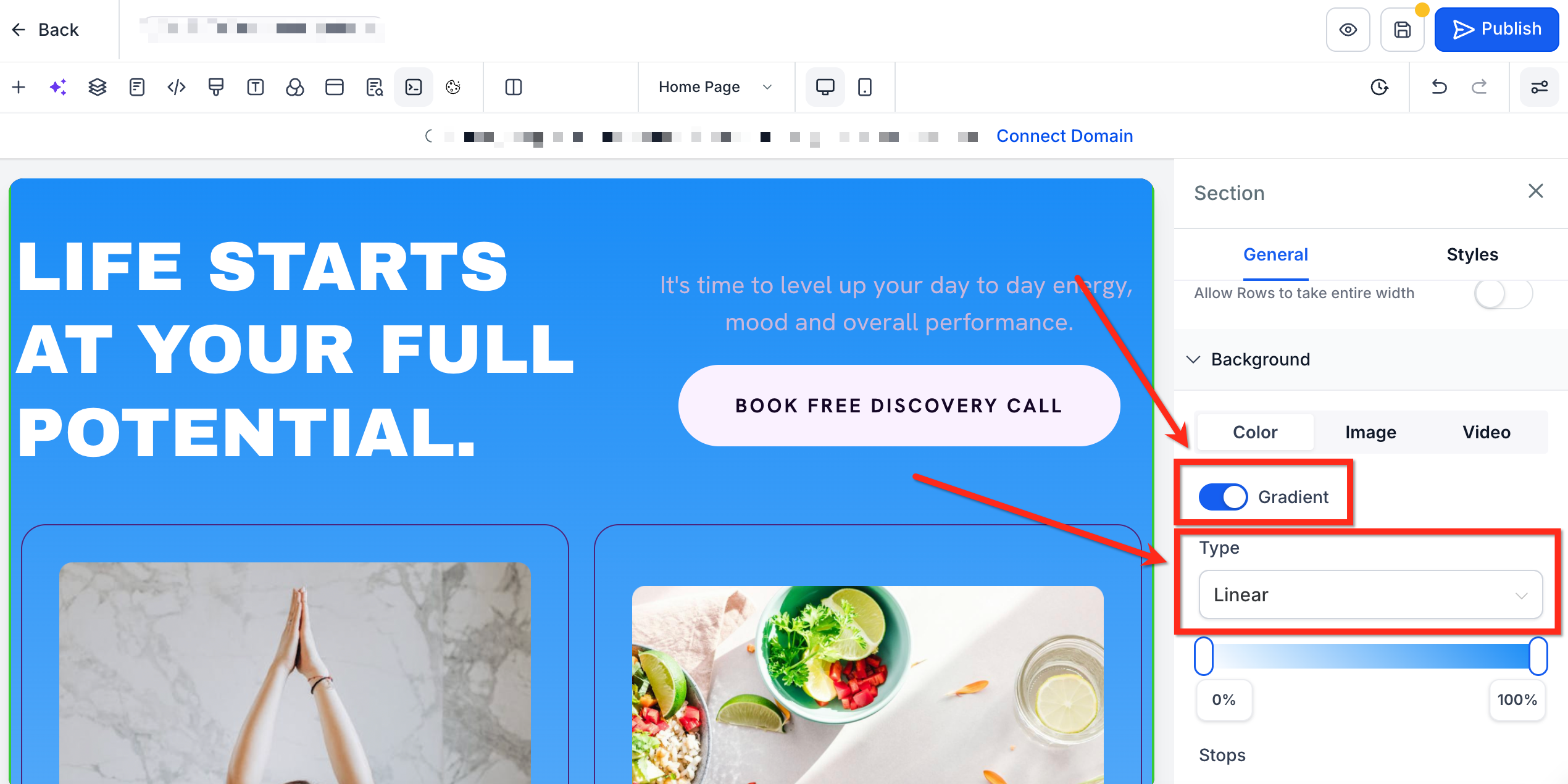
- Turn on the Gradient toggle.
- Pick Linear, Angular or Radial from the Type dropdown.
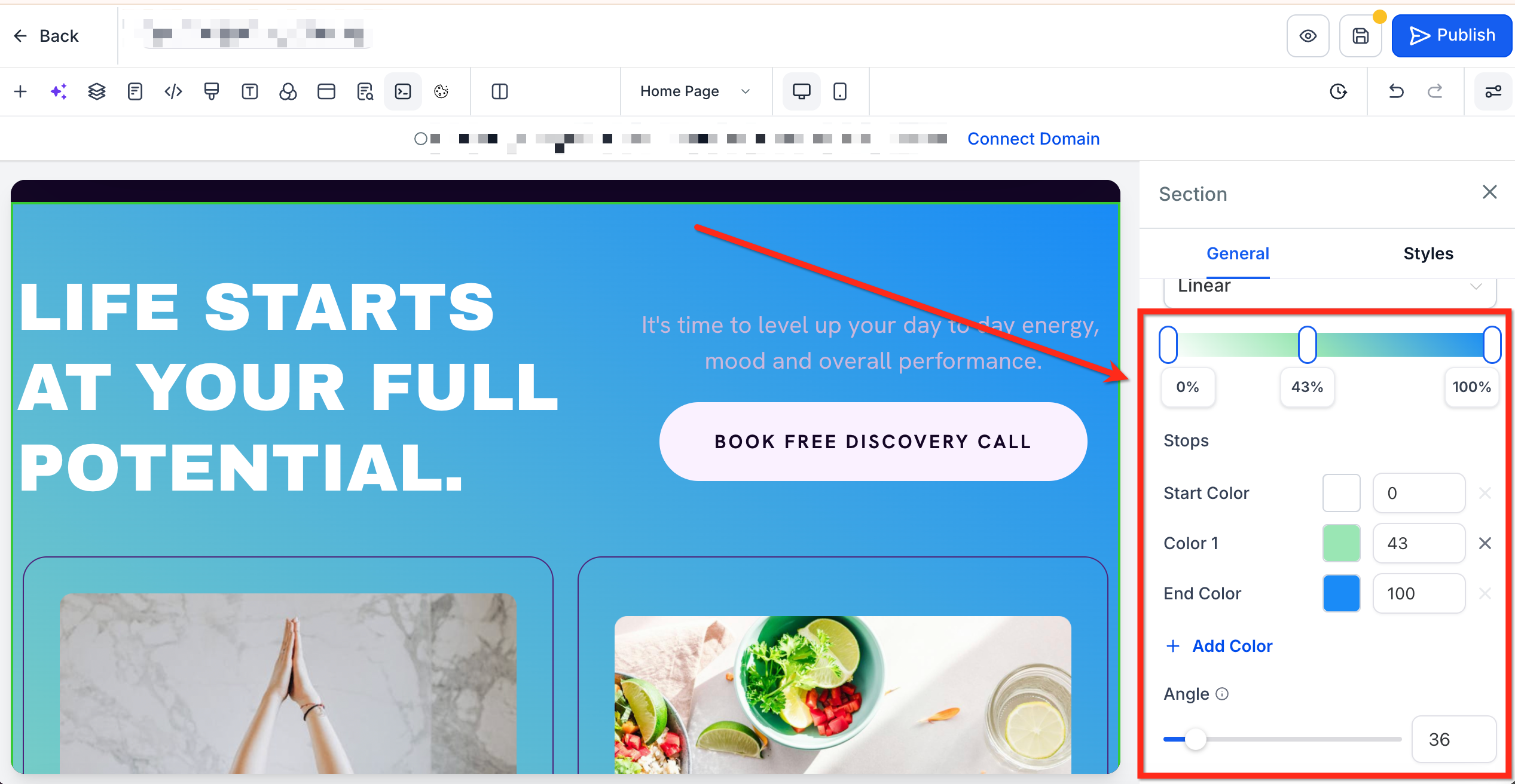
- Press + Add Color or click the gradient slider to insert a new color.
- Modify the chosen color using the color selector.
- Move the stops on the gradient slider to set their positions.
- Adjust the Angle slider if the gradient type is Linear or Angular.
Add a background blur
- Open Sites > Funnels / Websites.
- Select the funnel or website you want to edit and open the target page.
- Click the section, row or column you wish to style and scroll to the Background area in the sidebar.
- Choose the Color tab under Background.
- Turn on the Background Blur toggle.
- Set the desired blur level with the Blur Intensity Slider.
06What it looks like in HighLevel
07Settings that matter
- Gradient toggle. Activates the gradient editor for the selected container.
- Type dropdown. Selects the gradient style: Linear, Radial or Angular.
- Color selector. Changes the hue of each color stop in the gradient.
- Angle slider. Controls the direction of Linear and Angular gradients.
- Background Blur toggle. Enables the blur effect for the chosen container.
- Blur Intensity Slider. Sets how strongly the background behind the element is blurred.
08Things to know before you rely on it
- A gradient can contain up to ten color stops.
- The Angle slider only appears for Linear and Angular gradient types.
- Applying a gradient or blur does not replace existing background images or videos.
09If something goes wrong
- Banding or stripes appear in the gradient.. Add an extra intermediate color stop near the harsh transition, choose colors closer in lightness, and optionally adjust the Angle slider.
10How it connects to the rest of HighLevel
- Explore all site related features in HighLevel. All Sites features
- Review pricing options and plan details for HighLevel. HighLevel pricing and plans
- Start a free 30 day trial to test these design tools. Start a 30 day HighLevel trial
Michael's take

Gradients and background blur give a small business site a professional, modern feel without needing Photoshop or other design tools.
Avoid overblurring a background to the point where it hides important visual cues.