
01Who this is for
- Marketers who need to showcase key performance numbers in a visual way, because the animated counters draw attention.
- Small business owners who want to display milestones such as sales or client counts without using external graphics.
- Web designers building client sites who require a native element that can be styled to fit any design system.
02Number Counter Widgets, explained
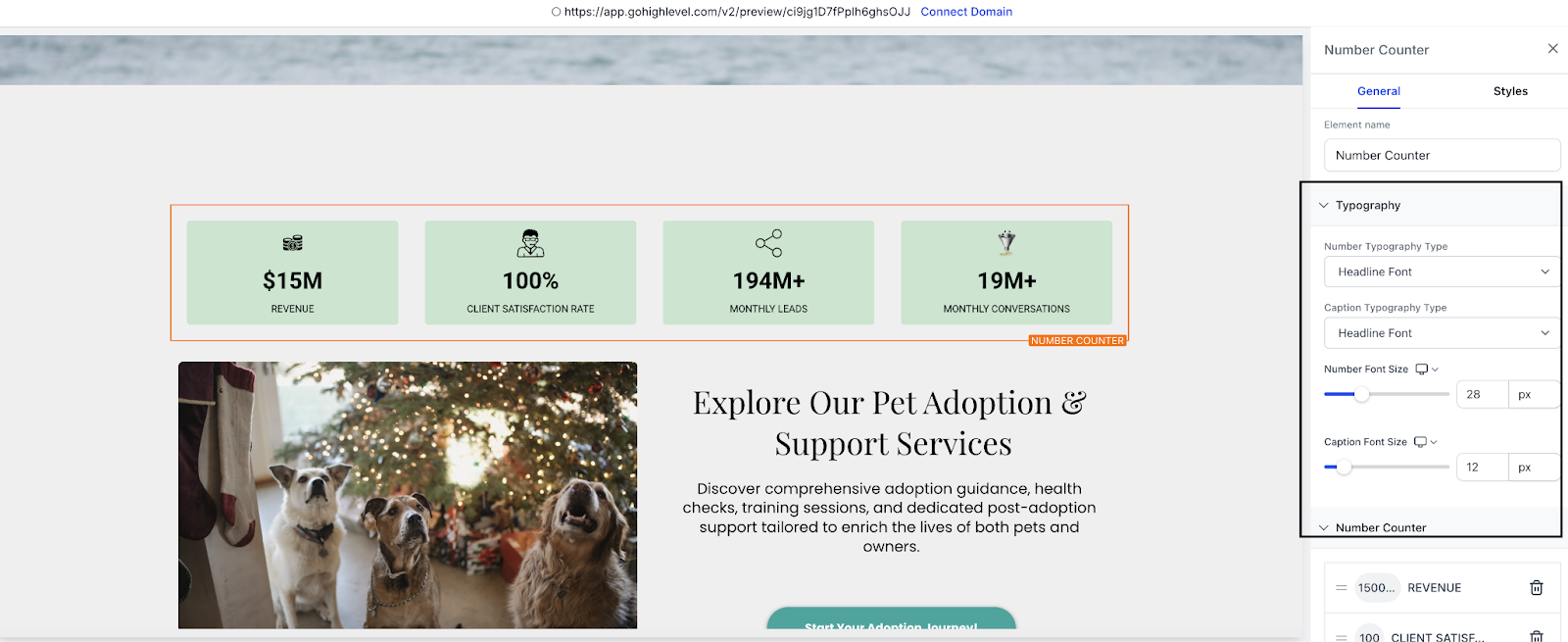
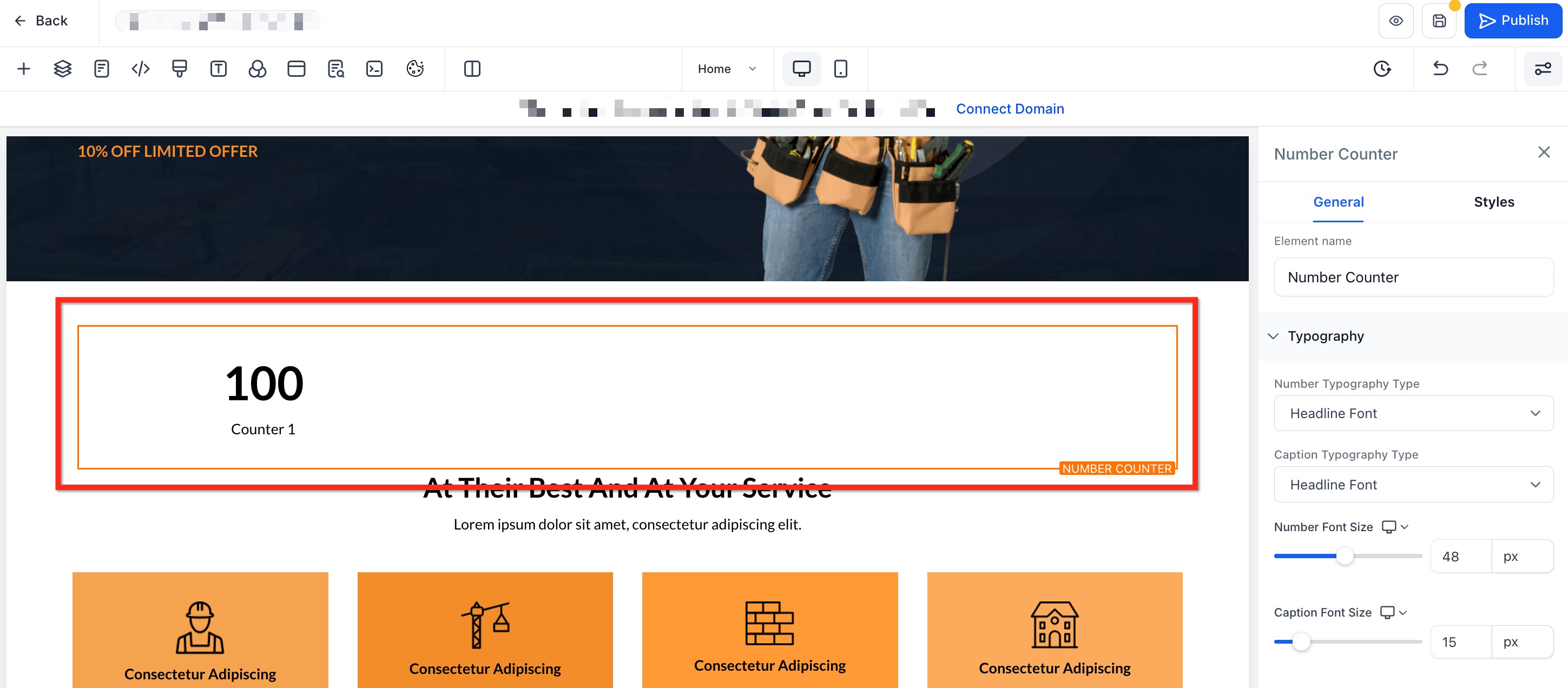
The widget lives inside the Funnels & Websites builder. It creates a block that can hold several counters, each counting up from a defined start value to an end value when the block scrolls into view. Numbers are automatically shortened with K, M, B or T and can have custom text before or after them. You may also attach an image to each counter.
When placed on a page, the widget respects the column setting, showing one to five counters per row. Gaps between counters and the overall animation duration can be adjusted, and the animation runs only once per page load. The block can be added to any step of a funnel or any website page via the editor.
03How businesses use the Number Counter Widget
- Coaching practice. A coach adds a counter for total client sessions delivered, sets the start at 0 and the end at the current total, adds a calendar icon, and styles the block to match the site colors. Visitors see the live count as they scroll down.
- Ecommerce store. The store adds a counter showing total orders fulfilled, includes a dollar sign prefix, and places a small box icon beside it. The layout is set to three columns so the metric lines up with other promotional elements.
- Non profit organization. The nonprofit creates a counter for donations received, adds a heart symbol as the image, and configures the animation to last five seconds. The block is placed on the homepage to highlight fundraising progress.
04The numbers and rules that matter
- Performance: Keep counters ≤ 20 per widget for optimal load times.
- Smart Formatting: Numbers are autoformatted (e.g., “2500000” becomes “2.5 M”).
- Animation triggers only once per page load.
- Animation duration range: 1 s, 15 s.
- Number of columns: 1 to 5.
- Counters are technically unlimited, but 20 or fewer recommended for best performance.
05How to set up and use the Number Counter Widget in HighLevel
Add the Number Counter Widget to a site or funnel
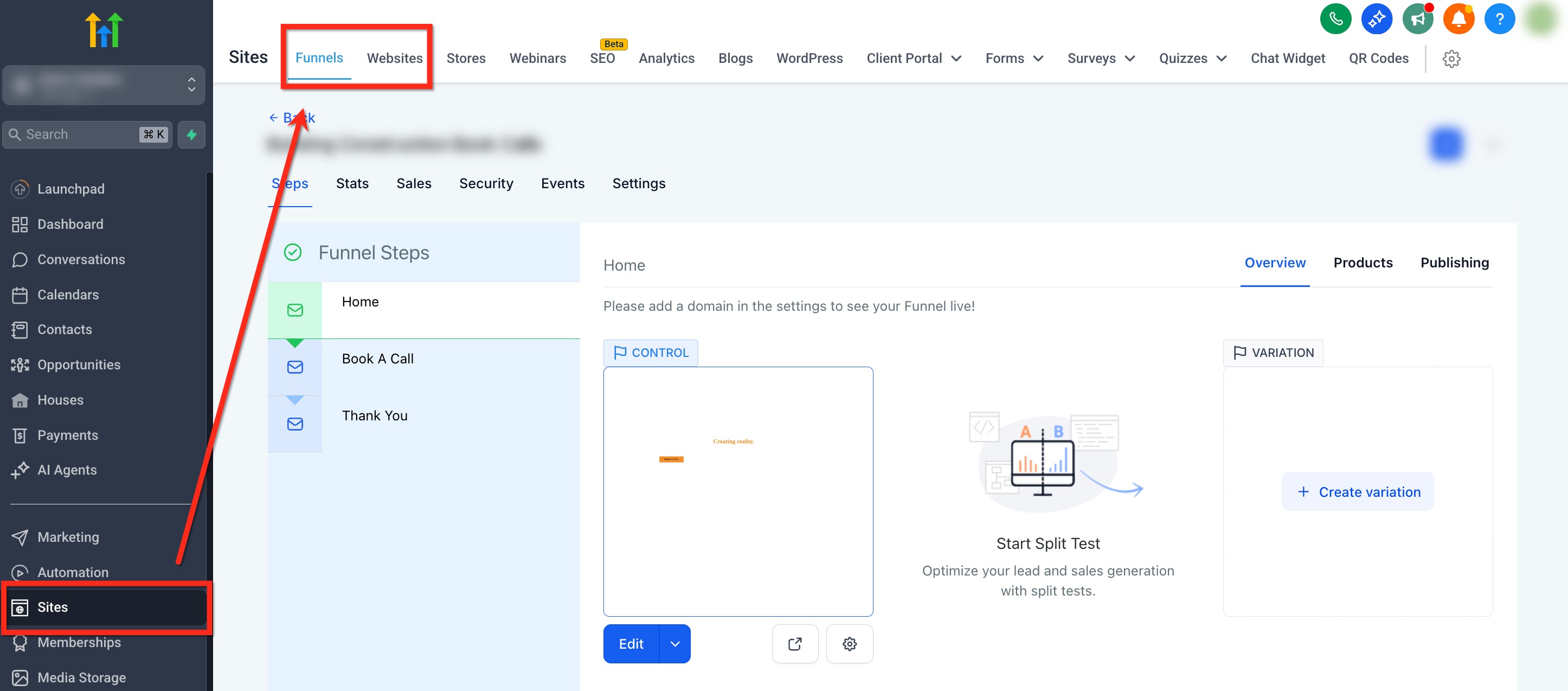
- Open Sites > Funnels or Sites > Websites.
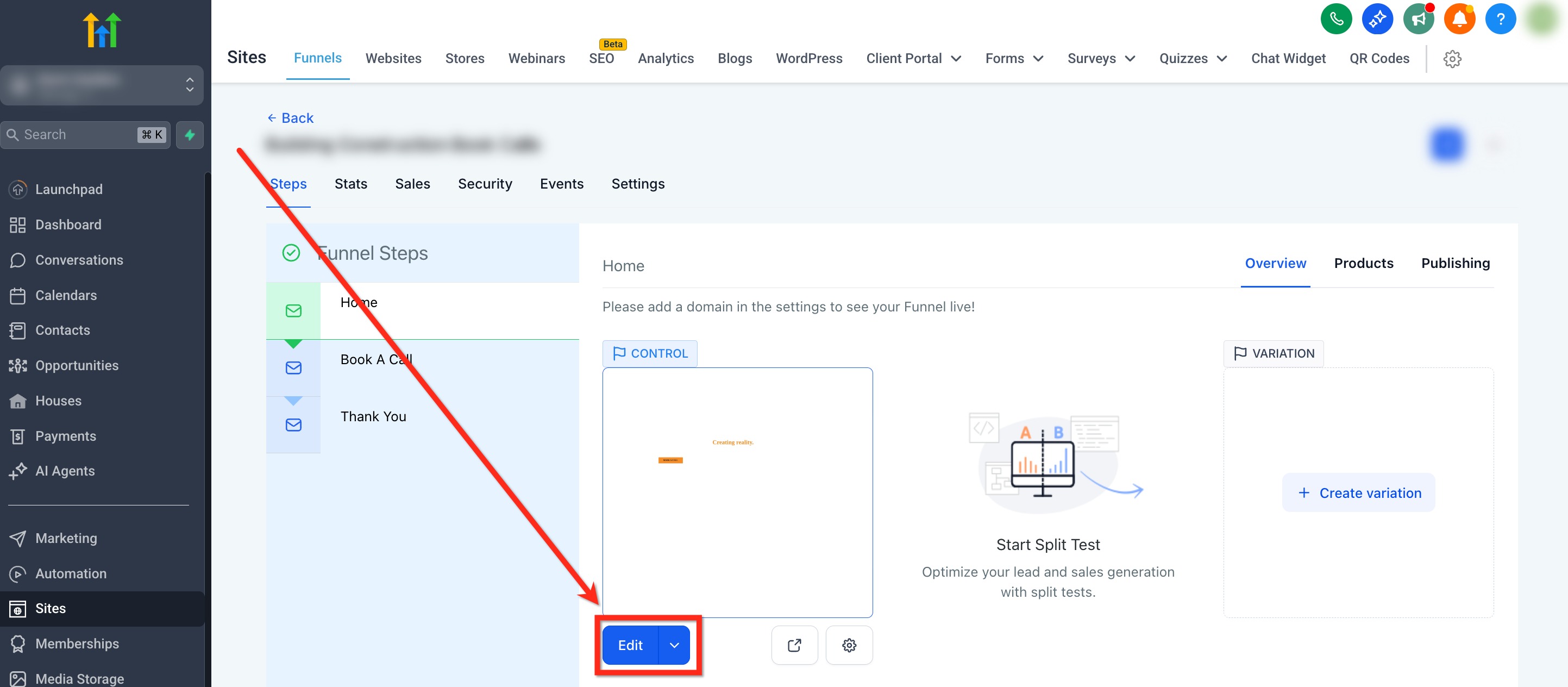
- Choose the page or step and click the blue Edit button.
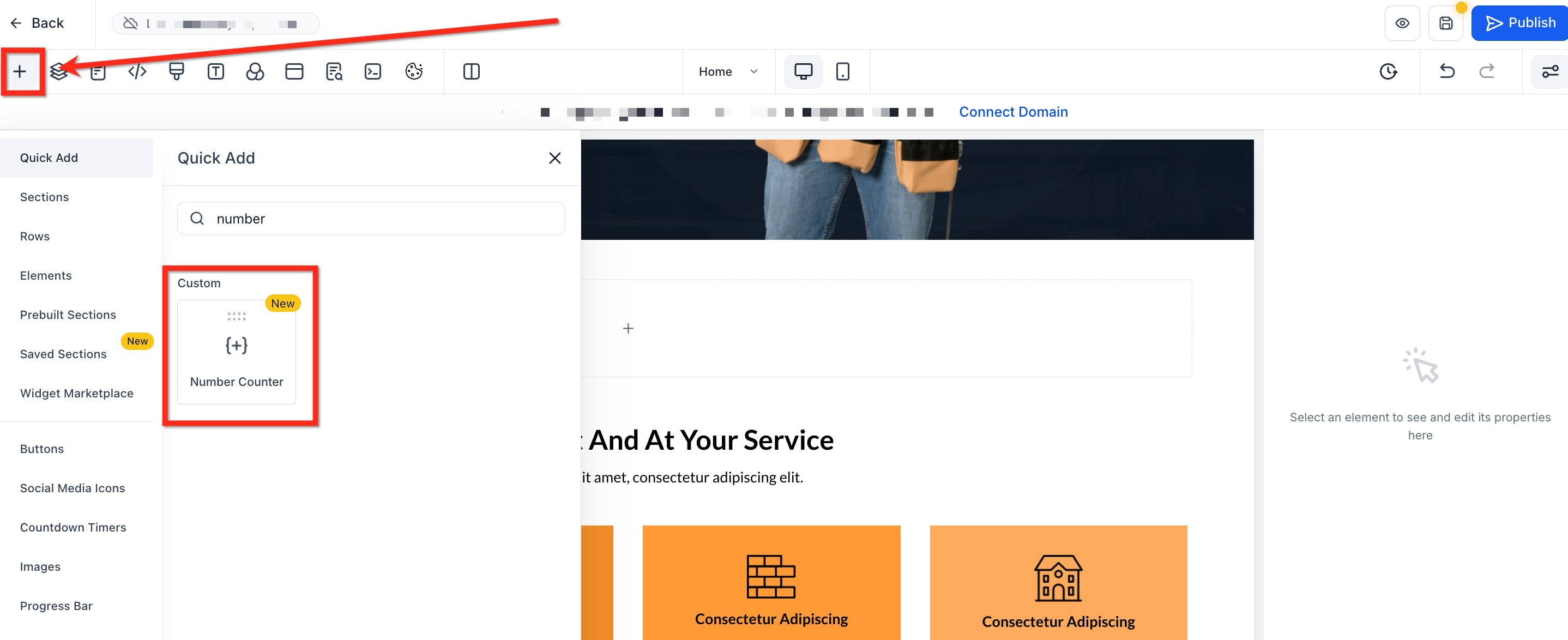
- Click + Add Element in the sidebar and find the Number Counter element.
- Drag the Number Counter into the desired spot on the canvas.
06What it looks like in HighLevel
07Settings that matter
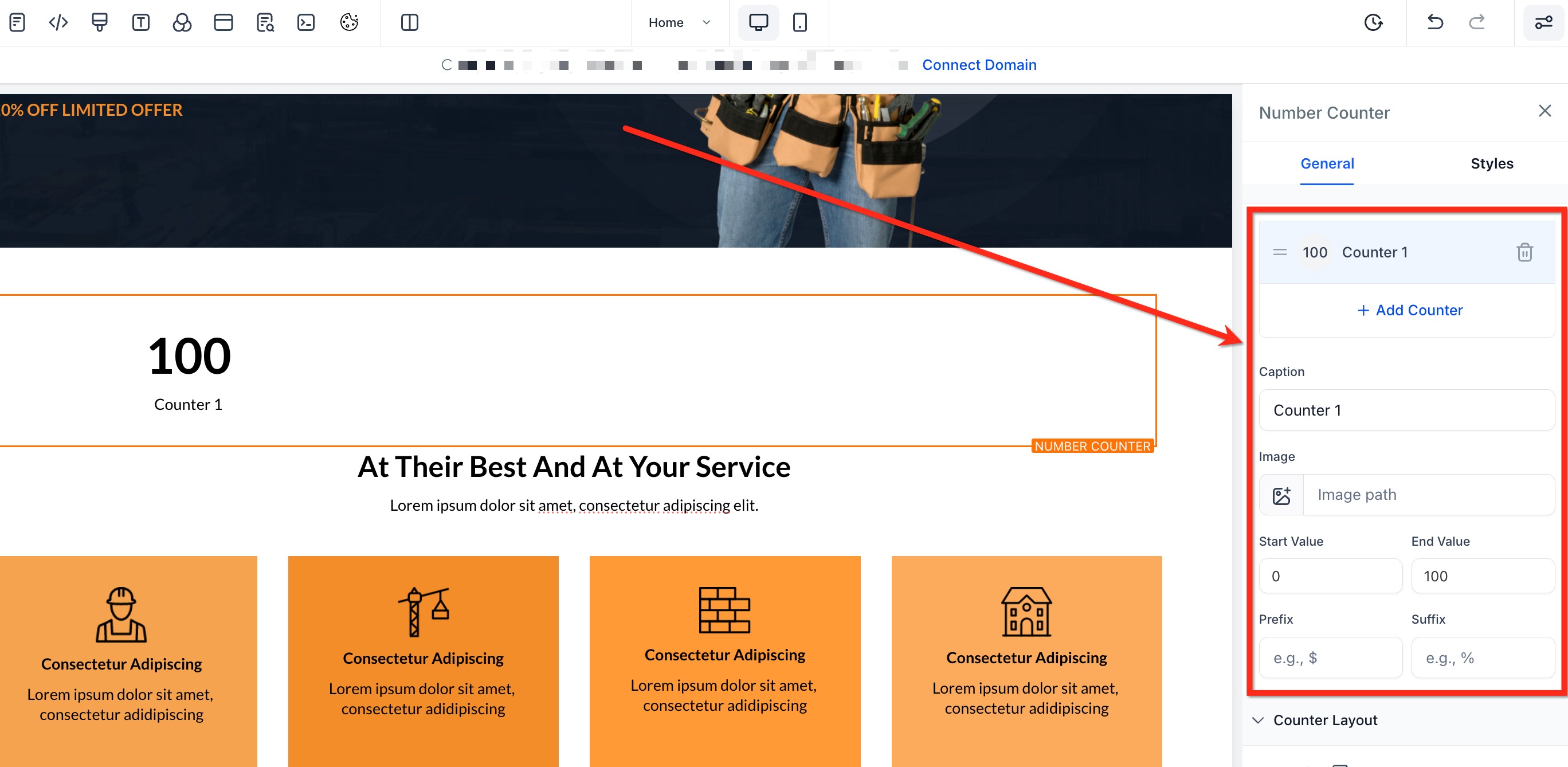
- Caption. Text that describes what the number represents.
- Image. Optional graphic uploaded for the counter; supports PNG, JPEG and SVG.
- Start & End Values. Numbers that define the counting range, including decimals if needed.
- Prefix/Suffix. Custom characters or words placed before or after the value, such as $ or %.
- Number of Columns. Selects how many counters appear in each row, from one up to five.
- Animation Options. Controls duration of the count up and whether it triggers only when the widget enters the viewport.
- Colors. Sets individual swatches for the number, caption, background and container background, plus border and shadow options.
08Things to know before you rely on it
- For best performance, keep the total counters in one widget at twenty or fewer.
- Supported image formats are PNG, JPEG and SVG; adding images is optional.
- Numbers are automatically shortened (e.g., 2.5 M) for readability.
- The count animation runs a single time per page load.
09How it connects to the rest of HighLevel
- Explore all site building features in HighLevel. All Sites features
- Review how to set up pages, design, and mobile settings before launch. HighLevel website setup
- Learn about the Founder Plan that provides full access to the platform. Founder Plan
Michael's take

The Number Counter Widget is a flashy way to spotlight your top stats, but it isn’t essential for a plain text landing page.
Skip it if your site already loads quickly without extra animation or if you don’t need visual proof points to persuade visitors.