
01Who this is for
- Founders of ecommerce sites, they can fine tune button and product text to match branding.
- Marketing agencies, they can apply consistent typography across client funnels and adjust for mobile.
- SaaS startups, they can emphasize key calls to action without using separate bold styling.
02Font weight, explained
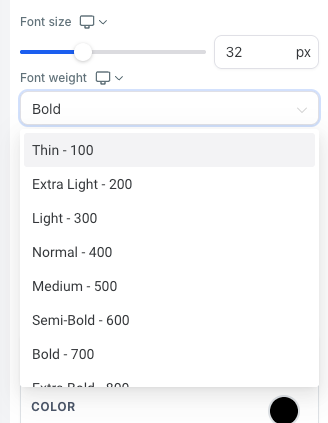
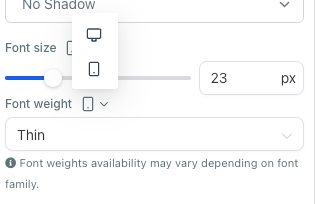
The font weight feature adds a dropdown menu beneath the font size control for most page elements. It lets users pick a weight such as Light, Regular, Bold, etc., for components like text blocks, buttons, navigation menus and more. The setting is available in the page builder for both funnels and websites. Users may also assign different weights for desktop and mobile views, giving precise control over responsive design. The change takes effect after the page is saved or published.
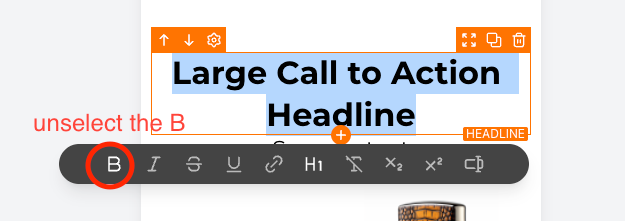
The option lives inside the page builder interface of HighLevel. After selecting a component, the font weight field appears under the existing font size controls. It does not replace the text editor’s bold command; if bold is applied directly in the editor, that styling overrides the selected weight. Additionally, some font families do not support every weight, so the chosen value might have no visual impact when the family lacks that style.
03How businesses use font weight
- Ecommerce store. Open the product page in the page builder, select the price text component, and choose a heavier font weight for desktop while keeping a lighter weight for mobile. Save the page to make the pricing stand out on larger screens.
- Marketing agency. Within a client’s funnel, pick the headline button component, open its font settings, and set a bold weight for both desktop and mobile to increase click through visibility. Publish the funnel to apply the change across all devices.
- SaaS landing page. Select the feature list text component, locate the font weight dropdown, and assign a medium weight for desktop and a regular weight for mobile to maintain readability. Save the page to update the landing experience.
04The numbers and rules that matter
- Font weight option is available for text components, buttons, category navigation, FAQs, countdown components, navigation menus, store components, and image feature components.
- Font size slider sensitivity reduced to 100 for better UX.
05How to set up and use font weight in HighLevel
Set font weight for a component
- Open the page builder interface for the desired funnel or website.
- Click on the component you want to edit, such as a text block or button.
- Scroll down to the font size controls and find the new font weight dropdown.
- Select the required weight; optionally set a different value for mobile view.
- Save or publish the page to apply the new font weight.
06What it looks like in HighLevel
07Settings that matter
- Font weight. Controls the thickness of the text for the selected component, with separate options for desktop and mobile.
08Things to know before you rely on it
- Only font families that include the chosen weight will display the change; otherwise the text remains unchanged.
- If text is bolded using the editor, that style overrides the font weight setting.
09How it connects to the rest of HighLevel
- Overview of website and funnel features in HighLevel All Sites features
- Guide to creating and customizing pages within HighLevel HighLevel website setup
- Start a 30 day trial to explore page builder controls Start a 30 day HighLevel trial
Michael's take

Font weight is a nice way to fine tune the look of your pages without touching code. Anyone relying on bold text styling should skip it, because the editor’s bold option will trump the weight setting.