
01Who this is for
- Marketing agencies can create coordinated page reveals without writing CSS.
- Ecommerce owners can animate product grids as visitors scroll, keeping the experience smooth.
- Coaches and consultants can control whether animations run on mobile to maintain fast page loads.
02Entrance animations for sections, rows & columns, explained
The feature adds a set of entrance effects to layout blocks in the page builder. You pick an animation from dozens of options, then fine tune duration, delay, scale and easing. The animation triggers the moment the block scrolls into view and runs in the order Section > Row > Column > content.
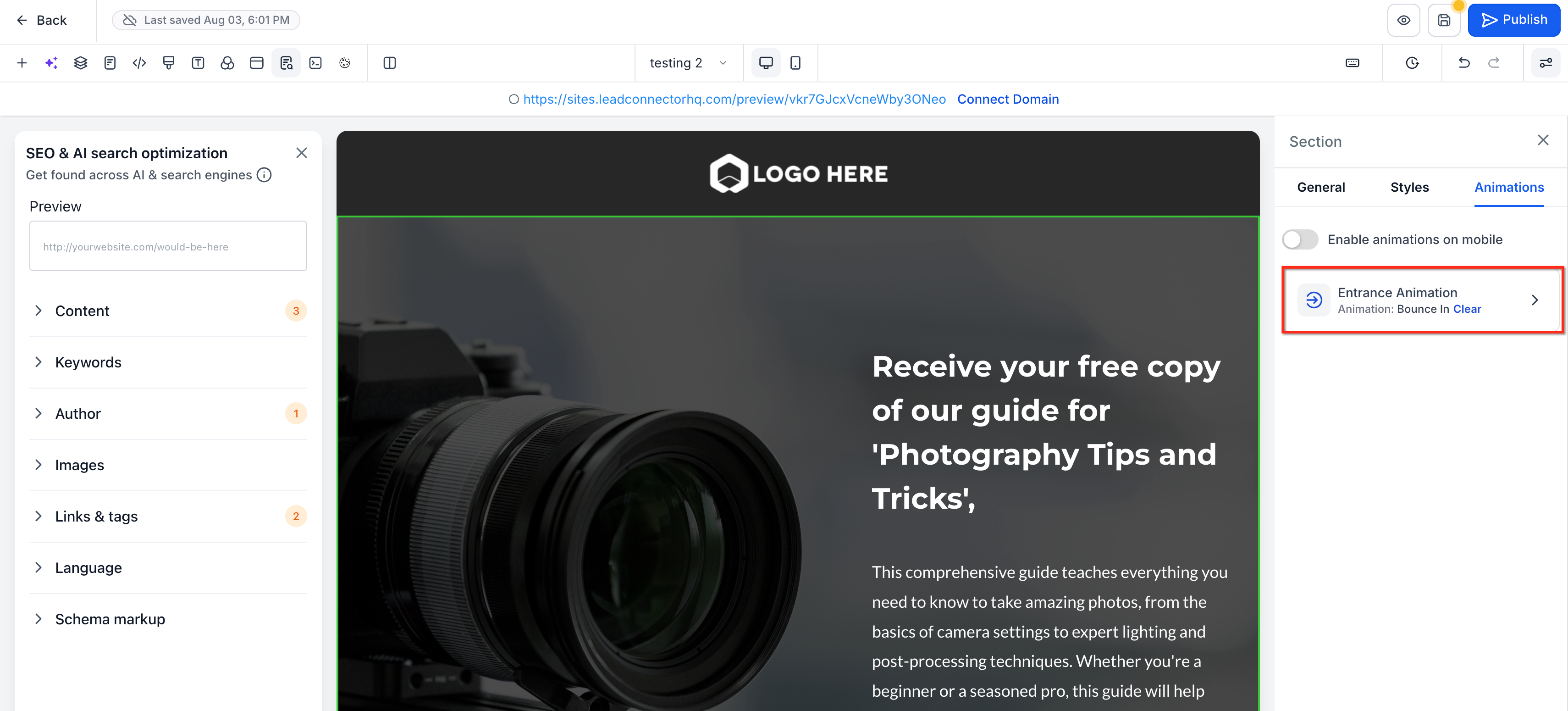
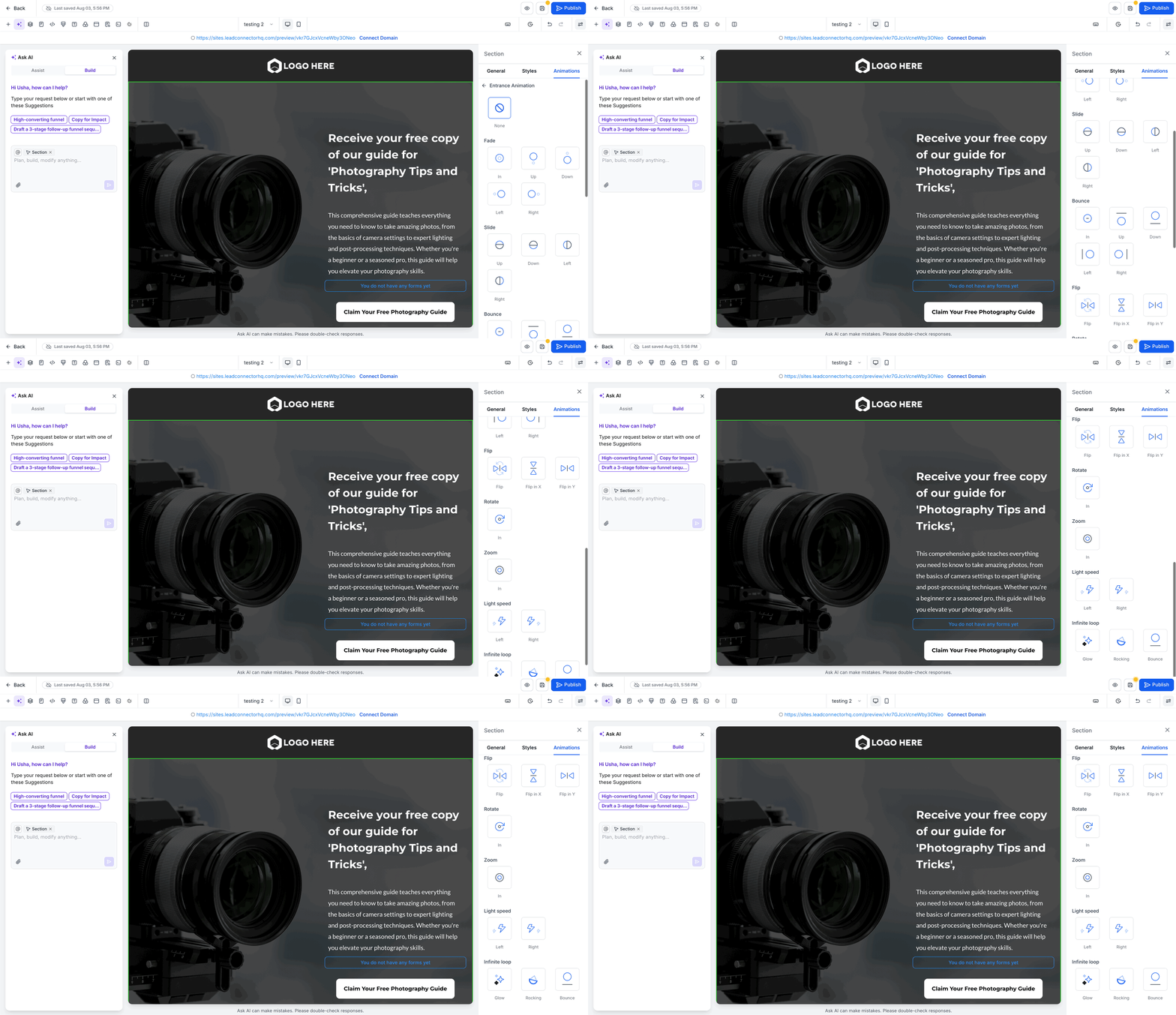
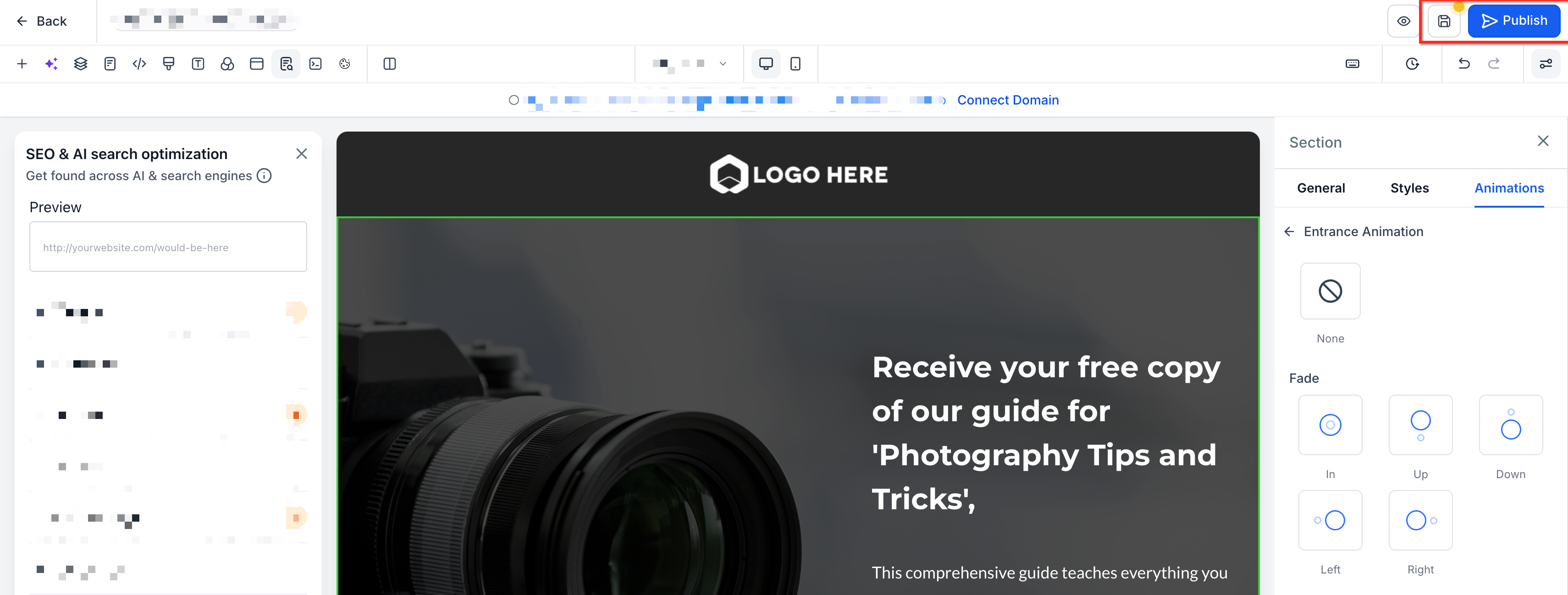
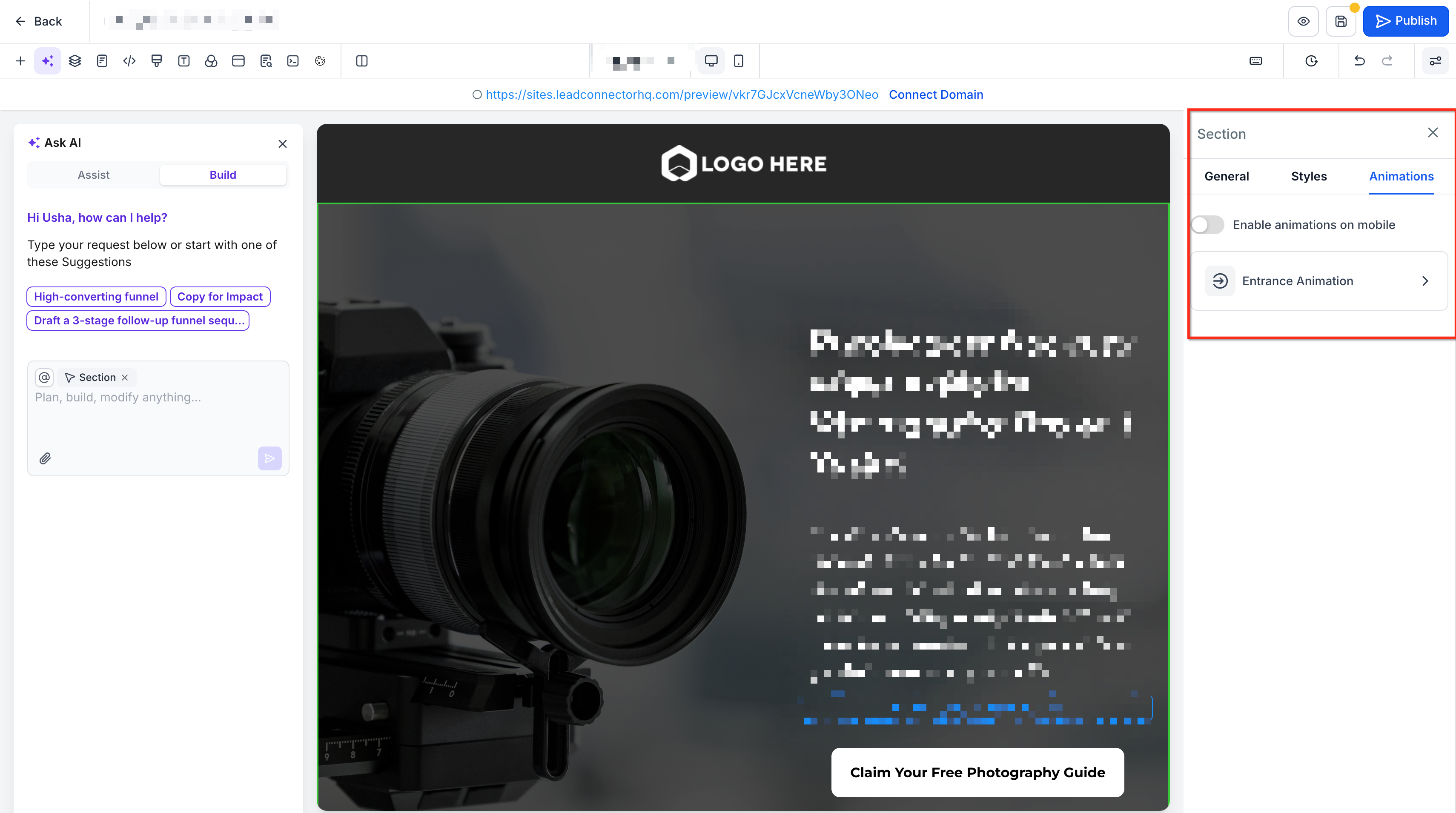
These controls appear in the right hand sidebar under the Animations tab. A preview plays right away when you hover over an animation card, so you can compare choices before applying them. By default, animations are turned off on mobile devices, but you can enable them per block with a toggle.
The sequencing logic works on published pages as well; any new or reordered blocks are automatically inserted into the correct position without needing to resave the page.
03How businesses use entrance animations for sections, rows & columns
- Online fitness studio. Select the schedule Section, open the Animations tab, and apply a fade in effect. Adjust the duration to 0.8 s and leave the mobile toggle off so the schedule appears right away on phones.
- Real estate agency. Choose a Call to Action Column, preview a bounce in animation, set a 0.5 s delay, and enable the mobile toggle to let the animation run on smartphones as users scroll to the listings.
- SaaS landing page. Apply a slide up entrance to the hero Row, set the easing to ease out, and keep the mobile toggle off to ensure a fast first view experience on small screens.
04The numbers and rules that matter
- Duration range: 0.1s to 3s.
- Delay range: 0s to 5s.
- Scale range: 0.5× to 2×.
05How to set up and use entrance animations for sections, rows & columns in HighLevel
Apply entrance animation to a layout block
- Click on the Section, Row, or Column you want to animate so it shows a bounding box.
- In the right hand sidebar, select the Animations tab and expand the Entrance Animation area.
- Hover over any animation card; the block animates on the canvas for a quick preview.
- Click the desired animation card to assign it to the selected block.
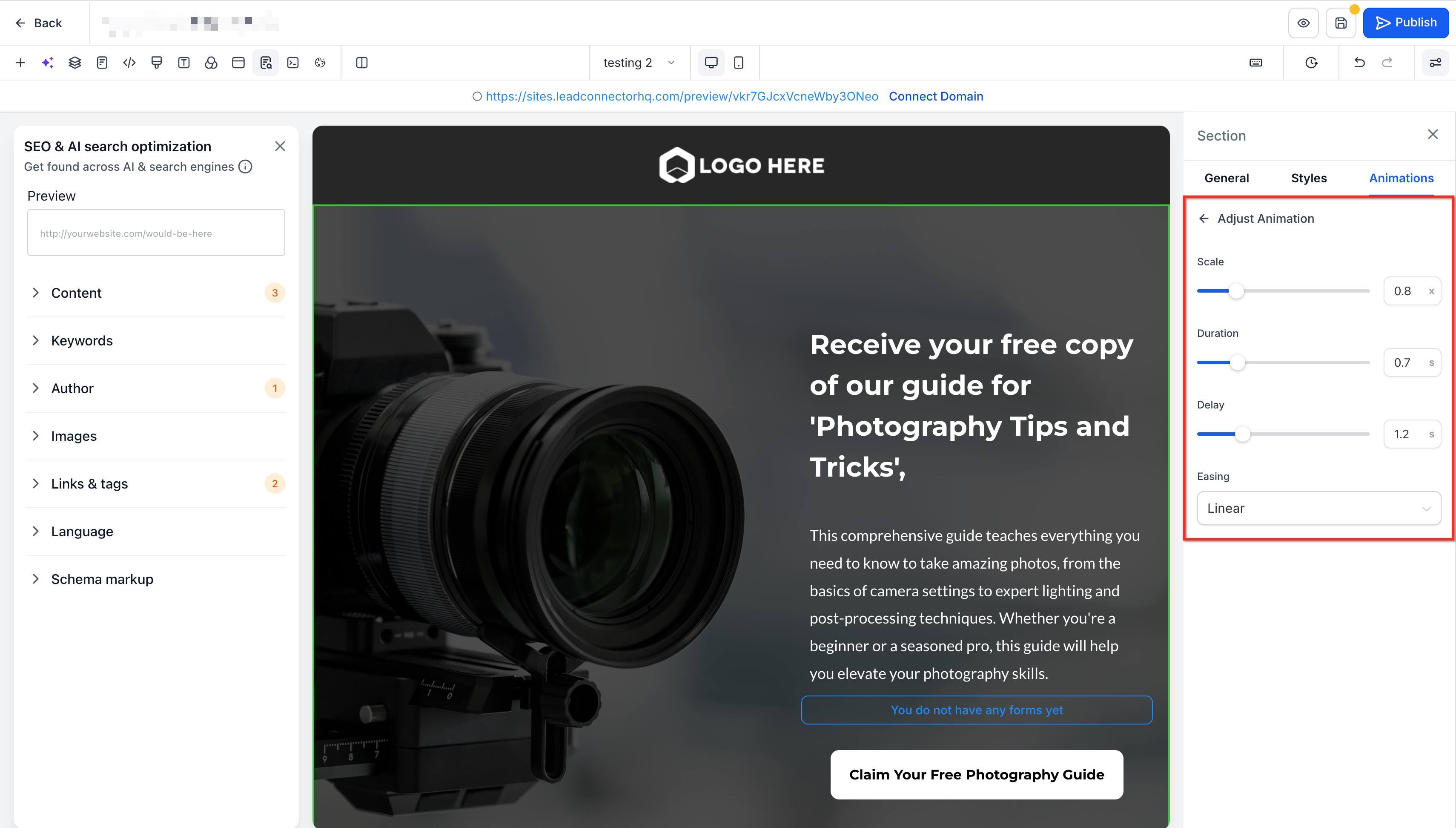
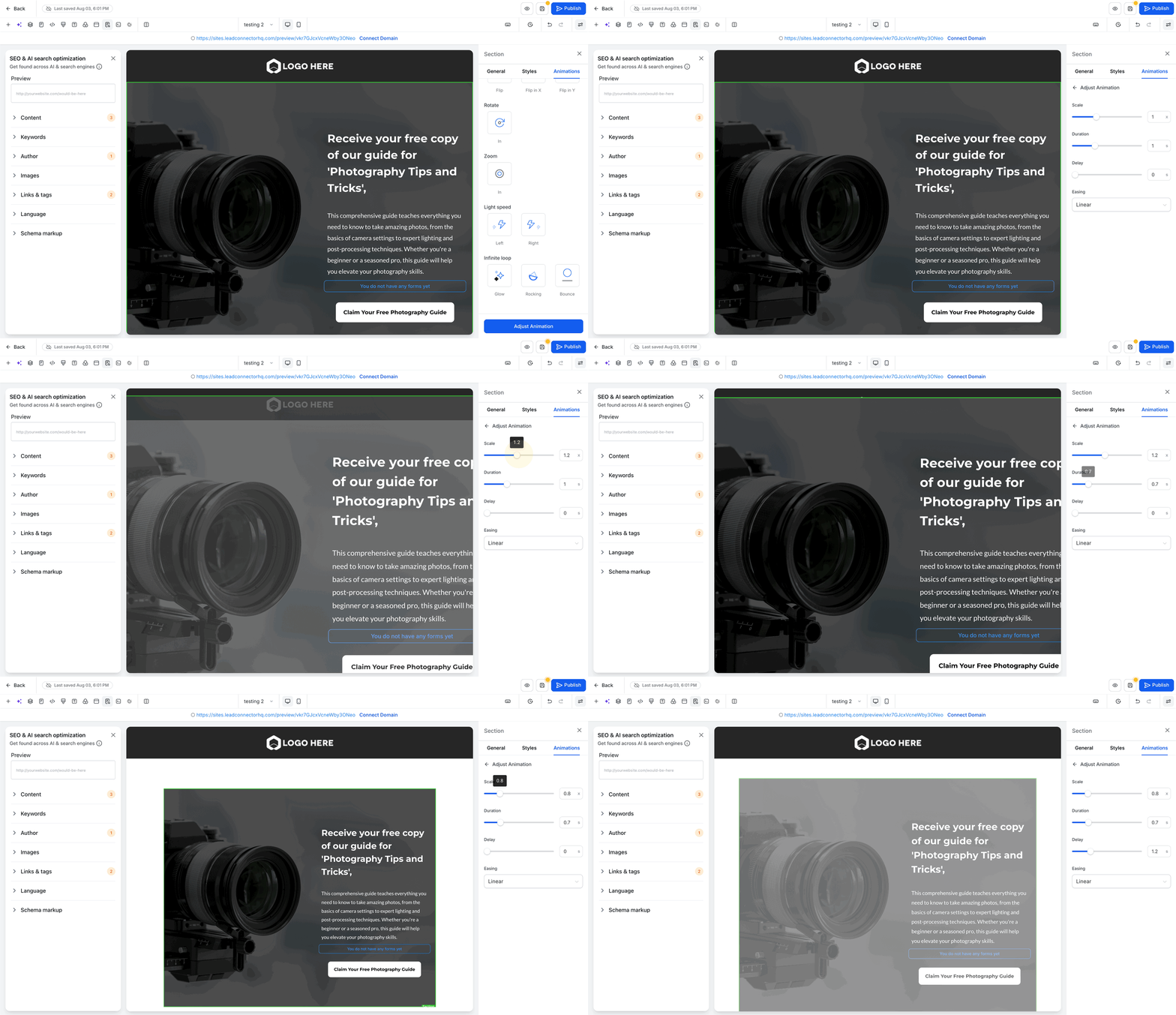
- Use the sliders and dropdowns to set Duration, Delay, Scale, and Easing as needed.
- Press Save at the top right, then publish the page so the animation runs for visitors.
06What it looks like in HighLevel
07Settings that matter
- Duration. Controls how long the animation runs from start to finish.
- Delay. Adds extra wait time before the block begins its animation, on top of the automatic sequencing delay.
- Scale. Sets the size multiplier for the block at the start of a zoom type animation.
- Easing. Determines the acceleration curve of the animation, such as linear or ease in out.
08Things to know before you rely on it
- Animations are turned off on mobile devices by default; you must enable them per block with the Enable animations on mobile toggle.
- Infinite Loop animations will repeat continuously after the initial entrance.
- Blocks remain visible after animating; they do not disappear while waiting.
- The sequencing logic automatically updates on published pages without requiring a re save.
09How it connects to the rest of HighLevel
- Explore all page building features in HighLevel All Sites features
- View HighLevel pricing and plan options HighLevel pricing and plans
- Start a free 30 day trial of HighLevel Start a 30 day HighLevel trial
Michael's take

Entrance animations feel like a small convenience that can quickly lift the look of a page. They let you add motion without writing CSS or hand tuning delays, and the automatic sequencing keeps the reveal smooth as you edit the layout.
I can see a boutique coaching site using this feature to animate each testimonial section as it scrolls into view, keeping the page lively on desktop while leaving mobile visitors with fast, static content.