
01Who this is for
- Founders who want to provide branded resources without redirecting traffic, keeping visitors inside the funnel.
- Marketers who need a simple way to share PDFs, videos or zip files from the site builder.
- Web designers who wish to add download capability to any button, image or SVG without writing code.
02Download file actions, explained
The feature adds a download trigger to any button, image or SVG in the HighLevel builder. When a visitor clicks the element, the selected file from the media library starts downloading immediately. No external URLs or redirects are involved.
The action is configured in the Settings panel of the chosen element. A file is selected from the media library, and a custom file name can be entered to appear in the visitor’s download dialog. The element remains on the page, preserving the funnel flow.
The Download File Action is part of the Sites toolset and is accessible while editing a website or funnel page in the HighLevel builder.
03How businesses use download file actions
- Online course provider. Select a "Download Course Outline" button, set the action to Download File, attach the PDF from the media library and give it a clear name. Learners click the button and receive the outline without leaving the sales page.
- Real estate agency. Add a property image that triggers a ZIP file containing floor plans and brochures. In the image Settings, choose Download File, pick the ZIP from the media library and label it with the property address. Prospects download the packet directly from the listing.
- Fitness studio. Create a "Download Workout Video" SVG icon. Set the SVG Action to Download File, upload the MP4 to the media library and set a name like "FullBodyWorkout.mp4". Members tap the icon and the video saves to their device.
04The numbers and rules that matter
- Single file per element.
- File size cap: Standard media library upload limits apply.
- Supported Elements: Buttons, Images, SVGs.
- Supported File Types: Any format accepted by the media picker (PDF, PNG/JPG, MP3, MP4, DOCX, XLSX, ZIP, etc.).
05Before you start
- The file must be stored in the HighLevel media library.
- Only one file can be linked to a single element.
06How to set up and use download file actions in HighLevel
Set up download file action
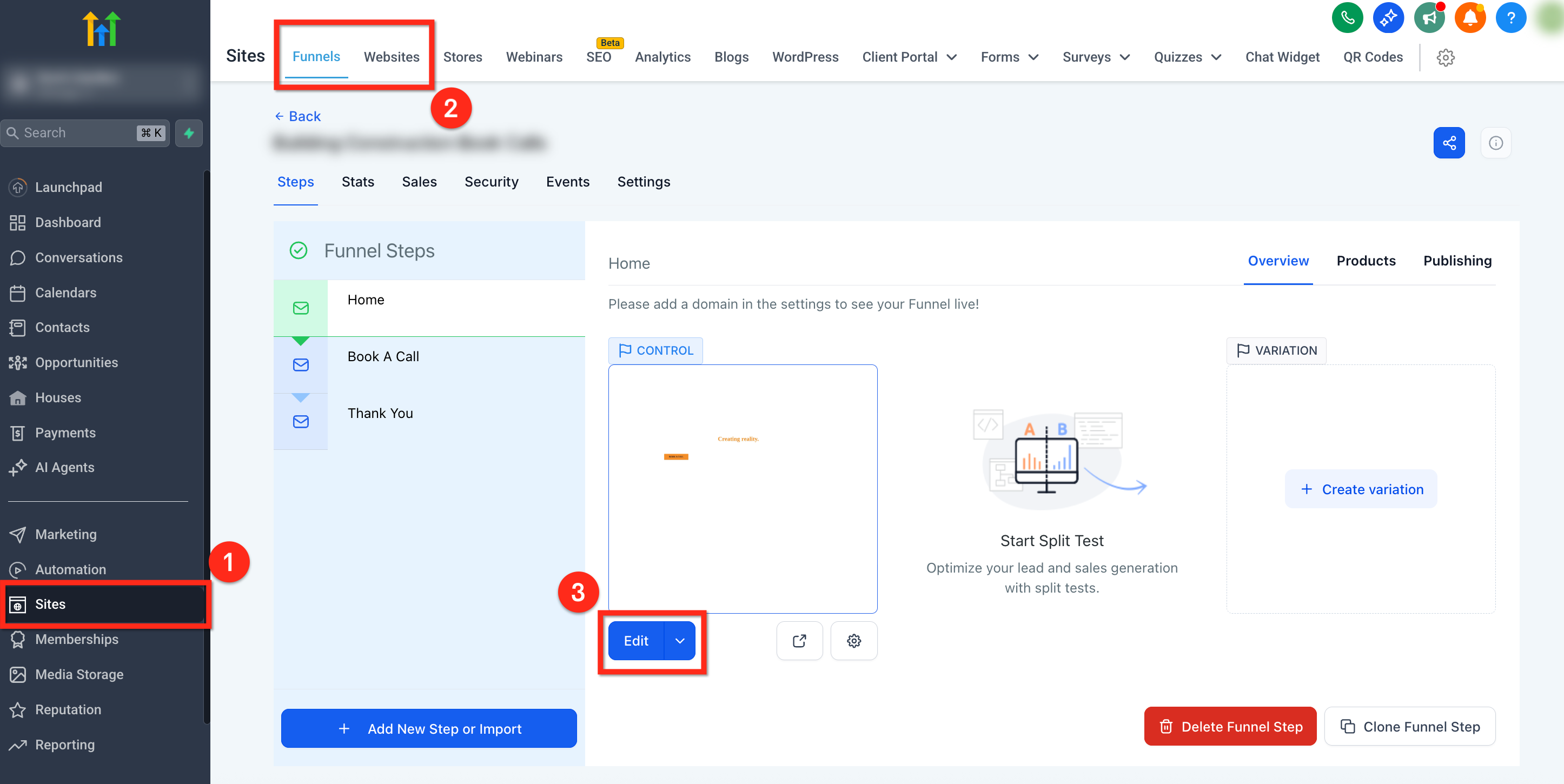
- Open the Sites area from the left navigation.
- Select the Websites or Funnels tab.
- Choose the website or funnel and open the page you want to edit.
- Click the button, image or SVG you wish to make downloadable.
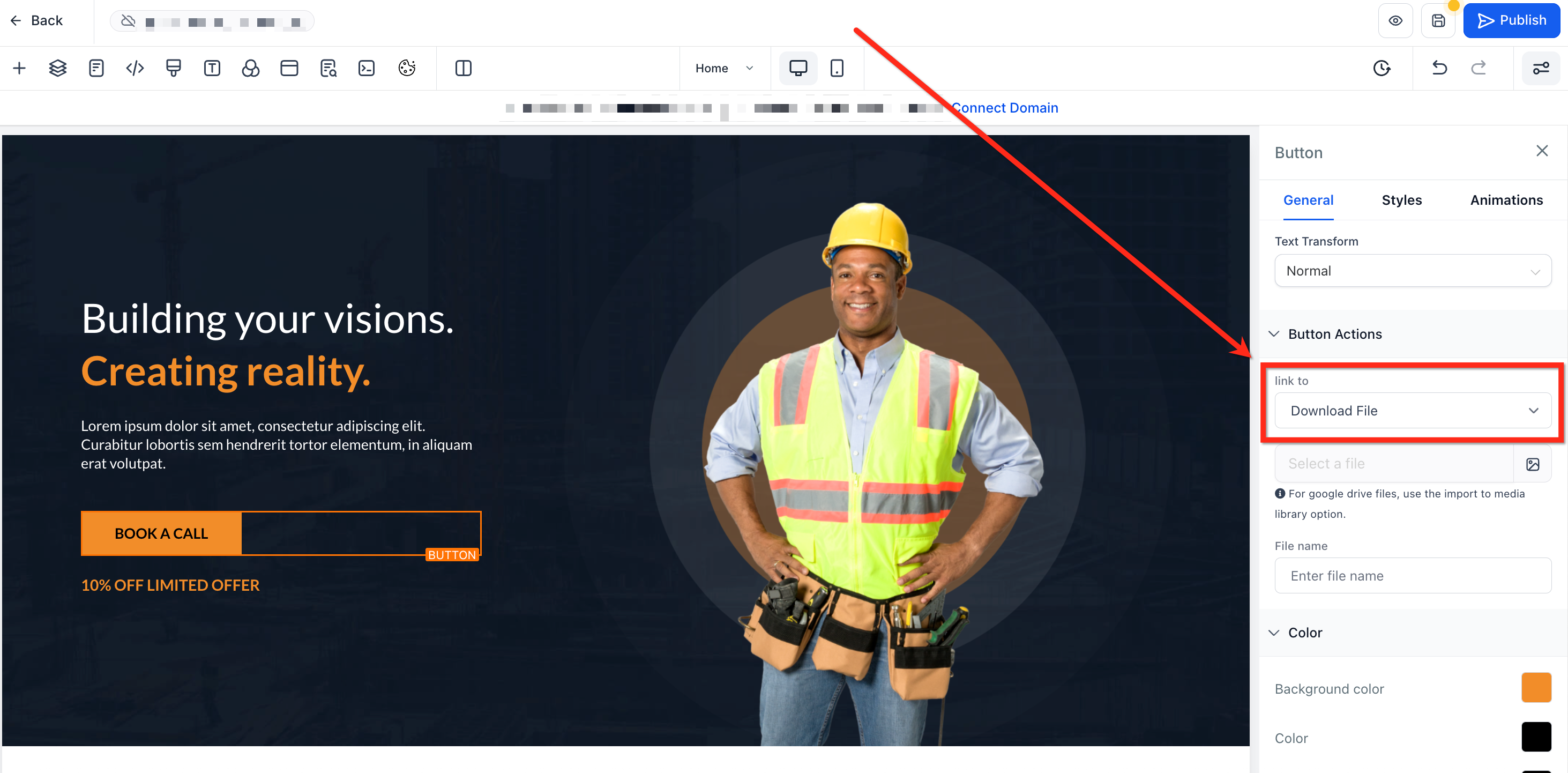
- In the Settings panel, change the action dropdown to Download File.
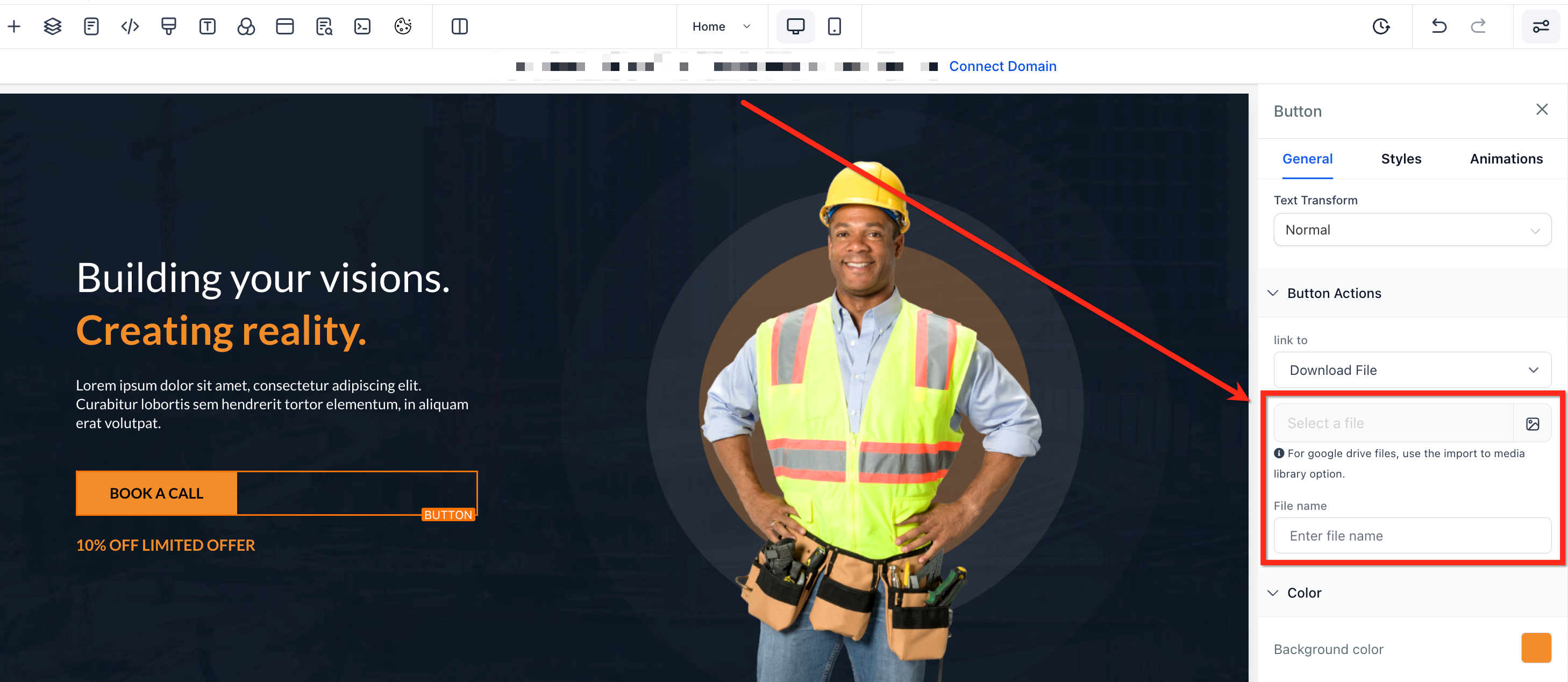
- Click Select File, then pick or upload the asset from the media library.
- Enter a custom file name in the File Name field and save the page.
07What it looks like in HighLevel
08Settings that matter
- Button Actions, Link To. Determines the behavior of a button; selecting Download File enables direct download.
- Image Action. Sets the click action for an image; choosing Download File links the image to a file.
- SVG Action. Assigns the click behavior for an SVG element; selecting Download File triggers a file download.
- File Name. Specifies the name shown to the user when the file is saved.
09Things to know before you rely on it
- Only one file can be attached to each element.
- The file must be stored in the HighLevel media library.
- Standard media library upload size limits apply.
- Supported elements are buttons, images and SVGs.
- Any file type accepted by the media picker can be used.
10If something goes wrong
- Nothing happens on click. Verify the Download File action is selected and a file is attached.
- 404 or broken link. Check that the asset still exists in the media library and the URL is unchanged.
- File stalls during download. Confirm the file size is within media library limits and compress if needed.
- Need multiple files. Combine the files into a single ZIP and link that archive.
11How it connects to the rest of HighLevel
- Explore all capabilities of the Sites tool where the download action resides. All Sites features
- Review plan details to see if the Download File Action is included in your subscription. Pricing
- Start a free trial to test the download feature on your own pages. 30 day trial
Michael's take

Great for anyone who wants a clean, one click download without extra steps. Small teams that don’t need complex multifile delivery can skip it.